Improve
Updates for Rock 18.1
Below is a summary of the updates for this version.
- Group Placement provides a flexible tool for sorting individuals into groups, accessible from the Group Viewer or a standalone block, with features like drag-and-drop, multi-select, and URL query strings for streamlined group management.
Updates for Rock 1.0
No updates made.Updates for Rock 2.0
No updates made.Updates for Rock 3.0
Below is a summary of the updates for this version.
-
Added reference to the new group schedule options and exclusion dates
for group types.
- Added group attendance and reminders features.
- Added a group leader toolbox that are customizable with Lava.
- Added group finder and registration blocks.
- Added information on the new security settings for group member roles.
- Expanded the discussion of Group Member Roles.
Updates for Rock 4.0
Below is a summary of the updates for this version.
- New chapter on the various service jobs related to groups.
- Add tips for using the new features built into the group finder.
- Documented the new Group Member Add from URL block.
- New chapter on automatically syncing groups.
- Documented the new Group Following features.
- Additional information on Group Members including Group Member Workflows.
- Added information on the new Alternate Placements features.
- New chapter on Group Requirements.
- Added a note to filter on Did Attend when reporting.
Updates for Rock 5.0
Below is a summary of the updates for this version.
- Added new Inherited Permissions section in Securing Groups
- Documented a new setting on the Group Sync job that requires a person to reset their password
on first login if enabled (default is disabled).
- Added details on the new group tree features.
- Documented the new group capacity features.
Updates for Rock 6.0
Below is a summary of the updates for this version.
- New group type setting that will require all groups of that type to have a campus set.
- Documented new group type settings that will require a location/schedule when entering attendance for a group of that type.
- Added information on the new digital signitures feature and how it interacts with groups.
Updates for Rock 7.0
Below is a summary of the updates for this version.
- Documented the change in how group requirements notifications are sent.
- Updated Group Requirements section to include Applying Group Requirements to Group Types.
- Updated Group Type screenshots to include Group Requirements.
- Added Fundraising Progress documentation to Fundraising Groups section.
- Added Show Marital Status option to Advanced Group Type Settings table in the Group Types chapter.
- Added Rapid Attendance Entry section to the Group Attendance chapter.
- Added "Manage Members" security action information in the Securing A Group section of the Securing Groups chapter.
Updates for Rock 8.0
Below is a summary of the updates for this version.
- Clarified the Sync Data View callout in the Group Sync Settings screenshot.
- Updated the Group Sync Settings screenshot in the Group Sync chapter.
- Updated the Group Sync chapter with new options and settings.
- Added Group History chapter.
Updates for Rock 9.0
Below is a summary of the updates for this version.
- Added "Show Administrator" to common group type settings
- Added the Group Scheduler Chapter
- Updated Group Type screenshot
Updates for Rock 10.0
Below is a summary of the updates for this version.
- Added details to describe single-campus behavior
- Updated to include Group RSVP features and settings
Updates for Rock 11.0
Below is a summary of the updates for this version.
- Added the ability to opt individual groups out of scheduling or the Schedule Toolbox
- The frequency of Group Sync can now be set for each group individually
- Added option to stop accepting group fundraising donations after a chosen date
Updates for Rock 12.0
Below is a summary of the updates for this version.
- Financial transactions can be transferred from one fundraising opportunity to another when the participant is moved to the new group
- Updated the Group Scheduler to support scheduling more than one group at a time
- Added Group Scheduler Roster and Group Schedule Communication blocks for Group Scheduling
- Added a new "Attendance Types" Defined Type to classify an attendance occurrence as physical (in-person) or virtual (online)
Updates for Rock 13.0
Below is a summary of the updates for this version.
- Scheduling Confirmation and Scheduling Reminder communications can now be sent via email or SMS message
- New Group Attendance Reporting job will create and populate person attributes to track group attendance data
Updates for Rock 14.0
Below is a summary of the updates for this version.
-
A new Group Type setting lets you require capacities for
groups of that type when a Group Capacity Rule of Hard or
Soft has been set
-
A new template for the Scheduling Confirmation Email
allows the recipient to 'Accept All' or 'Decline All'
-
Participation in Fundraising Groups can now be
for either an individual or a family
-
Enhancements to group requirements, including the
ability to set due dates and launch workflows
-
A Quick Communication can be sent to individual
group members
-
Scheduling preferences for serving teams can be edited
on the Group Member Detail page
-
The new Auto Accept option on the Group Type allows group scheduling
assignments to be automatically accepted as soon as the person is
scheduled
Updates for Rock 15.0
Below is a summary of the updates for this version.
-
The Group Attendance Detail block has an updated look and feel
-
The Send Group Attendance Reminders system job sends attendance
reminders to group leaders across multiple group types
Updates for Rock 16.0
Below is a summary of the updates for this version.
- Individual groups can be manually synced on demand
- The Search feature lets you quickly find people when making assignments in the Group Scheduler
Updates for Rock 17.0
Below is a summary of the updates for this version.
- Group Copy functionality now includes related entities and (optionally) child groups
- Individual groups can be excluded from receiving attendance reminders
- Confirmed schedule assignments can be cancelled and declined assignments can be accepted
Overview
Groups are used whenever two or more are gathered. You'll find groups to be
simple but incredibly powerful. Rock comes pre-configured with several types
of groups, including:
-
Families: Each family is stored as a group. This is incredibly
powerful because families get the same power and functionality as any
other Group Type.
In the beginning you'll want to leave families configured just the way you found them.
As you create new Group Types
and gain more experience with groups, keep in mind that you can add new attributes and
additional functionality to the family Group Type.
-
Security Roles: These groups help secure Rock data. While you'll
use these groups a majority of the time for security, you'll soon discover that any group
in Rock can act as a security role.
-
Check-in Groups: Rock's check-in features use groups to store the locations where kids
can check in, and to track attendance.
-
Serving Teams: While we have big ideas for how serving teams will work in the future,
we have configured a simple group type to get you started with tracking your groups.
-
General Groups: It's likely that you'll be creating several groups that don't warrant
their own specific Group Type. In these cases, feel free to create them as 'General Groups'.
-
Application Groups: Rock needs to keep track of various lists of people. For instance, people
who have opted out of getting future photo requests. These 'lists of people' are stored as
Application Groups.
Application groups can be viewed/managed under
Admin Tools > Settings > System > Application Groups.
-
Small Groups: We've added a generic Small Group group type.
Feel free to use this as a base to build from if your church has a groups ministry.
-
Small Group Sections: This group type works in conjunction with the
Small Group type and acts
as a leadership level to provide hierarchy for your groups. Again, feel free to use this type as a launching point for
getting started.
Searching for Groups
As you add more and more groups to Rock, it may be tedious to locate a specific group.
Never fear, you can use the Smart Search
at the top of each page to help find the specific group you are looking for.
Smart Search
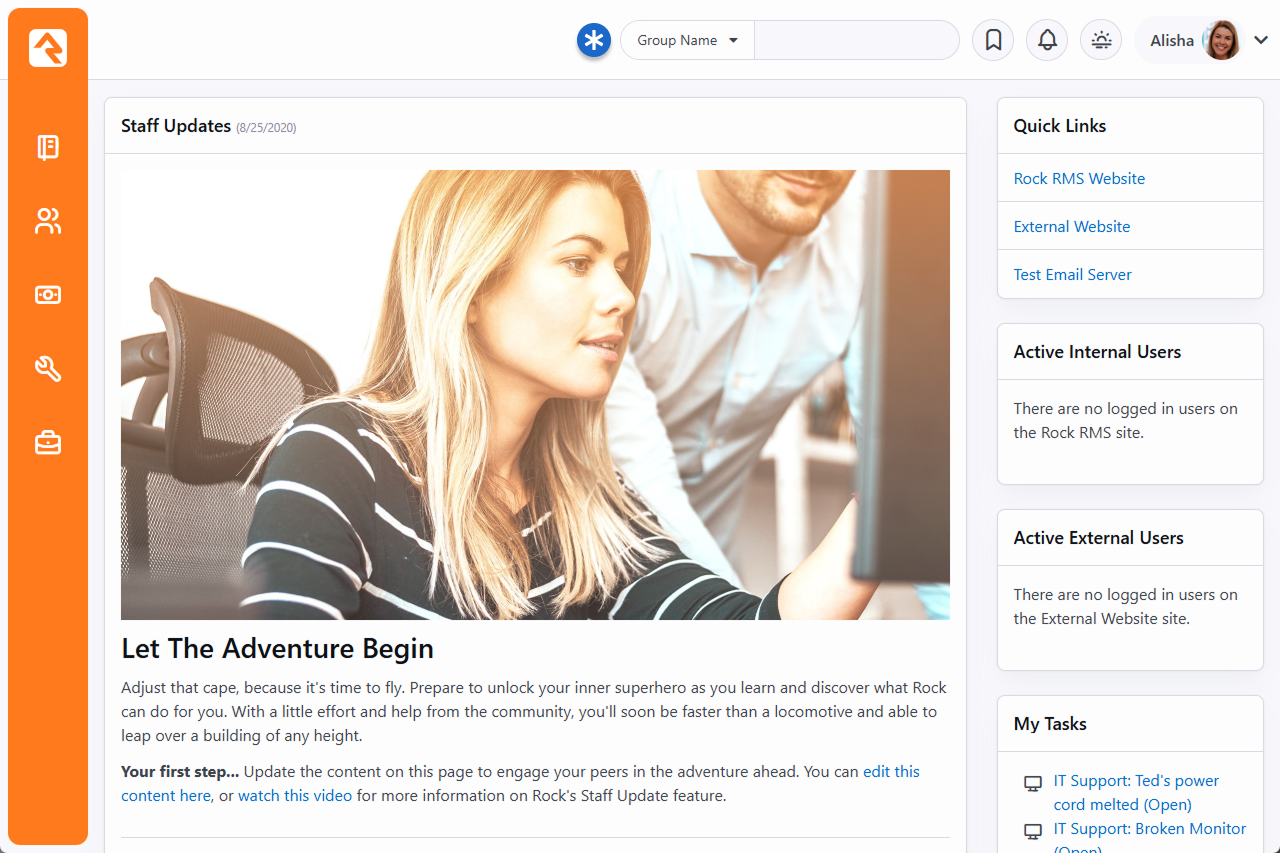
Be sure to choose the Group Name
option from the drop down and then enter the group name you are searching for. You don’t need to
enter the full group name, since the search will return any group that has the search term you entered.
Say you were looking for the Bible Study group that Ted Decker leads (named "Ted Decker's Bible Study Group").
Any of the searches below would be valid, although some may return several other groups in the results, as well.
- Decker
- Bible Study
- Ted Deck
If the search term you provide only matches a single group, you will be taken
directly to that group. However, if several groups match, you will have to select
one from the list of groups provided.
Group Viewer
The
Group Viewer page
can be accessed by navigating to
People > Group Viewer.
This is the primary page for viewing and editing groups. Below, we will discuss each
section of the group viewer in detail.
Group Viewer
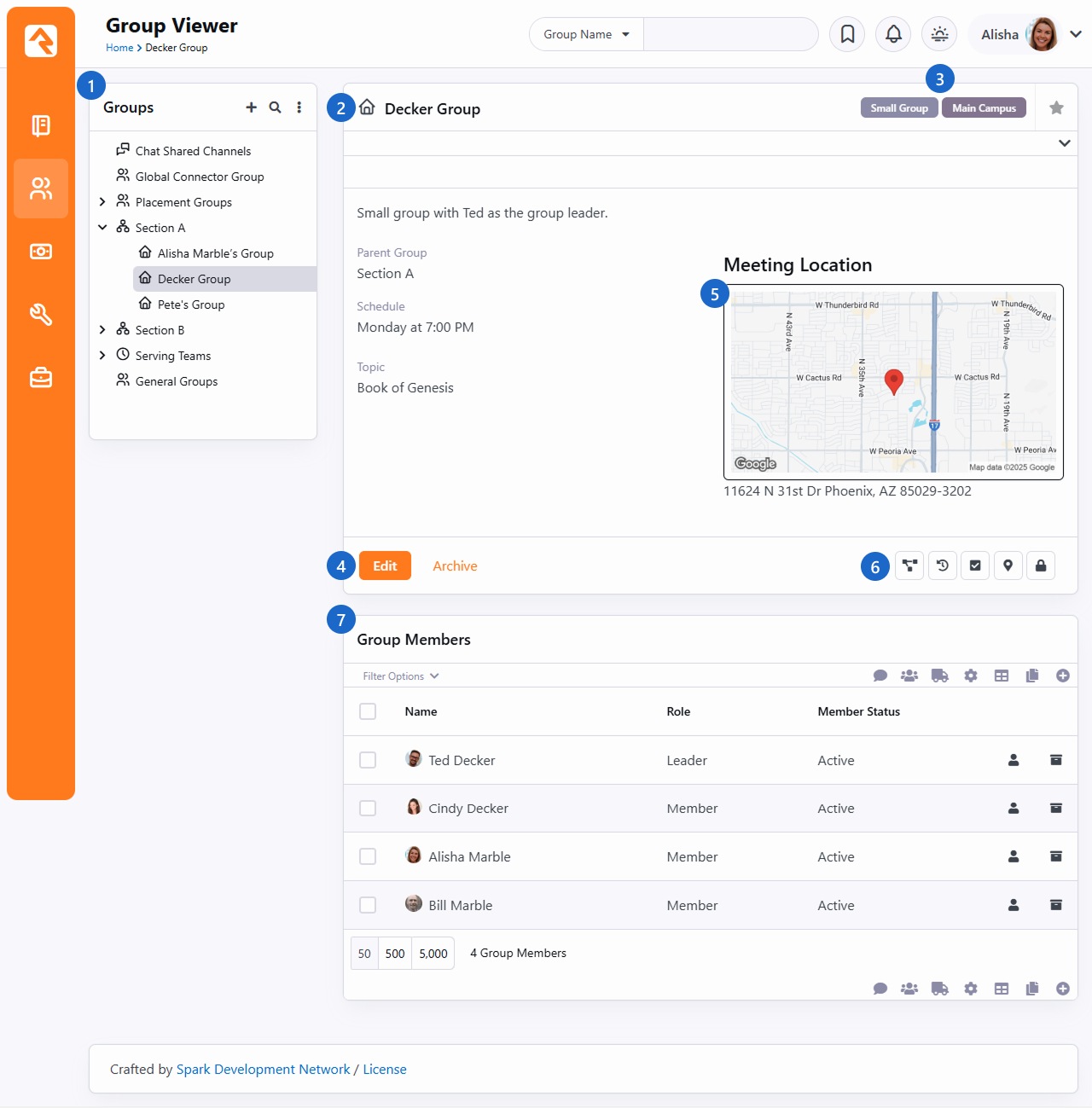
- 1Group Tree
- This control
allows you to drill down through your group hierarchies. You’ll want to
plan your hierarchies to achieve a good balanced approach. Too deep of a
hierarchy will lead to too many clicks to drill down. However, if your
hierarchy is too broad, then you will have to scan through long lists of
groups to find the one you want.
- 2Group Details
- Displays information about the group including adding tags.
- 3Group Labels & Following
- Clicking the Group Type label will take you directly to that
Group Type's page. Also, the
Campus displays here
if one has been assigned. To the right, you can
follow the group by clicking the star icon.
- 4Action Bar
- There are options to edit, archive or delete a group. Whether you see
Delete or
Archive
depends on Group History being enabled at the Group Type level.
If Group History is enabled but the
Archive button doesn't
appear, run the
Process Group History job.
- 5Group Maps
- The viewer will display maps for each group location that is able to be mapped. You
can click on the map to see a larger interactive map. You can also click on the map
marker button directly below the map to see the interactive map.
- 6Actions
-
Below the maps you'll find buttons for a few key actions.
- Takes you to the group RSVP List page (see Group RSVP).
- Takes you to the Group History page (see Group History).
- Allows you to manually enter attendance for the group.
- Takes to you an interactive map where you can view all the people who are members of the group.
- If enabled in the block's settings, this will create a copy of the group. The list of what gets copied is displayed before proceeding.
- Using the security button, you can control who has access to view and edit this specific group. See
the Securing Groups section below
for more information on how you can secure your groups.
- 7Group Members
- List of members inside the group. See the
Group Members chapter for more information.
The group view has a couple of other interesting features you should be aware of. Notice the icons at the top
of the "Groups" (Group Tree) block in the figure above. You can click the icon to add a new group,
or the icon to search for a group. Clicking the
icon will show you several advanced features in the tree view. Let's open it up and see what's inside:
Group Viewer
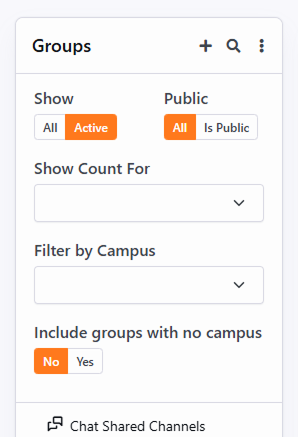
You'll notice:
- Show: This determines if inactive groups should be shown.
- Public: This determines if only groups marked 'Is Public' should be shown.
- Show Count For: The tree can also display counts of the number of members in the group, or the number of child groups a group has.
- Filter by Campus: This lets you narrow down the groups according to a campus you select.
- Include Groups With No Campus: If this is set to No then only groups with a campus will be shown.
Archived Groups
You can Archive a group instead of deleting it. Archiving removes the group from the Group
Viewer and other places where groups can be seen but allows you to restore it later. When a
group has been marked as Archived and you want to bring it back go to
Admin Tools > Settings > General > Archived Groups
and click on the icon to unarchive the group.
Note: If a group type has 'Enable Group History' checked, once the 'Process Group History' job
runs the 'Archive' button will be enabled on a group.
Group Maps
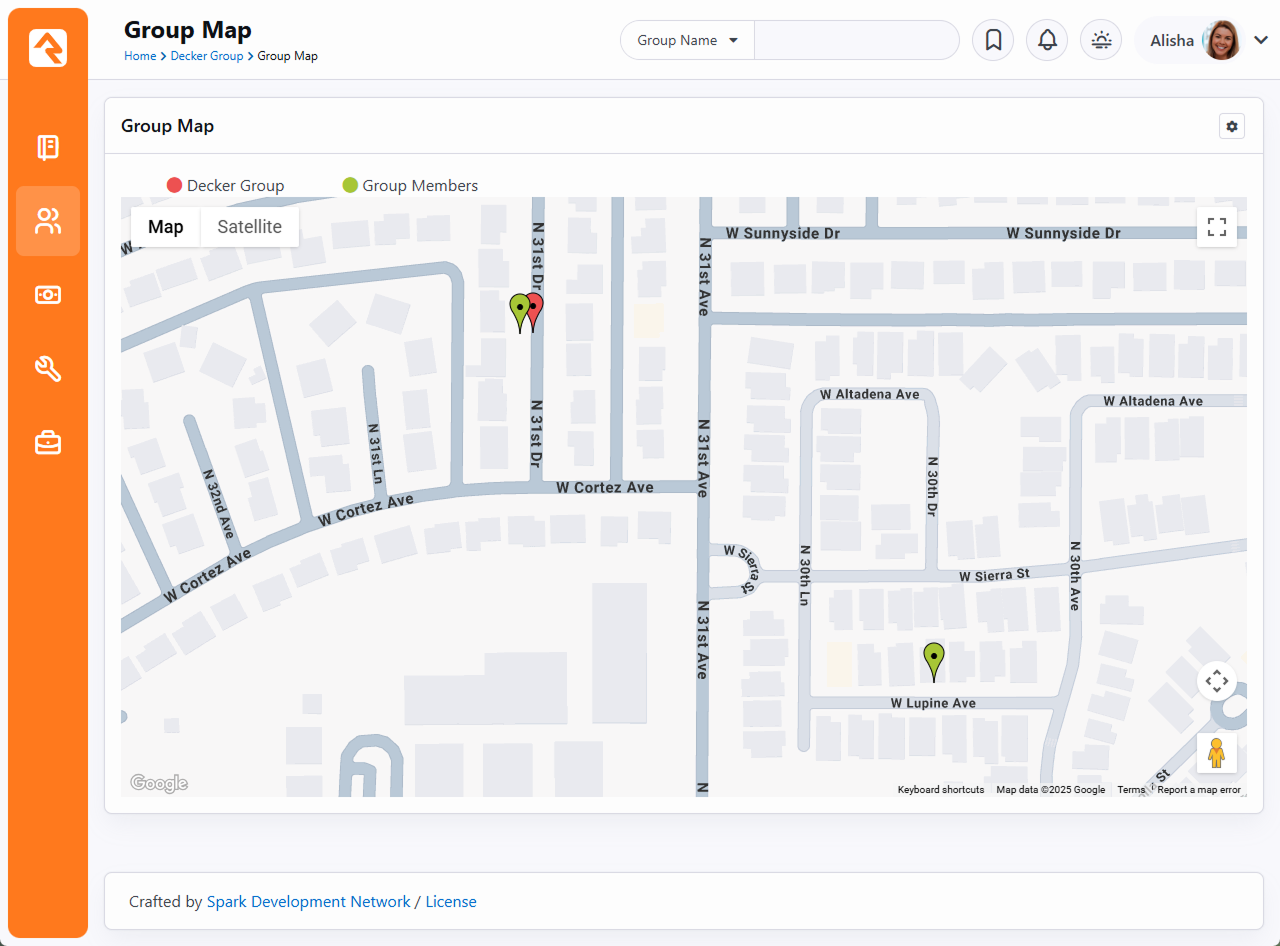
Clicking the map marker button will take you to an interactive group map showing the members of the
group. Depending on the configuration of the group other features may be enabled.
If the group has a geopoint (determined through the address geocoding process or by selecting the point on
the map) the location of the group will also be present on the map.
If the group has a defined geofence this fence will be shown on the map. The presence of the geofence will also
enable the display of connection status labels at the top of the map. Clicking these labels will show everyone
with that connection status in the database who lives within the geofence. This allows you to view possible
'prospect' group members.
Limiting The Display of Certain Connection Statuses
In order for a connection status to be displayed as a label, the status must be configured with a 'Color'
attribute. This helps determine the pin color for the map marker as well as acts as a global setting to help
determine which connection statuses should be mapped. You can set the color for a connection status under
Admin Tools > Settings > General > Defined Types >
Connection Status.
Along the top of the block, you can click the labels (e.g., Decker Group or Group Members)
to toggle the display of the group's location or member locations. In the example pictured below we're displaying
the location of the Decker Group and we clicked the Group Members label (with the green circle)
to show the locations of individual members.
Group Map
Adding a Group
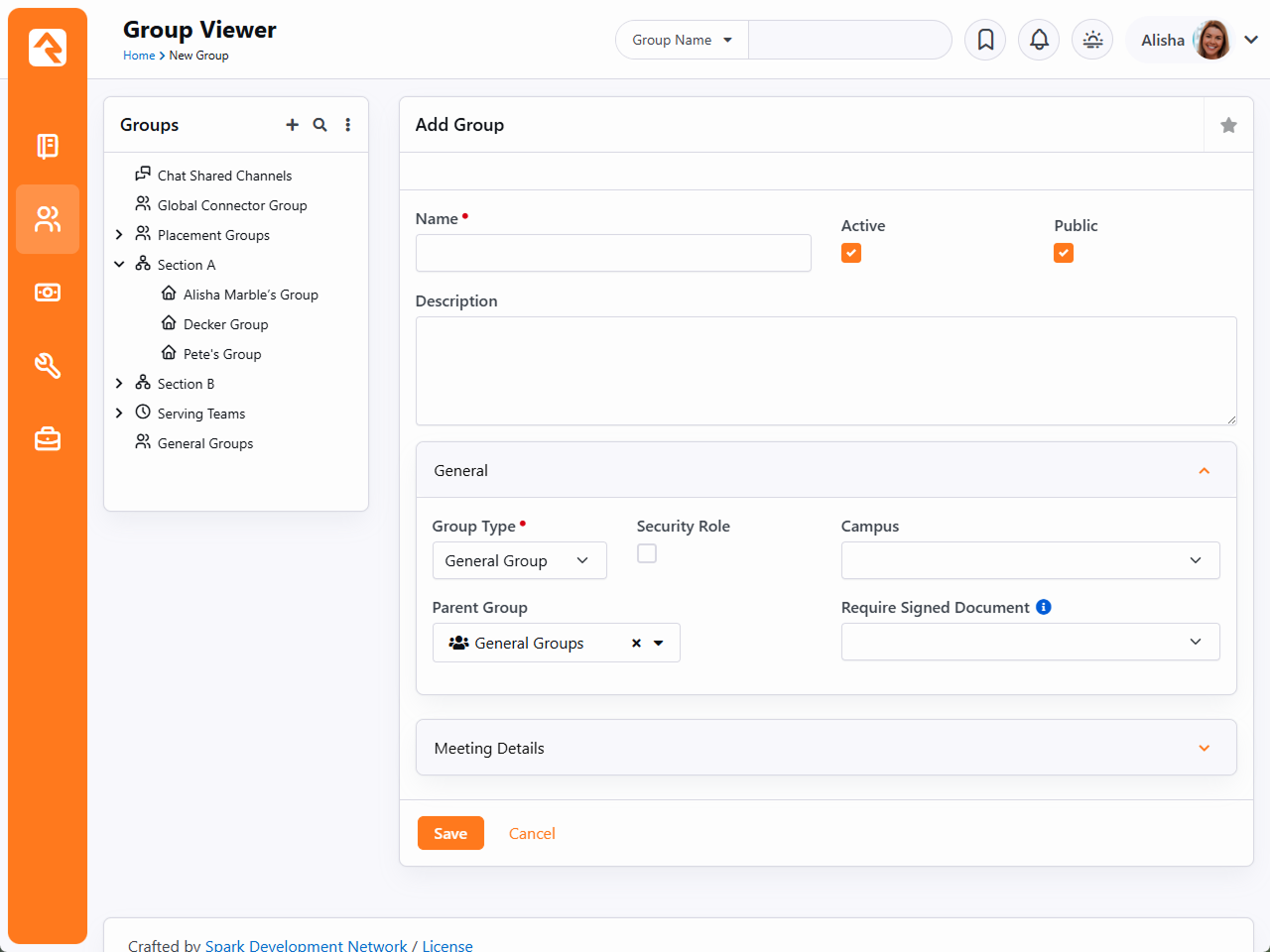
You can add a new group to the tree by clicking the
icon and then selecting the location from the list. Adding a group
using Add Top-Level
will place the group at the root or top of the tree. Selecting
Add Child to Selected
will place the group under the currently selected group.
Note
If you have a group selected but Add Child to Selected
is disabled, then this group type does not allow child groups.
See the
Group Types
section below for more on group hierarchies.
Adding a Group
Group Details
The group details section displays all of the information about the group.
The group type and campus (if configured) will be shown as labels in the
banner at the top. A map of the group’s location will also be shown, if
configured.
Editing a Group
Clicking the Edit button
from the detail section will allow you to edit information about the group and provide
additional configuration settings.
The key features of the edit screen are discussed below.
Editing a Group
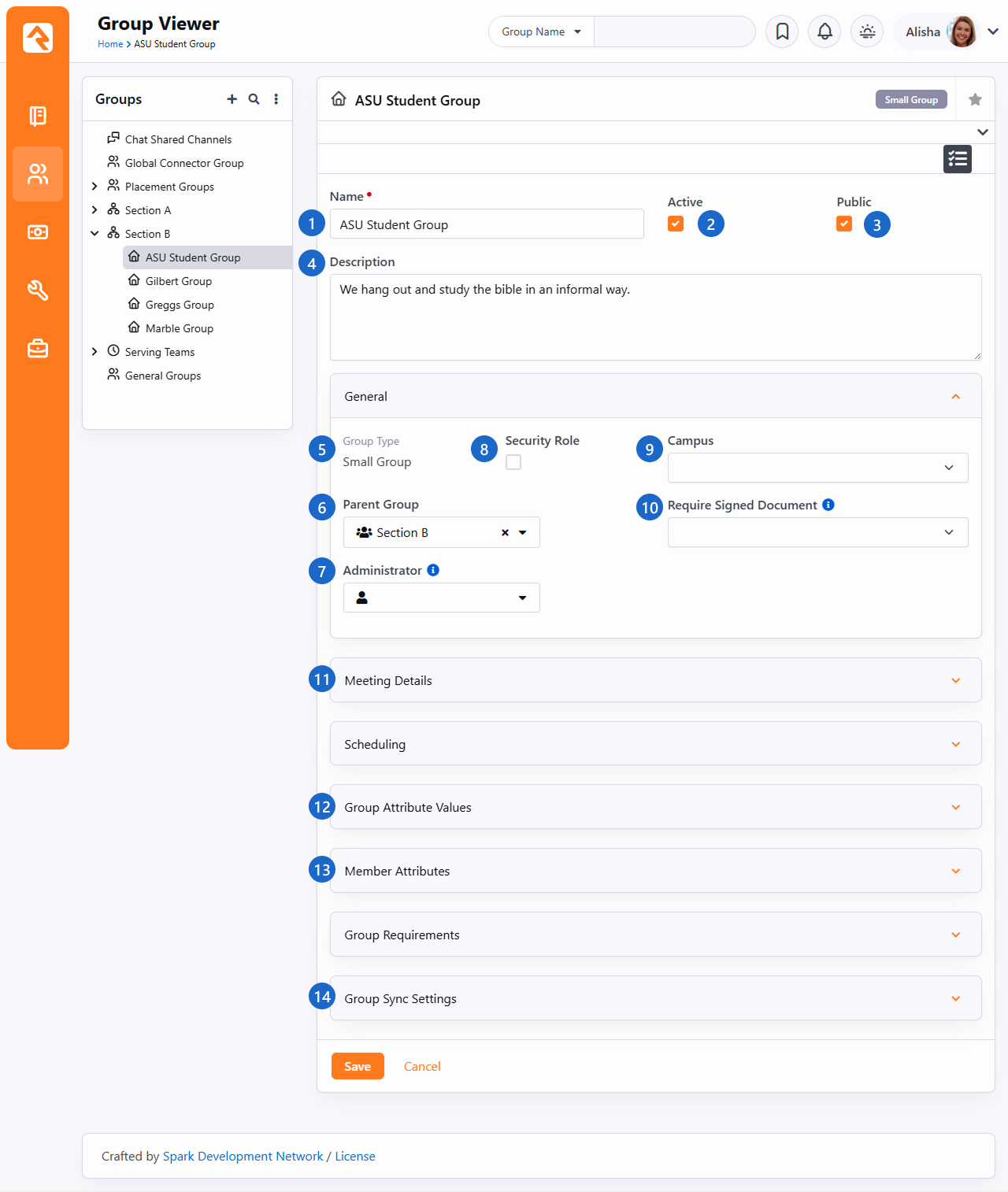
- 1 Name
- Update this field to change the name of the group.
- 2 Active
- You can inactivate the group by deselecting this checkbox.
See Inactivating a Group
for additional details.
- 3 Public
- Only groups that are marked as Public can be viewed in the
Group Finder.
- 4 Description
- Providing a good description for the group lets people know what the
group is all about.
- 5 Group Type
- Changing the group type of an existing group is possible, but it does
have some consequences. All group attribute data for the group will be
lost if the group type is changed.
- 6 Parent Group
- Changing this will move the group to a new parent in the hierarchy.
Removing a parent group will move the group to the root or top of the tree.
- 7 Administrator
- Select the individual who is responsible for administrating the group. This
will only appear if
Show Administrator
is enabled for the group type, and may be labeled differently
(e.g., Coordinator, Director) if an
Administrator Term
has been configured. Group administrators don't have the security privileges of Leaders,
and they aren't members of the group. Generally, this is only used for internal purposes
to identify who is responsible for the group from an organizational perspective without
having to add that individual to the group as a member.
- 8 Security Role
- This option will enable the group to operate as a security role. The members of the group
will be granted access to whatever privileges the group is granted.
- 9 Campus
- Providing an optional campus will link the group to a specific campus.
This isn’t shown if you have only one campus.
- 10 Require Signed Document
- This setting is only used if you have a legacy signature provider in place. If you're using
a legacy signature provider like SignNow, you'll need to transition to the native
electronic signature features in Rock soon. In a future release the
Require Signed Document
setting for groups will be going away entirely. For details on electronic signatures in
Rock check out the
Admin Hero Guide.
- 11 Meeting Details
- This area allows you to add locations and times based on the configuration provided through the group type.
- 12 Group Attribute Values
- Any group attributes values added by the group type will be available here for editing.
- 13 Member Attributes
- In this area, you can configure attributes to be assigned to each member of the group.
These attributes will be available for editing when adding or editing group members.
- 14 Group Member Workflows
- This section allows you to configure workflows that will be launched when specific events occur with group
members.
More Information Below
You may notice that we skipped over a few sections above.
Additional information on these areas is provided in later
chapters of this guide.
Inactivating a Group
If enabled in the Group Type settings,
you’ll be prompted to provide additional details after inactivating a group.
Inactivating a Group
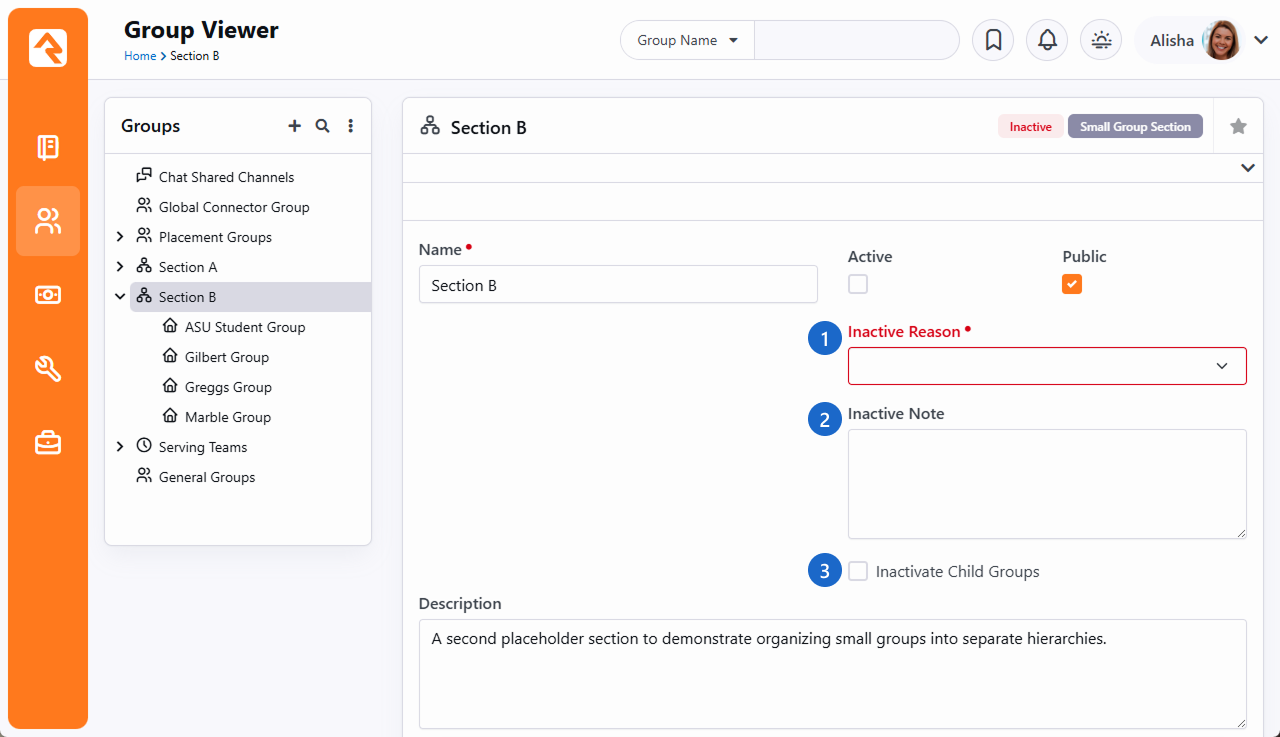
- 1 Inactive Reason
- Select a reason for inactivating the group. Depending on the
Group Type settings,
the Inactive Reason may be optional or required.
- 2 Inactive Note
- Additional details can be recorded here for future reference. For instance,
you might indicate why the group was made Inactive. Notes are optional,
even if a reason is required.
- 3 Inactivate Child Groups
- If there are child groups, you can choose whether to inactivate them also. You’ll
be given this option any time an inactivated group has child groups.
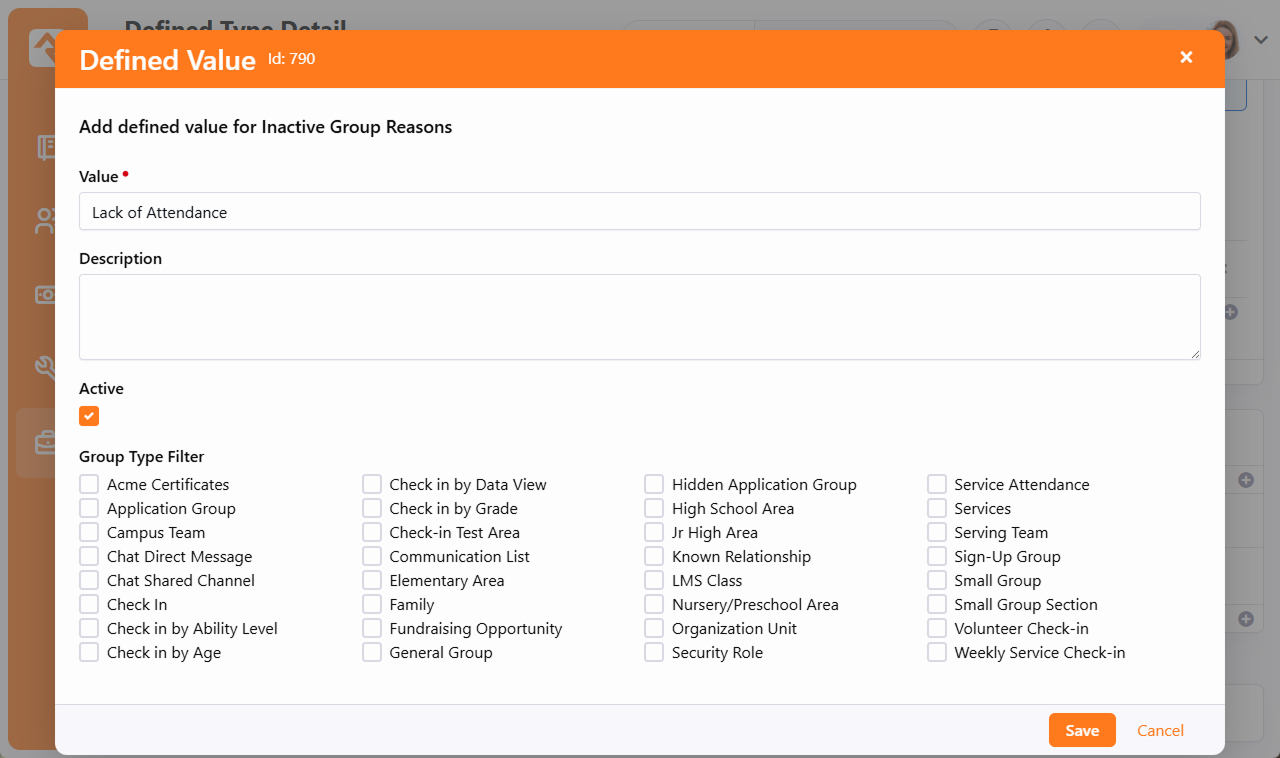
The list of Inactive Reasons is maintained under
Admin Tools > Settings > General > Defined Types > Inactive Group Reasons.
You can restrict which Group Types the reason can be applied to. If no Group Types are
selected, the reason can be used with groups of any type.
Inactive Group Reasons Defined Type
Group Types
As you start to customize Rock for your ministry, you'll want to define new
group types to match your various ministry areas (small groups, ministry groups, etc.)
Tip
Once you realize the power of group types, you’ll be tempted to start
creating many custom types to fit each of your ministries.
Don't do it! Resist this temptation at first. Less is more.
Look for common points within your many ministries. This will
help you reduce the number of group types that you’ll need. In general,
it’s easier to add new group types later than it is to merge group types
in the future.
Group Hierarchy
One of the most important concepts to understand as you create new group
types is the relationship that groups have to each other. There are two
basic hierarchy types to choose from:
-
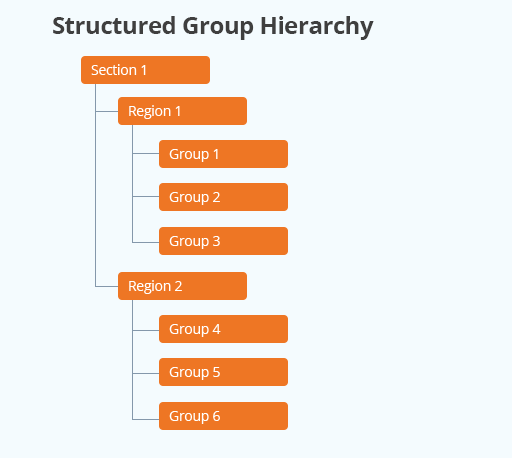
Structured Hierarchy: In this configuration,
the levels of hierarchy are defined and limited. For example,
you may want to define the hierarchy of your small group ministry
to have a single leadership team, under them a level of lay leaders
who act as coaches to the groups, and then the groups themselves.
In a structured hierarchy you can be sure that this structure is
enforced.
Example of Structured Group Hierarchy
-
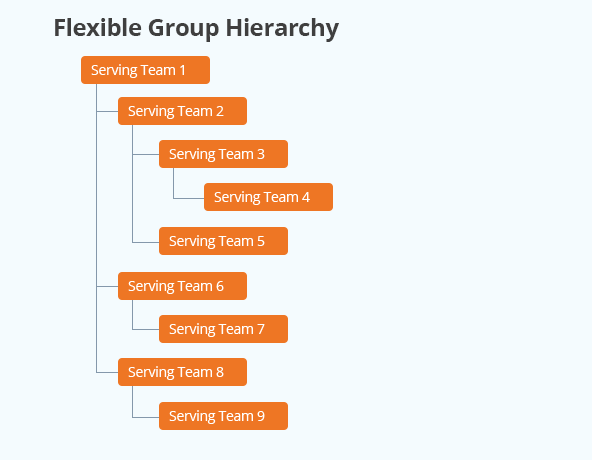
Flexible Hierarchy: For some ministry types,
you want your groups to have a more unstructured hierarchy.
An example of this might be how you set up serving teams. You may
want serving teams to be able to have sub-teams that might have additional
sub-teams themselves. These hierarchies may be very deep in some
ministry areas (like First Impressions) but shallow in others.
Example of Flexible Group Hierarchy
You define these hierarchies by configuring what child groups each group
type can have. In the structured example, you would create a group type
called Small Group Leadership,
which would allow child group types of Group Coaches,
which would allow child groups of Small Groups.
The Small Groups
would not allow any child types, ensuring that your hierarchy was fixed at the third level.
In the flexible hierarchy example, you would configure Serving Teams
to have child-types of itself. This guarantees that you can have an unlimited hierarchy.
Administering Group Types
You administrate group types under Admin Tools > Settings > General > Group Types.
When adding or modifying a group type there are many areas of configuration, as pictured below:
Group Type Editor
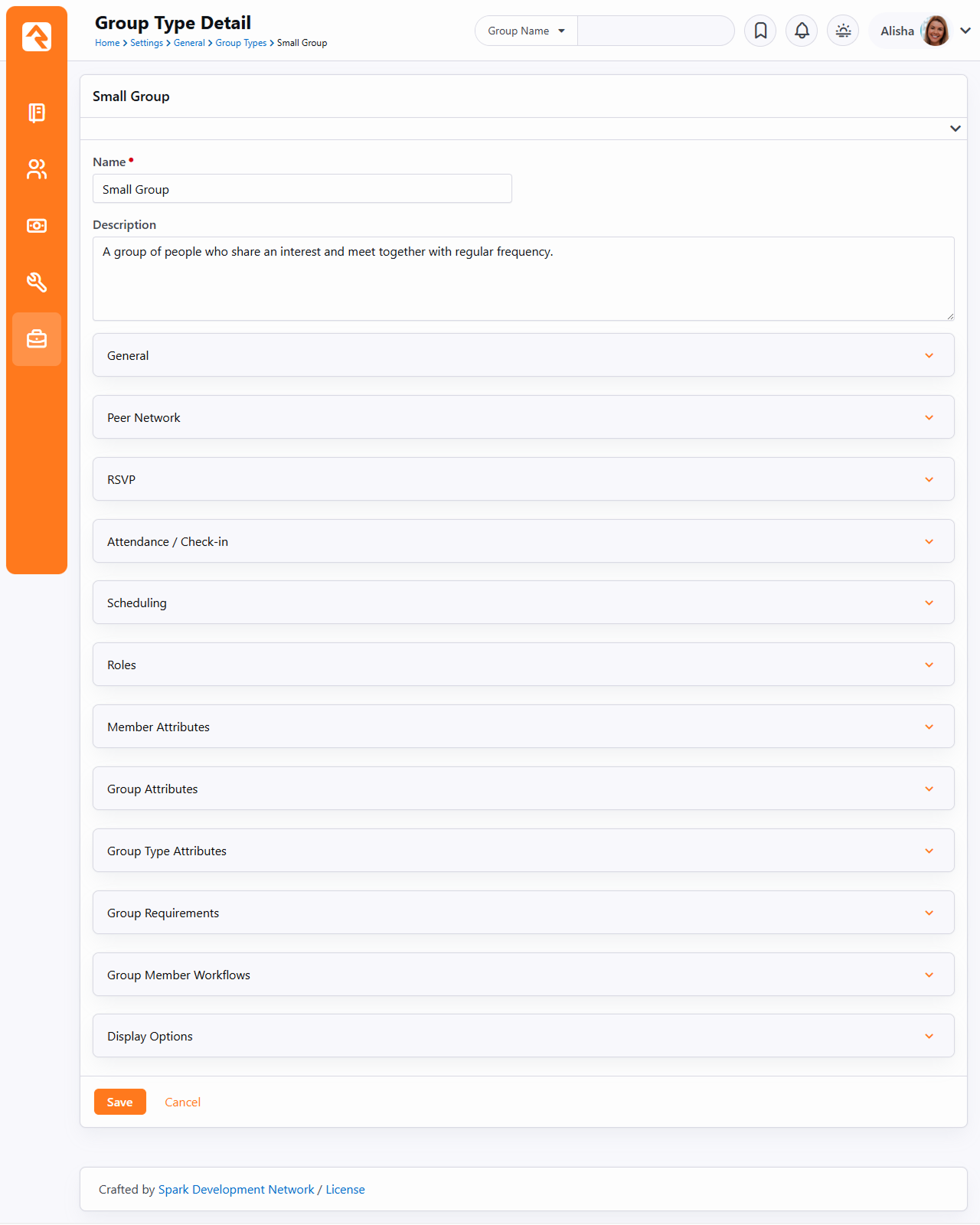
Let's look at the different Group Types settings you can configure in the Group Type Detail block.
Show/Hide Group Type Settings
The following Group Type settings, located in the General section of the Group Type Detail block, control which panels and options should be shown or hidden in that block.
| Setting |
Description |
| Allow Specific Group Member Attributes |
Determines if individual groups of this type are allowed to have their own group member attributes. If selected, the Member Attributes section will be shown when editing the group. |
| Enable Specific Group Requirements |
Determines if the Group Requirements section will be shown on the Group Details block. |
| Allow Group Sync |
Determines if groups of this type are allowed to have Group Syncs. This will show/hide the Group Sync Settings section. If a group of this type already has group syncs, they will be kept. Unchecking this box will not prevent them from running. |
| Allow Specific Group Member Workflows |
Determines if groups of this type should be allowed to have Group Member Workflows. If
selected, the Group Member Workflows section will be shown. |
Common Group Type Settings
| Setting |
Description |
Example |
| Group Term |
This is what Rock will use to describe the group on the various screens. |
Group, Family, Event, Team |
| Group Member Term |
This is what Rock will use to describe the people in the groups on the various screens. |
Member, Individual, Participant |
| Roles |
Roles describe the relationship of the individual to the group. Are they a leader? Or just a member? |
Leader, Member, Prospect |
| Default Group Role |
The default role to use when someone is added to the group. |
Selection of one of the roles defined for the group, like Member. |
| Allowed Child Group Types |
As we discussed above, child group types help determine the hierarchy of the group tree.
This tells Rock what kind of groups can be added as children of the current group. |
Serving Teams may allow Child Serving Teams |
| Location Types |
The types of locations that can be assigned to the group. |
Meeting Location |
| Location Selection Modes |
Determines how locations should be selected in Location Picker. |
The following options are available:
-
Named - Allows you to pick from named locations that have been defined
under Admin Tools > Settings > General > Named Locations.
-
Address - Allows the input of a new street address for the location.
-
Point - Displays a map that allows for the selection of a specific latitude/longitude point.
-
Geo-fence - Also displays a map that allows for drawing a polygon shape to use as a geo-fence.
-
Group Member Address - Lists all of the addresses associated with the members of the group. Note that
if the address of the group member changes the meeting location will not be automatically updated to this
new address.
|
| Multiple Locations |
Determines if the group can have multiple locations. |
True/False |
| Group Attributes |
The custom attributes that each group will have. When adding new Group attributes,
the explicit authorizations from the Group Type are copied over to the Group attribute.
|
Meeting Day, Meeting Time, Topic of Study |
| Member Attributes |
The custom attributes that each group member will have. |
Hours Per Week Serving, Assigned Bus |
| Group Capacity Rule |
Rock allows you to set individual capacities for groups. This configuration setting determines how the capacity should be
enforced. If Hard or
Soft is chosen, you'll get the option to make
capacities required for all groups of this type. |
The following options are available:
- None - This disables the group capacity features.
- Hard - This places a hard limit on the capacity. Once the capacity is reached no additional group members can be added.
- Soft - The soft option will warn you when adding a member that is over the group's capacity, but still allows you to add them.
This warning only appears in the Group Toolbox, not when adding members from the internal administration pages (e.g., Group Viewer).
|
| Groups Require a Campus |
This setting will require that all groups of this type have a campus when adding and editing. |
True/False |
| Show Administrator |
This setting determines if groups of this type support assigning an administrator for each group.
Group administrators don't have the security privileges of Leaders, and they aren't members of the group.
Generally, the group administrator is only used for internal purposes to identify who is responsible for
the group from an organizational perspective. This is super useful in reporting because you can easily identify
all the groups associated with an individual without having to add that individual to any of those groups. |
True/False |
| Administrator Term |
This setting allows you to customize the term used for the administrator of the group. |
Administrator, Coordinator, Director |
| Enable Group Tag |
This determines if tags are allowed for groups of this type. |
True/False |
| Group RSVP Enabled |
This setting enables
Group RSVP
features for groups of this type. |
True/False |
| Enable Inactive Reason |
If enabled, an Inactive Reason
may be provided when inactivating a group. |
True/False |
| Require Inactive Reason |
Determines whether an Inactive Reason
must be provided when inactivating a group. |
True/False |
Attendance and Check-in Settings
| Setting |
Description |
Example |
| Takes Attendance |
Determines if the group takes attendance. This will help to
enable check-in and metrics features. |
True/False |
| Weekend Service |
Determines if attendance for this group should be counted towards
attending a weekend service. For example, the attendance badge on
the Person Profile will only consider attendance in groups with this
value enabled. |
True/False |
| Group Schedule Options |
This setting is used when you want to configure a schedule for the groups of this type. The schedule is used for
features like group attendance and group member scheduling. The options you select here help determine the types of
schedules that can be configured for the groups.
|
Schedule type options include:
- Weekly: This option allows a simple weekly schedule to be selected. When setting up a group of this type,
all you'll need to do is select the day of the week the group meets and the start time. We highly recommend
that you use this setting as it is the only schedule option that is usable as a filter in the
Group Finder.
- Custom: With this option enabled each group can select its own repeating schedule. This option allows for the
most power and flexibility, but the schedule that's created can't be used as a filter in the Group Finder.
- Named: The named option allows you to pick the group's schedule from a list of preconfigured schedules. These
schedules are configured under
Admin Tools > Settings > General > Schedules.
Like the
Custom option this setting can't be used as a
filter in the Group Finder.
|
| Schedule Exclusions |
This setting allows you to define a set of date ranges when all of the groups of this type will not meet regardless of the
specific group schedules.
This allows you to easily configure breaks and holidays without having to edit each group's schedule individually.
|
Set of date ranges when groups of this type will not meet.
|
| Check-in Rule |
Determines how check-in will work if the person is not already in the group. |
Add on Check-in (adds the person to the group if they are not already in the group),
Already Belongs (the individual must already belong to the group) |
| Group Attendance Requires Location |
This option will require that all attendance occurrences have a location. |
True/False |
| Group Attendance Requires Schedule |
This option will require that all attendance occurrences have a schedule. |
True/False |
Advanced Group Type Settings
These settings will be rarely used, but it's helpful to know they exist as
you define your group types.
| Setting |
Description |
Example |
| Purpose |
The purpose helps categorize different group types together. This allows you the flexibility of creating
multiple group types but at the same time providing a way of 'linking' these various types together with
a single 'purpose'. To add a new purpose simply add a new
Defined Value under
Admin Tools > Settings > General > Defined Values > Group Type Purpose.
|
While we recommend that you start with a single group type to manage your various serving teams you could
over time add new ones. You would then create a purpose to describe them all as serving opportunities.
|
| Group Type Attributes |
Custom attributes that will be shared by every group of this type. In other words, every group of this
type will have the same value of these attributes.
|
Group Type Attributes are used by the check-in system. Most group types won't have a need for them. |
| Print Using |
When printing check-in labels, should the device's printer or the location's printer be used? The options are:
- Device Printer - Always print using the device's printer.
- Location Printer - Always print at the printer configured for the location.
|
This setting will have limited value outside of configuring check-ins. |
| Inherited Group Type |
This allows you to create a group type that inherits its attributes from another group type.
This is helpful when you have two group types that are very similar, but one needs a few more attributes.
|
Say you have a Serving Team
group type that covers most of your serving groups. Your worship teams, however, would like to
add a special attribute for Instruments Played.
You want this new group type to have all of the same attributes of the current Serving Team.
To solve this, add the Serving Team
group type as the Inherited Group Type
of the new Worship Serving Team group type.
|
| Show Connection Status |
This allows you to show a person's connection status in a column on group member lists. |
This comes in handy for trying to understand a person's connection to your organization at a glance. |
| Show Marital Status |
This allows you to show a person's marital status in a column on group member lists. |
This comes in handy for quickly viewing a person's marital status. |
Group Member Roles
People often have special roles in groups. Some are leaders; others have unique duties. To help differentiate the members of a group,
you can give each a Group Member Role. The list of possible roles
is defined on the group type. For more information on the roles available, you can
check out the chapter on Group Members.
Family Roles
As noted above, roles are defined on the group type. While we encourage you to add roles as needed in general, we recommend against
adding new roles to Family group types. Using values other than “Adult” or “Child” may cause issues with certain system processes,
such as determining Age Classification.
Securing Groups
Most groups you create will need to have some level of security added to them. They may or may not
contain the world’s secrets, but you’ll want to control who can add, edit and/or delete them at the very least.
Securing Group Types
By adding security to a group type, you control the base security of every group of that type.
Let's say your organization adds a new type of group to help manage some classes you're starting.
You may want to create a new group type for this initiative where every class is a group of this new
type. By adding security to the group type, you can ensure that every group can be viewed and
edited by a select handful of people.
To add security to a group type, go to
Admin Tools > Settings > General > Group Types.
There you will see a list of group types in a table. In the far right column, you will see a
button.
Clicking this will allow you to set the security for the selected group type.
Securing A Group
There may be occasions where each group will need different security settings. Don't worry, this is
super easy in Rock. To secure a specific group, find the group in the group viewer
(People > Group Viewer). On the group details
page, you'll find the same button. Clicking
this button will bring up the Rock security dialog where you can adjust the security settings.
Groups have a special Manage Members security tab.
Anyone with Manage Members
security can add, edit and delete group members, but they can't edit or delete the group itself. If no permissions
are listed under Manage Members, it doesn't mean
that members can't be managed. Anyone with Edit access
has Manage Members access by default. Also, group Leaders
can manage members even if no Manage Members permissions are set
or if they don't have Edit permission.
Group Security
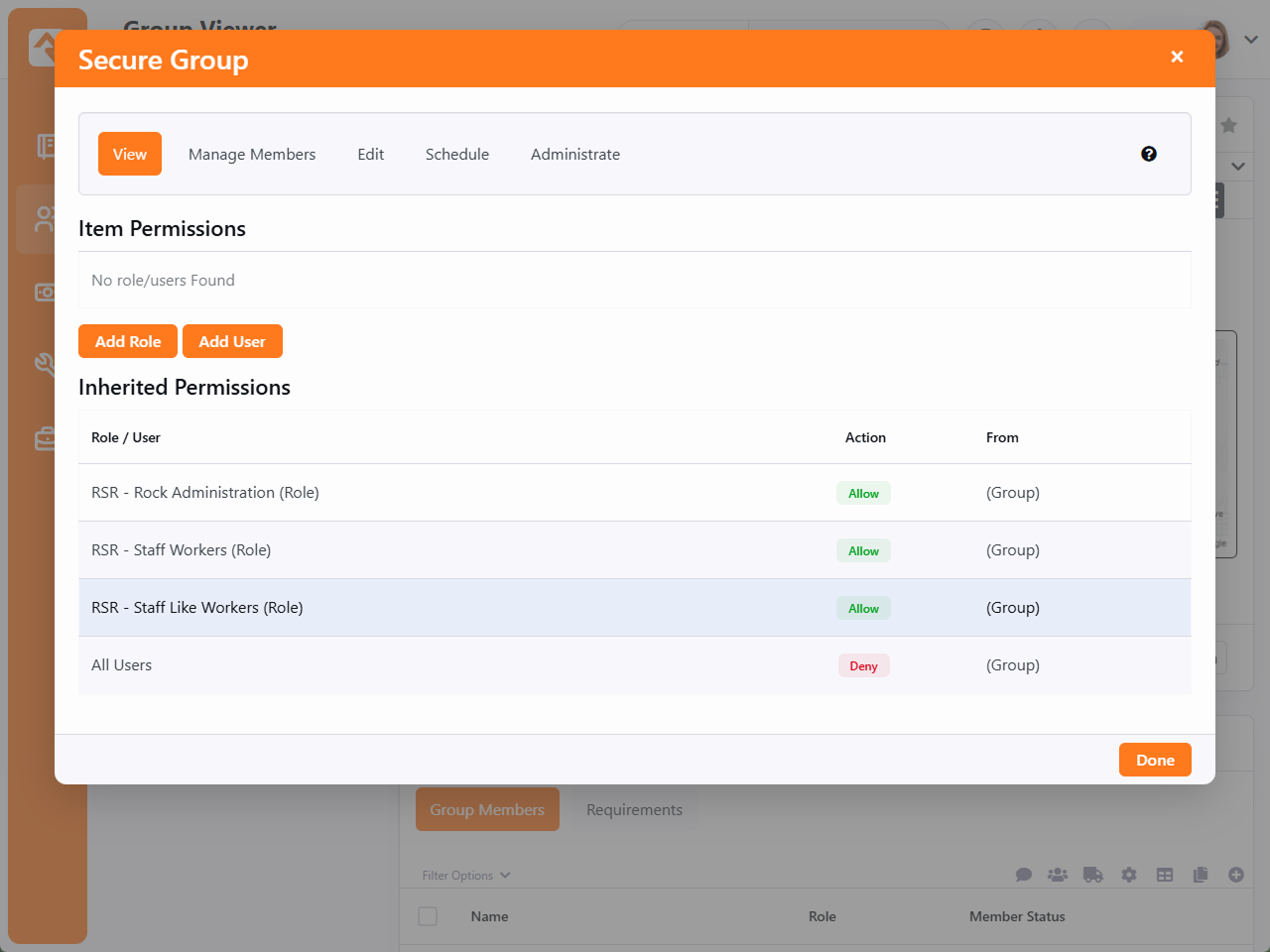
Note the inherited
permissions at the bottom of this screen. Inherited security is a very powerful concept with groups. By default,
a group will inherit the security of its parent groups and group type. This limits the amount of security
configuration each group requires. These inherited rights are only a starting point. You can either build
on top of these permissions or override them. The choice, and power, is up to you.
At first you may be tempted to go overboard with your group's security settings. In general, it's best to keep
them simple. For instance, in the case of home-based Bible studies you may be tempted to secure each group
differently to only allow the leader to edit them. While in certain cases you may need to do this, you
could also secure all groups with a generic Small Group Leader role. You could then limit which groups
a leader was able to navigate to through the configuration of your leader toolbox blocks.
Group Creator Security
In older versions of Rock, the person who created a new group would automatically have Administrate
permissions for the group they added. This behavior can now be controlled via block settings.
The Group Detail block has a setting called
Add Administrate Security to Group Creator.
When this is set to "Yes" then the person who created the group will automatically have the security permission
to Administrate the new group being added.
The default value for this setting is "No", which means the person creating the group will not be able to
administrate the group unless they have permissions from another role that would allow them to do so. If you
started off on an older version of Rock, this won't retroactively impact security permissions for any existing
groups.
Group Member Roles
Group member roles play an important part in how groups are secured. Each role can be configured to
provide View and / or
Edit rights. This is
configured under Admin Tools > Settings > General > Group Types.
Inherited Permissions
When determining the security of a group it’s important to consider not only the specific permissions of the group but also
the inherited permission rules. The inheritance rule for groups is:
Current Group > Group Type Security > Parent Group Security > (continue up the hierarchy until it reaches the root group) >
Group EntityType Security > Global Default.
The primary inheritance rules come from the group’s hierarchy, but the system has a built in ‘choke point’ check on the
security of the group type first. Why is this? Adding a quick check of the group type's security allows specific types of groups
to have unique security considerations. Take for example a group type for ‘Addiction Classes’. Adding a check for the group
type's security allows a way for limiting visibility to these groups without having to worry about inconsistencies in the
security of the group hierarchy. In most cases the group type will not have specific security so this check will not matter,
but it’s there if you need it.
If when checking the group’s security, the person is blocked access there’s still one last check to be done. Roles defined
on the group type can be configured to provide access to the group. For instance, you can configure the leader of a group to have
view/edit rights to that group. Likewise, the member of a group could be set up to have view access. This allows a very simple and
flexible way of providing access to external individuals.
Group Strategies
The flexibility built into Rock groups is very powerful. But like a puzzle when
you open the box and dump out the pieces, it can be a little overwhelming to get
started. Below are a few strategies for you to consider first. Don’t
be afraid to ask others how they have configured their groups. The Ask
section of the Rock website is perfect for these kinds of discussions.
Multiple Group Viewers
Rock comes preconfigured with a general group viewer People > Group Viewer,
but you can add more. Say, for instance, your church has a strong small group ministry.
You may want to create a new Group Viewer page just for this ministry. You can do
this by adding a new page under People
(or any other page you like) and adding the group viewer blocks to the page as described below.
Group Viewer Blocks
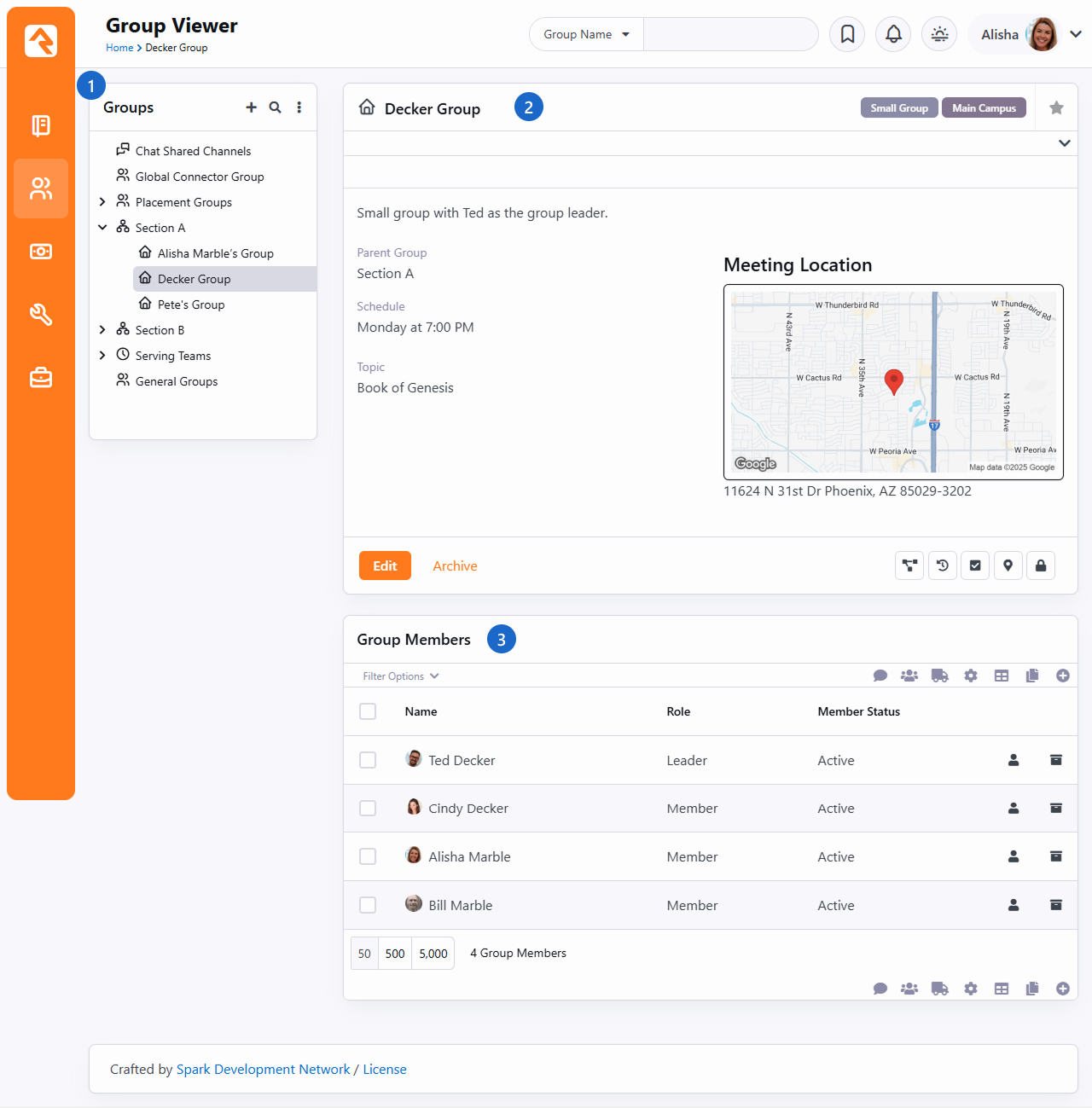
The following blocks are used to make a group viewer page. We recommend that you use the
LeftSidebar Panel
page layout.
- 1 Group Tree View
- Add a group tree view block to the sidebar zone to help you navigate your
group hierarchy.
- 2 Group Detail
- Add the group details block to the top of the main zone.
- 3 Group Member List
- Next, add the group member list block under the group details.
When you set up the Group Tree Block
you can set the root group to start with, and limit which types of groups it will display. This allows
you to make a very specific small groups viewer with just a couple of clicks.
Group Folders
As you start to think about your group hierarchies, make sure that you plan for growth.
This might mean that you create special groups in your hierarchy to help categorize
your groups. You can think of this like using folders on your computer to help manage
all of your files. You could throw all of your files in one folder, but you’d never find anything.
Adding folders helps you arrange and sort your groups. While folders add little value
to your computer’s file system, these category groups
can actually be beneficial beyond just organizing. For instance, if you add these
category groups to your serving teams, the categories can act as leadership teams
for their sub-groups. Take a look at this example of the first impressions serving teams
at a large multi-campus church:
Sample Serving Hierarchy
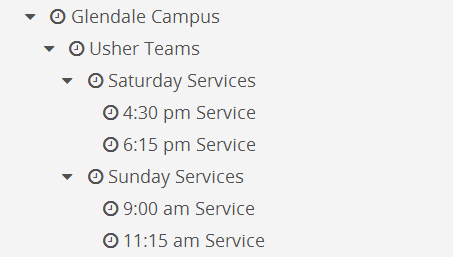
Notice how each campus and ministry area has a leadership group. These groups not only help
arrange the serving teams, but they can also have members of their own that represent the
leadership team for each area.
Group Schedules
Let's take a brief moment to see the various scheduling options for groups and how these settings
affect the features available.
Types of Group Schedules
There are three types of group schedules that can be configured for a group.
To help simplify the editing of a group we allow you to configure which of
these options are available to groups of each particular type. For instance,
you'll probably want to configure your
Small Groups
to only be configured to allow the
Weekly
schedule. You can select which of these options are available for a specific
group type under
Admin Tools > Settings > General > Group Types.
Weekly
This option allows a simple weekly schedule to be selected. When configuring
a group, one only needs to select the day of the week the group meets and
the start time. We highly recommend that you use this setting because it
is the only schedule option that is usable as a filter in the
Group Finder.
For example, if you set your small groups to the
Weekly
schedule option, your website visitors can find groups that meet on a specific
day of the week that's convenient for them.
Custom
With this option enabled, each group can select its own repeating schedule.
This option allows for the most power and flexibility, but the schedule
created can't be used as a filter in the Group Finder.
Named
The Named option allows you to pick the group's schedule from a list of
preconfigured schedules. These schedules are configured under
Admin Tools > Settings > General > Schedules.
Like the Custom option, this setting can't be used as a filter in the
Group Finder.
Schedule Exclusions
Picture this: you've just finished entering all of your small groups into the
system with their correct schedules and your supervisor just announced that,
"groups are taking a two-week break." Not a problem! Adding a
Schedule Exclusion
to the Small Group
group type will add the exclusion(s) to the schedule of all groups of this
type. This is done under
Admin Tools > Settings > General > Group Types.
This not only keeps the schedule accurate, but it also keeps attendance reminders
from being sent while groups are not meeting.
Group Attendance
Whether you're following the leadership principle of inspect what you expect
or you simply want to keep a pulse on the health of a group, the group attendance
feature can simplify the process of gathering participation details of your group
members.
Configuring a Group for Attendance
Before a group can take attendance, its group type must first be configured
to enable attendance tracking under
Admin Tools > Settings > General > Group Types.
From here you should select the group type you'd like to configure check-in
for. Under the Attendance / Check-in
tab enable the setting Takes Attendance.
While this one setting is all you need to enable the attendance features, there
are a couple of other settings that help improve the attendance tools:
-
Group Schedule Options: While a group schedule is not
required to take attendance, having a schedule will simplify the attendance
entry because it will guide the user to enter attendance on those dates
when the group meets.
-
Schedule Exclusions: While each group can set its own
schedule (including exclusion dates) you may want to set exclusion
dates for every group of this type. This is especially helpful when
using the simple schedule option where you only specify the day of the
week and the start time for a group. Adding these group type schedule
exclusions helps to keep email attendance reminders from being sent.
-
Send Attendance Reminder: This checkbox will enable the
sending of an attendance reminder email or text message to the group leader the day
the group is scheduled to meet.
Entering Attendance Information
Internal Attendance Features
There are several ways to collect group attendance. The first is to use
the internal attendance features built into the Group Viewer under
People > Group Viewer.
You'll notice an attendance button on the group details block for groups
that are configured to take attendance.
Group Attendance Button
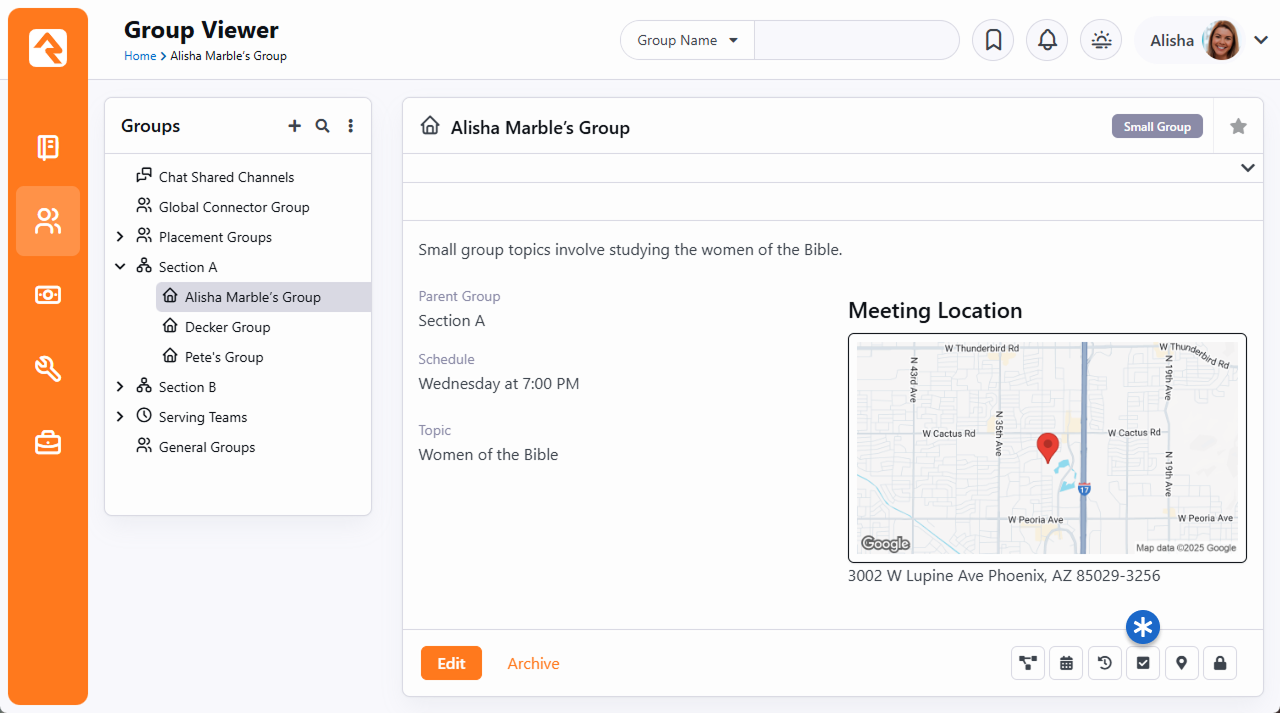
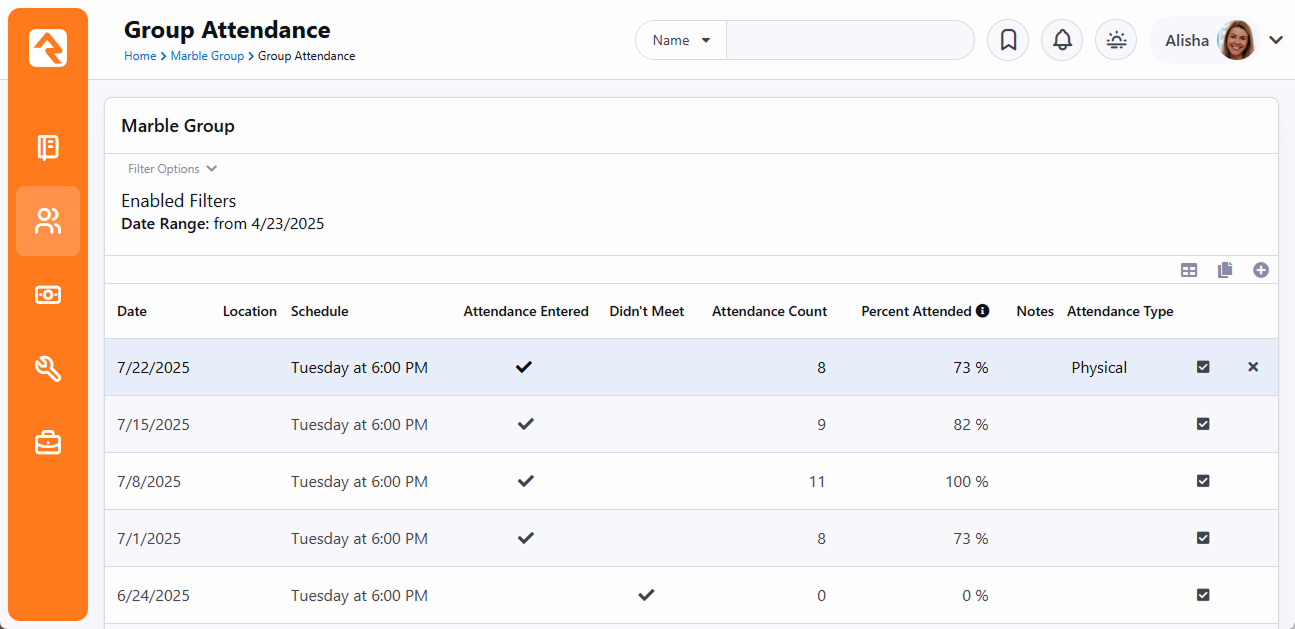
Selecting this option will bring up the group attendance grid. This grid
lists the previously entered attendance for the group and allows you to
enter new attendance records from the add button in the grid's header
or footer.
Attendance List
Selecting the
button will take you to the attendance entry screen pictured below. From this
screen you can check off all those who attended the group or note that
the group did not meet on its scheduled date and time. You can also print an attendance
sheet, which allows attendance to be collected via a register.
Attendance Entry
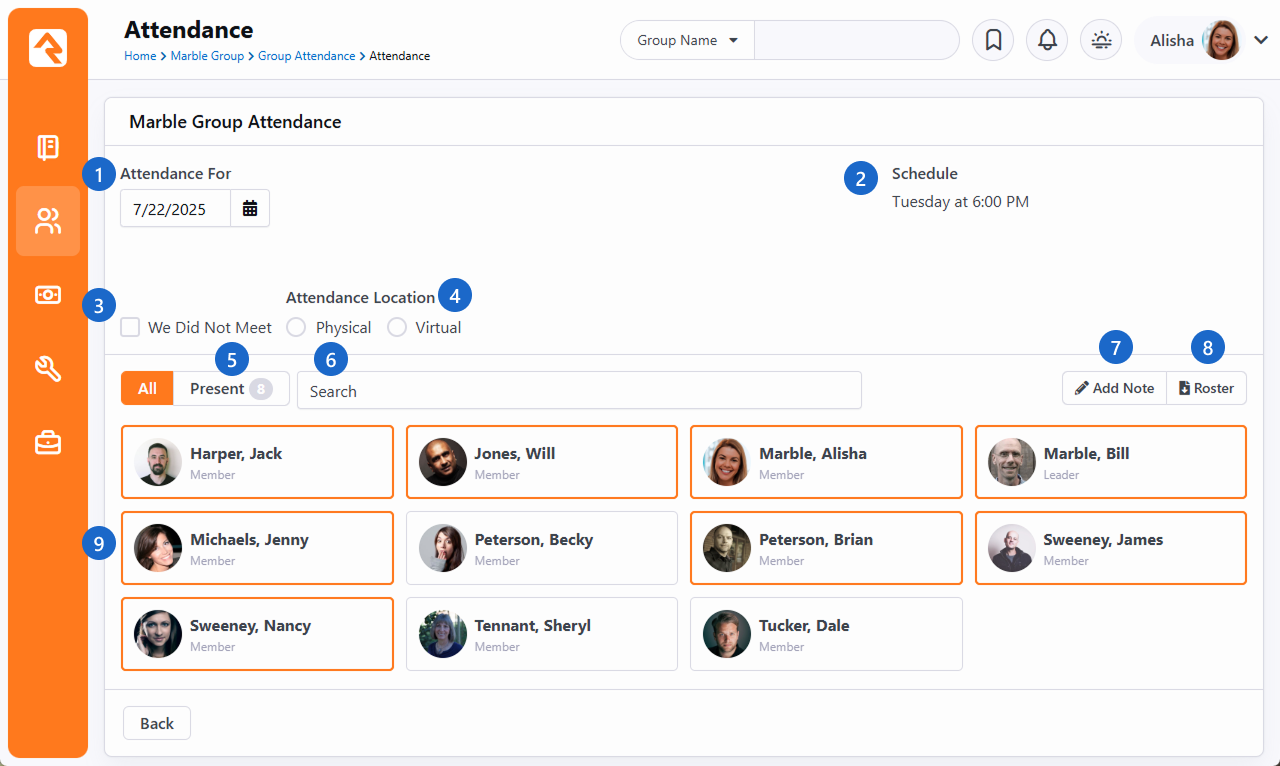
- 1 Attendance For
- The date for which attendance is being recorded.
- 2 Schedule
- If a Named schedule is being used for this group, it will be shown here.
- 3 We Did Not Meet
- Select this checkbox if there was no attendance because the group did not meet.
This distinction is helpful for record-keeping, but also impacts areas like
Streaks.
- 4 Attendance Location
- If enabled in the block's settings, here you can select the type of attendance,
like physical (in-person) or virtual (online). If you need other
options, you can manage these values using the
Attendance Types
Defined Type. Edit the Attendance Entry block's settings to restrict the available options to only certain
Attendance Types, or to change the "Attendance Location" header to say something else.
- 5 Attendance Count
- After attendance has been entered, the count of attendees is
displayed.
- 6 Search
- For larger groups it can be helpful to search for the people you're looking for.
- 7 Notes
- If enabled in the block settings, notes can be added here. Notes will appear in the
Attendance Summary Notification email if you are using that feature. The label “Notes”
can be customized in the block settings.
- 8Attendance Roster
- Click the Roster button to generate a printer-friendly version
of the attendance page. This will be a Word document that you can then
update, print or save.
- 9 Members
- Attendance is tracked by clicking the cards of those who attended. You can see
here that nine people were in attendance on that day.
External Attendance Features
Entering attendance on this internal screen is great for staff-entered
attendance. Often times you will want to push the responsibility of
attendance entry to the group leaders. One way to do this is to allow
them access to the leader toolbox. See the Group Leader Toolbox
chapter for details on this set of tools.
Attendance Reminders
You can also configure Rock to
send a communication to the group leader on the day that their group meets to remind
them to take attendance. This communication will include a link to take them straight
to the attendance detail screen. Since each group leader gets an individual
communication, we have enabled this link to not require a login to help simplify the
process (either the
Manage Members
or the
Edit
privilege must be present for a group leader to enter attendance).
Do you have some groups that you don't want to send a reminder about attendance? No
problem, we’ve got you covered! When attendance reminders are turned on for a group
type, you can exclude individual groups. All you need is a Data View that includes
the groups you want to exclude. Simply add this Data View to the
Excluded Groups Data View
field on the
Send Group Attendance Reminders
job and those groups won’t get the reminders going forward.
There are two other key configuration points for attendance reminders.
The first is the system communication that is used as the template for the reminder.
This template can be edited by navigating to
Admin Tools > Settings > Communications > System Communications > Group Attendance Reminder.
See our Communicating With Rock
guide for more information. If the template is configured for both email and SMS, and if your system is set up
to send emails and text messages, then the reminder can use either medium. Group leaders
will receive either an email or a text, depending on how the job is set up.
The other configuration point is the job that is run to send the communications on a
daily basis. This job must be created for every group type that requires
reminders. For more information on this job see the Service Jobs Relating To Groups
chapter below.
Before You Report
When running reports on attendance data be sure to filter on Did Attend to show those who
attended the event.
Group Attendance Digest
The
Group Attendance Digest is
an email containing a summary of attendance information for one or more groups.
See the Service Jobs Relating to Groups chapter for
information on setting up the Send Group Attendance Digest job.
Example Group Attendance Digest Email
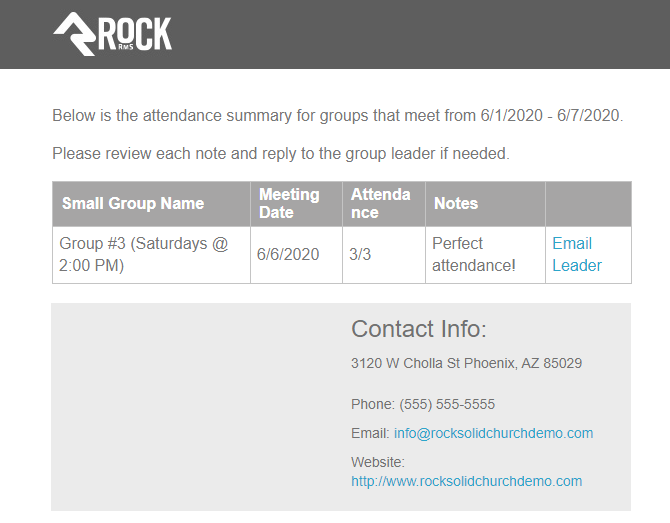
The Group Attendance Digest may not be the right fit for all of your groups. It’s only intended
for a specific type of groups structure that we’ll describe below.
Group Structure for Attendance Digest
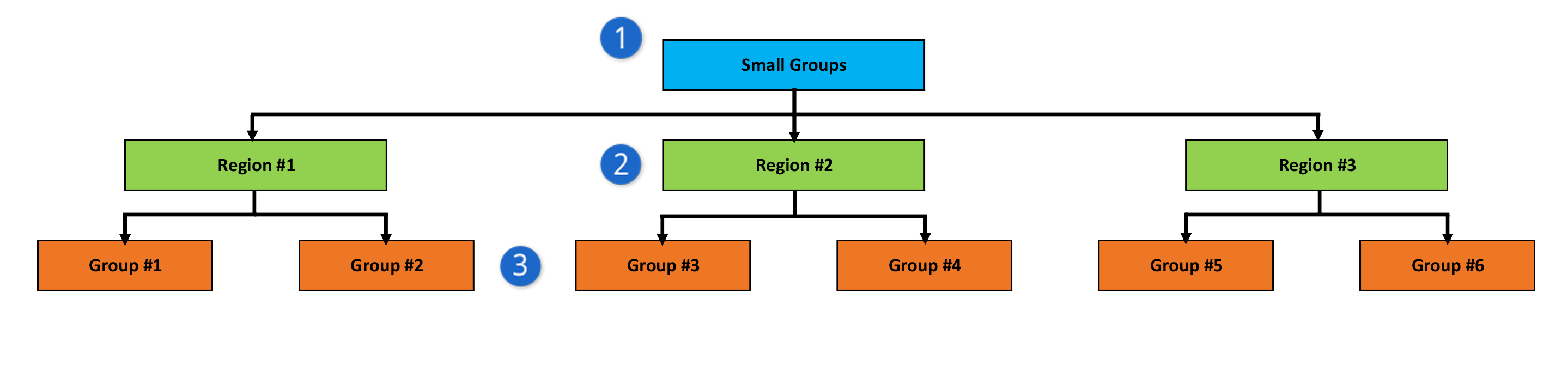
- 1 Parent Group
- This is the Parent Group for all of the other groups below it. This group will be added
to the Send Group Attendance Digest job configuration, which we’ll talk about in the
Service Jobs chapter below.
- 2 Region or Area
- Individuals in these groups who have a group role that’s configured as
Is Leader will
receive a digest email for the associated child groups. If these groups have multiple
Leaders, then each
will receive their own email individually.
- 3 Attendance Group
- These are the groups where attendance is being recorded. The attendance in these
groups will be emailed to the
Leaders of their
respective parent groups. For instance, the attendance in ‘Group #3’ and ‘Group #4’ will
be emailed to the
Leaders in ‘Region
#2’.
The Leader of
the attendance group will be contacted when the ‘Email Leader’ link is clicked from the
Attendance Digest email as shown in the prior screenshot above.
The chart above has three “Regions” with two “Groups” below each region. But you’re not limited
to those numbers. You can have only one region with five child groups below it, or ten regions
with a single child group each. The only requirement is that you need all three hierarchical
levels, with a single parent group at the very top.
Group Sync
Have you ever thought,
"With people constantly coming and going,
how am I supposed to keep the members of this group up to date in Rock?"
Well, the Group Sync might just turn out to be your next best friend.
Group Sync automates the process of keeping group membership updated by adding and removing members
for you. Take, for instance, a security group that gives access to a toolbox for your group leaders.
Without Group Sync, every time a leader is added or changed someone would have to remember to
manually adjust the toolbox security group accordingly. With the Group Sync feature, this can all be
automated for you.
Configuring Group Sync
Configuring your groups to sync takes only a few one-time steps. After you've got it all set up,
you can sit back and watch Rock do the work for you.
To get started, you'll want to make sure that Group Sync is enabled for the groups you're
working with. This is set at the Group Type level, as described in the
Group Types chapter above.
Next, you'll need to create a
Data View
that returns the people who should be synced as group members. The list of people in this data
view will be compared against the list of the group's current members. If there are any
differences between those lists, the group's membership is updated so that it matches the data
view.
With Group Sync enabled and your data view in place, go to the group you'd like to sync and edit
its details. If you have
Administrate access to the
group, you'll see a panel labeled
Group Sync Settings. At first,
when you're just getting started, there won't be anything listed in this panel. Click the
to add your sync as described below.
Group Sync Settings
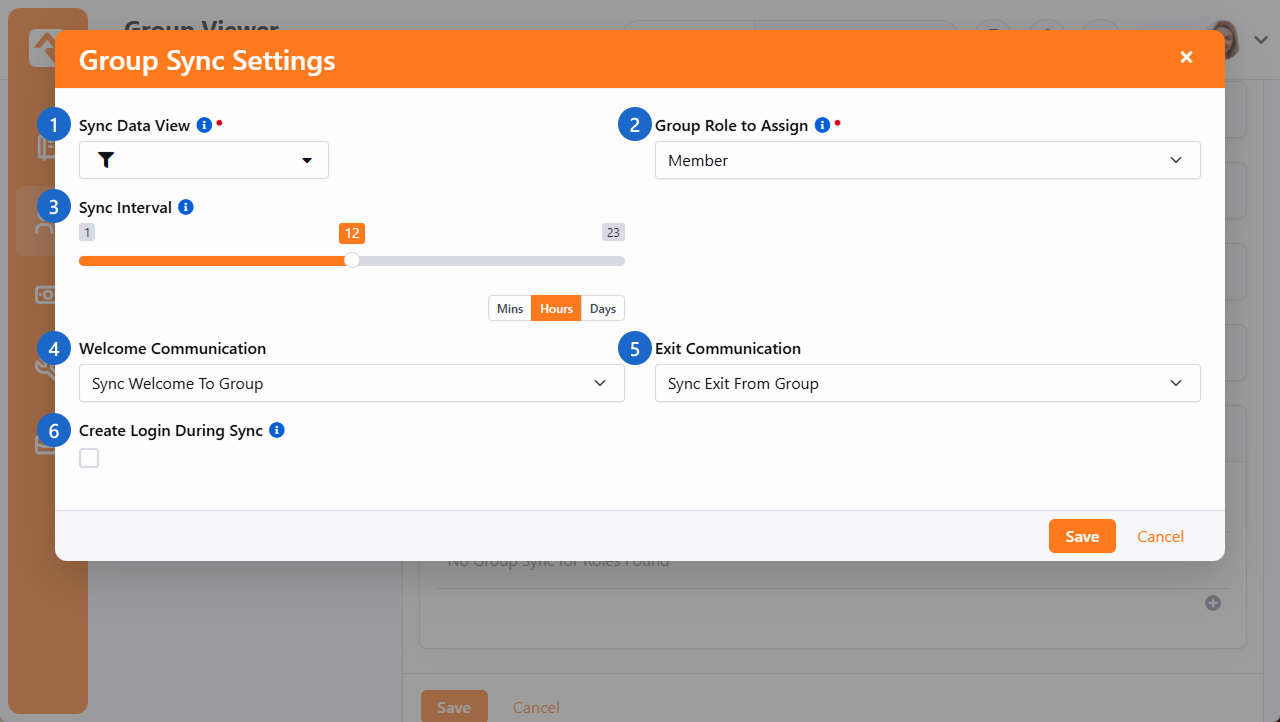
- 1 Sync Data View
- This is the data view you created to use as the source of your sync. The people found by
the data view are compared against the current members of the group, and changes to group
membership are made if there are differences.
- 2 Group Role to Assign
- Select the role you want to assign to group members added by the selected data view.
Each sync works with one role at a time, so you'll need a second sync like this one if you
want to automatically manage both 'Leaders' and 'Members'.
- 3 Sync Interval
- This setting controls how frequently this group should be synced. Having a lot of group
syncs running constantly throughout the day might create performance issues in your system,
even if no changes are made. So, try to keep the frequency as low as possible according to
your needs. When setting the sync interval here, you'll want to keep the Group Sync job in
mind, which we'll discuss a little later below.
- 4 Welcome Communication
- If you'd like to notify new group members of their new status in life you can configure
a system communication to let them know. We've provided a good template called
Sync Welcome To Group
that covers most cases. If the member already had a login, it even reminds them what their
username is (not their password though, we store that in a super-secret way that not even we
can decrypt). If you've enabled
Create Login During Sync
below, and if the person doesn't already have a login, the communication will include their
new username and password (we know the password in this case because we just created
it).
- 5 Exit Communication
- You can also choose to send a notification letting people know that they're no longer
part of the group. This can be helpful in some cases but isn't required. We've provided a
template called
Sync Exit From Group
for this purpose.
- 6 Create Login During Sync
- When syncing with security roles, you may also want the job to create logins for new
group members. This will give those members access to use their new permissions.
Group Sync Job
As noted in the prior section above, the
Sync Interval setting for
the group controls how frequently the group's members are checked against the data view.
However, this is only part of the equation.
There's a system job called
Group Sync that actually
does the syncing we've been describing in this chapter. By default, this job runs once every 20
minutes. Most of your groups won't need to be synced that frequently, so you generally don't
need to worry about when the job runs. The only time it might cause an issue is if you've
configured a group to sync at a more frequent interval than the job. That should be an extreme
case, but if you need to change the frequency of the job you can do so under
Admin Tools > Settings > System > Jobs Administration.
Security Tip
The Group Sync job has a
setting to create new logins in such a way that the individual will need to reset their
password on their first login. This setting is initially set to not require a reset. Feel
free to change this if you'd like.
Managing Synced Group Members
Once a Group Role is managed by a sync, members cannot be added to that role manually. You can
still manually add people to the group, just not with that role.
That's because if you're manually adding a person to a synced group, then it means the person
doesn't meet the criteria of your data view. The sync would remove that person from the group
the next time it runs, undoing your manual work. That's why each sync is specific to a role, so
you can have some roles that are synced and others that are managed manually.
For the same reason, you can't manually remove synced group members. If you did, they would just
be put back in the group by the sync the next time it runs. If you need to remove a synced
group member, consider updating the data view to account for that person's scenario.
If you want to stop syncing a group, you can remove the sync from that group’s settings, and
it will keep the members. At that point, members of the group would need to be managed
manually.
You’ll also notice
icons in the group's member list, to notify you that the member is being
automatically synced. The
icon is also displayed in the upper-right corner of the list. If you hover your cursor over the
icon, Rock will display the roles being used to sync the members of the group. From there,
you can manually sync the group rather than waiting for the Group Sync job.
Group Following
Hopefully by now you've seen how to follow a person. If not, stop what you're doing and
read this.
You can also follow a group. Why...? Following a group allows you to put that group into easy reach from your
My Dashboard page.
How To Follow
Following is super simple. First navigate to the group you'd like to follow. Then, press the follow star in the upper right of the group detail
block.
Following A Group
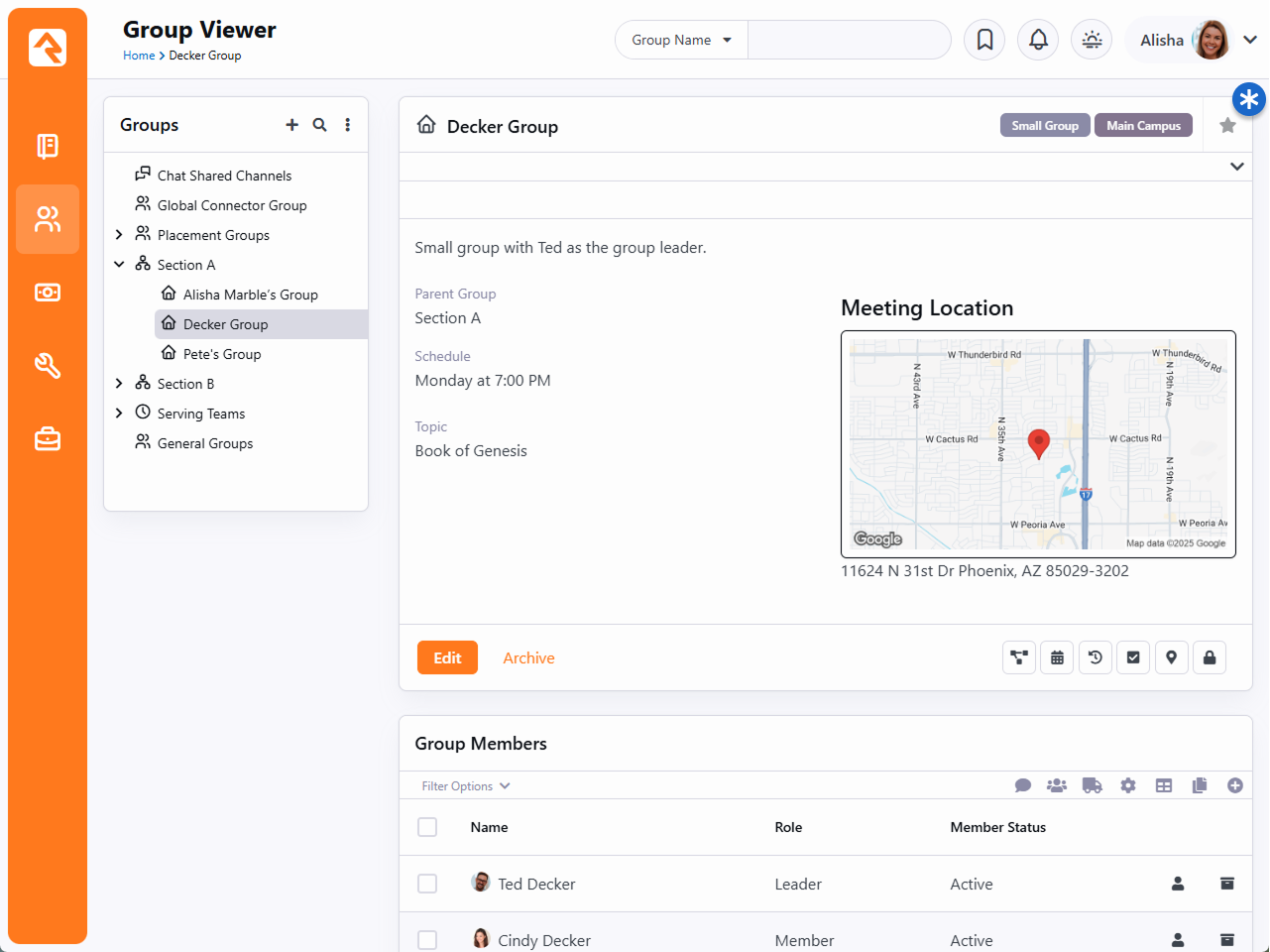
Also note that when you have an event registration that places registrants into a
group, you can configure the registration to notify all individuals who are following that group.
Group Members
Group members are a key component of groups. Like groups, they come with a ton
of options for customization.
Group Member Roles
People often have special roles in groups. Some are leaders; others have unique duties. To help differentiate the members of a group,
you can give each a Group Member Role. The list of possible roles
is defined on the group type. Each role has the following configuration options:
-
Is Leader: Determines if the individuals in this role are considered leaders within the group. This option
enables additional functionality within Rock.
-
Receive Requirements Notifications: Individuals in this role will receive notifications of group members who
do not meet the group's requirements. This only applies if you've configured the
Send Group Requirements Notification job.
-
Can View: This gives the members of this role the ability to view the group information in various group toolbox blocks.
-
Can Edit: Allows members to edit group information in various group toolbox blocks.
-
Can Manage Members: Individuals with this role will be able to manage group members (e.g., change their role, status, etc.)
regardless of the security settings on the group itself.
-
Can Take Attendance: Individuals with this role can take attendance regardless of the group's security settings.
-
Can Check In to Group: This option indicates whether individuals in this role can check in. If disabled, people
assigned to this role cannot check in to groups of this type, even if they are members of the group. Note that this only applies if the
Check-in Rule is set to "Already Enrolled In Group" in your
check-in Area configuration. See the
Checking Out Check-in
manual for additional details.
-
Minimum Required: Rock allows you to have rules on how many individuals can have certain roles. This setting configures
the minimum number of individuals who must have this role. This will keep you from deleting a group member if the deletion will
drop the number of individuals with this role below the minimum.
-
Maximum Allowed: This setting is like the minimum but limits the number of people who are allowed this role. For instance,
you might configure a group type to only allow one person to be the leader. You can also use this option to limit the number of adults in a
family. A family is a group type.
-
Default: When someone is added to a group, this will be the default role they'll be assigned to. Note: Some blocks will
have a block setting that overrides this default. This setting will handle cases when a block does not provide an overriding setting.
Group Member Status
The status of the group member tells you the person's standing within the group.
The available statuses are:
-
Active: The individual is currently participating in the group.
-
Inactive: The individual is not currently participating
in the group. Usually, this status denotes that the person did participate
at one point but isn't doing so anymore. How you choose to use
this is up to you.
-
Pending: The individual has not yet fully joined the group.
Group Member Attributes
Group members can also have attributes. This allows you to track custom data
points for each person as it relates to their membership in the group.
Usually, these Group Member Attributes
are defined on the Group Type
under
Admin Tools > Settings > General > Group Types.
When they're configured here, the attributes will apply to every group
member in groups of this type.
You can also add Group Member Attributes to a specific group under
People > Group Viewer > Group
if you have Administrate access to the group.
This also requires that there is at least one Group Member Attribute
defined at the group type level, or that the group type has
Allow Specific Group Member Attributes
enabled.
Editing a Group Member
Selecting a group member from a group member list will take you to the group
member detail screen shown below. From here you can change the role and status
of the group member. You will also be able to modify any of the
Group Member Attributes
defined for the group.
Editing a Group Member
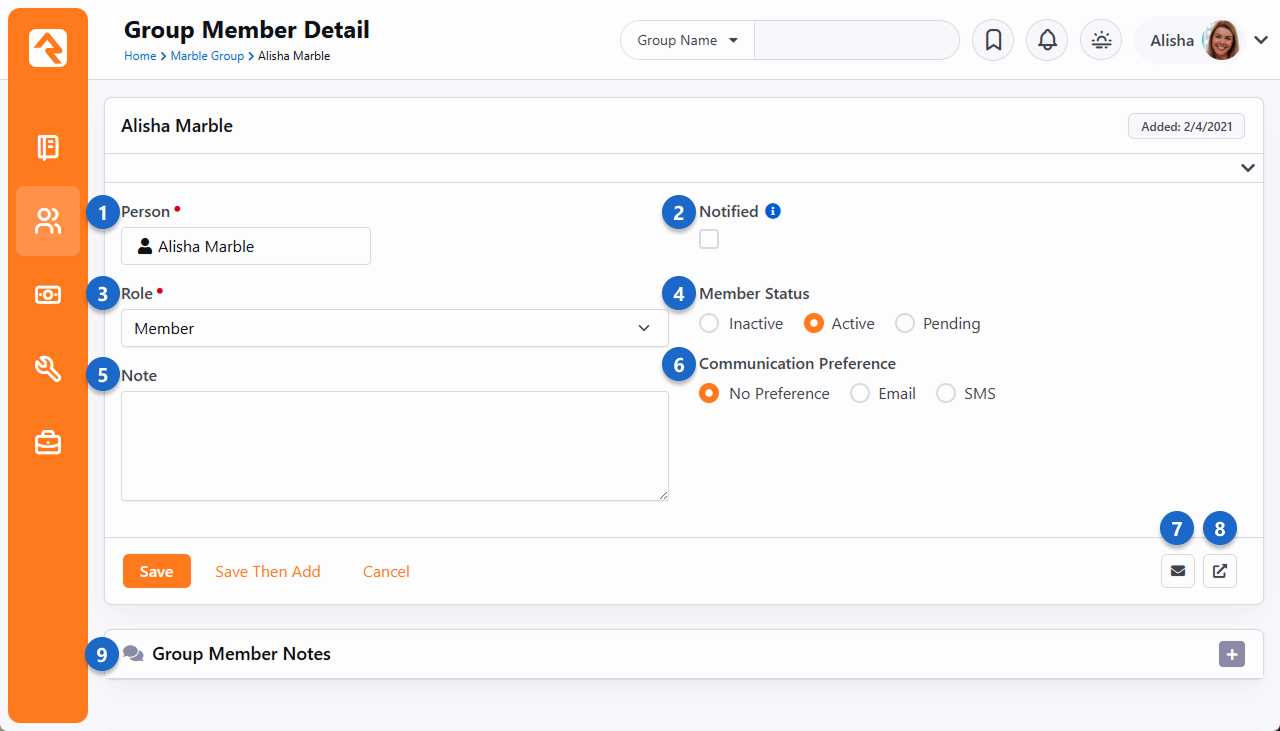
- 1 Person
- The name of the person is shown here for reference. You can't change the group member
from here. Instead, you would add a new group member or remove an existing member.
- 2 Notified
- This indicates whether the group leader has been notified about the person's membership
in the group. This only has an effect if you're running the Group Leader Notification
job.
- 3 Role
- We talked about group member roles above. This is where you set or change the role that
this group member has in the group.
- 4 Note
- Here you can add a note about the group member or their membership in the group.
- 5 Member Status
- Group members can either be Active in the group, Inactive or Pending.
- 6 Communication Preference
- This sets the person's communication preference as it relates to this group's
communications. This does not impact the Communication Preference that would be set on the
person's profile.
- 7 Quick Communication
- Click this icon to send a quick SMS or Email communication to the group member.
- 8 Move Group Member
- Click this icon to transfer the person from this group to a different group. See the
next section below, and the Alternate Placements
chapter, for more details.
- 9 Group Member Notes
- Here you can track notes about the group member. These can optionally stay with the
group member if they are moved to a different group.
As pictured above, you'll see a note field for the group member.
This is useful for keeping basic notes. Rock uses this field to provide
specific information about the group member when processing things like
workflows and alternate placements.
If a group member has a note attached, a small note icon
will display on the group member list to help identify this fact.
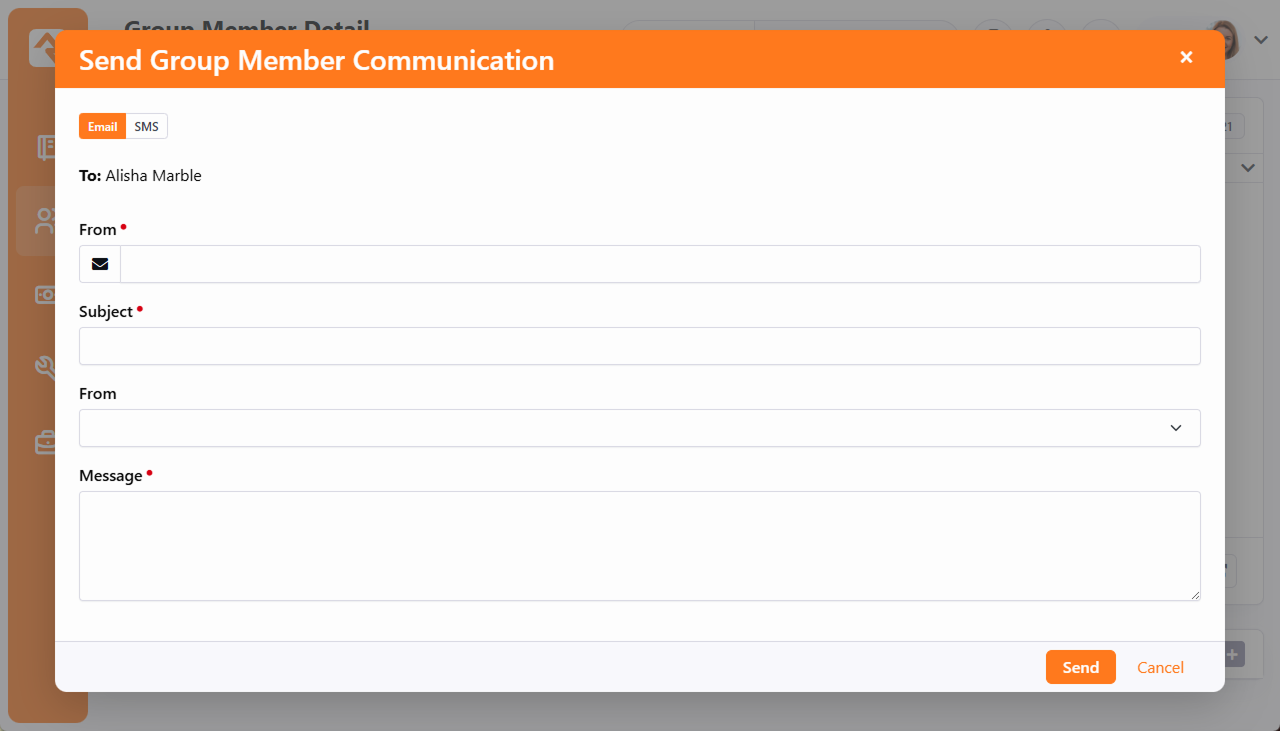
As noted above, you can send a quick communication to the group member from the group member
detail screen by clicking the
icon. You can send either an email or an SMS text message. This is best used
when you just want to send a quick note to a single group member.
Send Group Member Communication
Moving Group Members
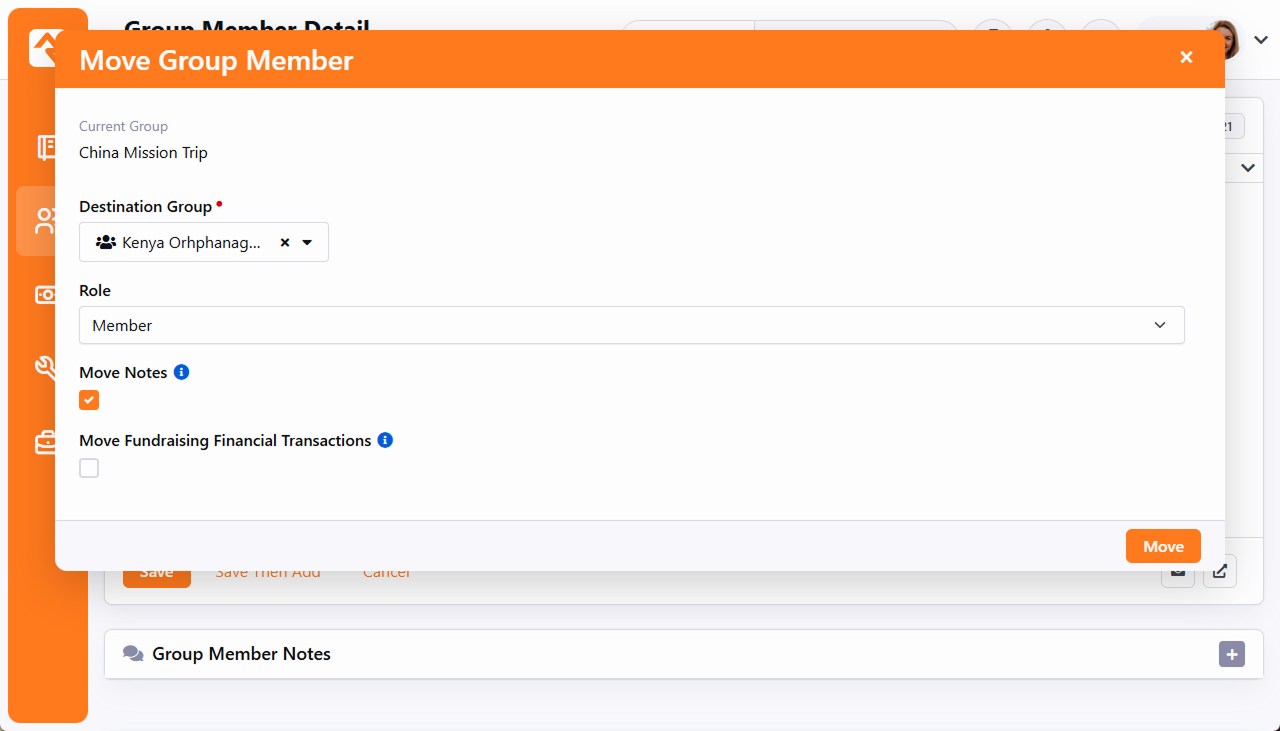
From the Group Member Detail screen discussed above, it's also possible to move a group
member from one group to another by clicking the icon. When
you do, you'll be given the option to transfer any group member notes to the new group. If
you're working with Fundraising Groups you'll also see an
option to move donations to the new fundraising opportunity.
Moving a Group Member
If the group member's current group and the destination group share group member attributes
with the same key, then those attributes will be retained. Otherwise, when the group member
is moved, the member's attribute information will be lost.
Group Member Workflows
By now you realize that groups are the backbone of Rock. So, it makes sense
that we'd invest in making them as powerful as possible. Group Member
Workflows are one of these investments. So, what do they do?
Group Member Workflows are an easy way to trigger workflows to launch when
the state of a group member changes for a specific group. These events
include:
- Being added to a group
- Being removed from a group
- Member status changes (e.g., status changed from Pending
to Active)
- Member role changes (e.g., role changed from Attendee
to Leader)
- Member attendance
- Member alternate placements (discussed in detail in the next chapter)
The workflows you define for these triggers can be configured for all
groups of a specific type under:
Admin Tools > Settings > General > Group Types
or for a specific group under People > Group Viewer > Group.
Below is the screen you'll see in either case.
Note that workflows for a specific group can only be added if
Allow Specific Group Member Workflows
is enabled for the Group Type.
Required Access
You must have Administrate
access to a group to be able to configure Group Member Workflows.
Group Member Workflow Settings
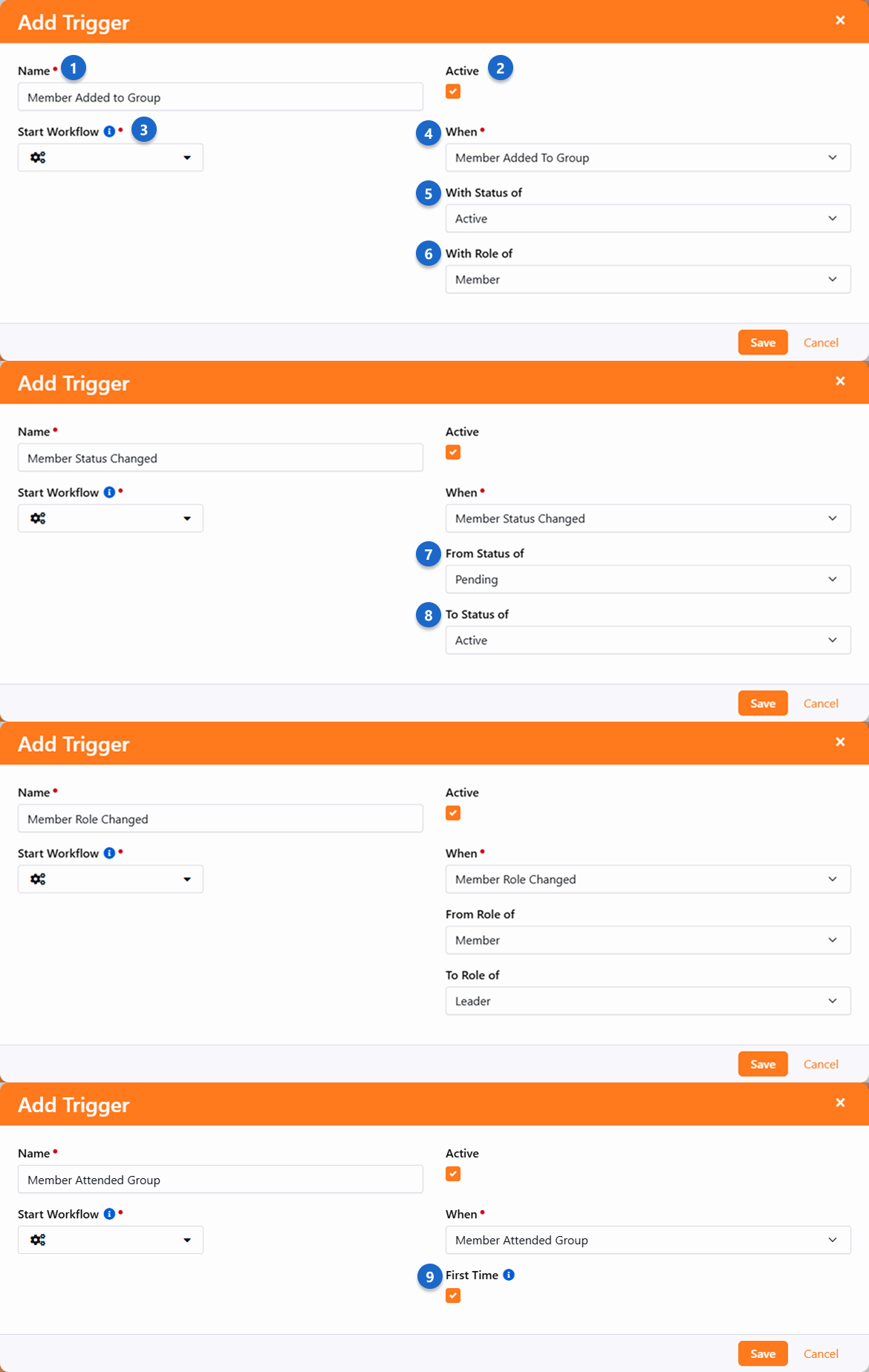
- 1 Name
- This is the name you want to use to describe the trigger.
- 2 Active
- Indicates whether this trigger is currently active.
- 3 Start Workflow
- The workflow type you'd like to start when the trigger conditions are met.
- 4 When
- This determines when the trigger should be considered.
- 5 With Status Of
- This allows you to filter when the trigger is applied for members with a specific status.
- 6 With Role Of
- This allows you to filter when the trigger is applied for members with a specific role.
- 7 From Status/Role Of
- Determines what the original status/role was to use as a trigger filter.
- 8 To Status/Role Of
- Determines what the new status/role must be for the trigger to fire.
- 9 First Time
- Determines if this trigger should only be activated the first time a person attends this group, or every time.
See our Blasting Off With Workflows
guide for more information on working with workflows.
Tips For Creating Triggered Workflows
When workflows are started from the group member triggers, they will pass in a few
attributes for your convenience (as long as the attributes are defined). These include:
- Person: The person that the group member represents.
- Group: The group that the person is a member of.
- AttendanceDateTime: Only applies to the Member Attended Group trigger type and is the date/time that person attended the group.
Be Persistent
Make sure the triggered workflow is Automatically Persisted.
This will ensure it works correctly and as intended.
Whenever possible, the workflow will also pass in the Group Member
model as the entity of the workflow. You can access the group member properties
and attributes by using the Attribute Set From Entity
action combined with Lava like the following:
{{ Entity | Attribute:'HasBook' }}
{{ Entity.GroupMemberStatus }}
{{ Entity.GroupRole.Name }}
{{ Entity.PersonId | PersonById | Property:'PrimaryAlias' | Property:'Guid' }}
When Group Member Won't Be Passed
Some member workflow triggers won't pass the group member as the entity. For
instance, for the Member Removed from Group
and Alternate Placement
workflow types there won't be a group member left to pass when these events are launched.
Group Placement
It all starts with the icon. Whenever you see this button, you can place a group.
One of the easiest places to start is from the Group Viewer, you can place the members of one group into new groups quickly and efficiently.
Group Placement - Add Group
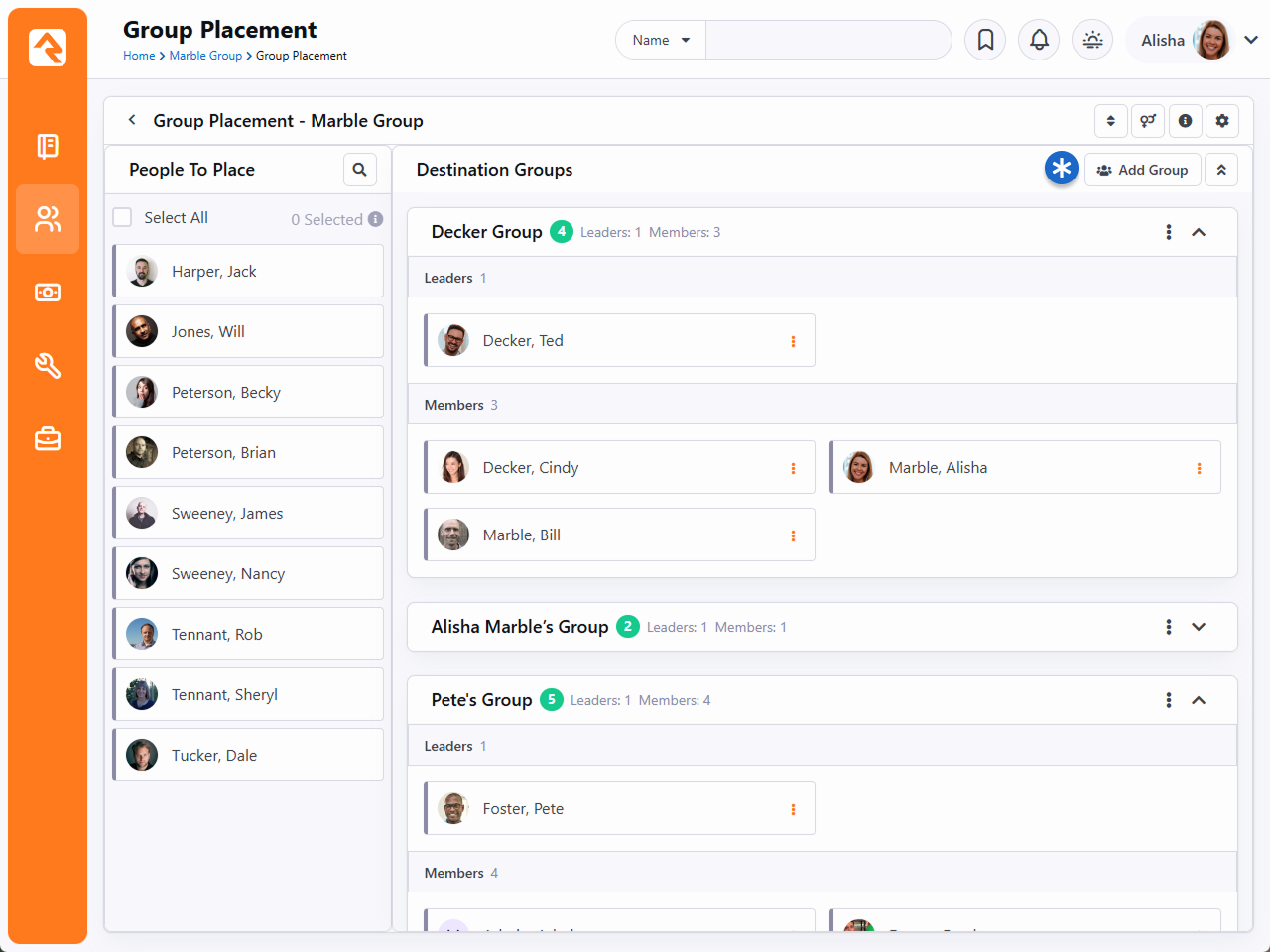
Once you're on the Placement screen, you can either add groups manually or use a configured Registration Template to streamline the setup.
Match Group Types Carefully
Be sure the template matches the Group Type of the group you're placing to avoid errors.
For more on Group Placement, see the Event Registration docs.
Alternate Placements
In some group usage scenarios, you may want group leaders to be able to remove someone
from their group but not have the group member fall to the wayside. Alternate placements
allow you to do just that.
The first step is to configure the group type to have an alternate placement group
member workflow. We discussed creating these workflows in the previous chapter. The
Member Placed Elsewhere
workflow trigger type has two options: Show Note
and Require Note.
This allows the group leader to notate the reason why they are seeking to place the
group member elsewhere.
Configuring an Alternate Placement Workflow
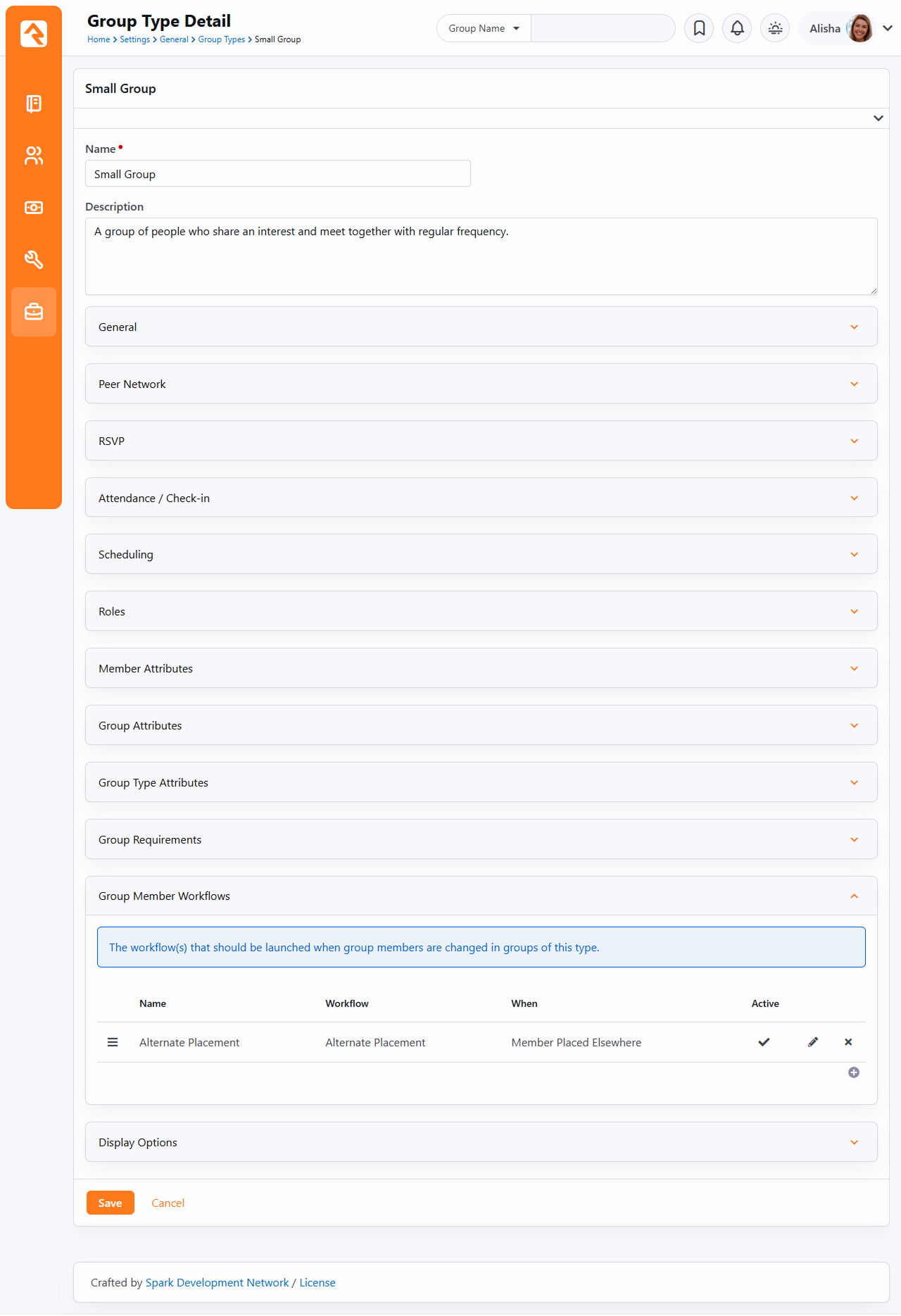
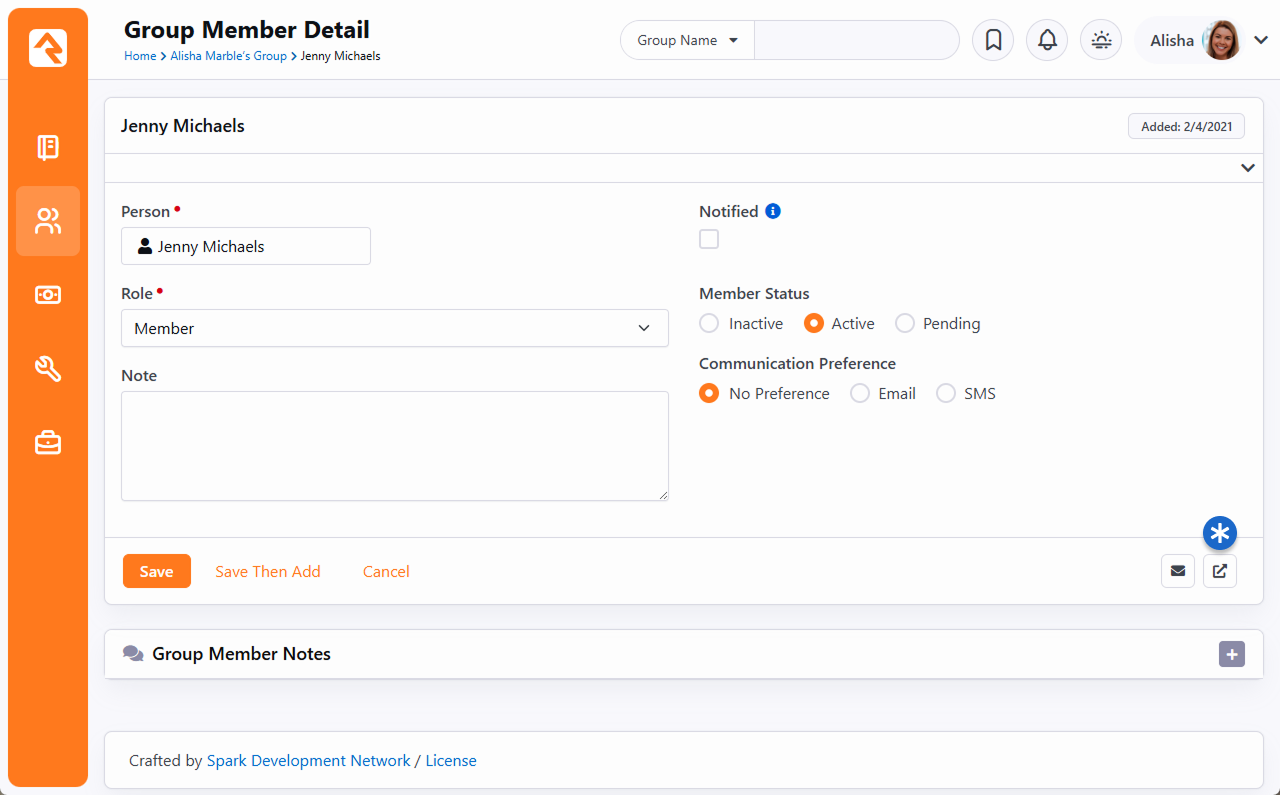
The Group Member Detail
screen contains a button that allows you to initiate
an alternate placement workflow. When you click this button, Rock displays the
Move Group Member window, where
you can select which configured workflow to launch (if there is more than one)
and allow the leader to enter a note (if it's configured to do that).
Alternate Placement Button
 Alternate Placement
When the Move button is clicked, the workflow is launched, and the person is removed from the group.
Tips For Creating Triggered Workflows
When workflows are started from the group member triggers, they will pass in a
few attributes for your convenience. These include:
- Person: The person that the group member represents.
- Group: The group that the person is a member of.
- Note: The note that was entered by the group leader.
- Group Member Status: The status that the group
member was when the workflow was launched.
- Group Member Role: The role name of the group member
when the workflow was launched.
- Any attributes that match those of the group member attributes configured
for the group.
Group History
As you work with groups—adding and removing members, adjusting schedules and member roles, etc.—there may be times when you want to get a 40,000ft view to see how they're doing. Rock's Group History feature allows you to do just that.
Group History takes all of the configurations and changes made to a group and compiles them into timeline and table views that let you easily view the life and health of that group. Here's an example of a Group History timeline view.
Group History
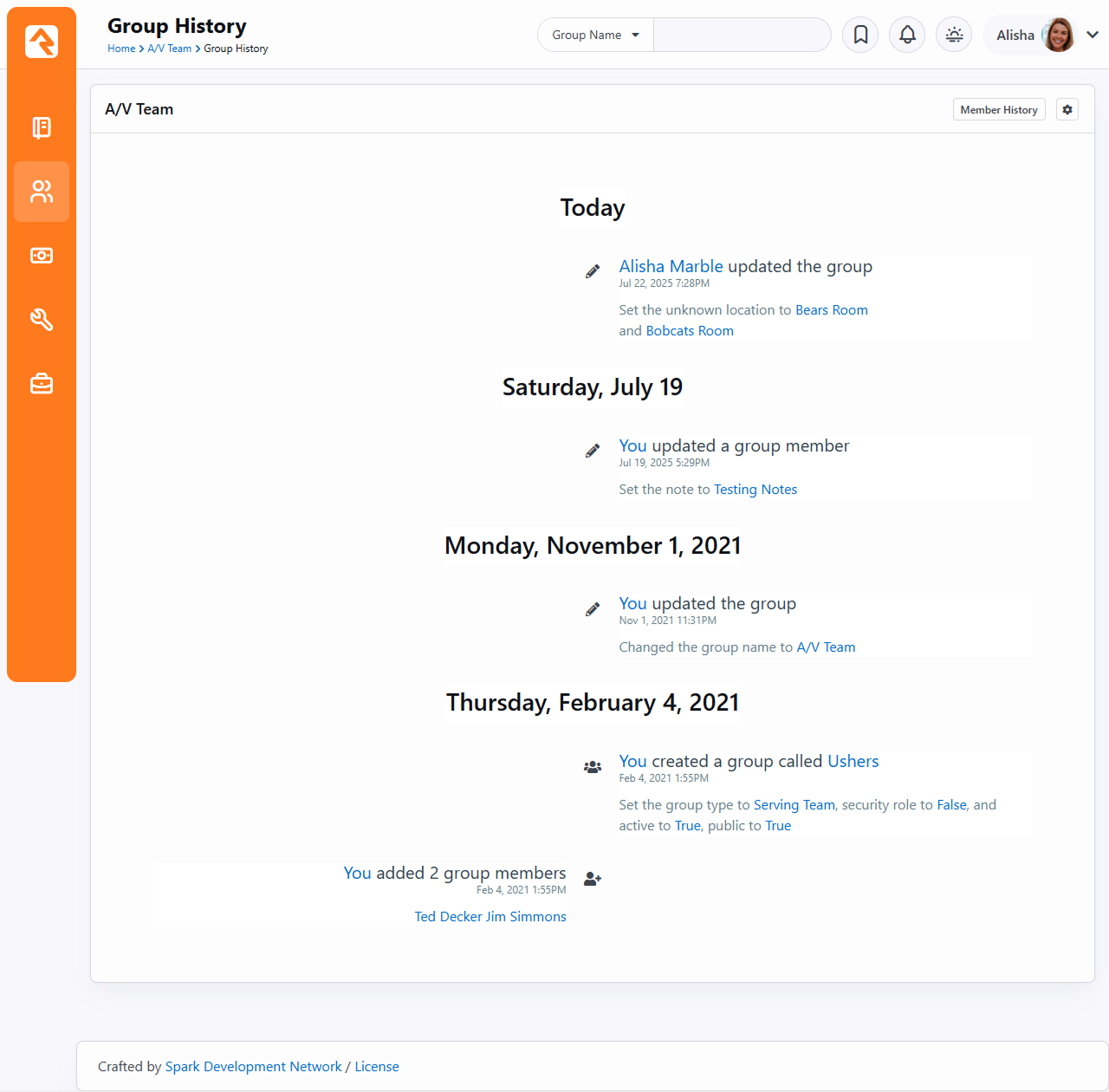
Rock ships with Group History enabled for small groups and serving groups. You can enable and disable Group History for any group type. However, because a lot of data can build up quickly, we recommend using it only with your more regular, stable groups. For example, enabling Group History for a Sunday School group where different children are in attendance each week would lead to crowded (and potentially messy) timelines and tables. Enabling it for a security team or other serving group that experiences fewer fluctuations makes a lot more sense.
OK, let's take a closer look at how to set up and use Group History.
Enable Group History
To enable Group History for all groups of a certain group type, begin by locating the group type in:
Admin Tools > Settings > General > Group Types.
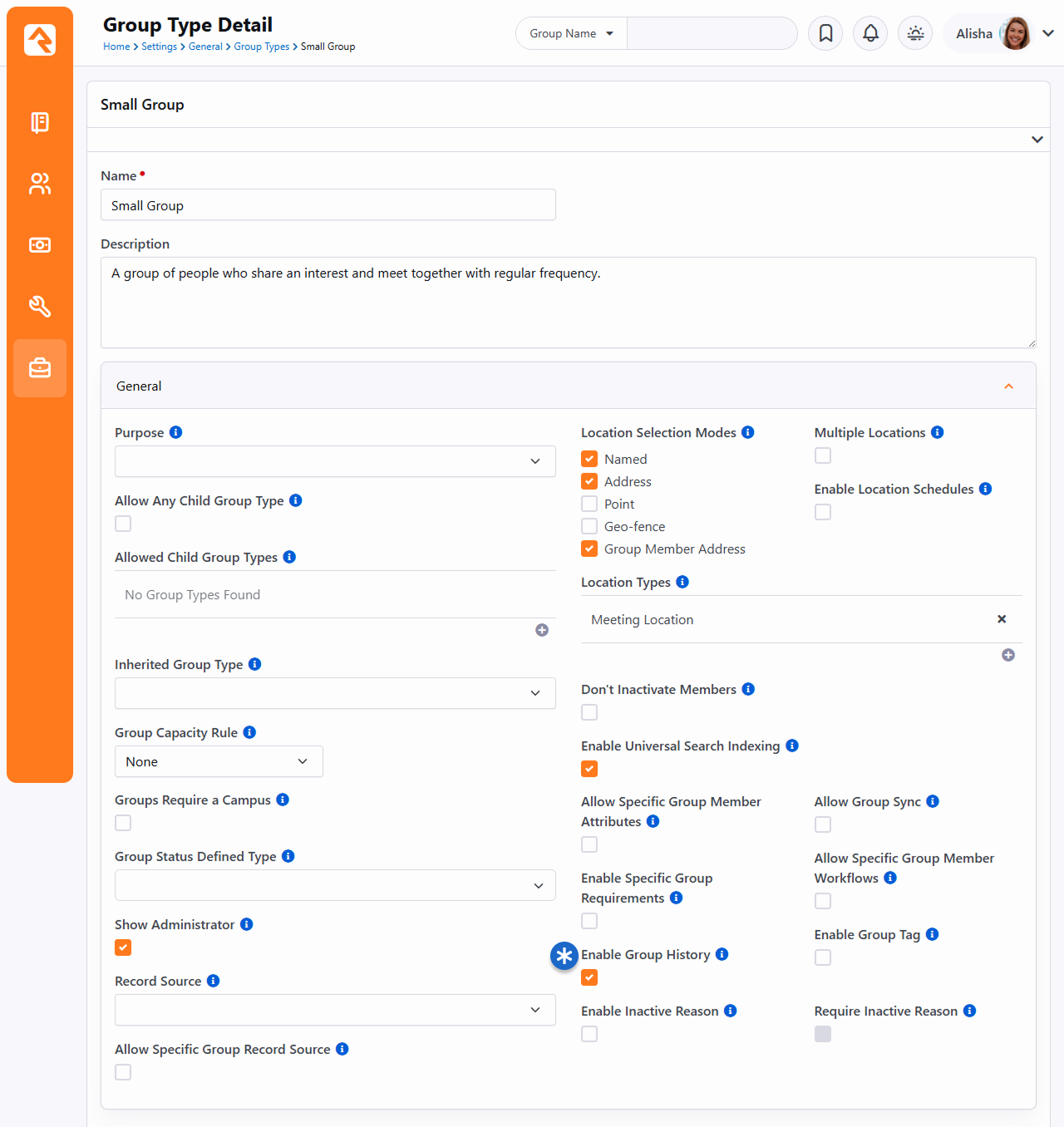
In the General section of the Group Type Details screen, check the Enable Group History checkbox. You can customize the group type's display options in the Display Options section by assigning it a color and icon. These options come into play in a number of the Group History views, but we'll get into that later. For now, click
Save and Rock will enable the history and options for that group.
Enable Group History
View Group History
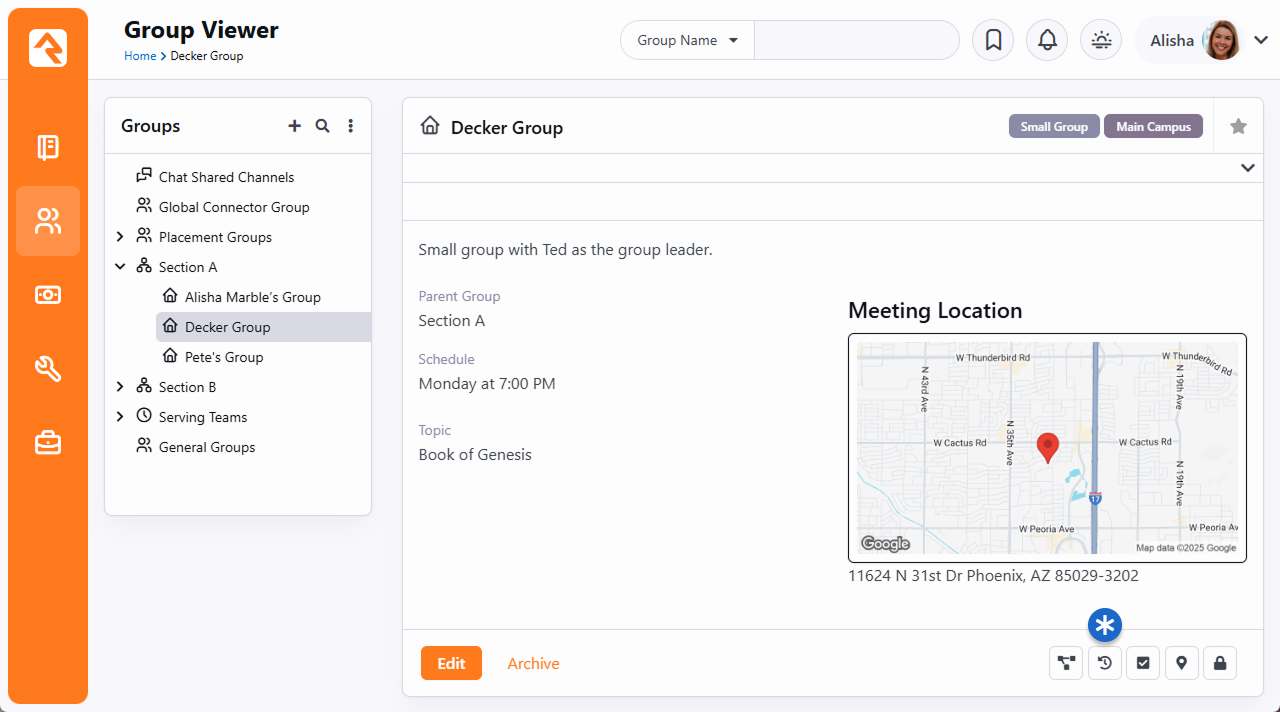
Now that you have Group History enabled, you can jump to that 40,000ft view. Locate the group in the Group Viewer and click the
button.
View Group History
Archived Groups
You can Archive a group instead of deleting it. Archiving removes the group from the Group
Viewer and other places where groups can be seen but allows you to restore it later. When a
group has been marked as Archived and you want to bring it back go to:
Admin Tools > Settings > General > Archived Groups
Click on the icon to unarchive the group.
Note: If a group type has 'Enable Group History' checked, once the 'Process Group History' job
runs the 'Archive' button will be enabled on a group.
This brings up the group's timeline view, shown earlier, including both member and group history information. The Group History screen shows the history of the group by day for the lifetime of that group. Each event on the timeline has an icon that corresponds to a type of action.
- - Member added
- - Member removed
- - Group edited
- - Other/general group action
If there is more information than space available for an event on the timeline, you can view the entire contents by hovering your mouse over the text. For multiple occurrences on the same day, Rock will display a link to expand the area to display all of the actions for that day.
To hide member history and view only actions made on the group level, click the button.
You can also zoom in from that 40,000ft view and get a closer look at the history of the members of a group. Click Member History to display a group's members and the history/dates of their involvement in the group. Click on a specific person to view a timeline of their involvement with the group.
Group Member History
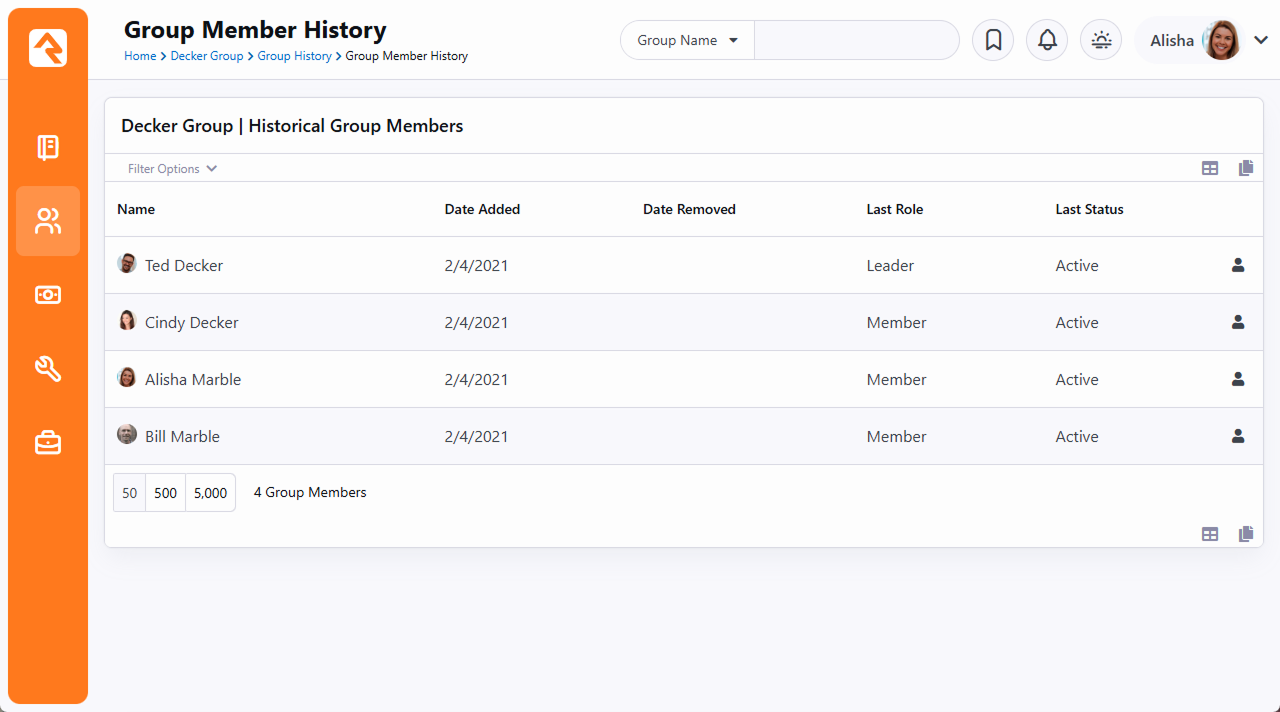
View Group History in a Person's Profile Page
Individual group history is also available on the Person Profile, under the Groups tab.
Group History in Person Profile
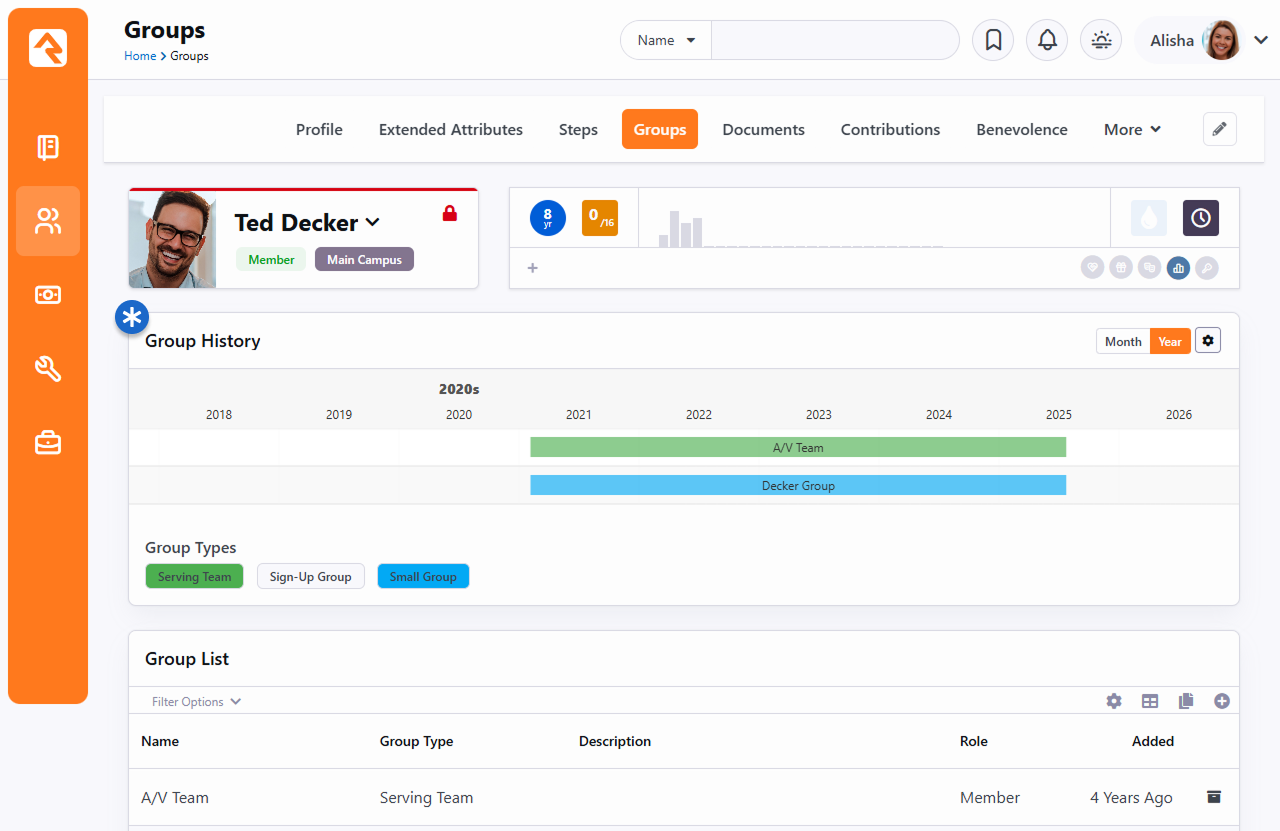
Hover your mouse over any of the events on the person's timeline to display the details of that event. Note the timeline colors correspond to the color assigned to the group back when Group History was enabled. If the person is a group leader, the color will be slightly darker. You can also click on a specific event to drill down into the group. As with all of the tabs on the Person Profile, the information is filterable. Click the button to display the filter options.
Group Finder
The group finder is another very powerful block that allows your website visitors
to search for a group and register quickly. The group finder has been configured
on the external website under Connect > Small Groups.
If configured in the block settings, it allows for searching by the day of the week that the
group meets and the study topic. Selecting your criteria and clicking
Search
returns all of the groups that match those criteria. From there you can choose to
register for a group.
Public Groups
Only groups that are marked as
Public
can be viewed in the group finder. You can change the public setting by
editing the group.
Group Finder
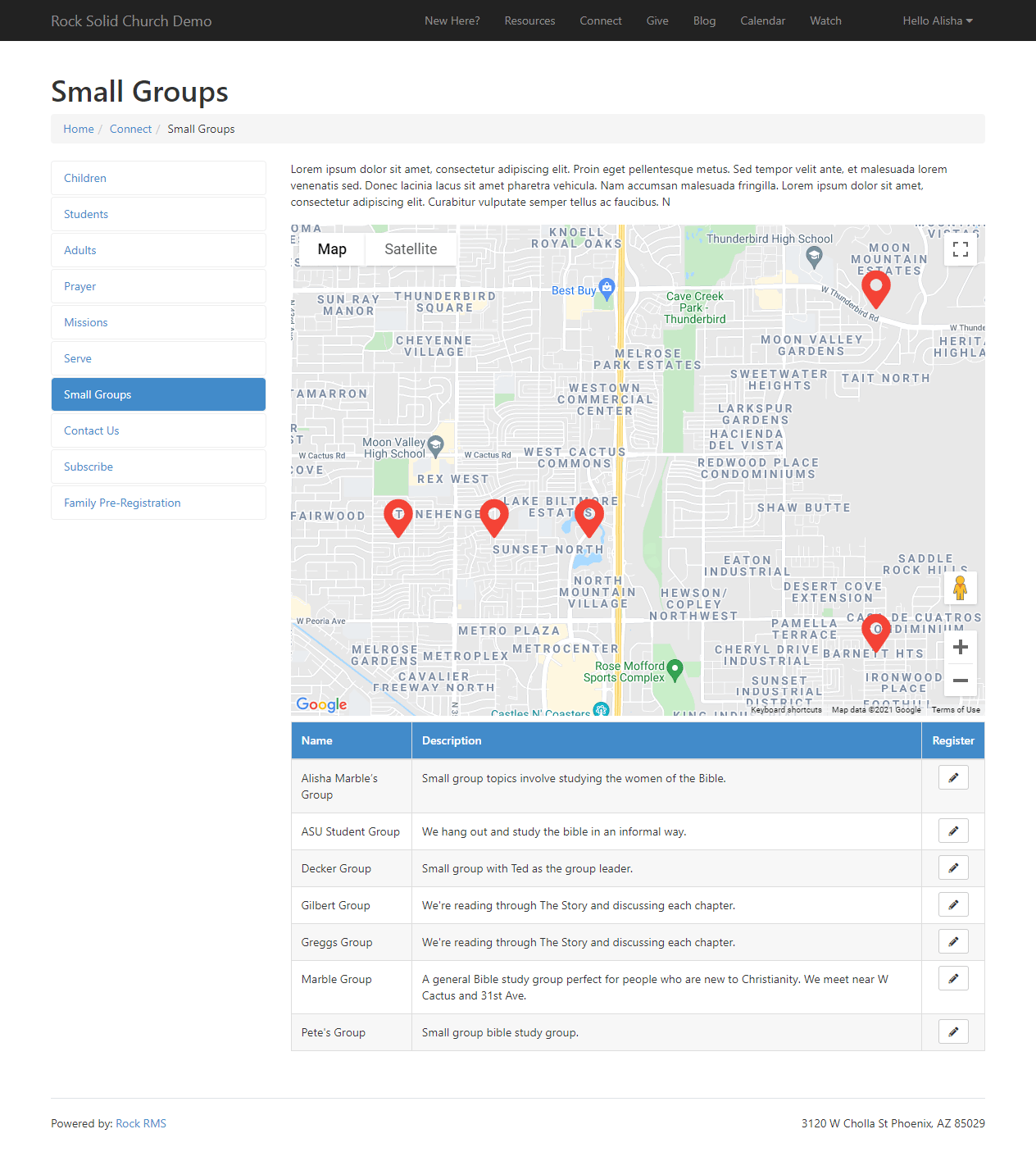
While this default configuration should work for many organizations, there are a
number of ways you can alter the experience by modifying the settings of this
block. Let's take a look at what's possible in the block's settings:
Group Finder Block Settings
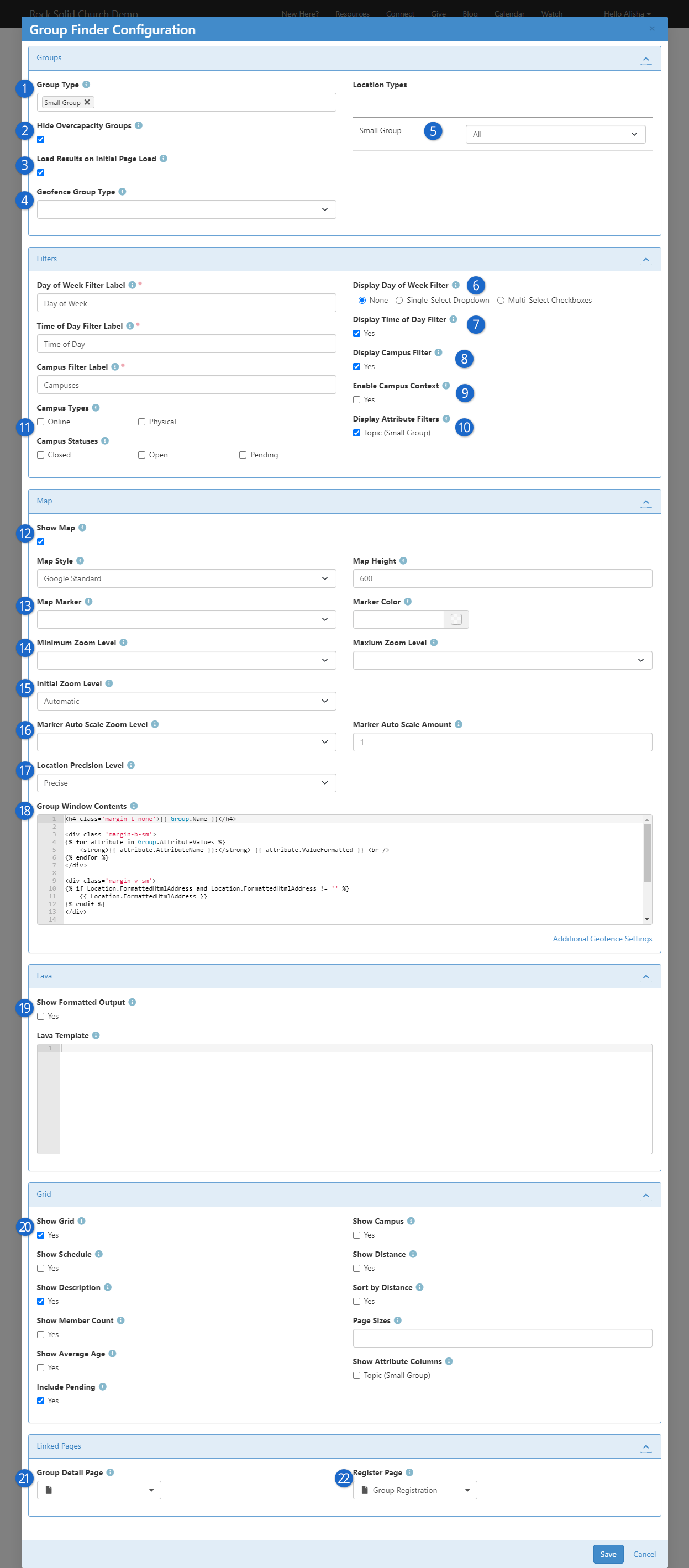
- 1 Group Type
- Start by choosing the Group Types you would like to be available through the group
finder.
- 2 Hide Overcapacity Groups
- If the group is full, then you may not want to show it in the Group Finder. This setting
lets you hide groups that have reached (or exceeded) their maximum capacity.
- 3 Load Results on Initial Page Load
- When this is enabled, a person coming to the page will see the group map and the available
groups, even though they haven't searched for anything yet. When this is
disabled, the person needs to do a search before the map and groups become visible.
This only applies if you've enabled filters the person can search on, like
Day of Week or
Campus.
See below points for more details.
- 4 Geofence Group Type
- Some organizations may want to limit the results to certain geofenced areas that are close
to an address that is provided during the search. For instance, some churches with
neighborhood ministries may only want to show groups that meet in a person's neighborhood.
These churches would create a group type to manage these
neighborhoods, each as a
group of that type. Selecting this group type would then prompt the user to enter their
address as part of the search criteria. This address would be used to determine which
neighborhood geofence they live in so that only groups in that fence are displayed.
Below the Geofence Group Type selector, you have options for changing what your filters are
called.
- 5 Location Types
- You can filter groups by Location Type, to show only groups with locations of a certain
type. For instance, you might only want to show groups with a Location Type of
Meeting Location.
You can set a Location Type for each Group Type individually.
- 6 Display Day of Week Filter
- If your groups have a "weekly" type schedule, you can offer people either a single-select or
a series of checkboxes they can use to find groups which meet on the day they choose.
- 7 Display Time of Day Filter
- If your groups have a "weekly" type schedule, you can offer people the ability to filter for
groups meeting at a specific time. They can choose
Greater Than 5:00pm to
find groups which meet in the evening, for instance.
- 8 Display Campus Filter
- Allows people to filter the list of groups according to the campus they belong to.
- 9 Enable Campus Context
- Configures the block to automatically filter for groups belonging to a specific campus, if
you've set the Campus Context for the page.
- 10 Display Attribute Filters
- Allows you to choose which Group Attributes people can filter the list by.
The same attribute must exist on all of the selected group types in order to be used
as a filter.
- 11 Campus Type/Status
- You can restrict which campuses are available for selection by limiting them to certain
types or statuses. For instance, this would be helpful if you only want to list
Physical campuses that are
Open.
- 12 Show Map
- This section allows you to display or hide the map on which the filtered groups will be
shown. You can also choose the Map Style and size (Map Height).
- 13 Map Marker
- You can change the style of the markers that appear on the map. Options include:
- Pin
- Marker
- Marker With Dot
- Circle
You can also change the color of the markers by updating the
Marker Color.
- 14 Min/Max Zoom Level
- You can use the Minimum and Maximum Zoom Level settings to control exactly
how far a person can zoom in or out on the map. These settings help people
find groups within a reasonable area, while giving you the option to not let
them zoom in to a specific house or building.
- 15 Initial Zoom Level
- This controls the zoom level on the map when the page is loaded. You might set it to
something like 10 - City
to give a wider view of all the available groups.
- 16 Marker Auto Scale Zoom Level/Amount
- These settings relate to the markers on the map. For instance, if your map can be zoomed in
to the Building level, you can set the Marker Auto Scale Zoom to the Street level. This
would mean that the person can zoom the map in to see buildings, but the marker would
still be at the street level. This gives some ambiguity to the exact location of the
group, which can be good for privacy if it's a person's house.
- 17 Location Precision Level
- This is another setting to help mask the exact location of a group, which you might want to
do if it's a person's home. This determines how precise of a latitude/longitude to provide
to the map. The options include:
- Precise
- Narrow
- Close
- Wide
- 18 Group Window Contents
- The HTML and Lava used to display a pop-up window on the map when a group is clicked. By
default, it will show the group name, location, attributes, a link to the Group Detail
Page (if configured) and a link to the Register Page (if configured).
- 19 Lava: Show Formatted Output
- Allows you to configure your own output based on the groups matching the filters. If you
enable both the Lava and grid, the Lava results will be shown above the grid. Your Lava will
have access to an array called Groups which you can loop through to display groups matching
the filters. See our
Lava
documentation for more information.
- 20 Show Grid
- Configures whether the grid (table) of groups will be displayed once filters are chosen. If
it's shown, you can also configure whether other information about each group is included in
the grid, such as the Schedule, Description, Member Count, Average Age (of members), the
Campus, the distance from their address, and whether the groups are sorted according to how
close they are to the person's address. You can also choose how many groups are shown on
each page and which Group Attributes you'd like to display in the grid.
- 21 Group Detail Page
- Specifies a page the person will be taken to if they ask for more details about a group.
This page is available to your Lava using the
LinkedPages.GroupDetailPage object
- 22 Register Page
- Specifies a page the person will be taken to if they click the "Register" button. This page
is available to your Lava using the
LinkedPages.RegisterPage object
Another Way to Use the Group Finder
If you pass a 'PersonGuid' through the page's query string you can use the group finder to register that person for a
group. You can use this trick to say link from a group badge on the person profile page if they are not already in a group.
This allows a staff person to quickly register them for a group without a lot of clicking around.
Consider using the Group Member Add From URL
block with this feature.
Group Registration
Registering for a group is a simple process using Rock's Group Registration
block. Out-of-the-box this block will ask for basic contact information for
the individual and their spouse. By adjusting the block settings, you can
customize this block in several different ways. Below we'll walk through
some of the common settings but be sure to review all of this block's
settings to ensure it's meeting your organization's needs.
-
Mode: There are three entry modes for the registration form.
-
Simple: This mode only asks for the individual's first name,
last name and email address.
-
Full: This mode additionally asks for more
contact information including home phone, cell phone and
address.
-
Full With Spouse: This mode is identical to
the normal Full
mode but adds the spouse's first name, last name, cell phone
and email.
-
Group Member Status: This setting determines the group member status that
will be used when they are added to the group. Options include Pending,
Active or Inactive.
-
Connection Status: The registration form will attempt to find
a matching record in the database using the first name, last name and
email. If a record cannot be
found, a new record will be created in the database. When that occurs,
this will be the connection status that is used for these new records.
-
Record Status: This represents the record status that will be used for
new records. It's best to leave this as Pending
so individuals on your data integrity team can manually review them for
possible duplicates and merge the records if needed.
-
Workflow: This option allows you to launch a workflow after
the registration. The group member will be attached to the workflow as the Entity.
-
Lava Template: This is a Lava template that will be applied
to the top of the registration block. This allows you to customize the
experience for the individual.
-
Result Lava Template: This Lava template is used to craft
a response message after the registration is completed.
-
Result Page: You can optionally send the individual
to a new page after the registration is processed.
-
Show SMS Opt-in: Allows the person to choose whether they would like to receive text
messages on their mobile number. The Options for this field may be hidden, shown for first adult or
shown for all adults.
Schedule Toolbox
In this chapter, we'll explore the power that the Schedule Toolbox puts in the hands of each volunteer.
You'll learn how volunteers can easily manage their schedules, set preferences, and stay organized.
From choosing serving frequencies to setting blackout dates, the Schedule Toolbox streamlines the
volunteer experience, empowering individuals to contribute effectively to your organization's mission.
But before we delve into the capabilities of the Schedule Toolbox, keep in mind that it's just one part
of the larger
Group Scheduling framework.
In the next chapter, we'll cover the administrative configuration and the
Group Scheduler, which is how Group Scheduling is set up and managed internally. And remember, while
many of the examples may revolve around weekend serving schedules, don’t feel limited to that. Group
Scheduling extends far beyond typical weekend service coordination. Don’t be afraid to think outside
the box!
For instance, Group Scheduling can be used to:
- Organize VBS staff and volunteer schedules
- Coordinate summer camp volunteers
- Set up a rotating schedule for monthly campus potlucks
- Keep youth groups on track and engaged
- Seamlessly manage special events
The Schedule Toolbox can be accessed from your public-facing website via the
My Account page.
Let's explore the details, starting with the person’s Current Schedule.
Current Schedule
The Current Schedule is exactly what it sounds like. It shows the person's currently accepted,
declined and pending serving engagements. But there's more to it than just glancing at a
list of dates and times. Let's break down the features in this area of the Schedule Toolbox.
Current Schedule
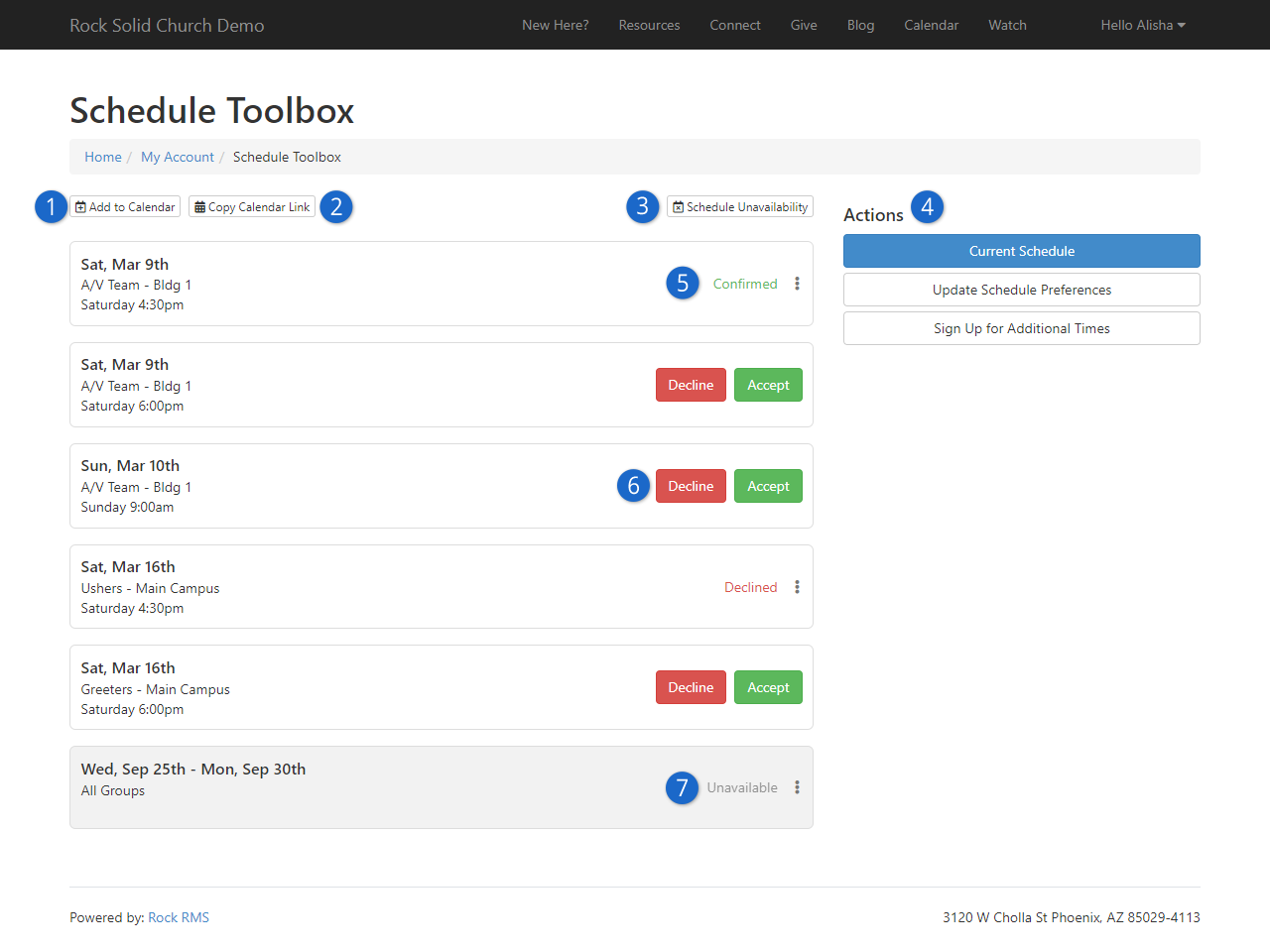
- 1 Add to Calendar
- What’s more convenient than having your schedule on your own calendar? This button
will automatically download a
.ics file to your computer, which you can import into
your calendar software. On mobile, this will immediately ask if you want to add it
directly to your calendar.
- 2 Copy Calendar Link
- This will copy a link to your calendar to your clipboard. This makes it easy to
paste it directly into calendar software like Microsoft Outlook or Google Calendar.
- 3 Schedule Unavailability
- This is where you can set periods when you’ll be unavailable to serve, perhaps
due to a vacation or schedule conflict.
- 4 Actions
- Each of these buttons will direct the volunteer to a new screen where they
can manage different aspects of their schedule and schedule preferences. Each
of these actions are described in the following sections below. The list
of available Actions can be modified by editing the block's settings.
- 5 Confirmed
- Confirmed assignments can be cancelled by clicking the three dots and
selecting Cancel Confirmation.
Similarly, Declined assignments can be accepted
by clicking the three dots and selecting
Confirmed.
Note the text for both of these buttons can be controlled via block setting.
- 6 Accept/Decline
- Will you be able to serve in this slot? Simply click Accept or Decline for
each schedule and location.
- 7 Unavailable
- This indicates an assignment that occurs during a period of unavailability, which
the volunteer can configure for themselves (see below screenshot). Clicking the three
dots to the right will let the person remove such assignments from the list.
The Add to Calendar and
Copy Calendar Link
buttons described above won’t be available
until you have an actual, confirmed schedule. In other words, nothing will go on your
calendar if you haven’t
Accepted
anything yet. Keep in mind you may need to download these files multiple times as your
schedule changes.
Block Settings
Be sure to review the settings for this block because there are a lot of them. For
instance, you can change the text of buttons on the page, or you can disable some of
the features entirely.
Cancelling a “Confirmed” assignment changes it to “Declined” automatically. A reason
for declining will be required if the Group Type is configured to require a reason.
Also, a Decline Note will appear if enabled in the block settings (both are off by
default).
You may also notice that you can switch between schedulable family members on all panels
of the Schedule Toolbox. Pictured below, Noah and Alex are not listed only because they
do not belong to any schedulable groups.
Change Family Members
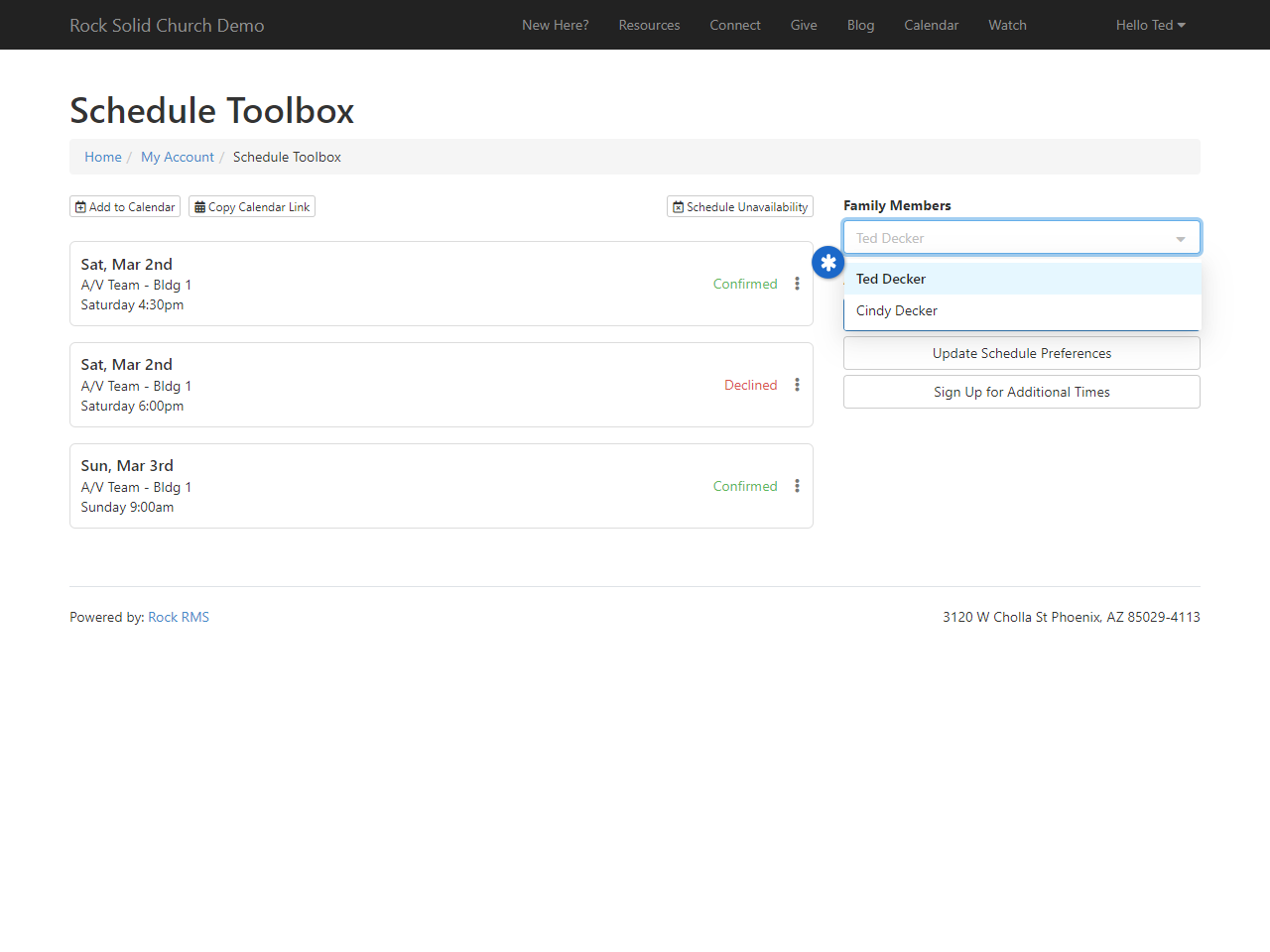
Family members will appear in the
Schedule Unavailability
window (see below), even if they’re not schedulable.
Schedule Unavailability
Next, we'll look at how to set the dates for when you’re unavailable to serve. The
below screen can be accessed by clicking on the
Schedule Unavailability
button from the main
Schedule Toolbox page.
Schedule Unavailability
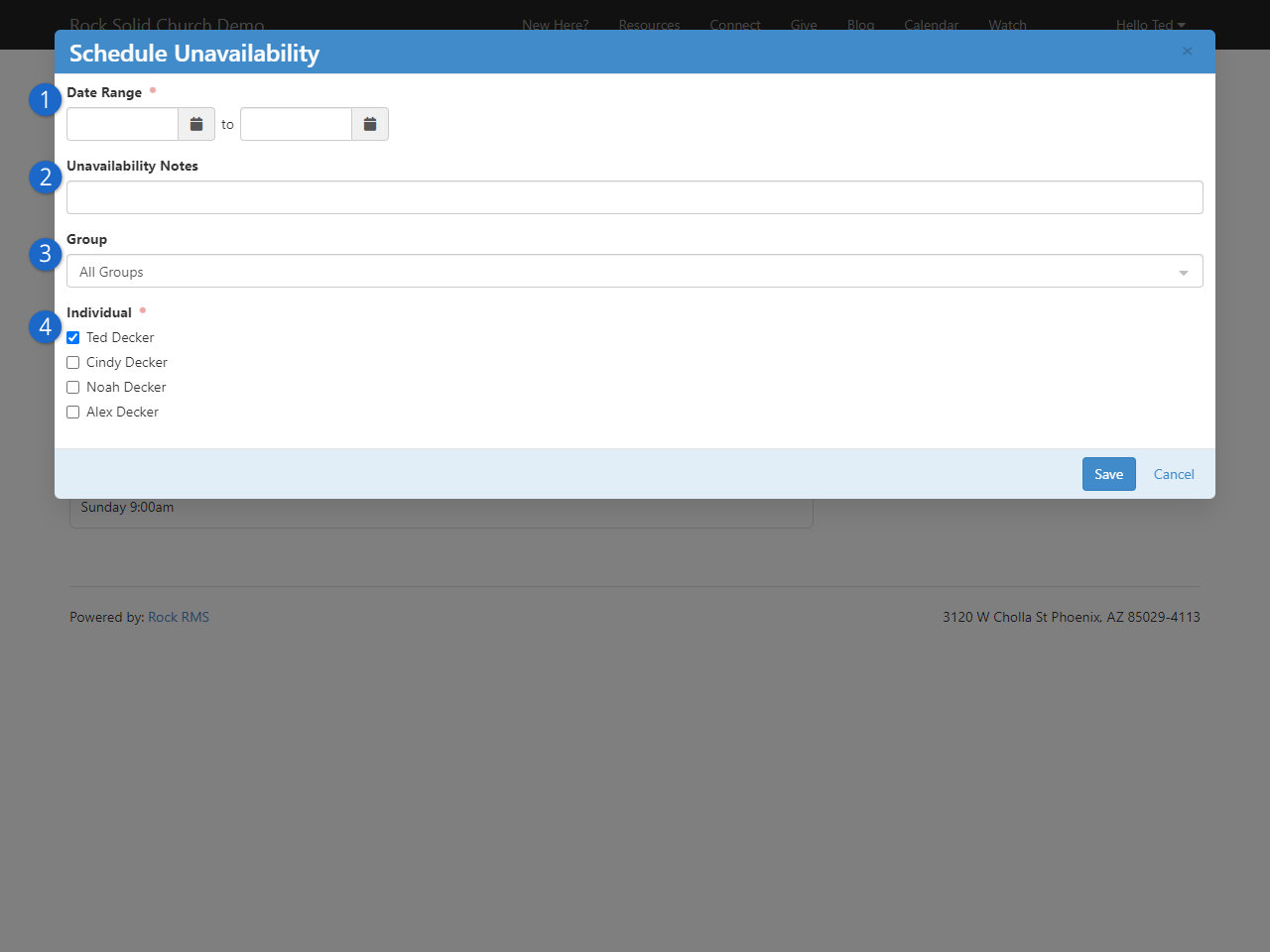
- 1 Date Range
- This is where volunteers can select dates indicating when they can’t serve. This
will prevent the person from being scheduled to serve on those dates.
- 2 Unavailability Notes
- The person can optionally provide a description, indicating why they are unavailable
for the selected dates.
- 3 Group
- A volunteer can be unavailable for serving in a single group, or across all groups.
- 4 Individual
- If a person is unavailable, it's often the case that others in their family are also
unavailable. Here the person has the option to indicate which family member(s) are not
available to serve on the selected dates.
Whoever is selected on the main Schedule Toolbox window will be at the top of the Individual
list and will be automatically selected. The list of available groups from the Group
drop-down is based on this person.
Update Schedule Preferences
The screen displayed below is accessible by clicking the "Update Schedule Preferences"
button on the main
Schedule Toolbox
page. You can switch between groups by clicking on
the headers at the top of the block. In block settings, you can choose to display the
group's campus in these headers. If no abbreviated name is configured, the full campus
name is used.
Update Schedule Preferences
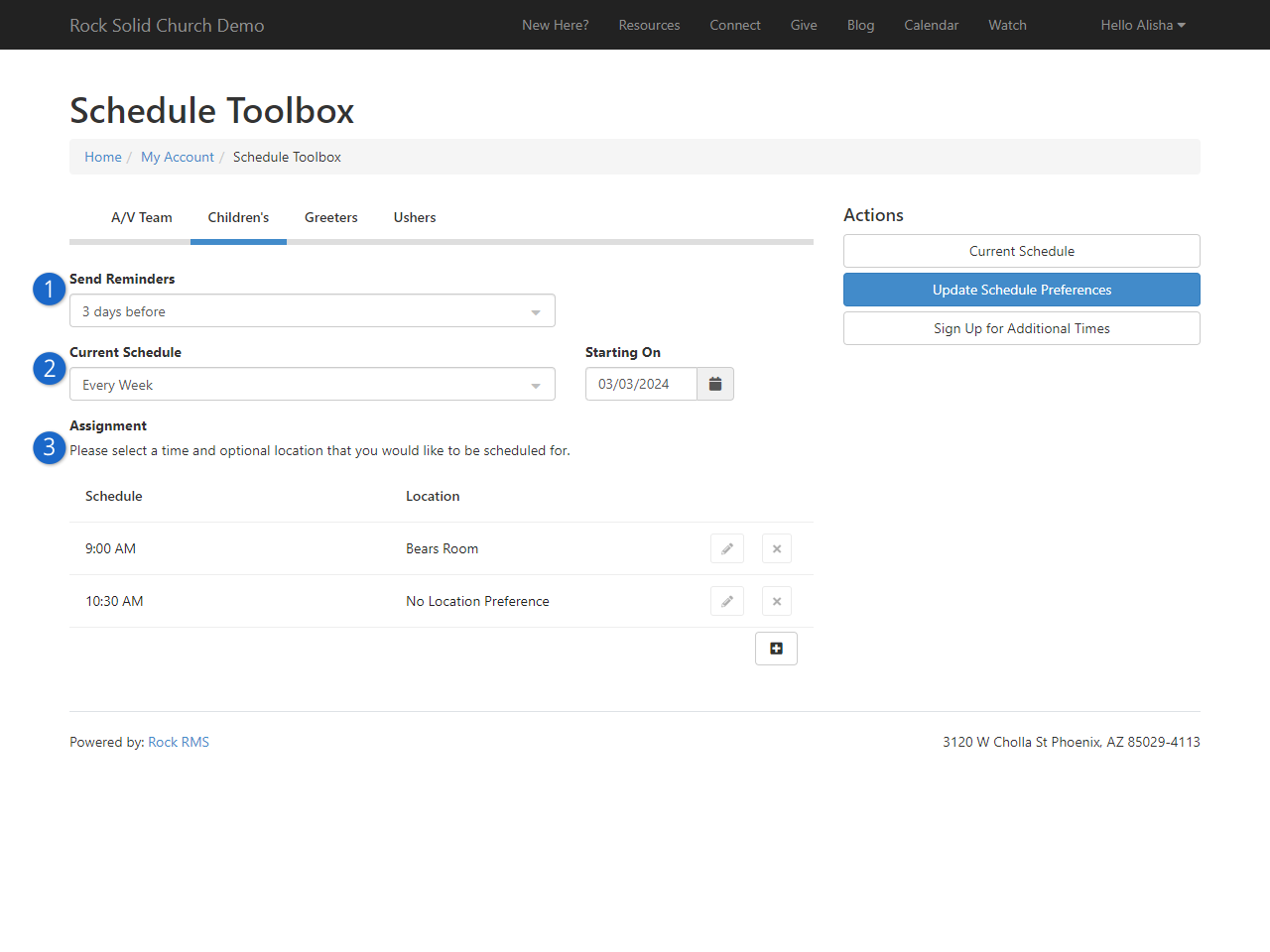
- 1 Send Reminders
- Each volunteer can select how long before a scheduled serving time they want
to receive a reminder that they're scheduled to serve. They can also choose to
not be sent a reminder at all.
- 2 Current Schedule
-
This is where volunteers can set the frequency of their serving. Options include:
- No Schedule
- Every Week
- Every Other Week
- 1st and 3rd Week
- 2nd and 4th Week
This list can be maintained under
Admin Tools > Settings > Group Member Schedule Templates.
- 3 Assignment Preferences
- This is where volunteers can set their preferences for when they would like to
serve and where. Or, a person can choose not to select a location, indicating they
don't have a location preference. Only named schedules marked as
Show Publicly
are listed. These preferences are used to Auto-Schedule volunteers.
The person's assignment preferences can also be viewed and maintained from the
Group Member Detail page.
Group Member Schedule Preferences
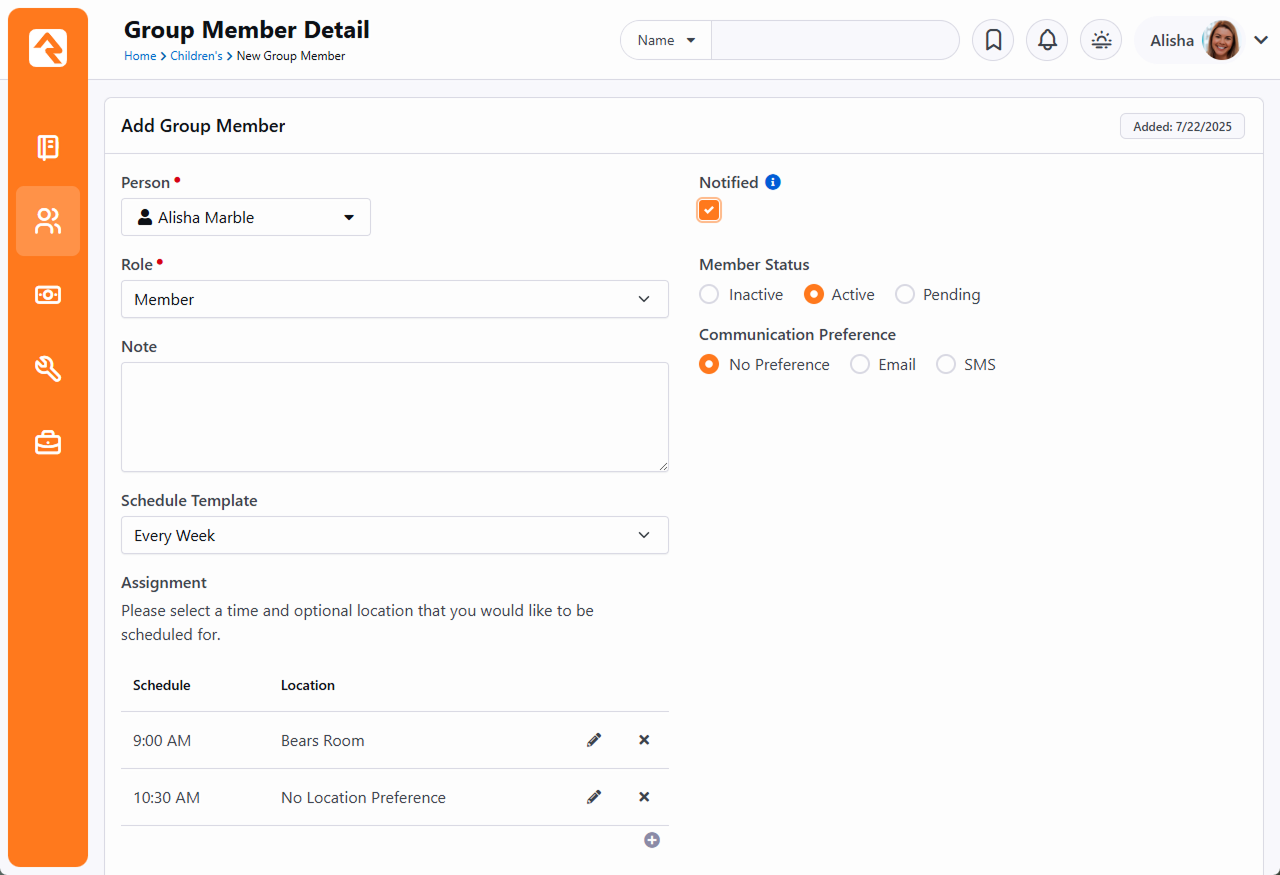
Sign Up for Additional Times
The last stop on our tour of the Schedule Toolbox is the Sign-Up screen. Volunteers
come here to sign up for serving opportunities that aren’t currently on their schedule.
This page is easy to use; all you need to do is check the box next to the serving
opportunity. You may also see an option to pick a preferred location if there are
multiple locations from which to choose.
Sign Up for Additional Times
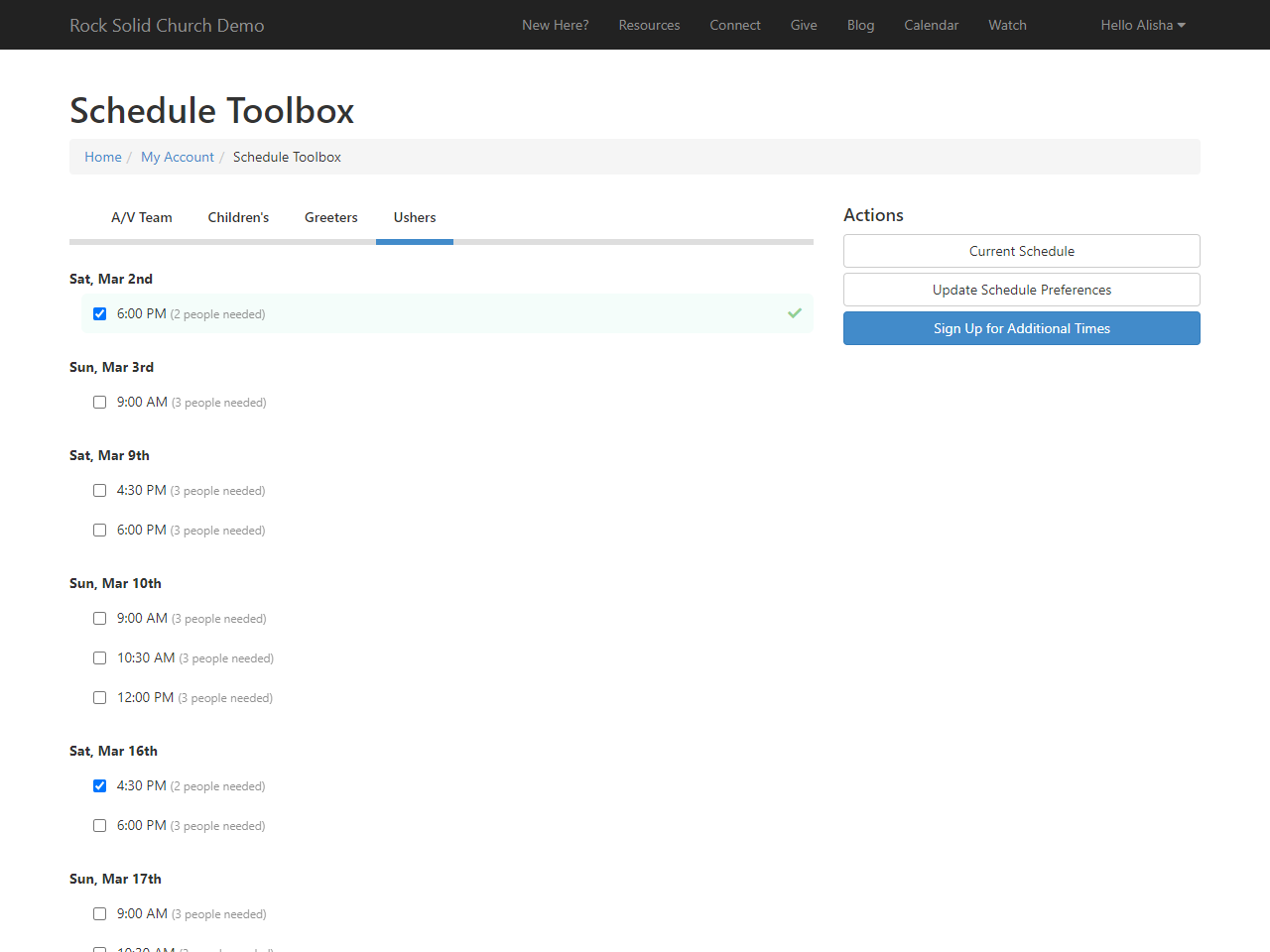
Group Scheduling
This chapter delves into the administrative setup and management capabilities of the Group Scheduling feature.
In the prior chapter we covered what volunteers are empowered to do themselves.
Now, we’ll show you how that all gets set up, and what Group Scheduling looks like on the administrative side.
Before starting to scheduling volunteers, you’ll need to configure things like locations and schedules.
Locations ensure volunteers know where they're needed, while Schedules pinpoint when their help is required.
Then, the Group Scheduler is used to place volunteers into those positions at those times.
Configuring Group Scheduling
There are two critical pieces of the puzzle you need before starting to schedule volunteers. It’s simple to get these pieces because
when it comes to asking for help, people are hardwired to know when
and where they are needed.
So, we are going to make sure our Named Locations and
Schedules are configured.
Be sure to check out the
Checking-Out Check-In
user guide for more detail about adding locations.
For Group Scheduler, however, you will be adding more than rooms.
Perhaps you’ll be adding sections, areas or positions. These might be used to schedule
specific areas of your lobby for the greeters to be stationed. Or, if you’ll be using Rock to schedule your band and technical teams,
add a location named ‘Audio’ or ‘Piano’ and change the location type to be a position.
Adding Location Types
Location Types (Campus, Building, Room, etc.) are
Defined Types.
To add more, open the Defined Type
Location Type
associated with the Location category and click the
button.
Named Locations
Next up: schedules, also known as times. This is found in
Admin Tools > Settings > General > Schedules.
You should have a few parent groups for different types of schedules. For group scheduling, we want to
make sure the times are accurate since, you guessed it, location and time are critical aspects of
scheduling volunteers.
Schedules
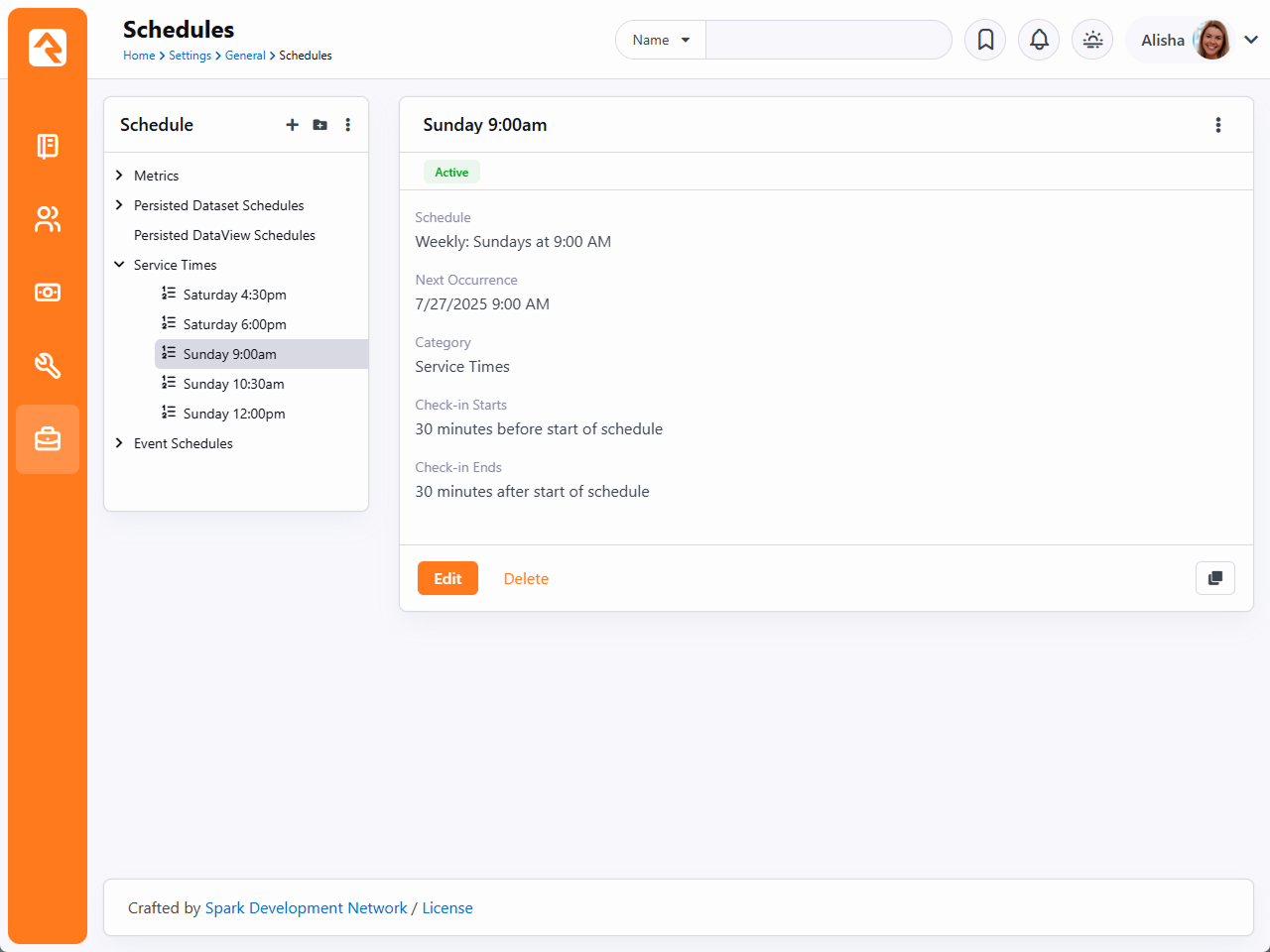
One Schedule
It is best practice to have one schedule for each time. If you have multiple sites with
the same start times, you will only need one schedule for that time.
Lastly, make sure scheduling is enabled on the Group Type.
Navigate to Admin Tools > Settings > General > Group Types > Serving Team | Scheduling.
There are additional settings you can configure for your organization. To enable, check the
Scheduling Enabled box as pictured below.
Group Type Scheduling
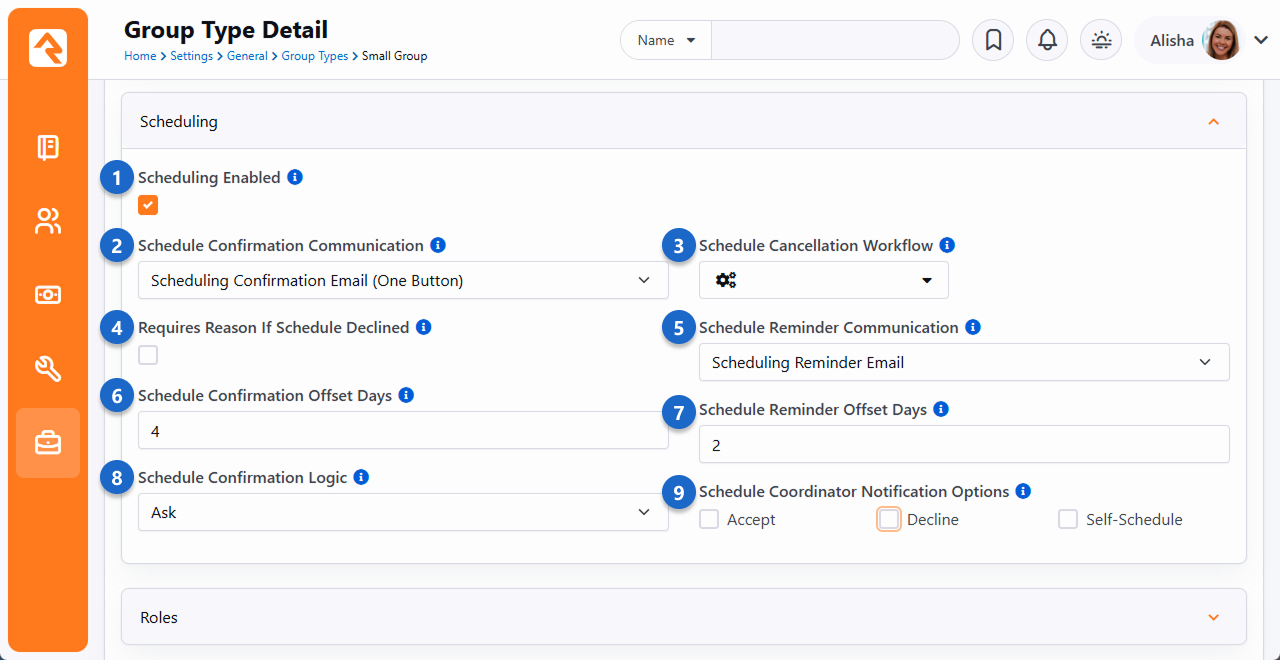
- 1 Scheduling Enabled
- Enabling scheduling unlocks all of the scheduling features for groups of this type.
- 2 Schedule Confirmation Communication
- Select the System Communication that you want to send to people to confirm their schedule.
Rock ships with the
Scheduling Confirmation Email
System Communication for this purpose.
Email Security and Schedule Responses
Some email security tools automatically open links to scan them. This can unintentionally accept or decline a person's schedule, especially if a decline reason is required. To avoid this, use the Scheduling Confirmation Email (One Button) template, the default template, which prevents this behavior.
- 3 Schedule Cancellation Workflow
- You can optionally launch a workflow whenever a person indicates they can't
make it at their scheduled time. You might use this to notify people that you're a person
shorter than planned.
- 4 Requires Reason If Schedule Declined
- This setting determines if a reason is required if a person says they can't attend at
their scheduled time. The available reasons are stored as a Defined Type called
Group Schedule Decline Reason.
- 5 Schedule Reminder Communication
- This is the System Communication to use for sending people a reminder about their
scheduled serving time. Rock ships with the
Scheduling Reminder Email
System Communication for this purpose, but you can use a custom communication if desired.
- 6 Schedule Confirmation Offset Days
- This is simply the number of days before the scheduled serving time that you want to send
the confirmation email.
- 7 Schedule Reminder Offset Days
- This is similar to the setting described above but applies to the reminder email.
- 8 Schedule Confirmation Logic
- Here you can choose to
Ask the person
if they accept their schedule, or you can have all schedules automatically accepted
by choosing
Auto Accept
instead. If this is set to
Auto Accept,
then the confirmation email will only contain a Decline button.
Changing Schedule Confirmation Logic
Keeping in mind it should happen rarely, use caution when
changing the
Schedule Confirmation Logic
setting. In some scenarios, changing this setting could result
in a person who is not confirmed receiving a confirmation email with only a Decline button
and no way to Accept the assignment. This typically happens when changing from
Ask
to
Auto Accept
before the person receives their confirmation email.
- 9 Schedule Coordinator Notification Options
- Here you can designate which types of schedule changes the group's
Schedule Coordinator
should be alerted to. See the
Schedule Coordinator Notification
section below for more details.
In the Group Type configuration pictured above, note the
Schedule Confirmation Email and
Schedule Reminder Email settings.
These communications can be sent via email or SMS messaging.
To send these as SMS messages you'll need to be sure to have SMS messaging configured (see the
Communicating With Rock
guide for details) and the person needs to have an SMS enabled phone number. You'll also need to make sure the
System Communications
for these are configured for SMS. With all that in place, the communication medium will be decided based on the person's group member communication preference
or, if not specified there, the person's personal profile communication preference.
Configuring Groups
We're almost to the fun part. The
Group Scheduler
requires some information from the group before it’s ready.
In the Group Viewer, add
Meeting Details for every
location that needs assigned people. This might be a pretty long list for some groups like the
list we see in the screenshot below.
Meeting Details
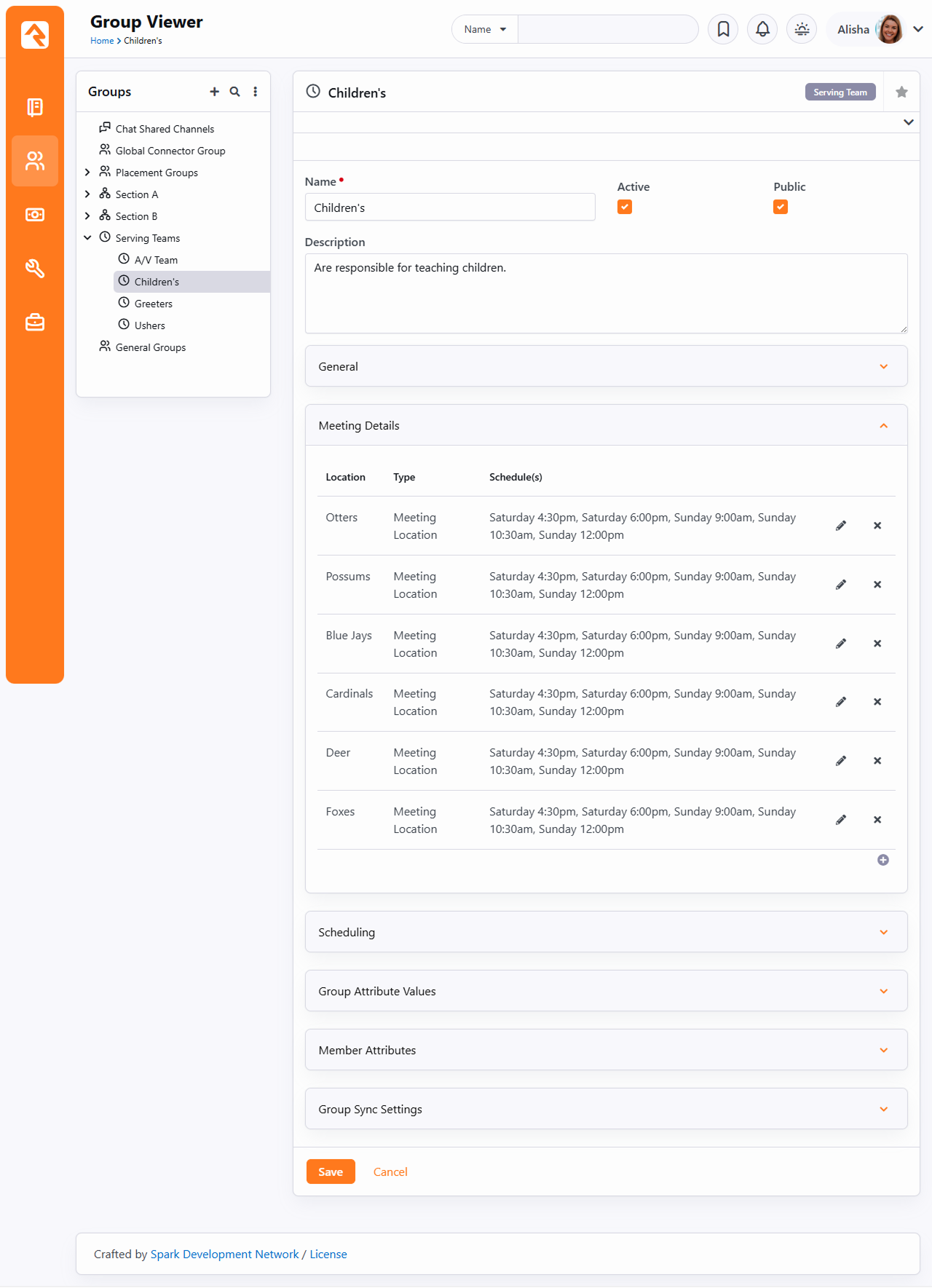
At the end of the day, the goal for this page is to have separation and customization for each group.
You can break your groups up any way that works best for your flow of work. We recommend that you do
some planning before jumping in and creating groups so you can maximize the effectiveness of this
feature for your staff.
Meeting Details
Click on the
icon in the Meeting Details tab.
This opens a window to add a new location. The properties include Location, Type, and Schedule(s).
Adding Meeting Details
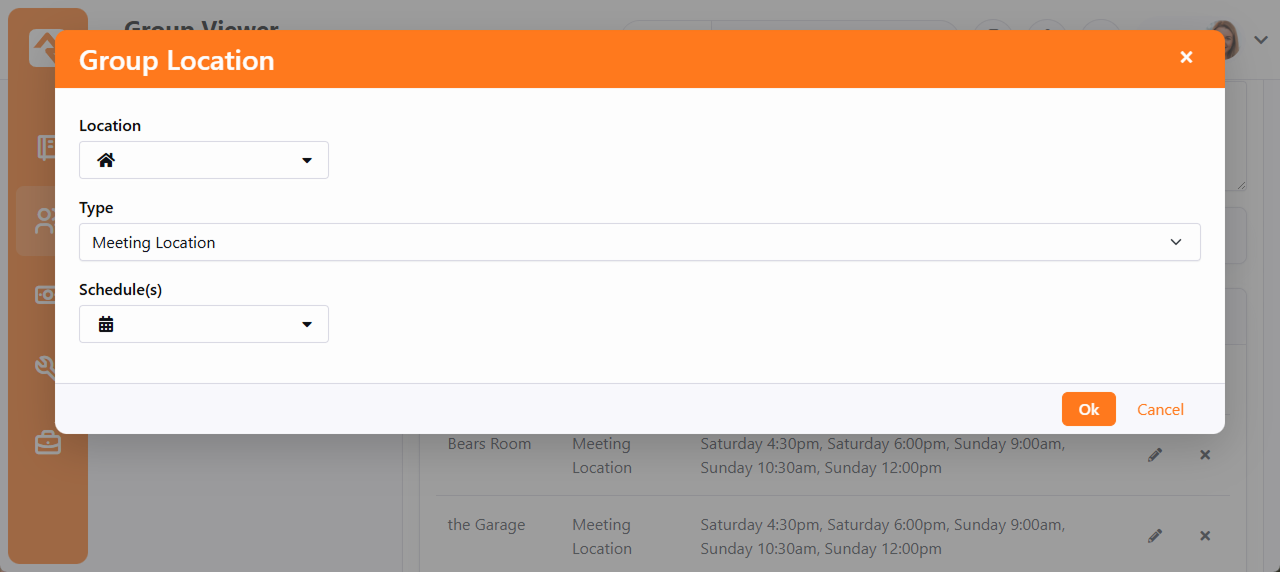
- 1 Location
- Choose from the drop down (these are the rooms from the Named Locations page).
- 2 Type
- These are Defined Types found in General Settings > Defined Type > Group | Location Type.
- 3 Schedules
- This drop down shows all the times from the
Schedules
page in General Settings.
You can select multiple schedules (i.e., service times) just by clicking on them one by one. Make sure you use the same schedule for every group in the meeting details.
This will avoid scheduling conflicts. More properties can be selected to add the minimum, desired and maximum people needed for that room and its times.
Capacities
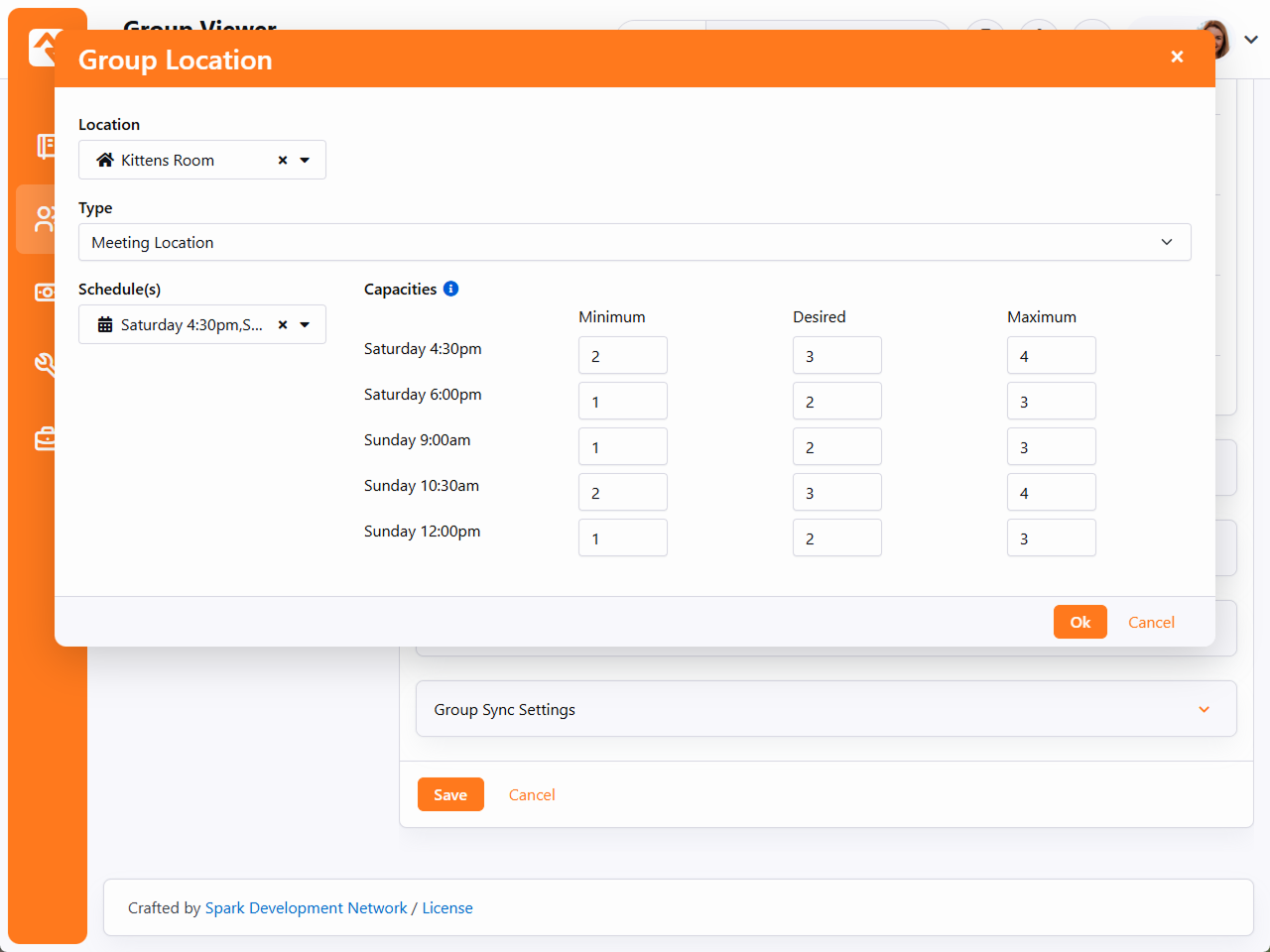
You have the option to choose different capacities for each time.
The Group Location
screen pictured above is where all those details are customized.
When it's complete, you shouldn’t have to do anything in the meeting details again until your organization opens more rooms or adds times.
Members
It goes without saying: it’s best practice for your volunteers to be members in the group to appear on the people list in the Group Scheduler,
although there are other ways to search for people in the Group Scheduler. We’ll discuss that later.
Next, you'll need to set up the group's Scheduling options. Even though scheduling is enabled at the Group Type level,
there are settings you can control for each group individually.
Scheduling
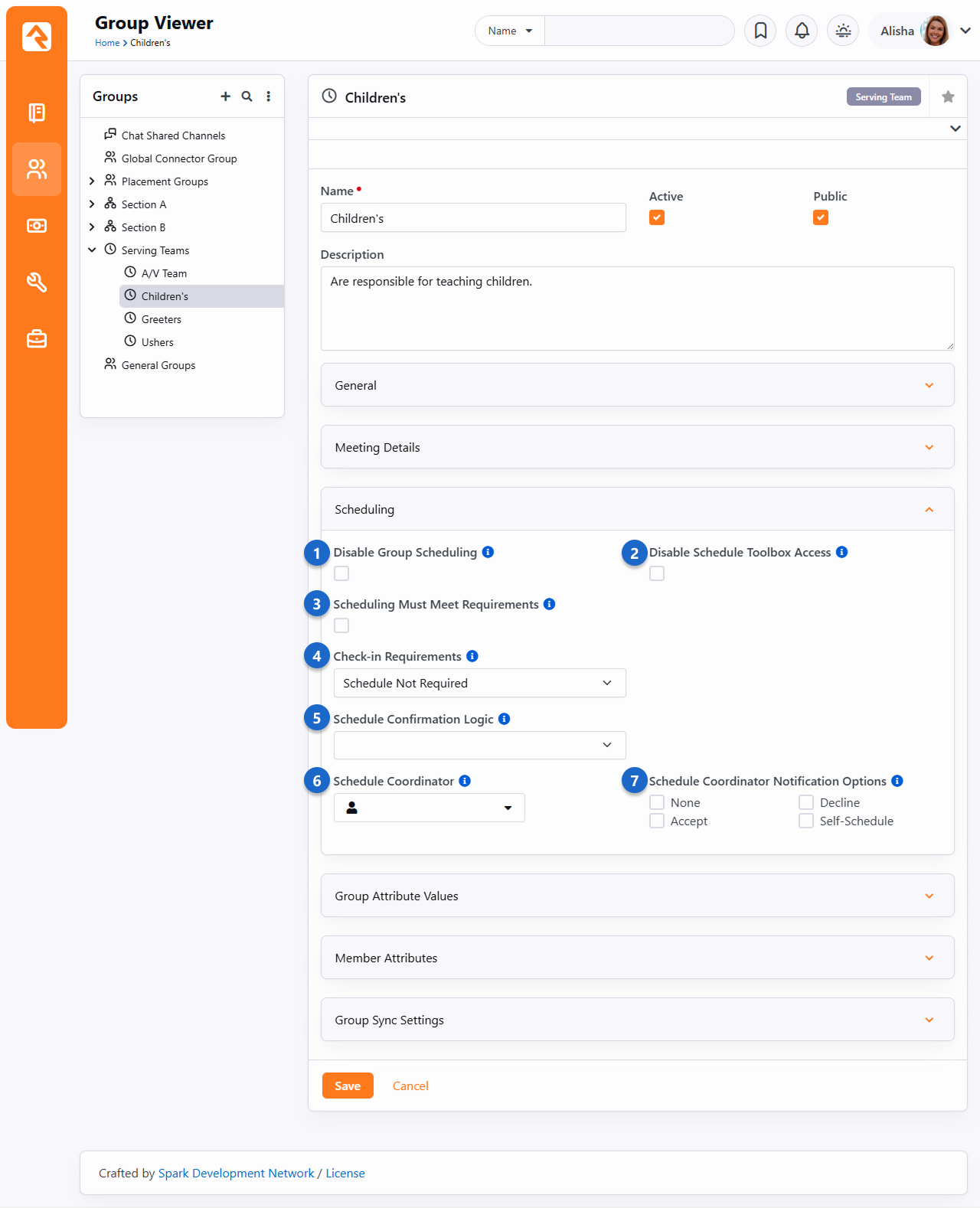
- 1 Disable Group Scheduling
- Group scheduling is enabled at the Group Type level, but you can disable group scheduling
for individual groups using this setting.
- 2 Disable Schedule Toolbox Access
- Enabling this takes the group out of the public-facing Schedule Toolbox.
- 3 Scheduling Must Meet Requirements
- If this is enabled, then the person must meet the group's membership requirements in order
to be scheduled. For instance, you might want to prevent someone from being scheduled in certain
groups if their background check is expired.
- 4 Check-in Requirements
- The setting here applies when the person attempts to check in to the group.
The options include:
- Schedule Not Required: The person does not need to be scheduled in order
to check in for this group
- Pre-select Group if Scheduled: If the person is scheduled then this group
will be pre-selected when the person goes to check in
- Schedule Required: A person can't check in to this group unless they are
scheduled
- 5 Schedule Confirmation Logic
- Here you can choose to have everyone who gets scheduled automatically Accept their
assignment, as opposed to the person Accepting the assignment themselves manually.
- 6 Schedule Coordinator
- If someone is scheduled and they make a change to their schedule (Accept, Decline, Add),
the Schedule Coordinator will be notified.
- 7 Schedule Coordinator Notification Options
- This is where you determine, for the group, which events should trigger a
notification to the
Schedule Coordinator.
Values here will override the corresponding values at the Group Type level. See the
Schedule Coordinator Notifications
section below for more details.
Setting up Permissions
You'll want to be sure that the right people have the proper permissions to access and
manage groups. We have all the info you need on how group security works for both group
leaders and staff in the Securing Groups chapter above.
Group Scheduler
Now the moment of truth…the
Group Scheduler page. This is
where the magic happens. Okay, maybe not actual magic, but it is where the scheduling happens.
This page will become very familiar to your staff, since it’s the "magic page" for organizing
group members into a location.
Obsidian Group Scheduler
The following Group Scheduler documentation shows the newer
Obsidian
version. For the previous version, see the
v16 Group Scheduler Documentation.
The Group Scheduler can be accessed from
People > Group Scheduling > Group Scheduler.
Group Scheduler - Filled
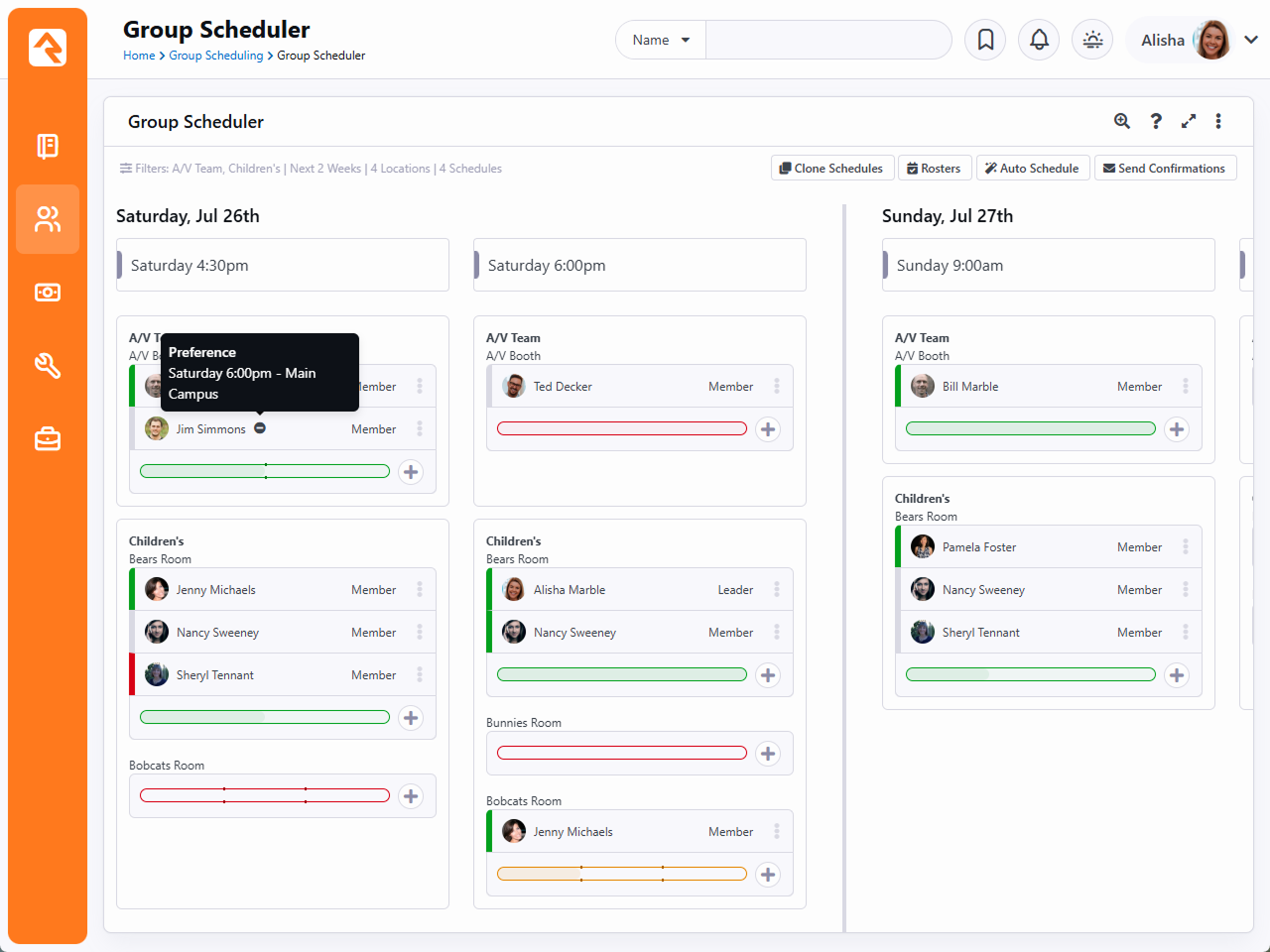
Using Group Scheduler
At first the group scheduler will be empty as pictured below. Let’s start from here to
show how we can build a full schedule from a blank canvas. First, we’ll tour some of
the features and functions on this page.
Group Scheduler - Empty
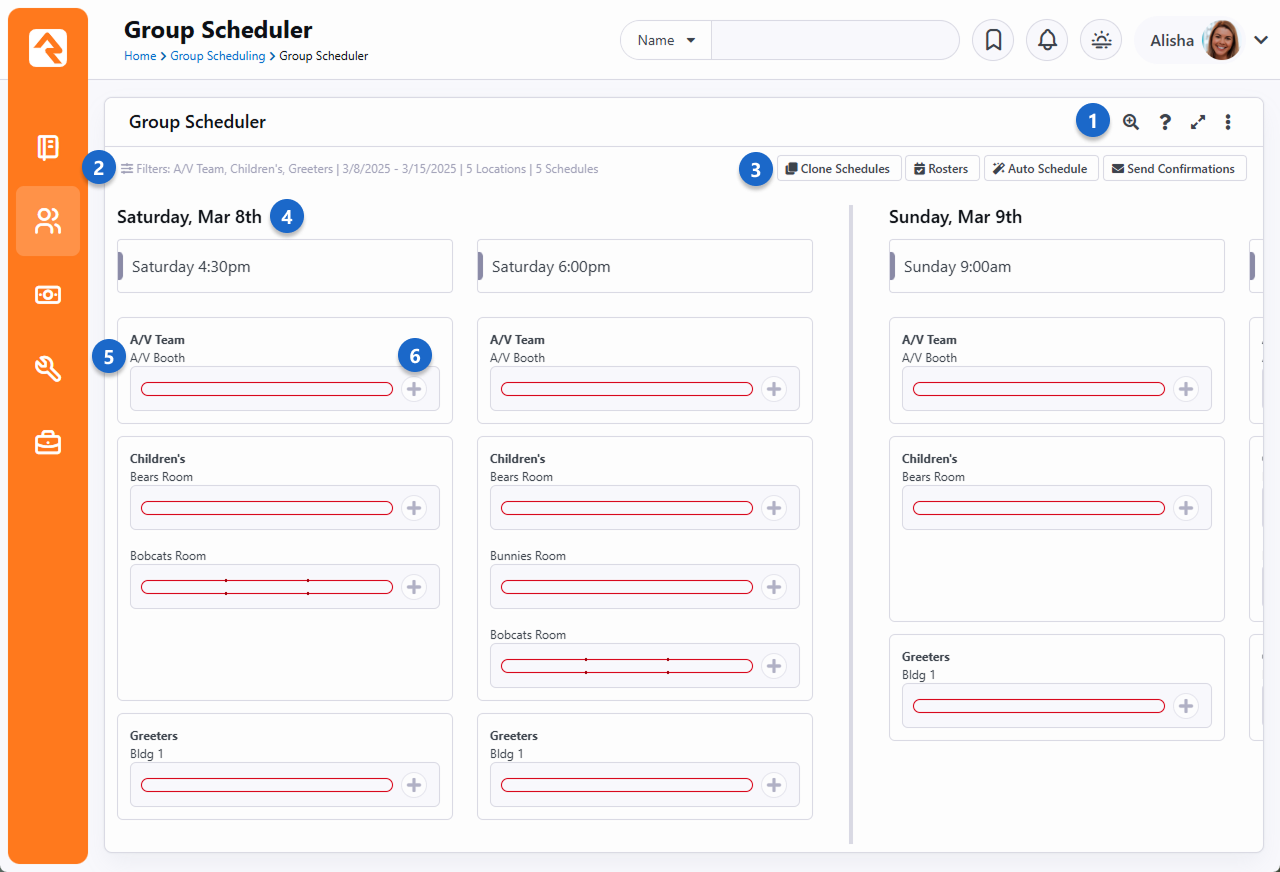
- 1 Page Options
- The icons in the top-right corner of the block allow you to see and do different things.
- Zoom: We made it easy to change the zoom level, so the group
scheduler fits well into screens of different sizes.
- Help: Click here to show a handy summary of how various parts
of the Group Scheduler works and what different icons mean. This is a great
quick-reference tool for staff using the page.
- Full Screen: Click this to turn the full-screen view on or
off.
- Copy Link to Clipboard: Found under the menu, a link which includes the filters
you’ve selected on the page (i.e., weeks, locations, schedules) can be copied to
your clipboard. Anyone with proper permissions who uses it will essentially see
the page as it appears for you when the link is copied.
- 2 Filters
- Click here to change what you see on the screen. You can choose which groups, weeks,
locations and schedules you want to see.
- 3 Scheduler Actions
-
- Clone Schedules: This copies schedules and assignments from one
week to another. We’ll cover this a little later below.
- Rosters: This button takes you to the
Group Schedule Roster
page. How convenient!
- Auto Schedule: Click this button to let Rock automatically
schedule people based on their serving preferences. We’ll talk more about Auto
Scheduling below.
- Send Confirmations: This will send a scheduling confirmation request to
the people who have been scheduled, allowing them the opportunity to accept or
decline their assignments.
- 4 Date/Time Columns
- Each column represents a schedule. If there are multiple schedules in the same day, they
are grouped together under that date.
- 5 Locations
- Listed vertically beneath each schedule are the locations for that schedule. For each
location you can see a progress bar indicating how many people have been scheduled at
that location for that time. The bar changes color based on the number of people who
are scheduled compared to how many people are needed.
- 6 Add to Schedule
- Click the icon to start adding people to the schedule
for that date, time and location. We’ll show you what that looks like below.
You may have noticed that each group location has a progress bar showing the
status of the schedule and how close the location is to being filled. The
status is indicated by the color of the bar:
- Red: There are not enough accepted invites to reach the minimum number of individuals needed.
- Yellow: There are enough accepted invites to reach the minimum number, but not the desired number.
- Green: There are enough accepted invites to reach or exceed the desired number.
- Orange: There are too many accepted invites and the maximum number is exceeded.
This is based on how the location is configured, which we mentioned above in the
Configuring Groups section. You can hover over
the progress bar to see the configured capacities and the counts for each type
of invite response.
At this point we’re ready to start scheduling some volunteers. There are two ways to add people
to the schedule.
Auto Schedule Vs. Manual Schedule
Imagine being able to effortlessly match every volunteer with their perfect serving role.
That’s what Rock’s Auto Scheduling
feature does. It takes the guesswork out of scheduling and ensures your team is ready to serve without
a hitch. With just a click, you can confidently assign volunteers based on their preferences, saving time
and avoiding scheduling conflicts.
Auto Scheduling relies on preferences set by each volunteer, either through their
My Account page or the internal site, where
administrators can view and update them as needed. This seamless connection ensures everyone’s availability
and preferences are up-to-date, whether volunteers manage their preferences themselves or a staff member adjusts
them after a quick chat.
Rock’s logic avoids double-booking volunteers, even the multi-talented ones who are ready for any role. By
referencing your schedule configuration, the system ensures no one is assigned to overlapping time slots.
As long as you’re using the same schedules to represent the same time frames, then the auto scheduler won’t
double book anyone. This is why it’s best to have one shared schedule for a given time, rather than multiple
schedules for the same time.
So how exactly does the auto scheduler place people? Are there scenarios where a person can't be automatically
scheduled? The table below shows different scenarios for Alisha Marble, who is volunteering with the Children's
team. Whether she gets auto scheduled depends on several factors, but it's mostly driven by her preferences.
Each row on the table represents a different scenario and its outcome.
| Alisha's Current Schedule |
Alisha's Schedule Preference |
Alisha's Location Preference |
Volunteers Already Assigned/Capacity |
Auto-Schedule Result |
| - |
- |
- |
0/3 - Bears
0/3 - Bobcats |
Alisha is not scheduled because she has no preferences set. |
| Every Week |
- |
- |
0/3 - Bears
0/3 - Bobcats |
Alisha is not scheduled because she has no schedule preference set. |
| Every Week |
10:30am |
- |
0/3 - Bears
0/3 - Bobcats |
Alisha is scheduled in the Bears room at 10:30am due to her schedule preference. |
| Every Week |
10:30am |
Bears Room |
0/3 - Bears
0/3 - Bobcats |
Alisha is scheduled in the Bears room at 10:30am due to her schedule and location preferences. |
| Every Week |
10:30am |
Bears Room |
3/3 - Bears
0/3 - Bobcats |
Alisha is not scheduled because her preferred location is full. |
| Every Week |
10:30am |
- |
3/3 - Bears
0/3 - Bobcats |
Alisha is scheduled for the Bobcats room at 10:30am due to her schedule preference and not having a location preference. |
| Every Week |
10:30am |
- |
3/3 - Bears
3/3 - Bobcats |
Alisha is not scheduled because no rooms are available at her preferred time of 10:30am. |
Manual scheduling
is in the name. It’s physically placing people into their serving
locations. If we're being realistic here, we know there are going to be those few people
who never get around to setting their preferences, so in those cases you’ll have to
manually place them.
We’ll start with auto-scheduling, since that should fill in a good portion of our schedule
for us. This also means people with preferences set get priority. After clicking the
Auto Schedule button,
people will be added to the schedule automatically as shown below.
Auto Schedule
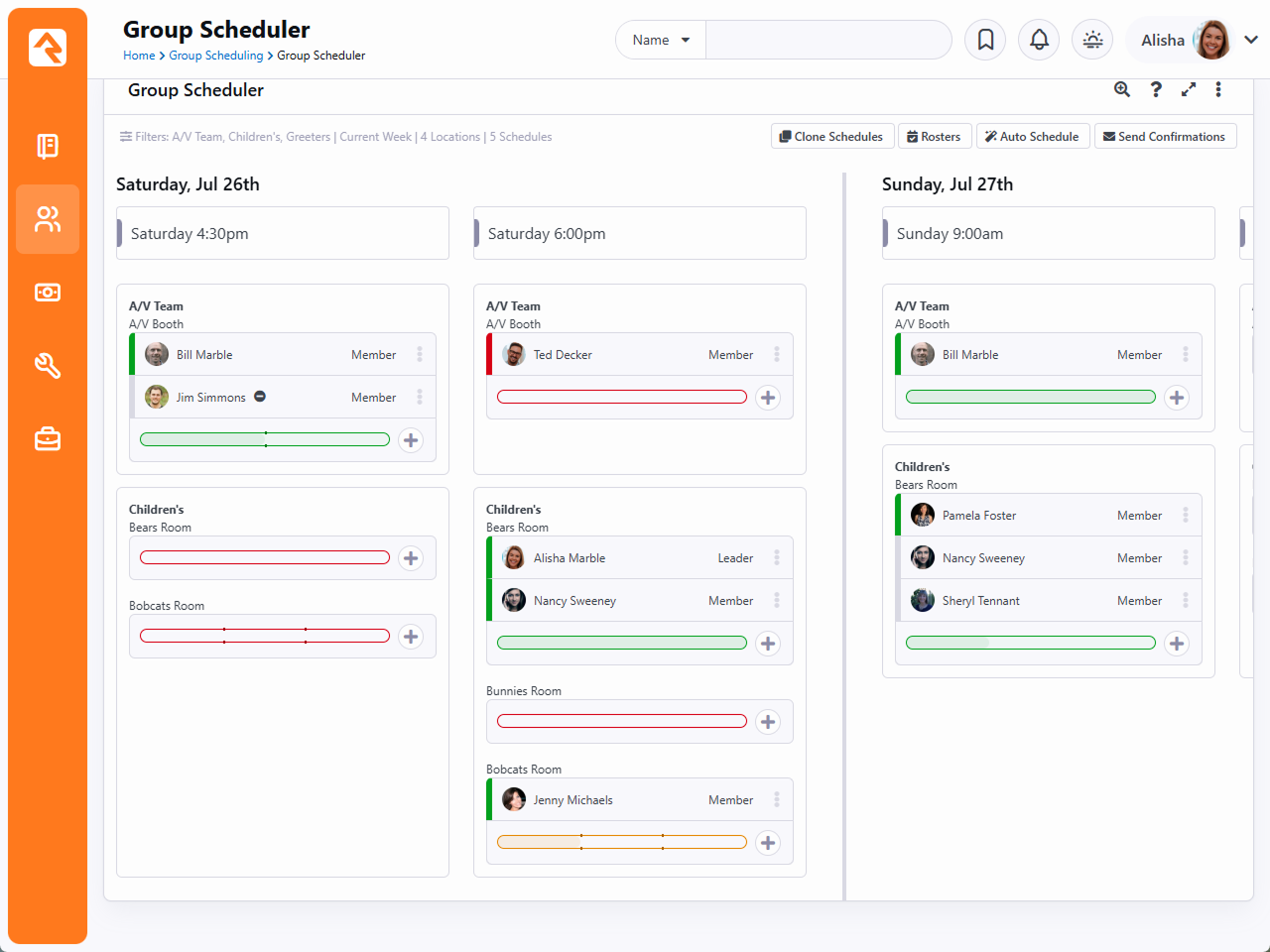
So, we've got several slots already filled in, but there are still some openings.
We can use manual scheduling to fill those gaps. Click the
icon for a location/schedule to manually add people
to the schedule. As pictured below, all you need to do is check the box next to the
person’s name and click
Assign. You can find
people using the Search
box near the top-right corner, which is very helpful if you have long lists to look through.
Add Person Manually
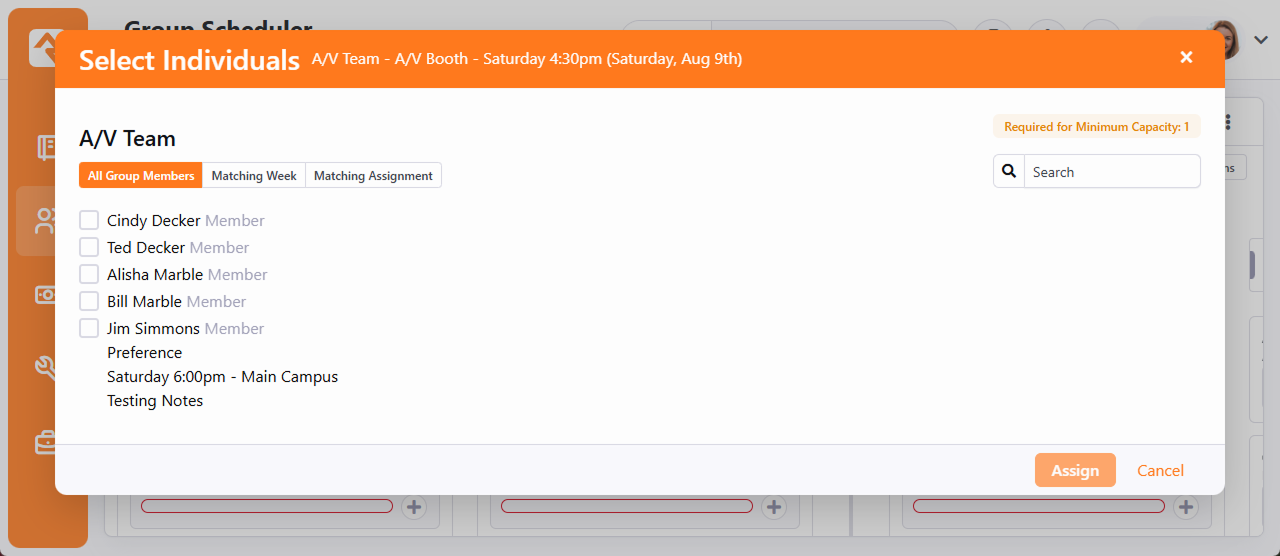
You might have noticed the three different tabs above the list of people. Here's what they mean:
- All Group Members - Displays everyone in the group who isn't yet scheduled.
- Matching Week - Only shows people who are available for the week you're looking at. It checks if they've said "yes" to helping out that week through the Schedule Template.
- Matching Assignment - Only shows people who are available for the exact time or place you're trying to fill this week. It helps you see who is already working that specific job or possibly available to work it.
Keep in mind that people who have a blackout date can't
be auto or manually scheduled.
Blackout
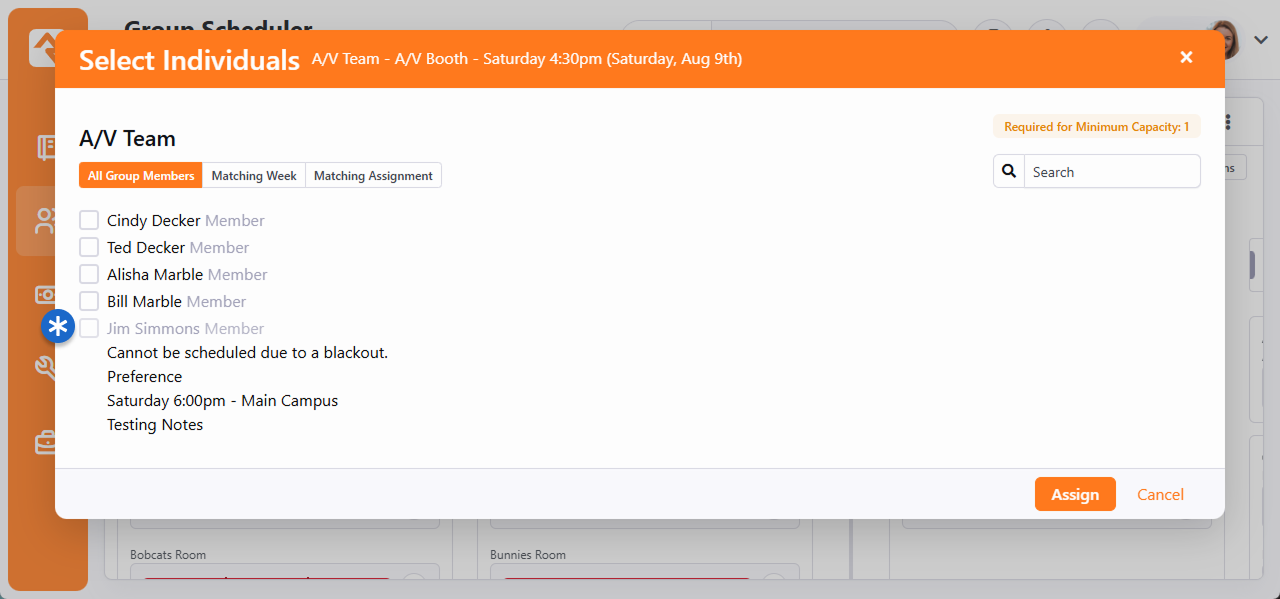
Similarly, you can see if someone has a conflict with another schedule.
Conflict
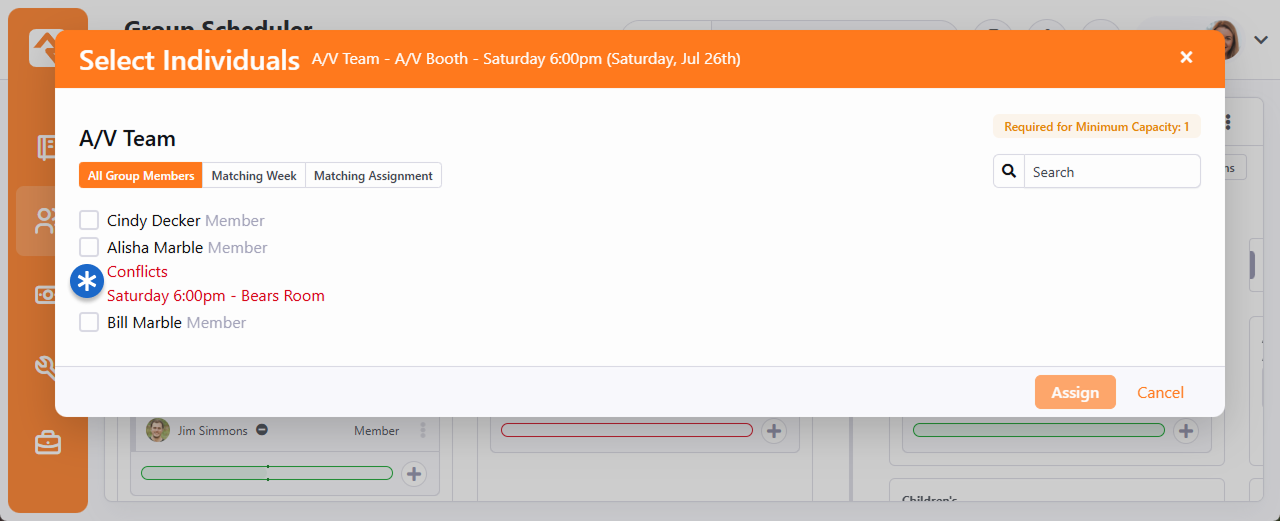
If you have multiple sites that are close enough to each other that some people volunteer at
more than one location, you will run into a scheduling conflict that doesn’t appear as one
if the locations have different schedules. For example, one site might have a 4:30pm and
6:00pm schedule while the other only has a 5:00pm schedule. If someone is scheduled for the
4:30pm slot at one site, Rock won’t see a conflict if you try to schedule them for 5:00pm at
a different site.
Note
If both sites have a 4:30pm and 6:00pm schedule, make sure those schedules in your
meeting details are the same for all groups. There is no need to have location-specific
4:30pm schedules in the schedule tree.
Block settings enable additional tabs to appear at the top of the
Select Individuals popup.
Alternate Group, Parent Group, and Data View
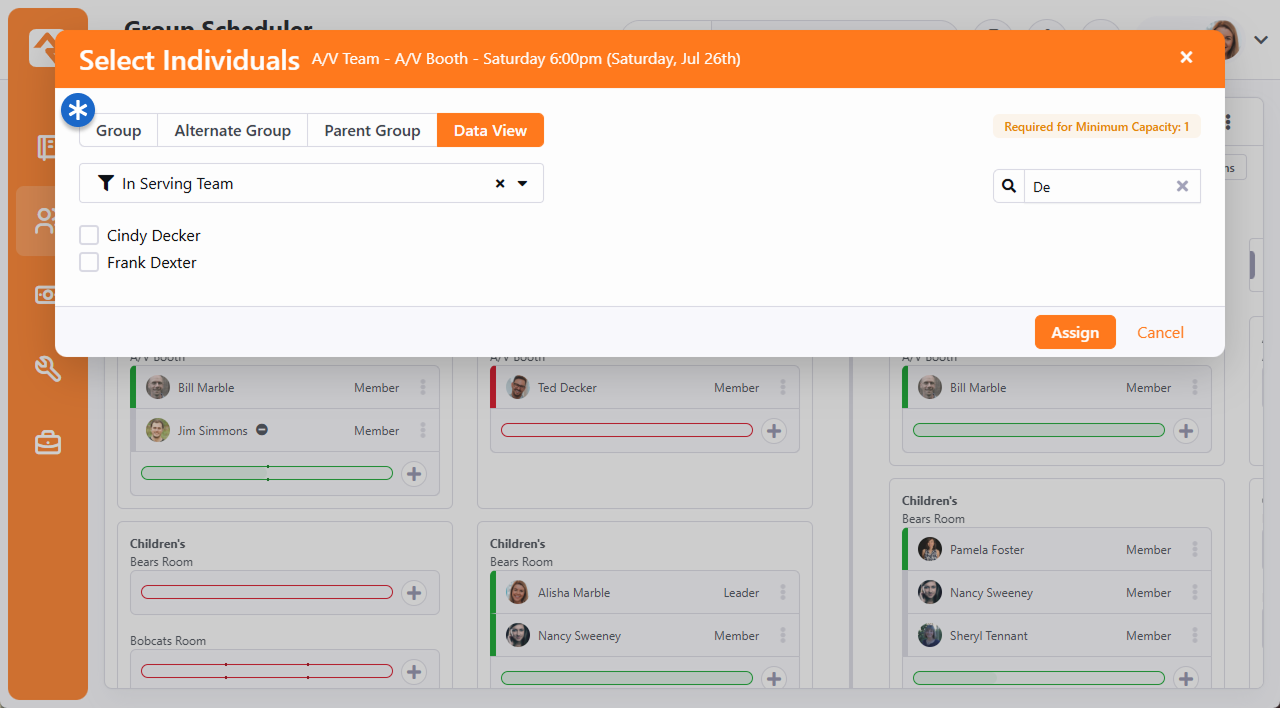
Confirmation Communication
You will typically send a mass communication once you have your teams set up for them to accept or
decline. Click on the
Send Confirmations button near the
top of the block to send a confirmation. Rock will automatically send either SMS or email
confirmations based on the person's preferences and available information.
Send Confirmations
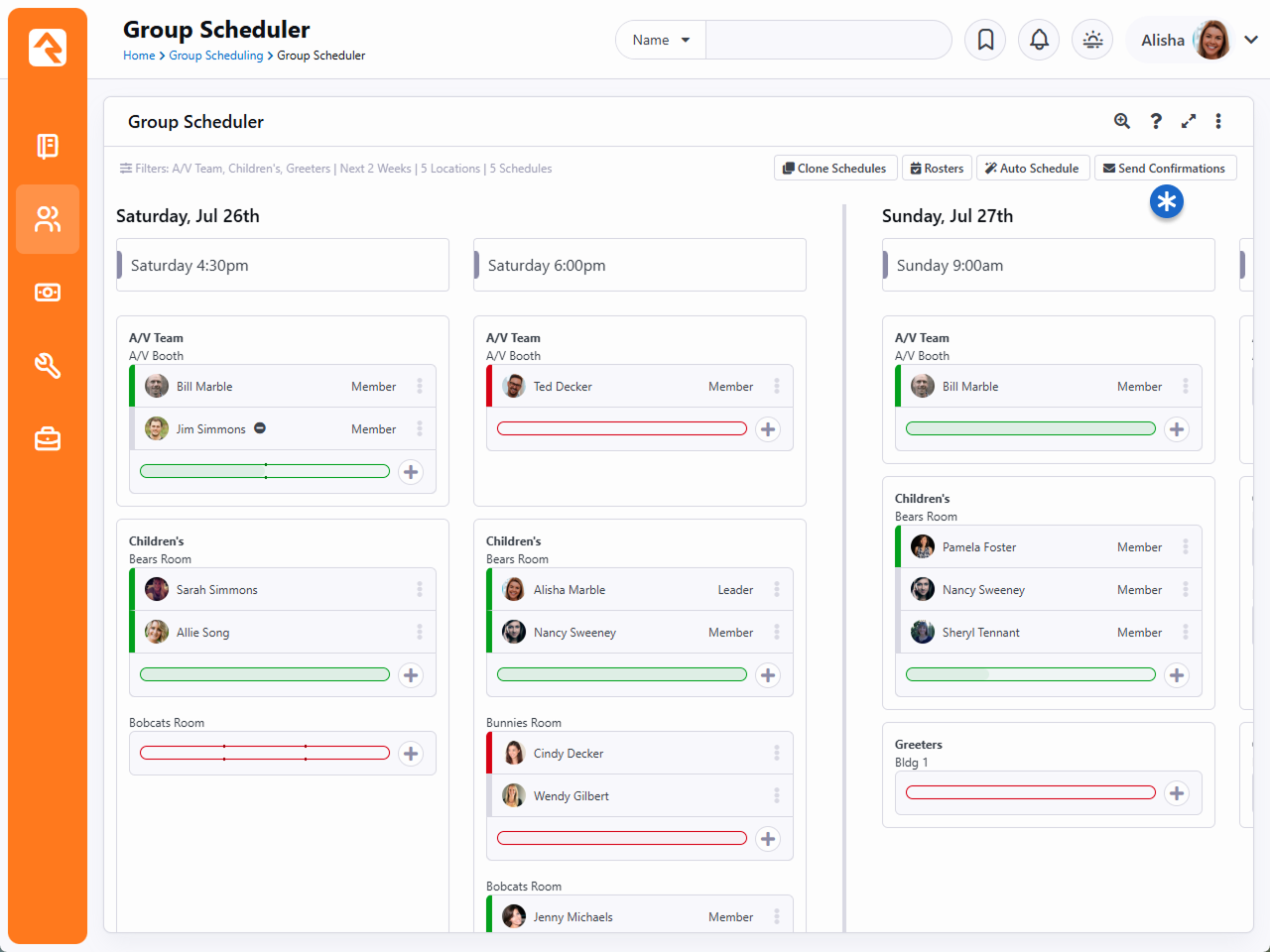
Alternatively, you can send an individual a communication to accept or decline by clicking
on the three dots near their name. This opens a drop-down list of options where you can
choose the
Resend Confirmation button
to send the email or SMS message to confirm or decline again.
Resend Confirmation
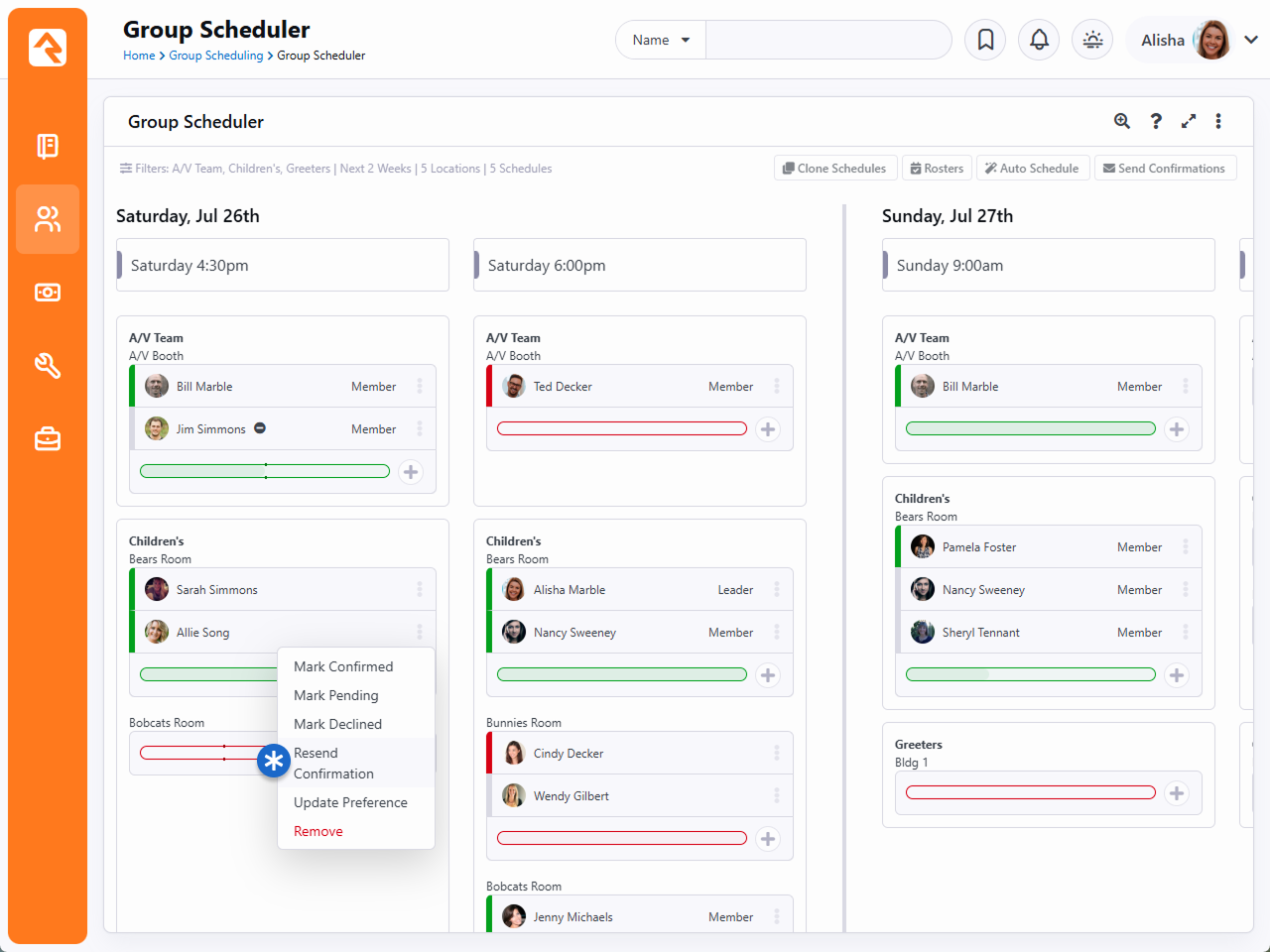
Note the other options you have for managing scheduled people. As pictured above, you can
do things like mark them as Confirmed, or update their schedule preferences.
Clone Schedules
Clicking the
Clone Schedules button near
the top-right of the scheduler allows you to copy schedules and existing assignments from
one week to another. As pictured below, you can choose to do this only for certain groups,
locations or schedules.
Clone Schedule
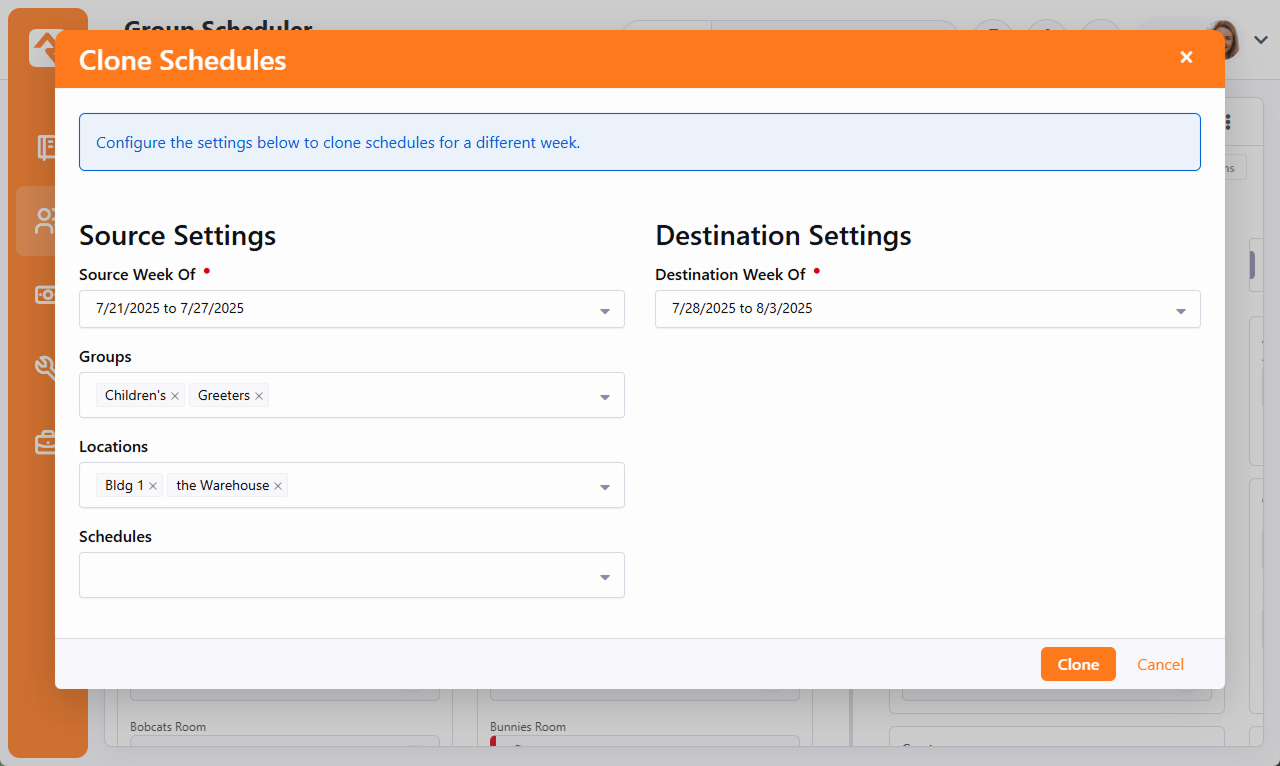
Schedule Status Board
The status board gives you a bird’s-eye view of rooms and times, showing what's covered and what
is still needed. You can access the status board by navigating to
People > Group Scheduling > Group Schedule Status Board.
The block settings allow you to choose a parent group to filter out any
unnecessary groups showing in the select groups list. The
Dates button opens a slider bar
to choose how many weeks to show at a time. You can also access the
Group Schedule Roster and
Group Schedule Communications
pages directly by clicking their links near the top of the page.
Status Board
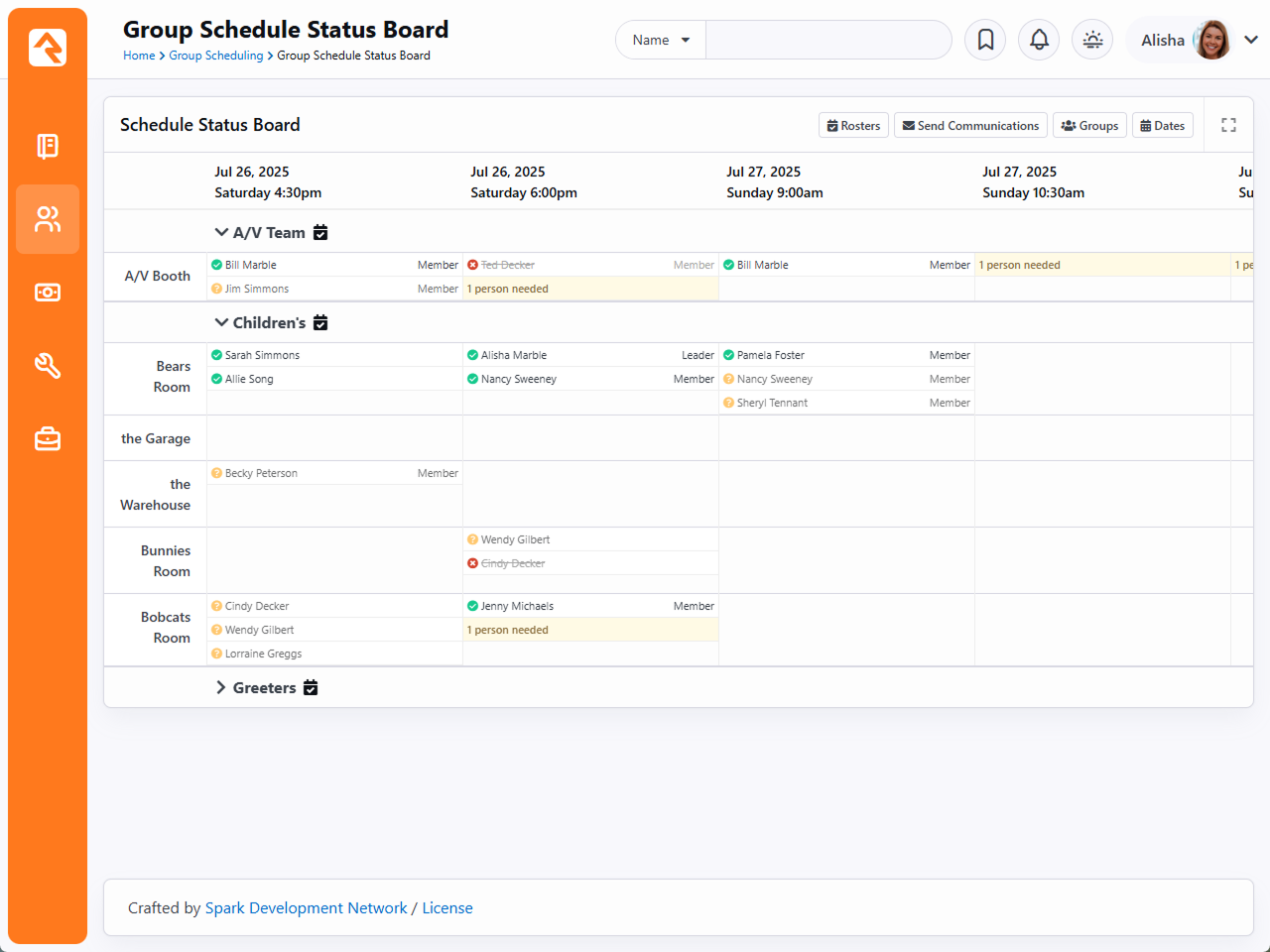
Schedule Analytics
The analytics board acts similarly to the scheduler page. You can choose the group, location and
schedule then hit Update to
show records of the response, or lack thereof, in one place.
Schedule Analytics
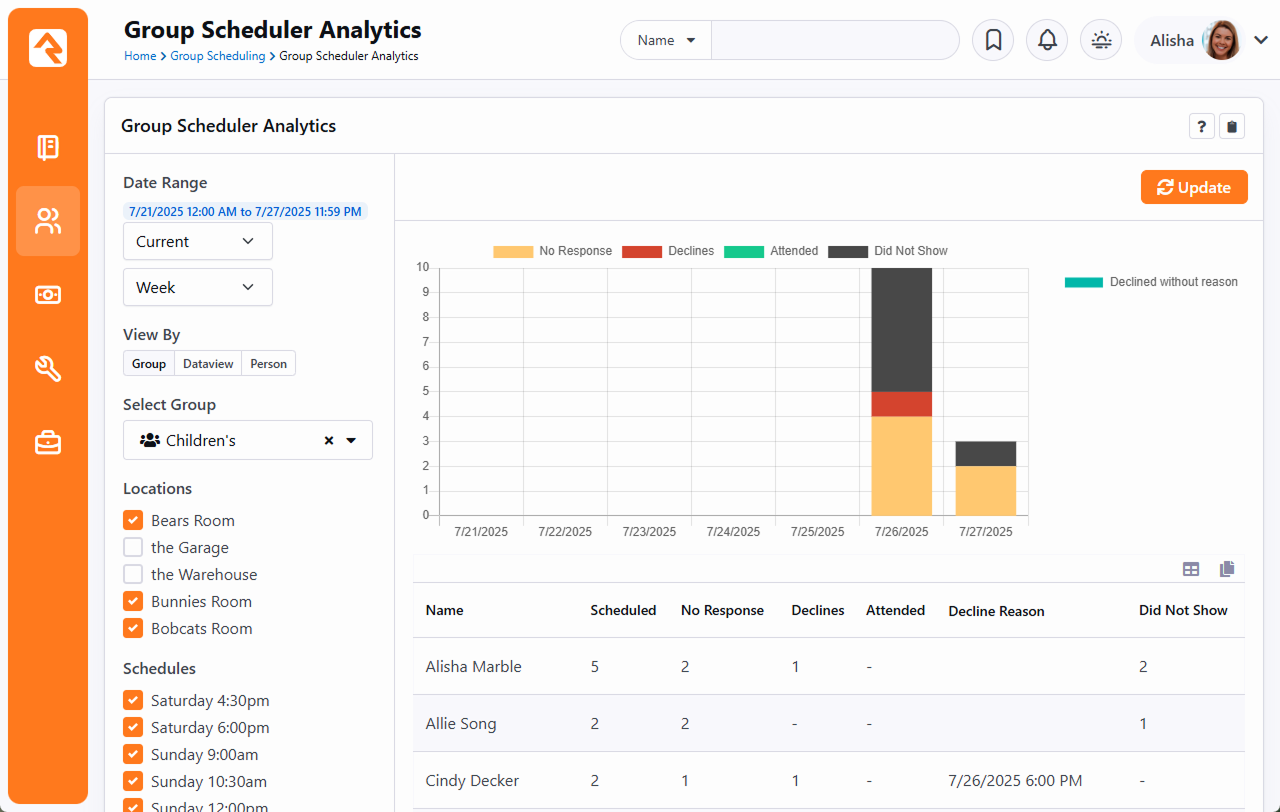
Group Schedule Roster
The Group Schedule Roster
shows you who’s serving, plain and simple. Of course, you can see this information from
other group scheduling tools, but the roster provides a clean, simplified view of
volunteers and where they’re scheduled. This layout is great for printing, to give your staff a
paper copy they can use to track volunteers. It even comes pre-populated with
checkboxes next to each person’s name, so individuals can be marked off the printed list.
To access the roster, navigate to
People > Group Scheduling > Group Schedule Roster.
Group Schedule Roster
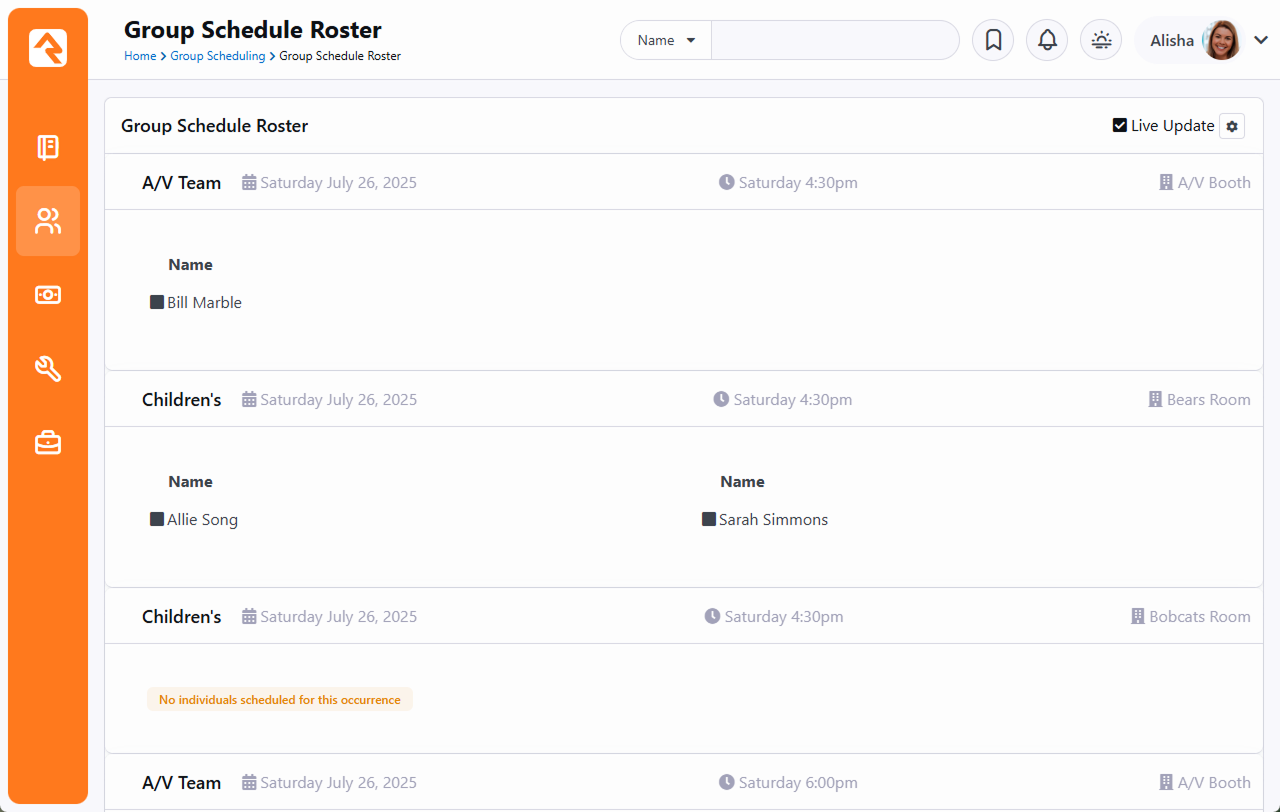
You can click the icon to access the configuration for the roster.
These settings let you add or remove the groups, locations and schedules shown on the roster.
This way you can rapidly print several different rosters for the day. This is also where
you change the date of the roster, to view assignments on different dates.
Roster Configuration
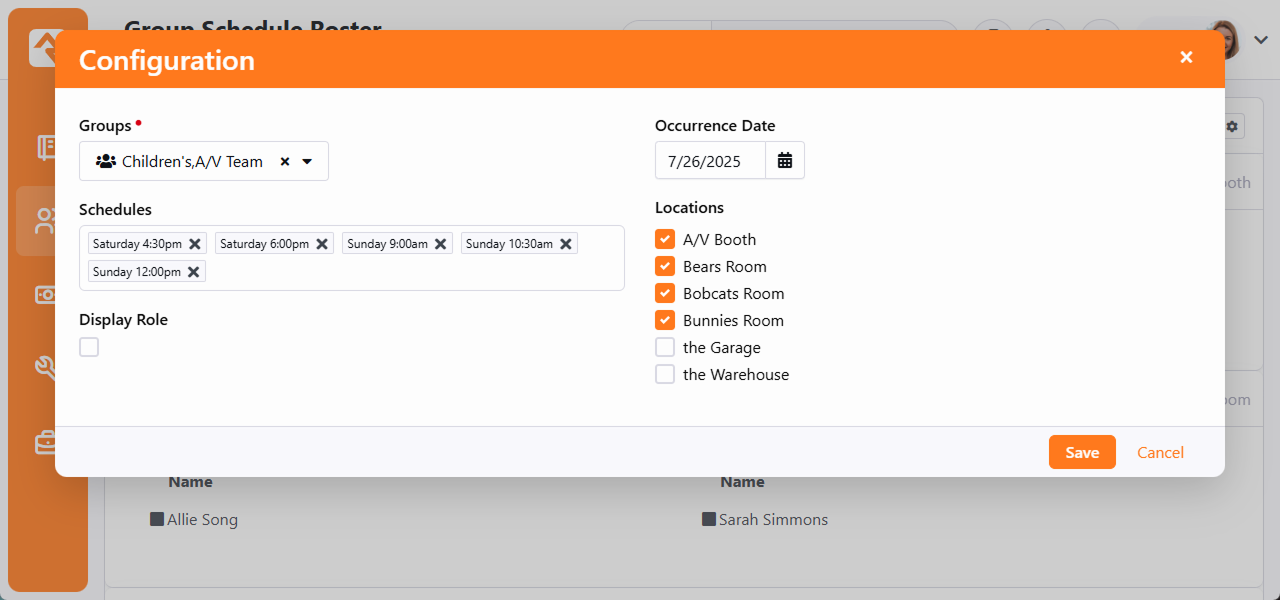
By default, the roster is updated automatically every 10 seconds, to pick up scheduling changes
as they occur. After all, you don’t want to print outdated rosters, and last-minute changes are
always a risk. This “Live Update” feature can be disabled, or set to a different refresh
frequency, by accessing the block’s settings. Just keep in mind that a very frequent refresh
rate may negatively impact performance.
Group Scheduling Communications
There are different ways to send group scheduling communications from Rock. You can send
scheduling confirmation requests from the
Group Scheduler page as
described above, or you can wait for a job to run to send them for you. You can also send
custom one-time communications if you need to.
Send Group Schedule Notifications Job
Rock will automatically send out confirmation and schedule communications based on the values
you set on the Group Type Detail page. By default, these communications will be sent daily at
4pm to people who have not already received them. If you want to change the sending time, you
can edit that time in the "Send Group Schedule Notifications" job, which can be viewed under
Admin Tools > Settings > System > Jobs Administration.
We have "Scheduling Confirmation Email" and "Group Attendance Reminder" system communications already set up for you,
which are of course customizable to fit your organization’s lingo. Just like all system
communications, you can view and modify them under
Admin Tools > Settings > Communications > System Communications.
See our
Communicating With Rock
guide for more information on working with system communications.
Custom Group Scheduling Communications
While schedule and confirmation communications are certainly useful, sometimes you’ll want to
send other types of communications to your teams. On top of that, maybe you just want to contact
volunteers who have Accepted the invite, or only those that are serving on Sunday. The
Group Schedule Communication
block lets you do all that, and more, quickly and easily. You can navigate to it directly from
People > Group Scheduling > Group Schedule Communication
or you can access it from the
Group Schedule Status Board.
Group Schedule Communication
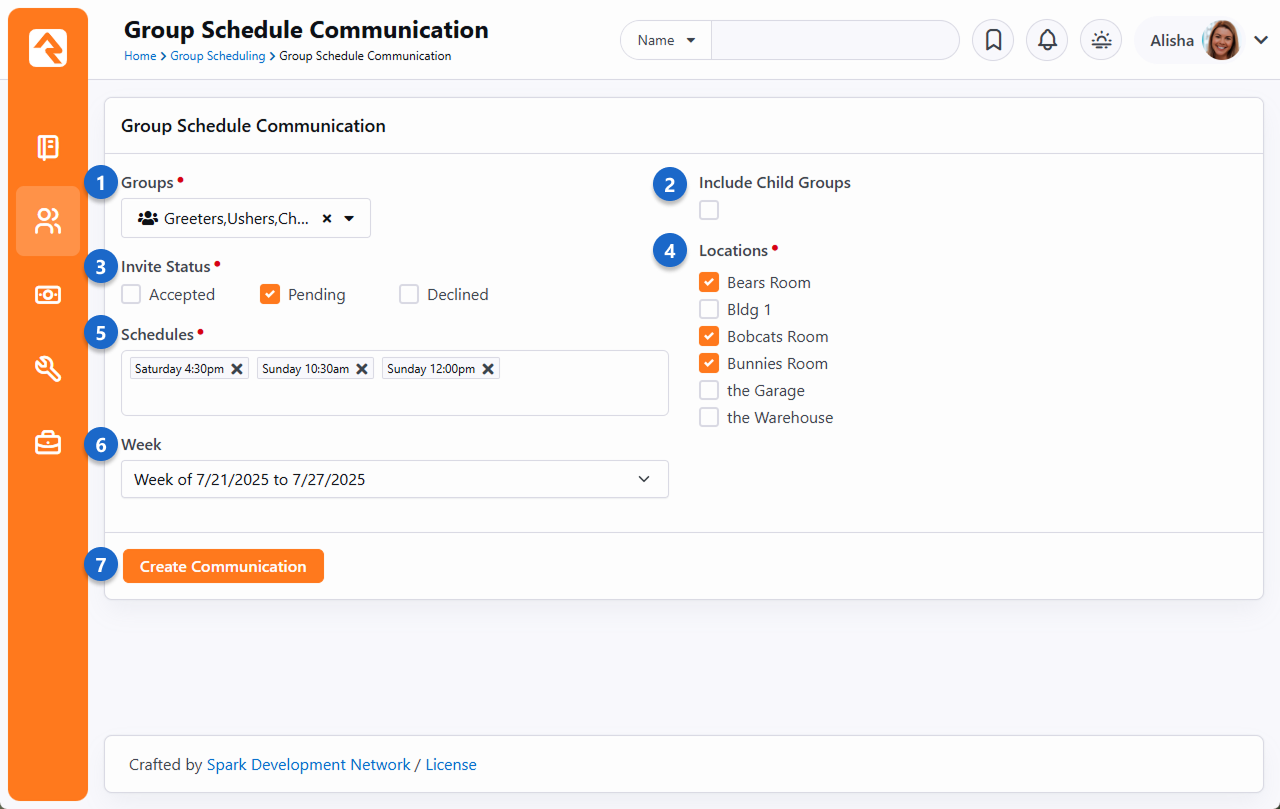
- 1 Groups
-
Members of the group or groups selected here will form the initial list of individuals
that will receive the communication. If you don’t want to send the communication to
everyone in this list, you can use the other settings on this page to narrow it
down.
- 2 Include Child Groups
-
If you have a lot of groups, you don’t always have to select each one individually.
Enabling this option will include members of any child groups a selected parent group
has. You can select multiple parent groups if needed.
- 3 Invite Status
-
You can choose to send the communication only to individuals with a certain Invite
Status. If you want everyone to receive the communication, select all statuses.
- 4 Locations
-
You can limit the communication to people serving in certain locations. The list of
locations you see here is automatically filtered according to the group selections, so
it may change as you add or remove groups from the communication.
- 5 Schedules
-
Like the Locations
field, you can select certain schedules to further refine the list of communication
recipients. For instance, you may only want to communicate with volunteers for the
Sunday morning services.
- 6 Week
-
The list of volunteers will probably change from week to week. Select a week here to
send the communication to those scheduled during that week.
- 7 Create Communication
-
After you’ve made your selections above, clicking this button will take you straight to
the
Communication Wizard
with the list of recipients conveniently pre-loaded for you. At that point you would
proceed with creating a new communication as normal.
Schedule Coordinator Notifications
Ever been caught off guard by a last-minute volunteer change? Picture this: It’s Sunday
morning, the next service is starting soon, and a crucial volunteer has dropped out. As
the Schedule Coordinator
for your serving team, you'll be the first to know, giving you time to adjust and ensure
everything runs smoothly.
The Schedule Coordinator can be notified when a volunteer accepts or declines a serving
opportunity, or if the volunteer signs up for additional serving opportunities via the
Schedule Toolbox.
The emails Schedule Coordinators receive will look like the one pictured below but will
change slightly depending on which action the volunteer takes.
Scheduling Response
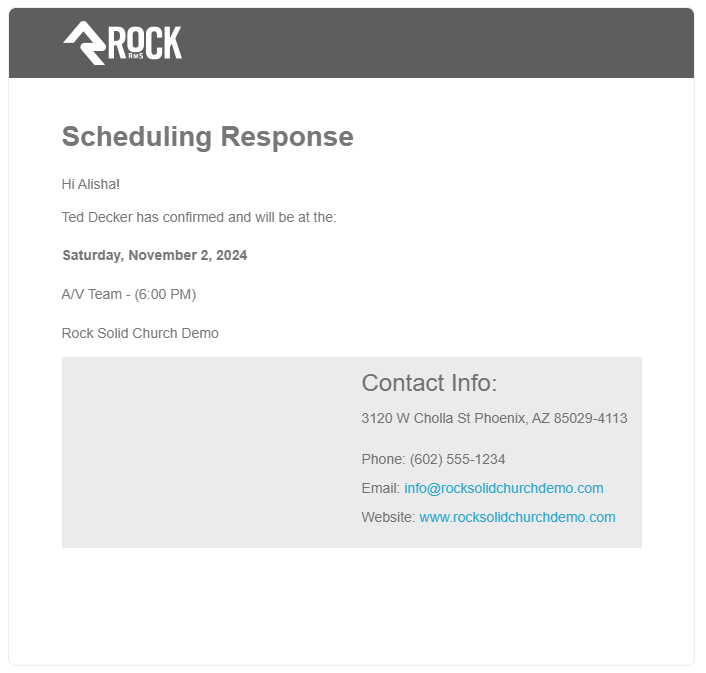
To start getting notified, there’s a few simple configuration items needed. We’ll
walk you through them below.
You can start by updating the Scheduling
settings on the Group Type (
Admin Tools > General Settings > Group Types).
Specifically, you’ll make selections for the
Schedule Coordinator Notification Options.
These are the notification options that all groups of this type will use by default.
Schedule Coordinator Notification Options
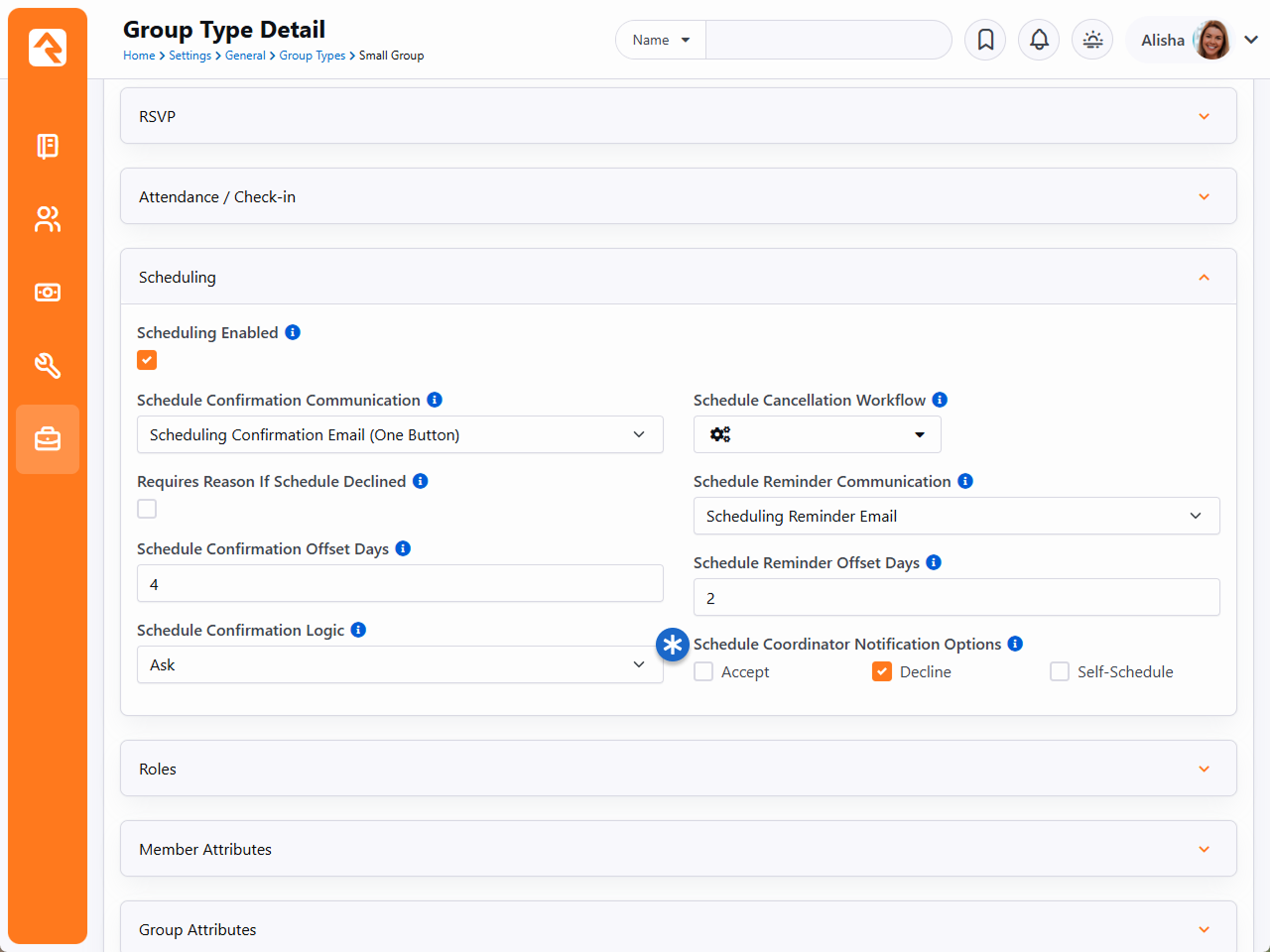
Note above that the
Decline
option is selected. This will send a notification when
the volunteer declines a serving opportunity for groups of this type. Any combination
of Accept, Decline, or Self-Schedule may be used. You can also select none of the
options, which means these notifications will not be sent.
That’s all that’s needed for the Group Type. Next, we’ll drill down to the Group
level via the Group Viewer
(People > Group Viewer).
There are two important settings you’ll want to know about.
Schedule Coordinator Notification Settings
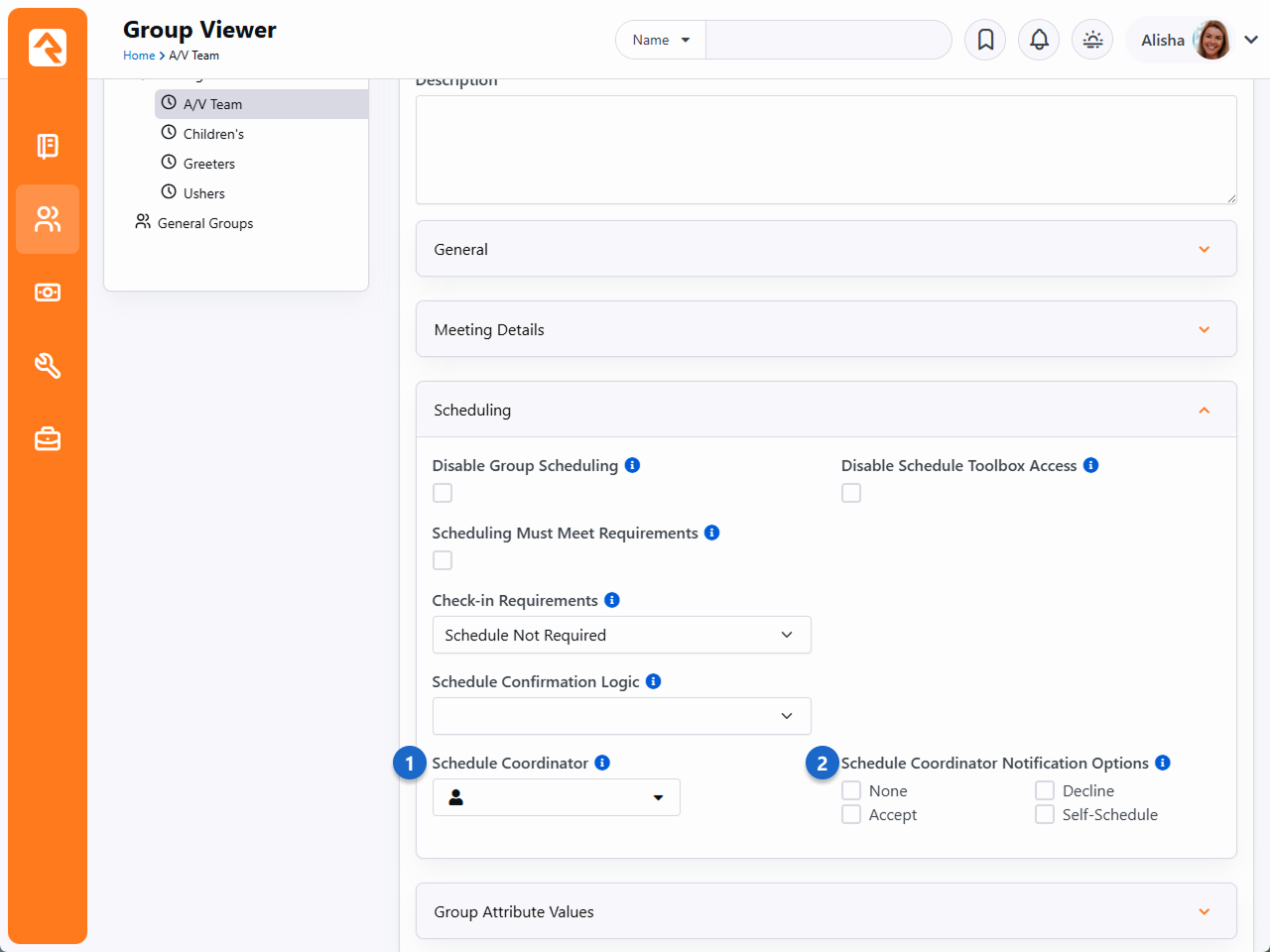
- 1 Schedule Coordinator
- This is the person who will be notified whenever a volunteer accepts, declines,
or adds to their schedule. The notifications the Schedule Coordinator will receive
are determined by the
Notification Options.
These settings override the Group Type configuration for notification options.
- 2 Schedule Coordinator Notification Options
- You can customize notification settings for this specific group, overriding the
default settings at the Group Type level. To use the default settings, select nothing.
Otherwise, choose the desired notifications for the Schedule Coordinator. If notifications
are enabled at the Group Type level but you want to disable them for this group, select
None.
The System Communication
(Admin Tools > Communications > System Communications)
that the Schedule Coordinator receives is the
Scheduling Response Email.
It’s ready to use out of the box and contains all the logic needed to decide whether to
send an accept, decline, or self-schedule notification.
Group Blocks
By now you've seen the power of groups in Rock. Hopefully, you're starting to see all the different ways they can bend and flex to meet
the demands of your organization. The real power is when you break free to see what is
and start to comprehend what could be. While
we've attempted to pre-configure groups with
some standard best practices, you shouldn't limit yourself to what is configured out of the box.
The best way to see what's possible is to understand what group blocks are available in Rock. Start thinking of these blocks as your
own box of Legos®. How you arrange and build with these blocks is limited only by your imagination. If you're unfamiliar with blocks and
how to add them to a page, take a minute and read about them in the
Designing and Building Websites Using Rock
guide.
Group List
As its name suggests, the Group List block
lists all groups that match a specific filter. The power of this block lies within its block settings. They
allow you to:
- Include Groups Of Type: Specify which group types to include in the list.
- Exclude Groups Of Type: Specify which group types not to show in the list.
- Detail Page: The page you would like to navigate to when someone selects a group from the list.
- Limit to Security Groups: Remember that security groups are a bit special. While there is a group type for
security groups, any specific group can be configured to act as a security group. This setting shows groups that meet any
of these criteria.
- Display Filter: Determines if the filter panel should be displayed above the list.
- Display XYZ Column: This block also has several block settings to hide or display columns for displaying
group type, group description, active status, group member count and system status.
Below is an image of a sample group list.
Group List Block
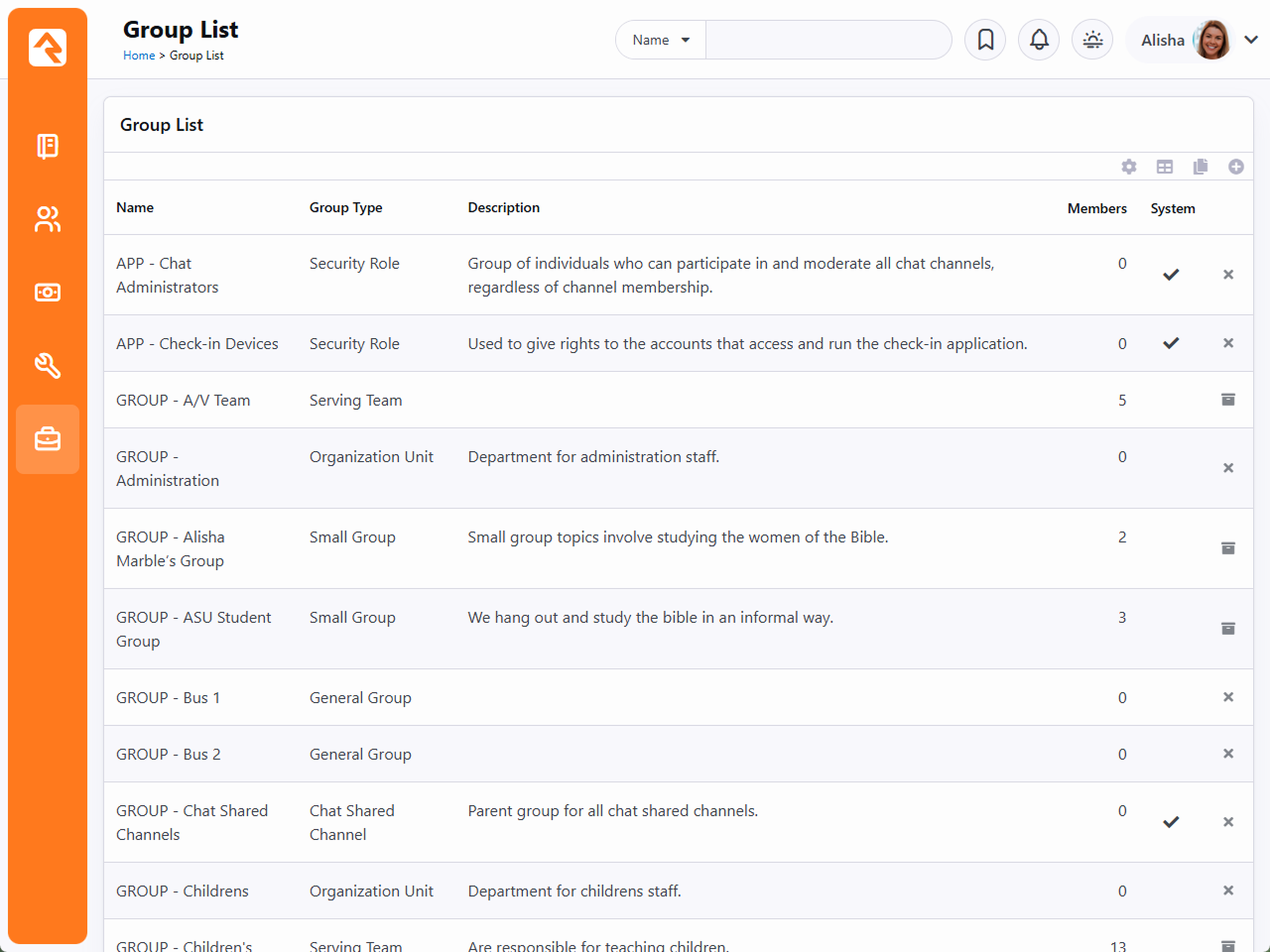
Group Tree View
The Group Tree View block
is very similar in configuration to the
Group List block except that it displays the groups in a hierarchical tree view. Below is a sample
of what this block would look like.
Group Tree View Block
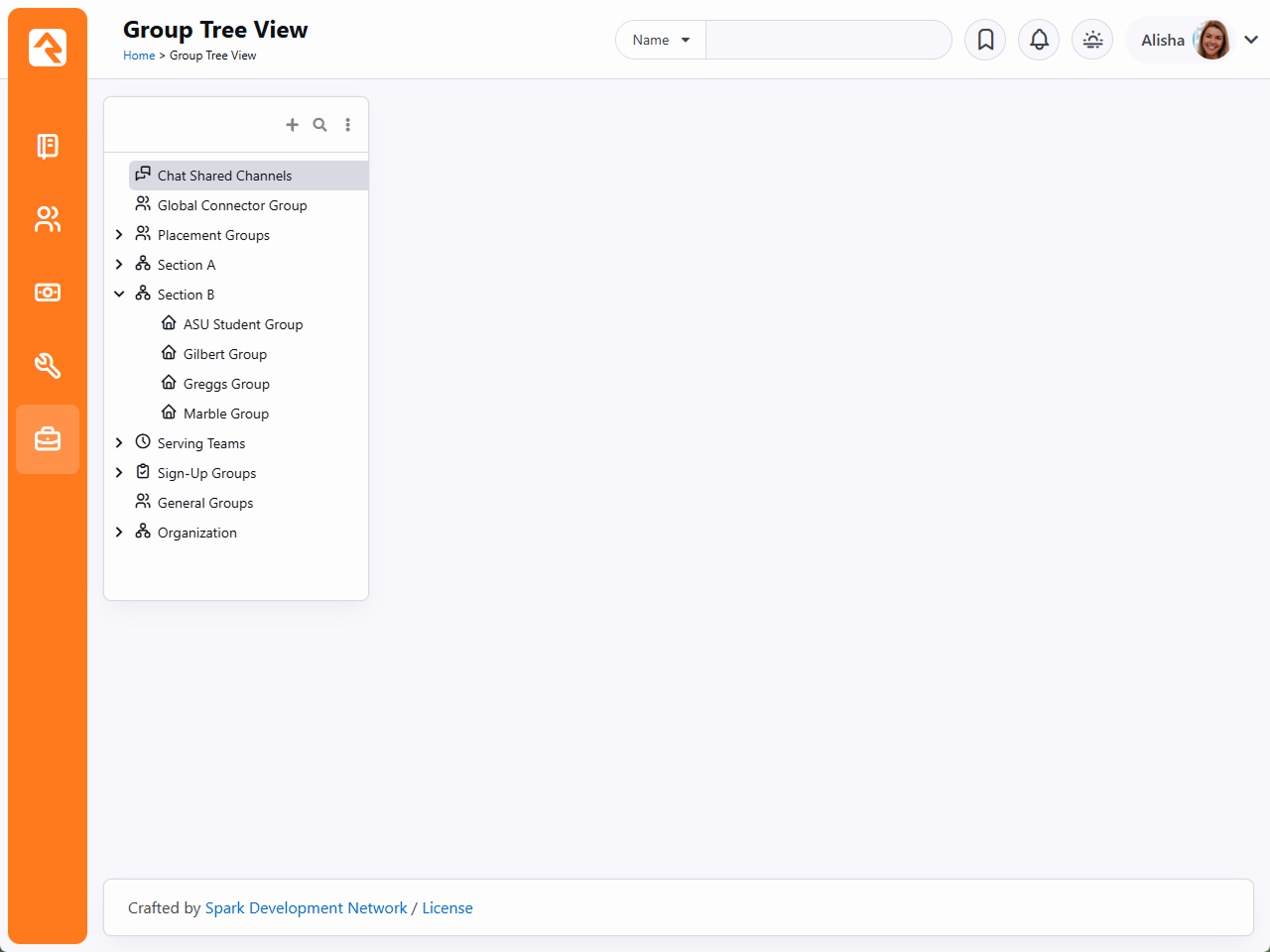
Group Details / Group Member List / Group Member Details
While these are three different blocks, they are usually used together to fully display the contents of a group
with the ability to edit.
Group Details & Member List Blocks
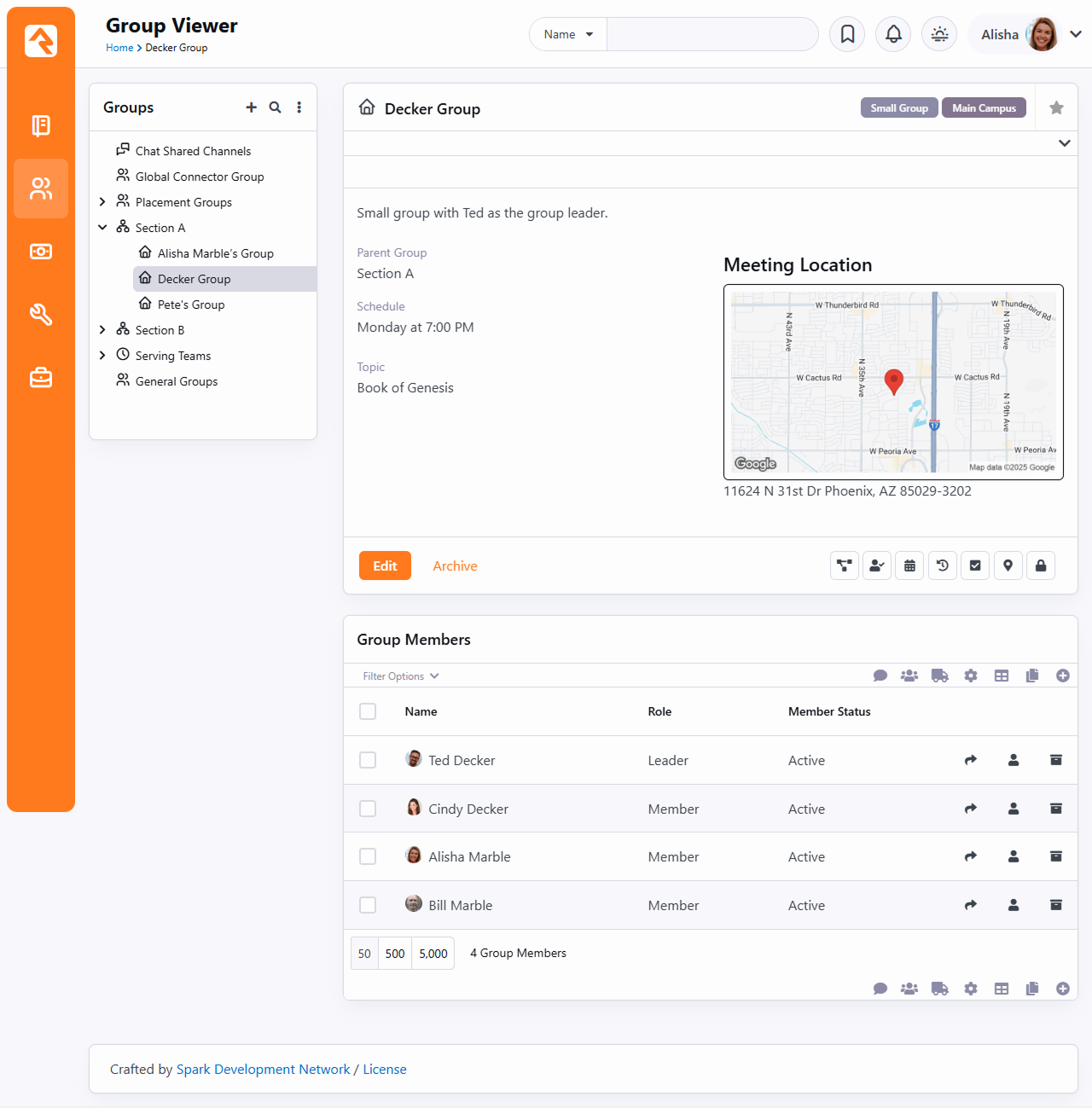
Group Type Map
The Group Type Map block maps the location of every group of a specified
type. This is different from the Group Map, which shows members of a single group. While not included on a page out
of the box, the Group Type Map is a very powerful block for mapping all of your small groups. Small organizations
could even use it to map all the families in the database (remember families are groups too). Below is a sample of this block in action.
Group Type Map Block
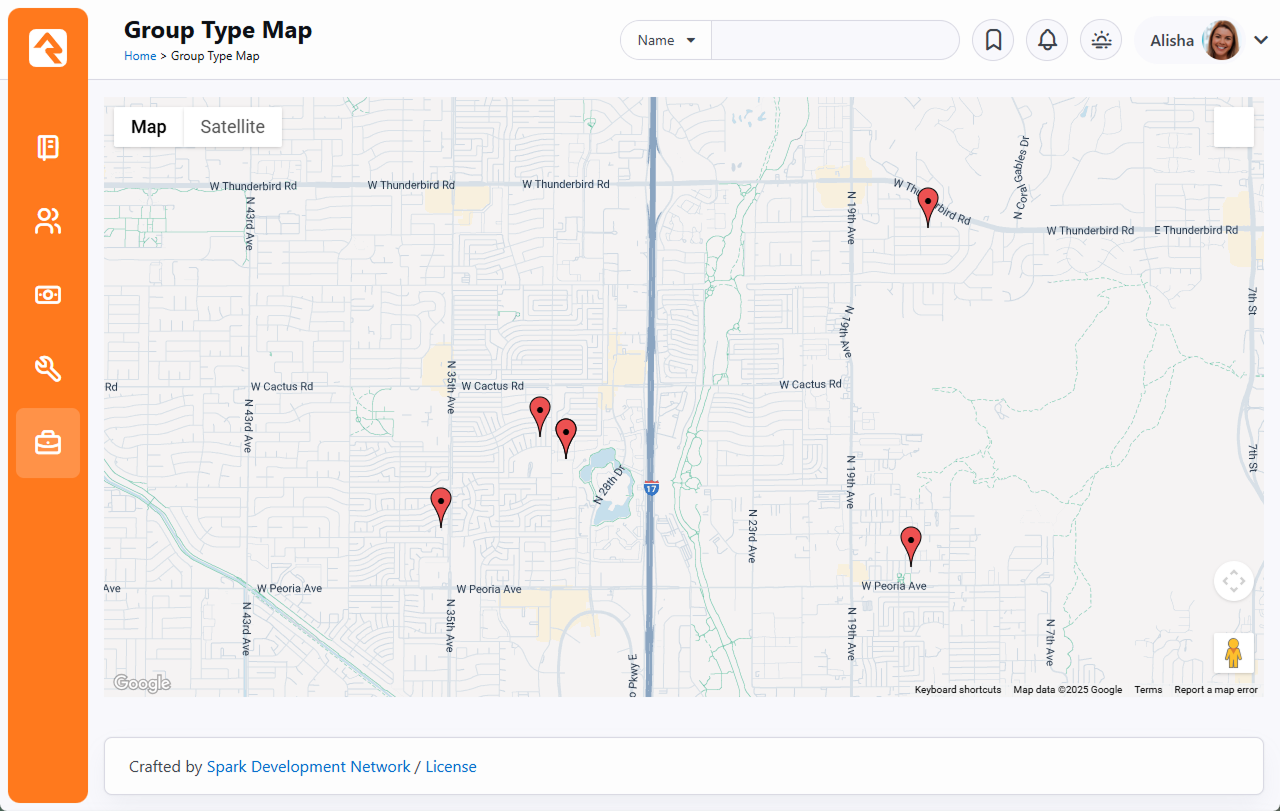
Group Member Add From URL
Say what? OK, this is easy... this block when passed a PersonGuid and GroupId through the query string will add the person
to the group and display a Lava template of your design. This is very useful in crafting various group registration scenarios.
To get the juices flowing think about all the things you could do with this using the
Dynamic Data
and Group Finder blocks.
There you go!
Add Group Member From URL
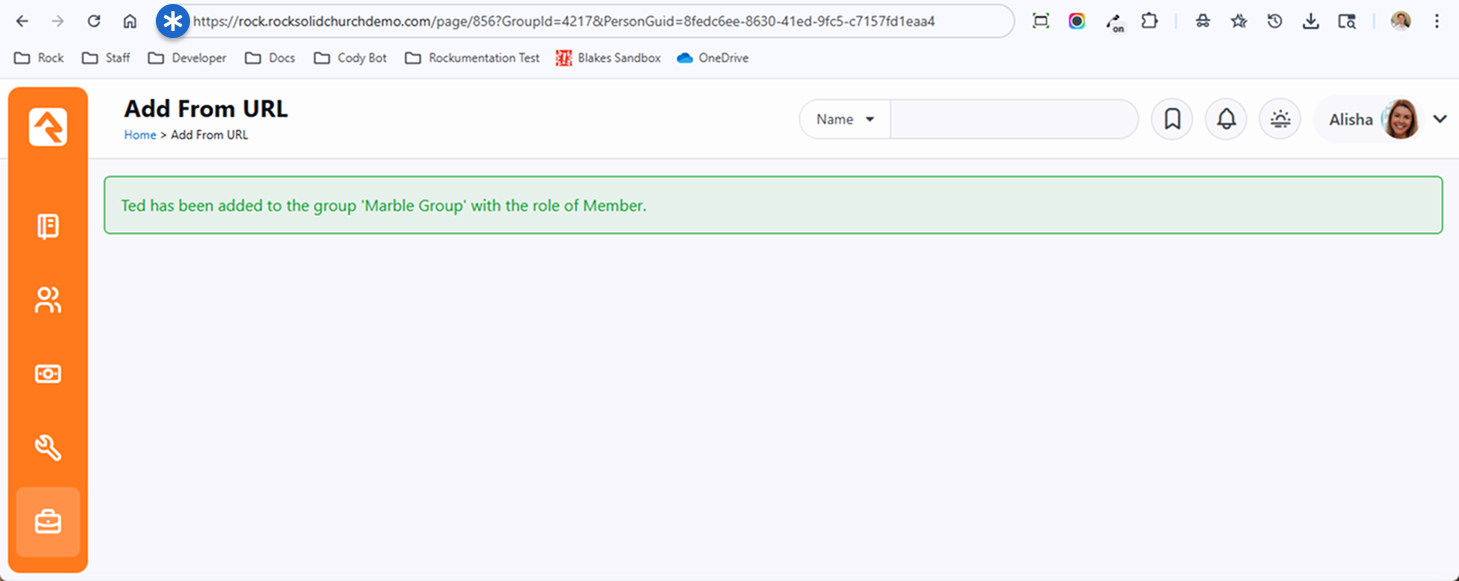
Group Member Remove From URL
This block is just like the Group Member Add From URL block - but the opposite. It takes a PersonGuid and GroupId through the
query string and will remove the person from the group and display a Lava template of your design. This allows you even more
flexibility in creating group registration situations. Alright!
Group Simple Register
This block is another block that's handy for registration scenarios. It provides a simple form that accepts a first name, last name, and email address, registers the person to a group, and then forwards them on to a confirmation page.
This block is most useful when it's used on an external facing site as a simple first point of contact but is flexible enough for many other scenarios!
Simple Register Block
Group Simple Register Confirm
This block is designed to pair with the Group Simple Register block as a confirmation page. When a user is redirected to this page it provides either a success or a failure message. It's that simple!
Group Registration
This block is the big brother of the Simple Register block. This block takes a GroupId as a query parameter for context and allows you to do a few neat things like fire off a workflow when a user registers and use Lava options to format the registration form.
It also has a full mode that takes down address details and phone details and a full with spouse -- which does exactly what you might expect. Use this mighty block when you want to get more than your standard information about a person or when you want to use a specific workflow process for your registrants.
Group Registration Block
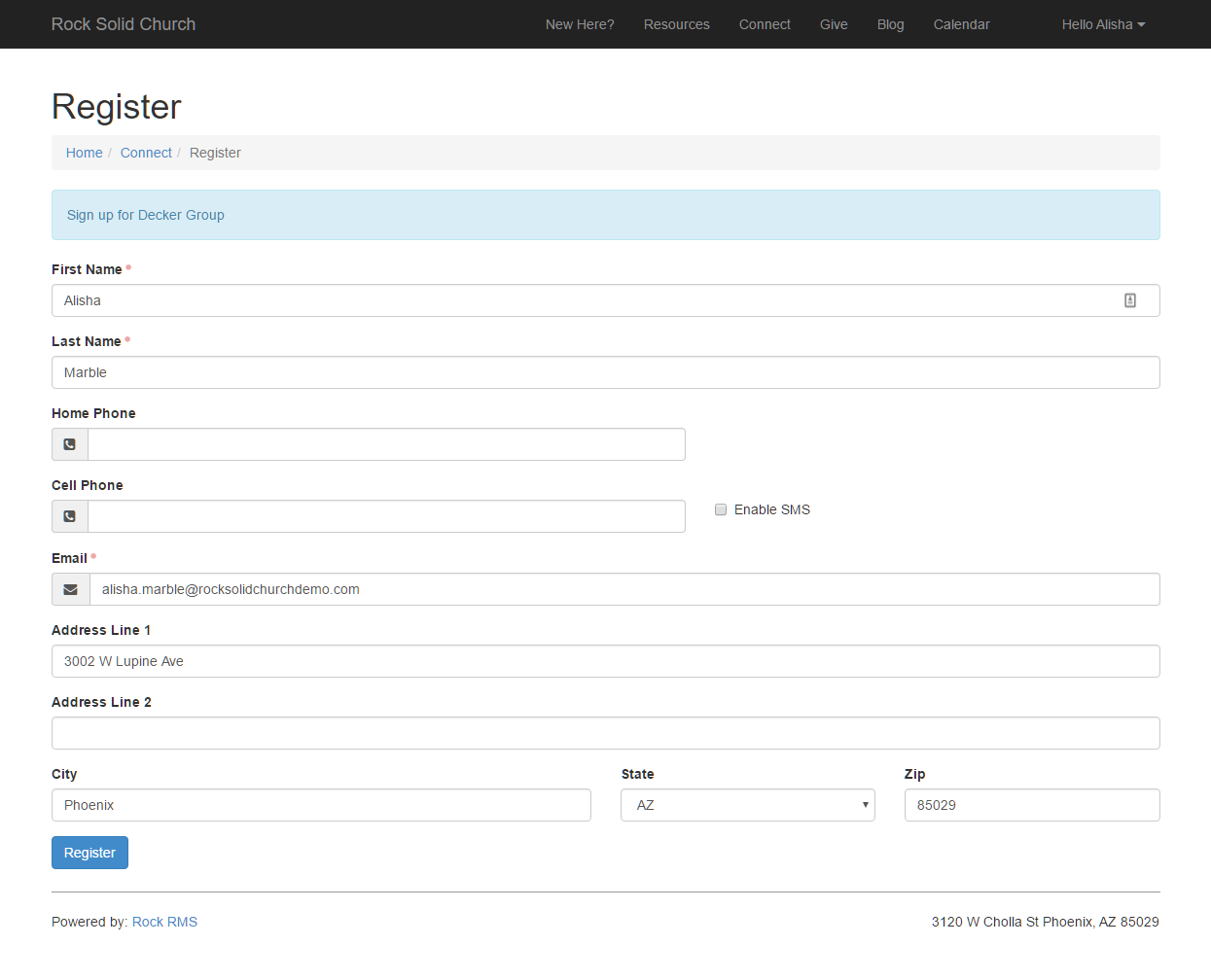
Group Map
The Group Map block maps the members of a specific group that is
passed through the query string (aka passed in through the address of the page http://server.com/page?GroupId=12). While this block
isn't too powerful on its own, it can be very helpful when used in conjunction with other blocks like the
Dynamic Data block. Below is a sample of what this block looks
like with a sample group.
Group Map Block
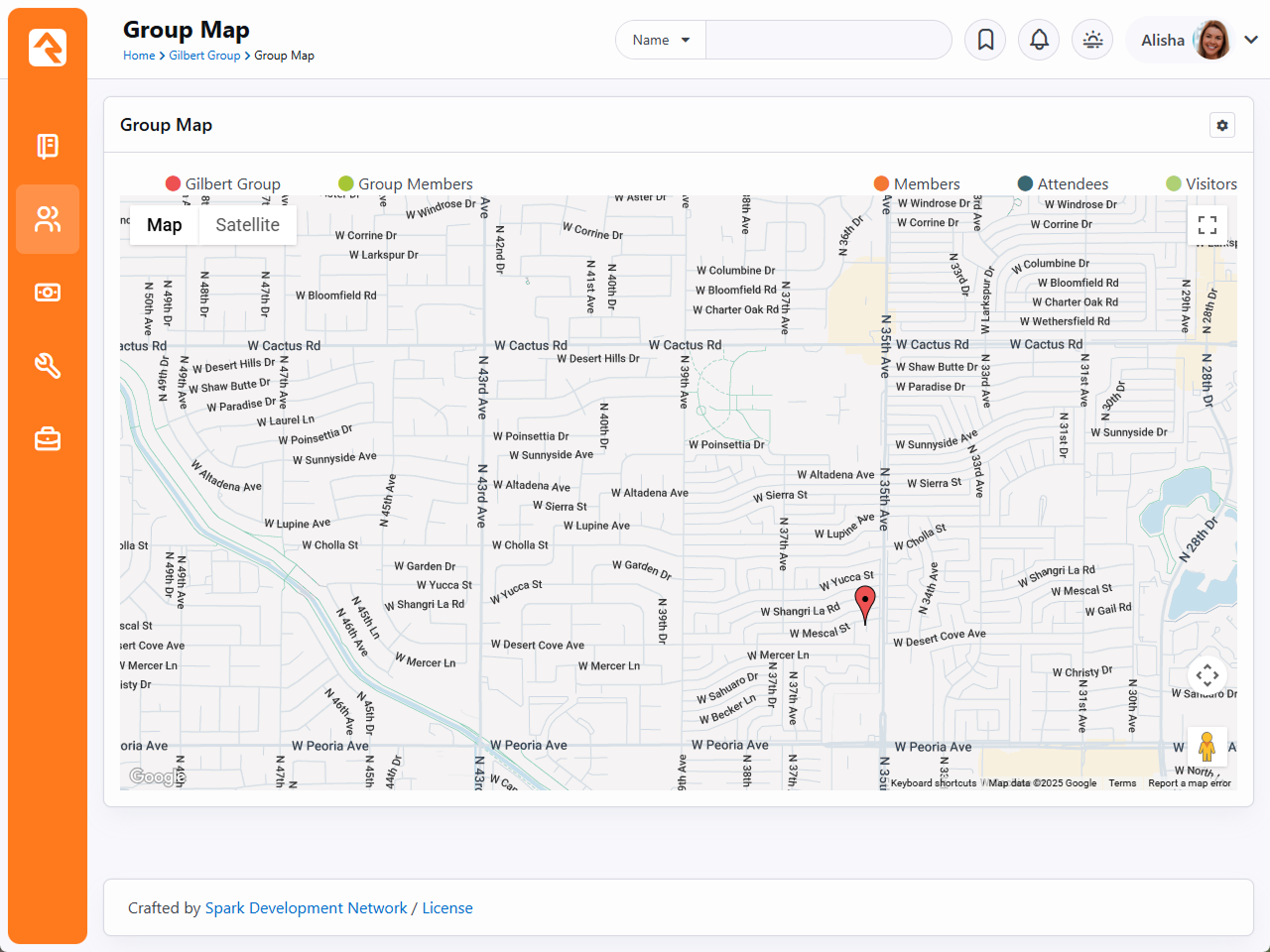
You'll notice two sets of color-coded labels near the top of this block. Clicking these will toggle the display of groups and families
on the map. Below is a description of how and when these label toggles will appear.
Group / Group Member Labels (top left)
-
If the selected group has a valid geopoint, or geofence location, that group's name will be displayed as a label
in the upper left which can be used to toggle the display of the group. The group will be displayed on the map either as a marker
or a polygon depending on whether the selected group had a geopoint or geofence. The color of the marker or polygon is determined
by the first color specified in the Colors attribute of the
selected mapstyle defined value. Note: this option will not appear if the selected group does not have a geopoint or geofence defined.
-
A Groups label will be displayed if the selected group
has any child groups with a valid geopoint or geofence location. The child groups may also be either a marker or a polygon.
The color of markers is determined by the second color specified in the Colors
attribute of the selected mapstyle defined value. The color of polygons is determined by the
Polygon Colors block setting.
-
A Group Members label will be displayed if
the selected group has any members with a valid geopoint location. Clicking the label will toggle the display on the map of
those members. Note, if the selected group is displayed as a polygon, these members may or may not be within the boundaries
of the polygon. The color of the markers is determined by the third color specified in the
Colors attribute of the selected mapstyle defined value.
Connection Status Labels (top right)
-
If the selected group has a geofence location and is displayed as a polygon on the map, then the block will also
display a list of Connection status labels
to toggle the display of families whose locations fall within the boundaries of that polygon.
-
The connection statuses that will be included as toggle options are determined by the Connection Status Defined Values. Only
those defined values that have a value specified in the Color
attribute will be displayed. The color value is also used to determine the color of the markers.
-
Only families with at least one active record will be included.
-
If family members have different connection statuses, they will be ordered by the connection status defined value order, and the
first connection status found will be used for the family. For example, if a family has a member and a visitor, the family will
be displayed when the Member label is selected.
Service Jobs Relating to Groups
Service jobs allow you to set up reoccurring tasks that run on a schedule you define. Below are jobs that relate to groups.
Learn More
This section highlights unique aspects of service jobs relating to groups. For
information on setting up jobs in general, see the
Rock Admin Hero Guide.
Send Attendance Reminders for Group Type
This job sends reminders to group leaders to enter attendance. All individuals in the group
with a role that has the 'Is Leader' setting will receive this reminder.
Keep in mind that this job will only send reminders to groups of the configured type
if the group type's
Send Attendance Reminder
option is disabled (unchecked).
A couple of key configuration options for this job are:
-
Group Type: The group type that the reminders are for.
-
System Communication: The system communication that you would like to use for sending the reminder.
Rock ships with a Group Attendance Reminder system
communication for this purpose.
-
Send Reminders: By default, a reminder will always
be sent the day the group meets. By adding values here, you can configure
additional reminders if the attendance has not been entered. For
instance, entering 2,4
would send reminders two and four days after the group has met if no attendance
has been entered.
-
Send Using: Choose whether the reminder should be sent via
SMS text message, email or either according to the group leader's preference.
Group leaders can set their preference in the Group Leader Toolbox.
-
Campuses: You can select one or more campuses to only send
reminders for groups associated with that campus. This does require that the
groups are tied to a campus.
-
Parent Group: If you choose a group here, reminders will
only be sent to groups that are children (and grandchildren, etc.) of the
selected group.
Note that the attendance reminder options available on the group type
apply to the
Send Group Attendance Reminders
job described below.
SMS Job Errors
If the reminder job is configured for SMS, and if a person's communication preference is SMS but they don't have an
active/valid SMS number, then the job will record an error. Similarly, if the job can't find the SMS
configuration it needs, then it will also record an error message to the job's status/history message.
Send Group Attendance Reminders
This job is very similar to the
Send Attendance Reminders for Group Type
job discussed above. This job sends a reminder to group leaders about entering
attendance for their group meeting. The key difference between the two jobs is
that
Send Attendance Reminders for Group Type
requires a group type, while
Send Group Attendance Reminders
does not. That means you can have one job handling all of your reminders for
all of your group types.
Keep in mind that this job will only send reminders for group types where the
Send Attendance Reminder
option is enabled under the
Attendance / Check-in
panel. Each group type can continue to have its own
Attendance Reminder Communication Template.
Send Attendance Reminder Option
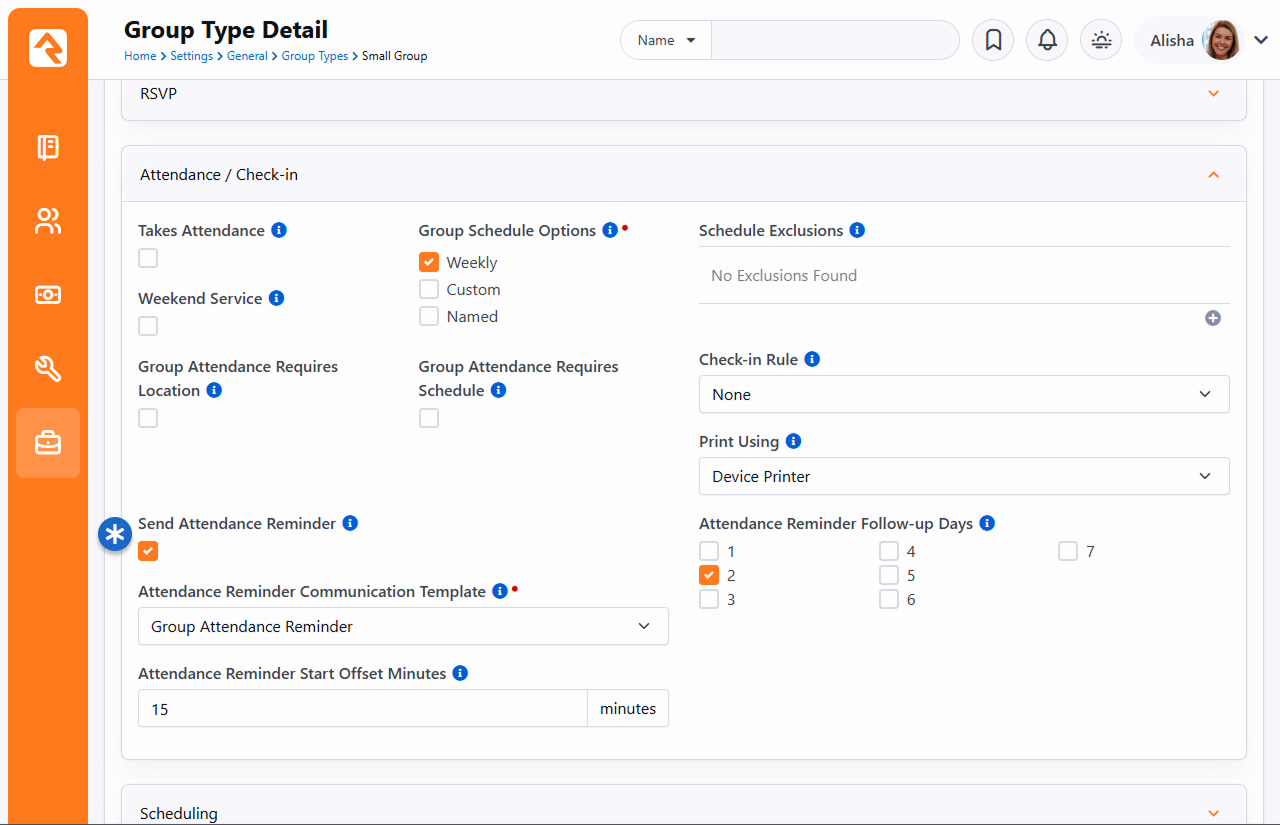
This job is configured to run every 15 minutes. It looks for Group Types that have
Send Attendance Reminder
checked and once a group's scheduled Start Time is within the
Attendance Reminder Start Offset Minutes
setting, the attendance reminder is sent. This can only happen once per day.
To get a little technical, when a reminder is sent, the
Attendance Occurrence
record is created, and the current date/time is written to the
AttendanceReminderLastSentDateTime
property. This ensures that we never send the same reminder twice in one day.
Group Leader Pending Notifications
This job allows you to notify group leaders of newly pending members in their groups.
This provides the following customization options:
-
Group Type: The group type to filter off for limiting the
groups that are checked for pending members.
-
Include Previously Notified: This determines if only newly
pending members should be sent to leaders, or if pending members who have
already been sent once should also be considered. Note that when you initially
set up this job, none of the current pending members will have been marked as
sent, so they will all be sent to leaders on the first run.
-
Notification Email: This is the system communication template that
should be used. A sample system communication called
Pending Group Members Notification
is provided out of the box for you to use or edit as you see fit.
-
Group Role Filter/Role: This is an optional setting that allows
you to only include pending members of a specified role. If you don’t select a
role, all roles will be considered. You must first select a Group Type before
specifying a role.
-
Pending Age: Only pending members who have been added or
updated within the number of days set here will be included. For instance,
you might set this to seven to select pending members added within the past week.
Leave this blank to not consider the last time a record was updated.
The notification will be sent to all group members of the group whose role has
been configured as Is Leader.
Keeping Your Options Open
Keep in mind that you can set up multiple instances of this job. This allows you to
send one scheduled communication for newly pending members and a separate for older pending
members that the group leaders have already been made aware of.
Send Group Attendance Digest
This job sends a summary of group attendance information to certain group
Leaders. See the
Group Attendance Digest section above for details on the
group structure requirements for this job. When you’re configuring this job, pay close attention
to the following configuration options:
- Parent Group: The job needs to know the highest-level parent group in
the group structure to identify which child groups apply to the job. Again, this job
expects a very specific group structure to be in place, so be sure to check out the
Group Attendance Digest section above to make
sure you're set up correctly.
- System Communication: This is the system communication template that
should be used. A sample system communication called
Group Attendance Digest
is provided out of the box for you to use or edit as you see fit.
- Date Range: You can choose to send the attendance digest for either the
‘Current Week’ or the ‘Previous Week’.
In order for the job to work correctly, the groups taking attendance must meet on a regular
(i.e., Weekly) schedule.
Process Group History
This job creates historical snapshots of Groups and Group Members for any group types that have history enabled.
Once the job runs, groups that have history enabled will show an 'Archive' option instead of 'Delete'. See the
Group History chapter for more details.
This job is set to run once per day in Rock.
Group Attendance Reporting
This job will create new Person attributes to track a person's
First Attended Date,
Last Attended Date,
Times Attended in Last 12 Months and/or
Times Attended in Last 16 Weeks
for groups specified by a Data View. These attributes can be manually assigned categories and
security as needed. This job considers all attendance in the specified groups, regardless of
whether the person is currently an active member of the group.
When you're setting up this job, you have the following options:
- Group Data View: You'll need to create a data view that returns the group
or groups that you want to report on. For instance, you might select all groups of the
Small Group type to report on a person's attendance in small groups.
- Reporting Label: This gets used as part of the name of the attribute(s)
that will be created by the job. In the example screenshot below the Reporting Label
was "Small Group" so each attribute name starts with that phrase.
- Tracked Values: For the groups returned by your data view, select
the attendance data you want to track. In the example
screenshot below all four options were selected, so four new attributes were created.
In the example pictured below, new attributes have been added to show Small Group involvement.
In this case the attributes were manually assigned to the
Visit Information
category, to allow them to show on the Person Profile.
Group Attendance Reporting Attributes
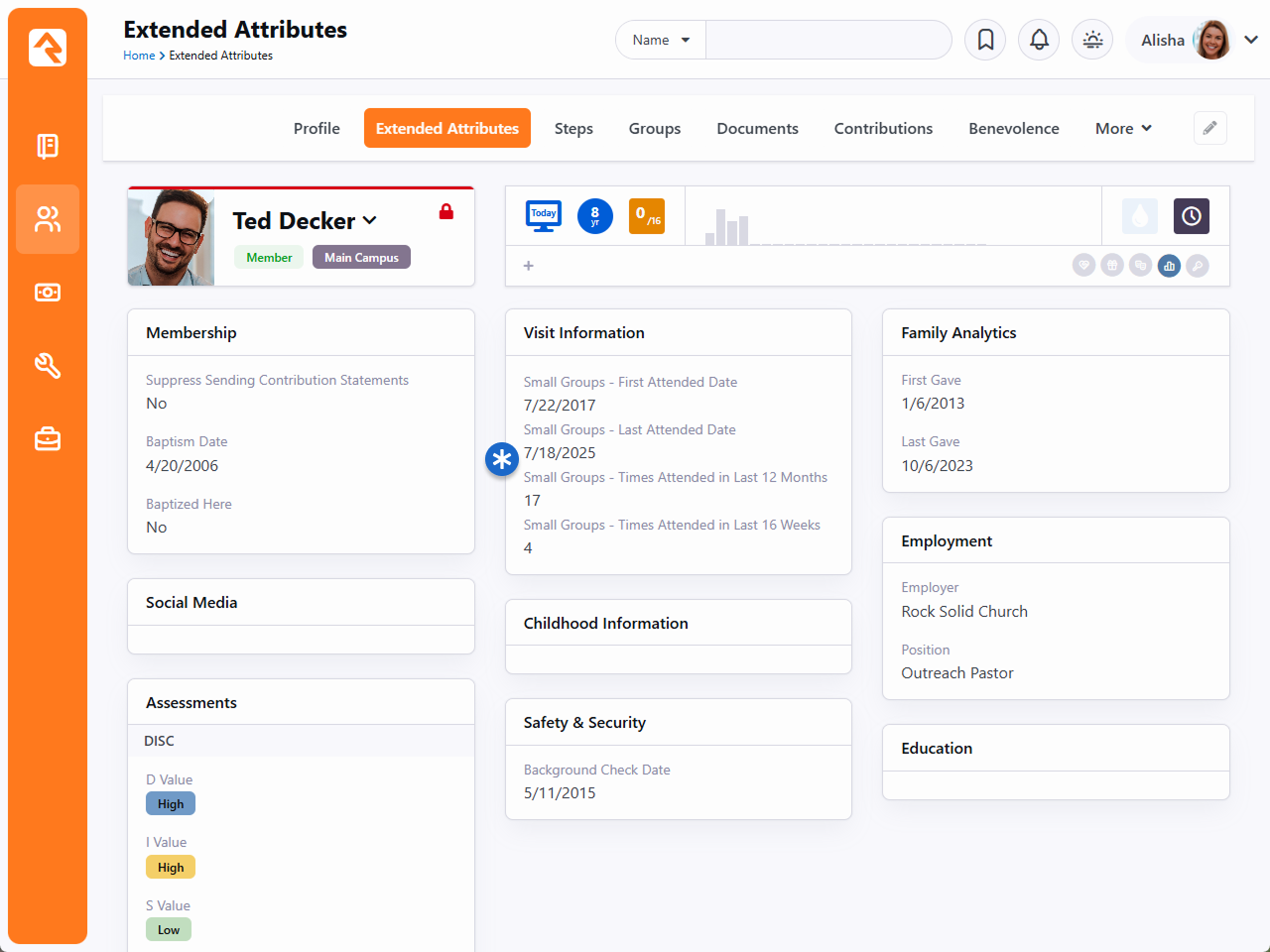
This job will create a new attribute only if it does not find an existing attribute (e.g.,
from a prior run of the job) to update. This depends on how the job itself is configured.
For instance, changing the Reporting Label
will result in new attributes being created with the new label.
Group Leader Absence Notifications
The Group Leader Absence Notifications job is intended to alert group leaders when a member of
the group has been absent a configured number of times in a row. This is so the leaders can
follow up with absent people or update their status in the group if needed. Rock ships
with a System Communication created specifically for this notification, called
Absence Group Member Notification.
When you’re configuring this job, pay close attention to the following configuration options:
- Group Type: Because the job only runs for one Group Type at a time,
you'll need multiple instances of this job if you want to run it for multiple Group
Types.
- Notification Email: You can use the
Absence Group Member Notification
System Communication that ships with Rock, or you can create your own.
- Group Role Filter/Role: This applies to the members of the group. If
set, only group members with the provided Group Member Role will be evaluated and
reported by this job.
- Minimum Absences: This is the minimum number of consecutive meeting
occurrences for which a person must be absent in order to be included in the Notification
Email. If left blank, then '3' will be used. Setting this to '0' will cause the job to
fail.
Group Requirements
Group requirements allow you to place criteria on who should be allowed to be in a
group. For instance, it's a pretty common feature that to be on a serving team
around children you need to have an active background check. Administrating this
need manually can be daunting, but with Rock why would you EVER consider doing it
by hand?
Setting up group member requirements is a two-step process.
- Define a Group Requirement.
- Apply the requirement to each group that needs it.
When a group member is checked to determine if they meet a requirement, the result
will be one of the three conditions:
-
Positive: The group member meets the requirement.
-
Negative: The group member does not meet the requirement.
-
Warning: Something in the middle. The specific definition
of warning will depend on the configuration. For a background check,
warning might mean that they have a passing background check, but it's
about to expire.
Group requirements can be set at the Group Viewer level, which applies member requirements to one specific group,
or at the Group Type level, which applies the member requirements to all groups of a certain type.
Both options are explained in detail below.
Defining Group Requirements
You manage group requirements under
Admin Tools > Settings > General > Group Requirement Types.
Group Requirements List
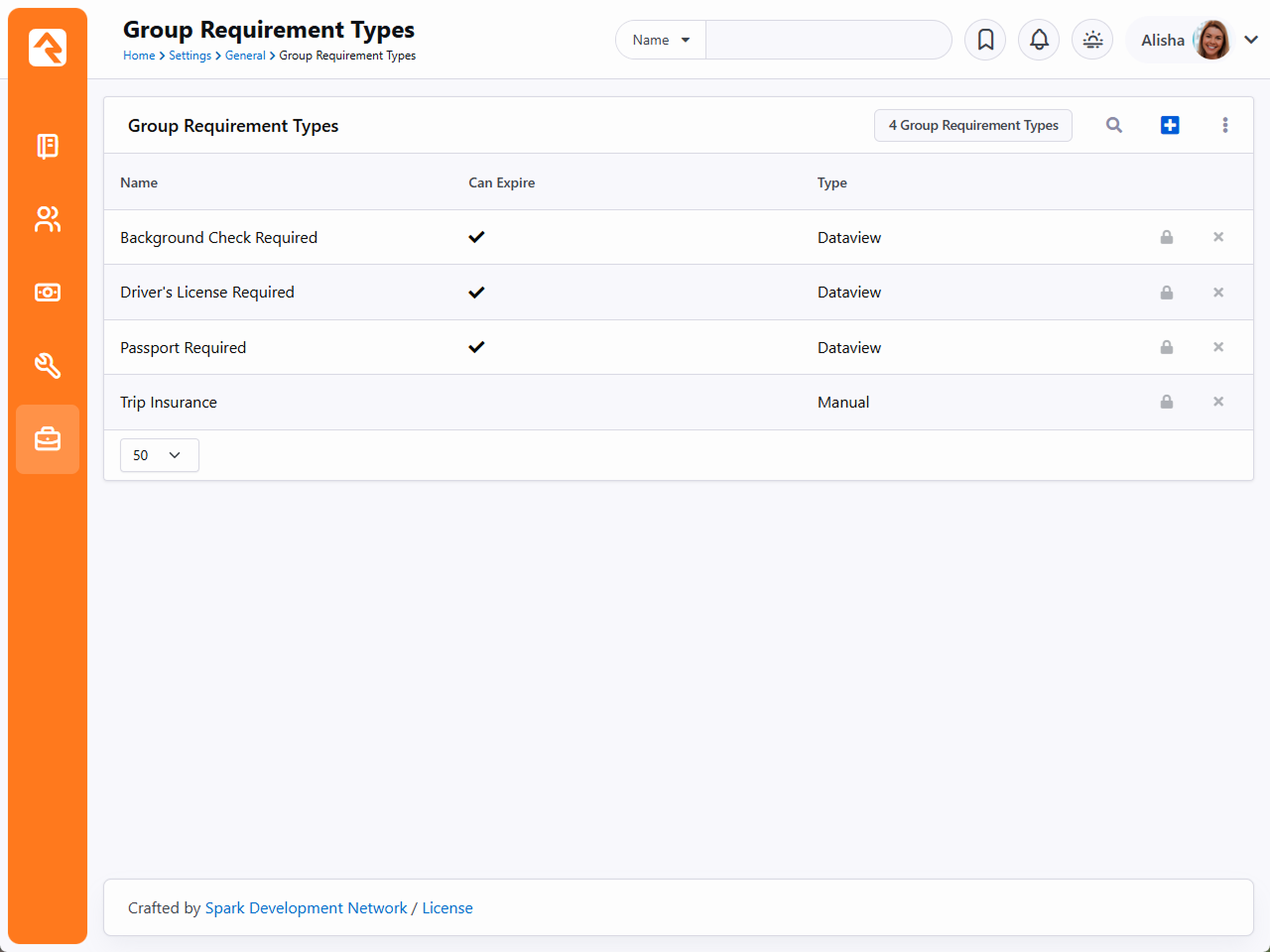
Editing a requirement allows you to provide the following configuration options.
Editing Group Requirements
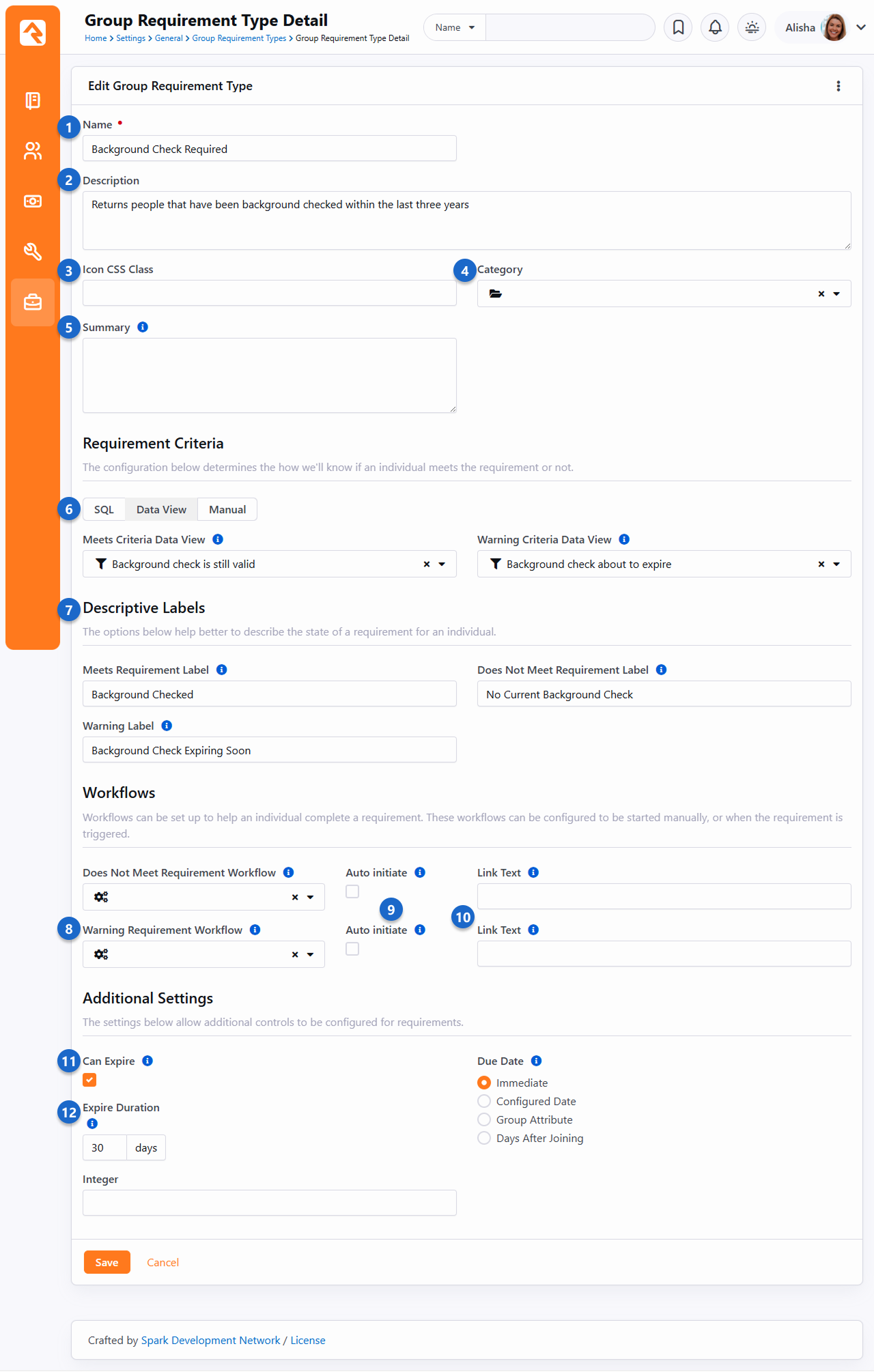
- 1 Name
- This is the name of the requirement. This will appear on the
Group Member Detail screen
in the internal site, and within the fundraising groups pages externally.
- 2 Description
- Be sure to provide a good description of the requirements and any of
the underlying criteria that are used to determine whether a group member
meets the requirement. A little documentation now will save you headaches
in the future.
- 3 Icon CSS Class
- You can optionally associate an icon with the requirement. The icon will appear
in places like the group member detail screen, or as a requirement for fundraising
groups (e.g., for trips).
- 4 Category
- It can be very helpful to categorize your requirement types, especially as your list
starts to grow. To add categories for requirement types, navigate to
Admin Tools > Settings > System > Category Manager
and create a new category with an entity type of
Group Requirement Type.
- 5 Summary
- The Summary you provide will be shown in places where the requirement is displayed,
such as the group member detail screen.
- 6 Check Type
-
So how do we determine the logic of whether someone meets a requirement?
Rock gives you three options:
-
SQL: In this case you provide a SQL statement.
This statement should return a list of Person Ids in the database
that meet that requirement.
-
Data View: You can also select a data view that
returns a list of all the people who meet the requirement.
-
Manual: This requires someone to manually
determine if a person meets the requirement.
You'll notice that the SQL and Data View options give you a separate
property to determine the warning state. You can leave this blank if
your requirement doesn't have a warning state.
- 7 Descriptive Labels
- People will either meet the requirement, be in a warning state or not meet the
requirement. According to the group member's state, these labels will appear where the
requirement is displayed, such as the group member detail screen and as a requirement
for fundraising groups.
- 8 Requirement Workflows
- You can launch workflows for people who either do not meet the
requirement or who are in a warning state. Based on the
Auto Initiate
setting described next, the workflow will be launched either manually or automatically.
The entity passed to the workflows will be a
Group Member Requirement
entity. If your workflow has a Person attribute with a key of "Person", the corresponding
person will automatically be set in your workflow. Requirement workflows must be automatically
persisted.
- 9 Auto Initiate
- You can choose to automatically launch a workflow at the point when Rock
first determines that the group member does not meet a group requirement or
that they're in a warning state. If this is disabled, then the workflow can be manually
launched in places where the requirement is displayed.
- 10 Link Text
- If the workflow is going to be launched manually based on the
Auto Initiate
setting, this is what the link to launch the workflow will say. If nothing is provided
here, then default text (e.g., "Requirement Not Met") will be used.
- 11 Can Expire
- Some requirements, once met, will always be true - say for instance a
requirement that you take a specific class before serving. Other requirements
may expire. A good example of this is a background check or CPR
certification. It's important to keep in mind that the
Calculate Group Requirements
job will not automatically re-check to see if the person still meets the requirements
unless Can Expire is enabled.
- 12 Expire Duration
- When a requirement can expire, you can set the number of days in the
future to wait before re-checking the requirement. For something like a
background check, you don't need to look every day to see if the background
check is still valid.
- 13 Due Date
- Each requirement of this type will have a due date, and this is where you indicate how
that due date is determined.
- Immediate: The requirement applies as soon as the person is added
to the group.
- Configured Date: When adding this requirement type to groups or
group types, you'll be able to choose a date on which the requirement is due.
- Group Attribute: You'll use this option if you have a group
attribute that contains the date on which the requirement is due. You'll choose the
attribute when the requirement type is applied.
- Days After Joining: This option gives everyone the same amount of
time after joining to complete the requirement.
- 14 Save
- Don't forget to save!
As noted above, the Expire Duration
is how many days Rock will wait before checking requirements again. With background checks it
typically isn't necessary to re-check every day, or even every week or month. But there are
edge cases to consider. For instance, let's say someone passed a background check yesterday and, as a result, shows
up as meeting the group requirement. Then today something changes with the requirement (e.g., the Data View
is updated) and the person no longer meets the requirement. The
Calculate Group Requirements job
will not re-check this person's requirement until after the
Expire Duration has passed. In such
cases the person will appear as meeting the current requirement, even though they don't.
If someone does not meet a requirement and the due date has not been reached,
then the person is considered to be in a warning state.
Tips for Creating Data Views and SQL Expressions
When creating data views and/or SQL expressions for group requirements keep these two things in mind:
- Meets The data view/SQL expression for meets should return a list of all the people
in the database that meet this requirement.
- Warning This data view/SQL expression should return a list of all the individuals in the database in a warning state. The Warning state only applies to people found in both the Meets and Warning data views.
When you apply a requirement type to a group or group type (see the following sections below for
instructions on that) you have the option of allowing group leaders to override the requirement
for individual group members. For other staff or volunteers, you can indicate who can override
requirements by accessing the security for the requirement type by clicking the
icon
and adjusting permissions for
Override.
Group Requirement Override Permission
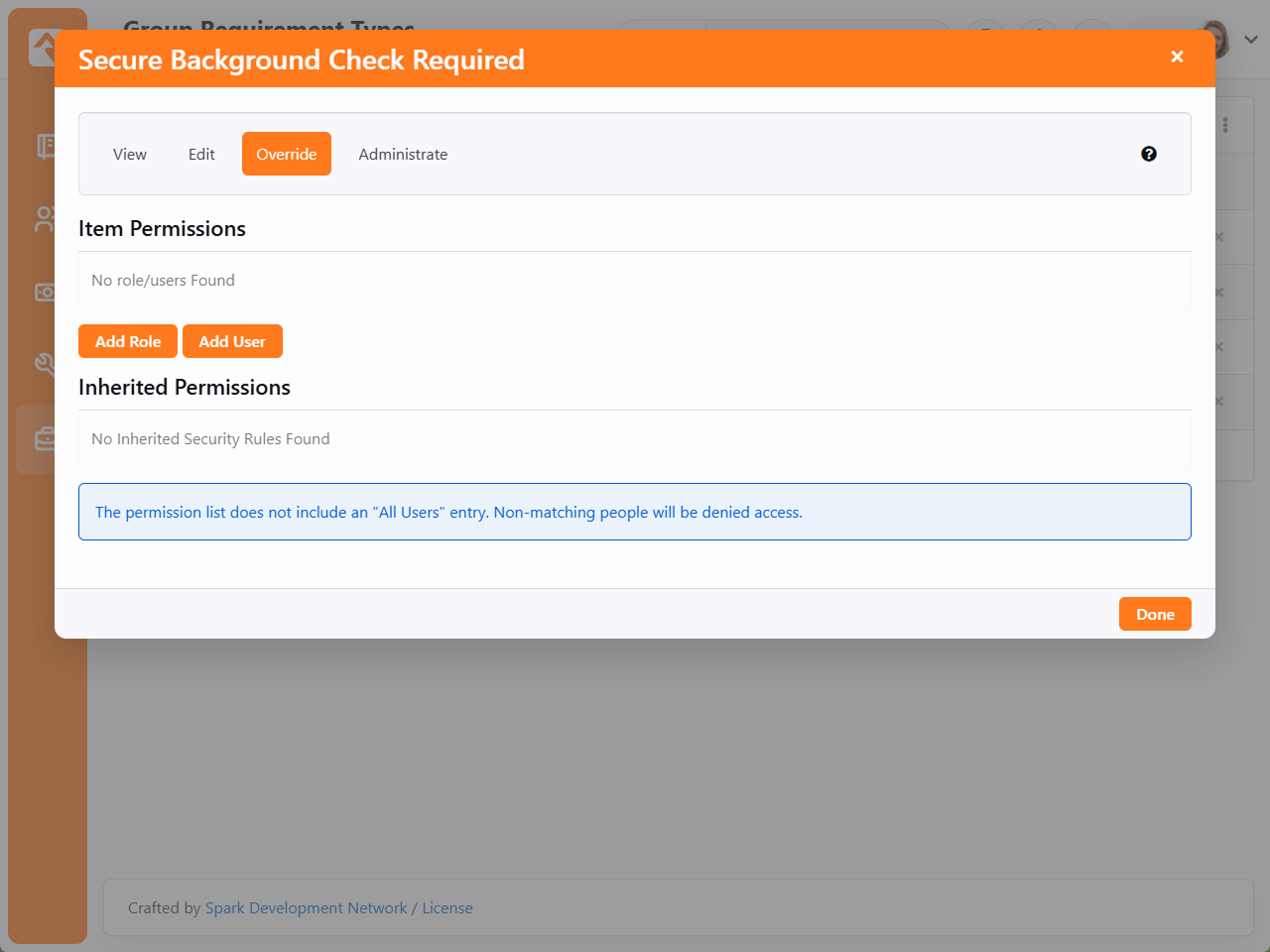
Applying Group Requirements to Individual Groups
Once you have defined your requirement, and if
Enable Specific Group Requirements
is enabled at the Group Type level, you can apply the requirement to individual groups.
If you have Administrate
access to a group, you'll notice a panel on the edit screen entitled
Group Requirements.
You can add group requirements from this panel. There is also a setting to
keep group members who don't already meet the requirements from being added
to a group.
Limited Restriction
This restriction on adding group members only applies to manually adding
people to the group. Workflow actions that add someone to a group will still
be able to add people who don't meet the requirement to the group.
Applying Group Requirements
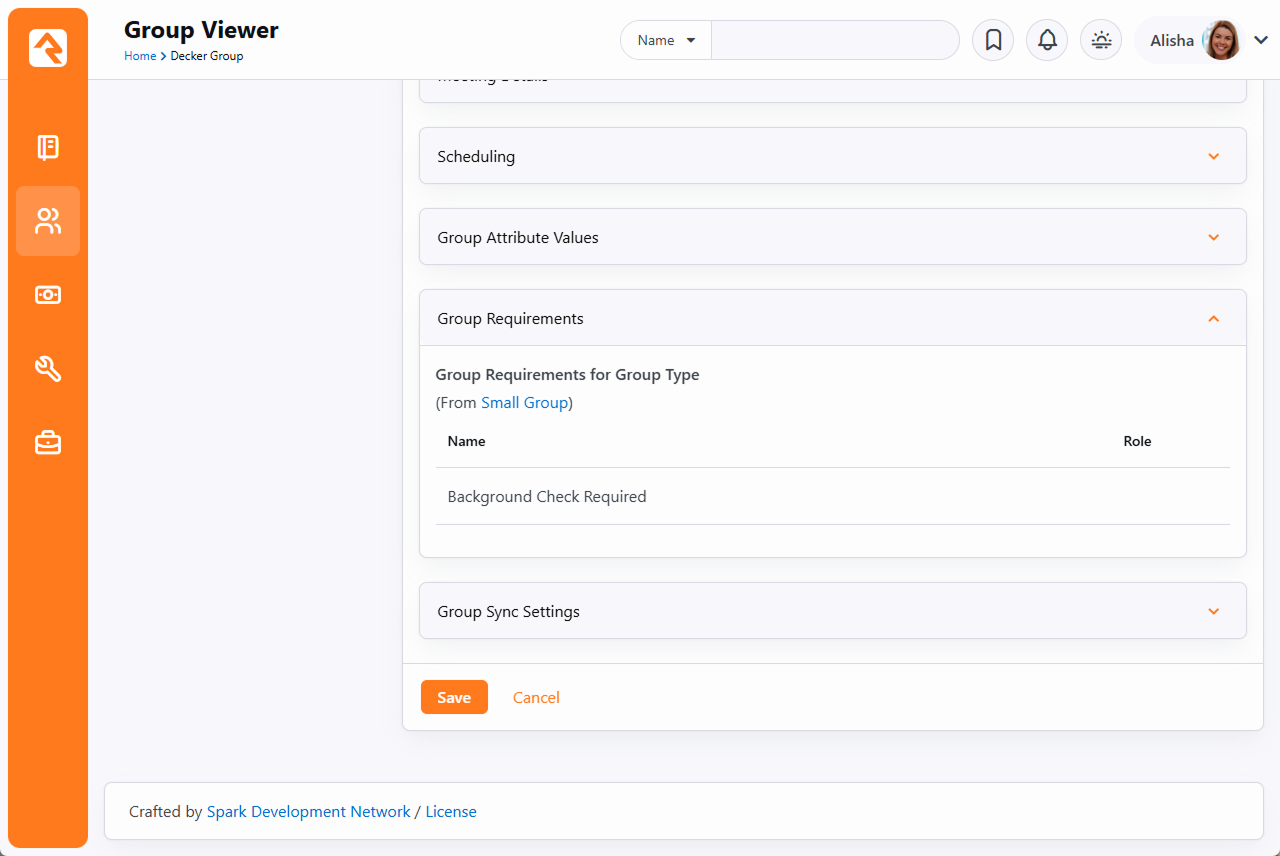
Applying Group Requirements to Group Types
You can also set group member requirements at the Group Type level. This allows you to
apply member requirements to all groups of a certain type rather than to each individual group.
Group Requirements Section - Group Type Detail Screen
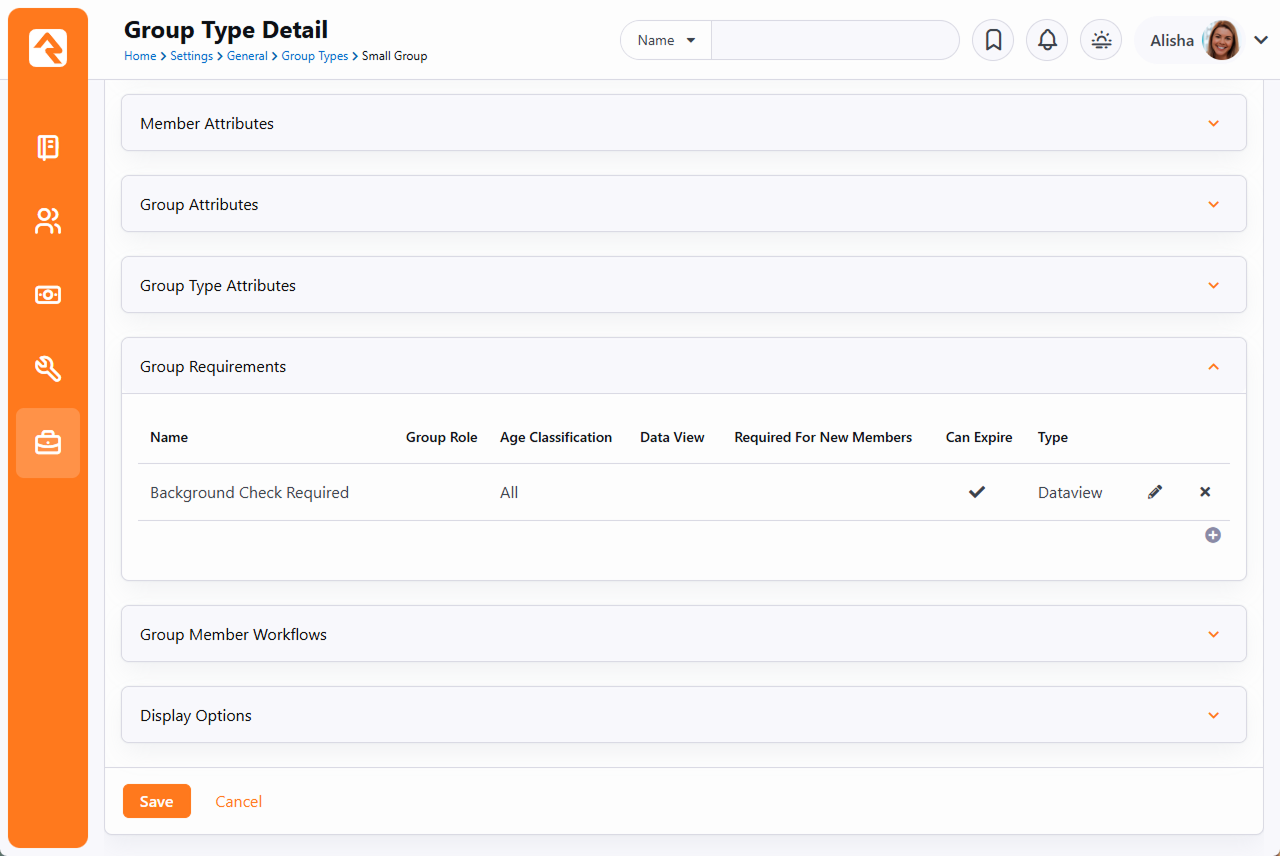
To access your group types, go
to Admin Tools > Settings > General > Group Types.
Select the group type you want to add requirements to from the Group Type list. In the Group Type Detail screen, expand
the Group Requirements section. From here you can either select an existing group requirement to edit or
click the
button to add a new requirement.
Adding New Group Requirement
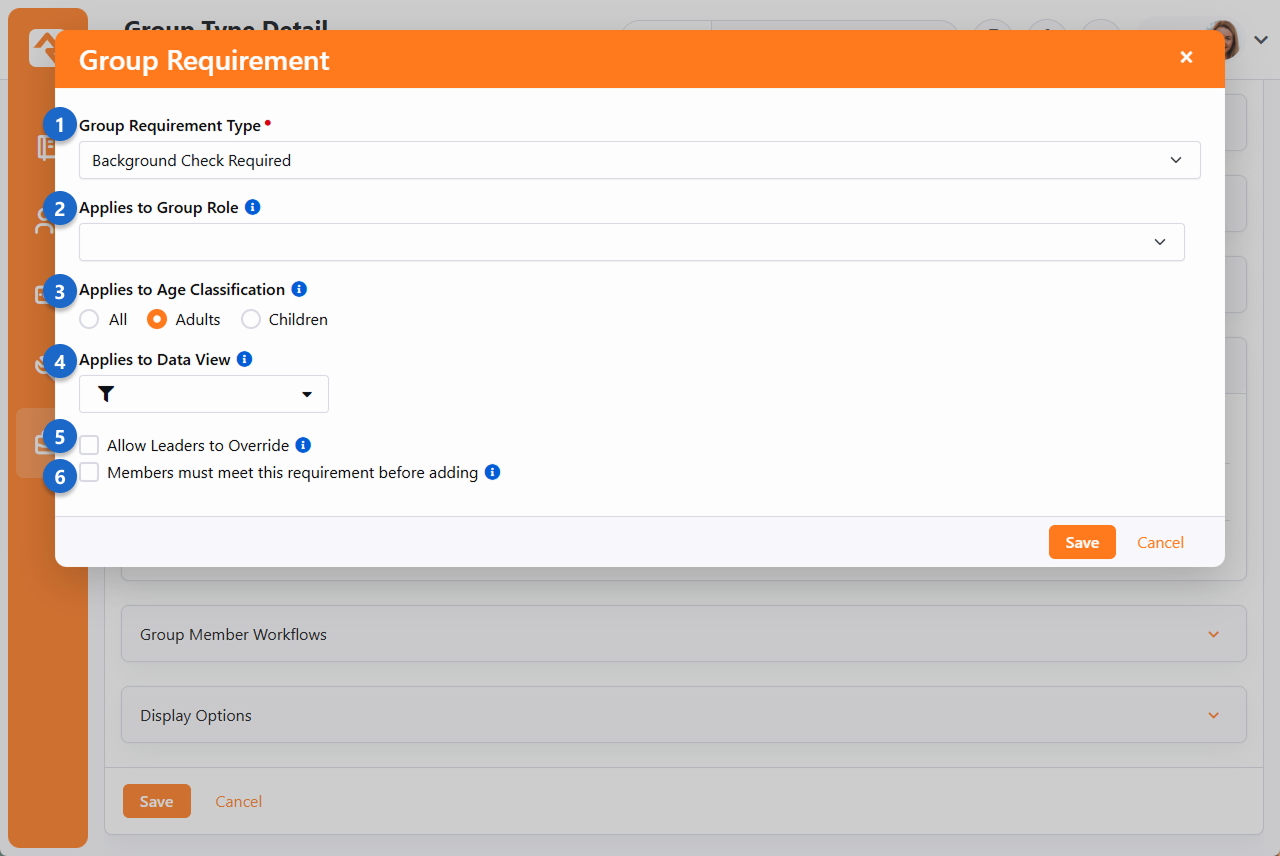
- 1 Group Requirement Type
- This is simply where you pick the requirement you want to apply. This is where
having a descriptive name pays off.
- 2 Applies to Group Role
- You might have some requirements that only apply to Leaders or that only apply to
Members. Whatever roles you have, this is where you indicate which role the requirement
applies to. If this is left blank, then the requirement applies to all roles.
- 3 Applies to Age Classification
- Sometimes requirements like background checks only apply to adults, whereas a waiver
for minors would only apply to children. Here you can choose which age classification the
requirement applies to or apply it to all age classifications.
- 4 Applies to Data View
- This is an advanced setting that lets you provide a data view to indicate who the
requirement should apply to. This is only needed if the above settings aren't targeting
the desired population.
- 5 Allow Leaders to Override
- For some types of requirements, it makes sense to allow group leaders to provide an
override.
- 6 Members must meet this requirement before adding
- You might set up some serving teams this way, to ensure new members have passed a
background check before they get added to the group.
Viewing Group Requirements
Once you enable group requirements, you'll notice in the Group Viewer that certain group members
may have warning icons next to their names. The yellow icon denotes that the
group member is in a warning state, while the red icon indicates that the group requirements
are not met.
Viewing Group Requirements
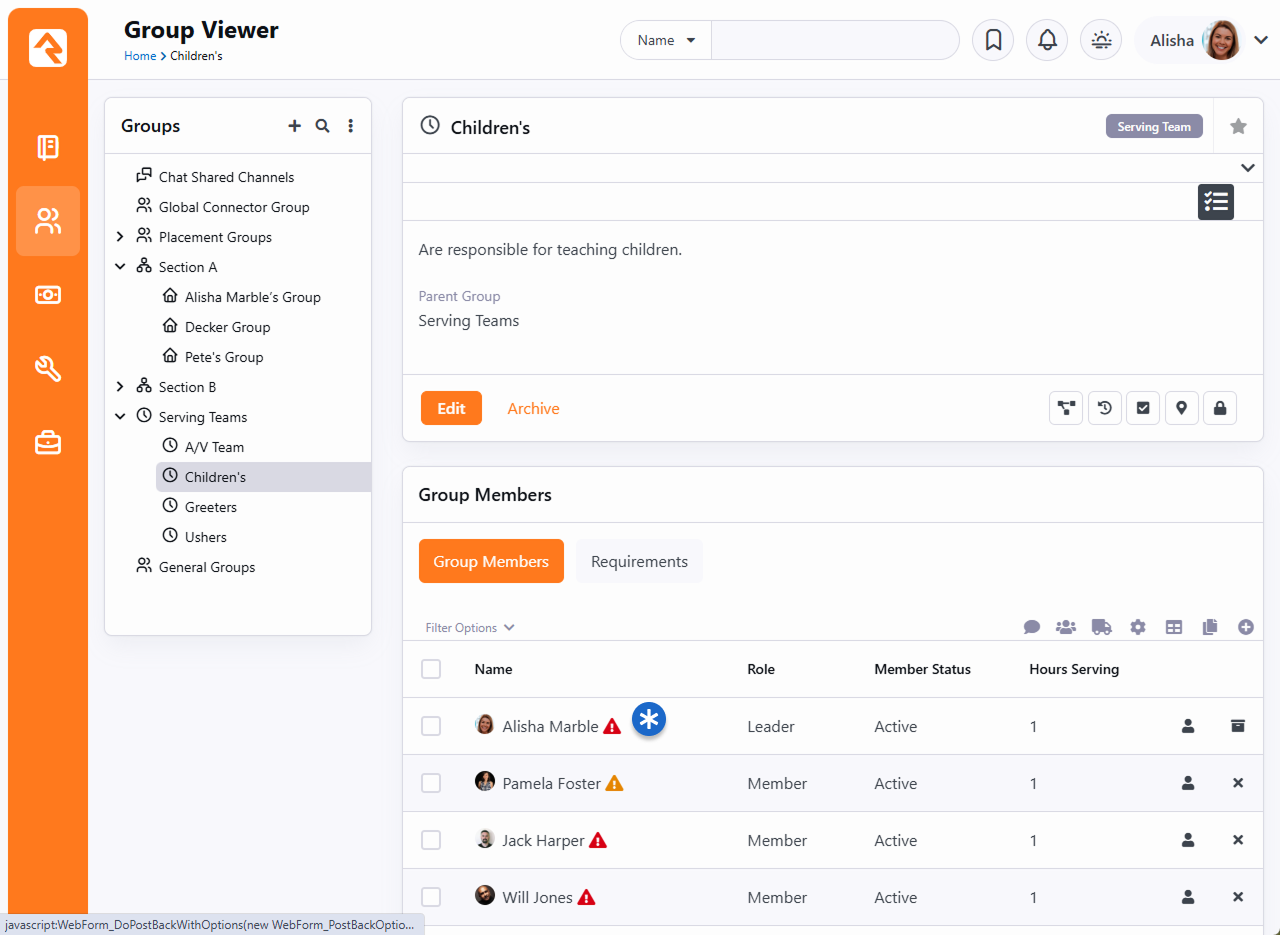
While the icons shown above will give you a general sense of whether a person
meets requirements or not, you can switch over to the
Requirements
tab to view the status of individual requirements.
Viewing Group Requirements Tab
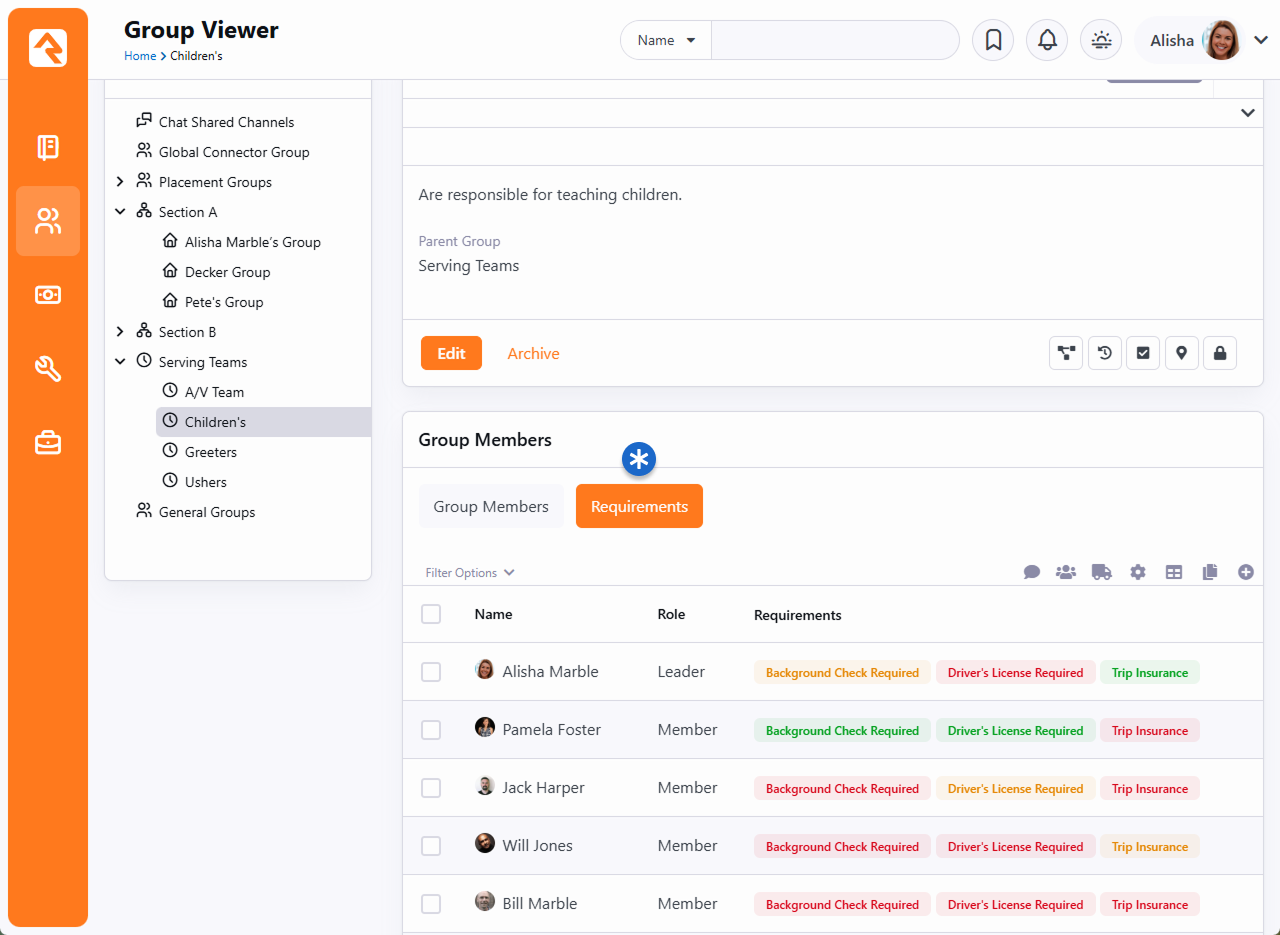
Clicking on a group member will show you details about the group member
and the group's requirements. In the group requirements note that
you can
Upload Passport
for Ted or mark his Trip Insurance requirement as met.
Viewing Group Member Details
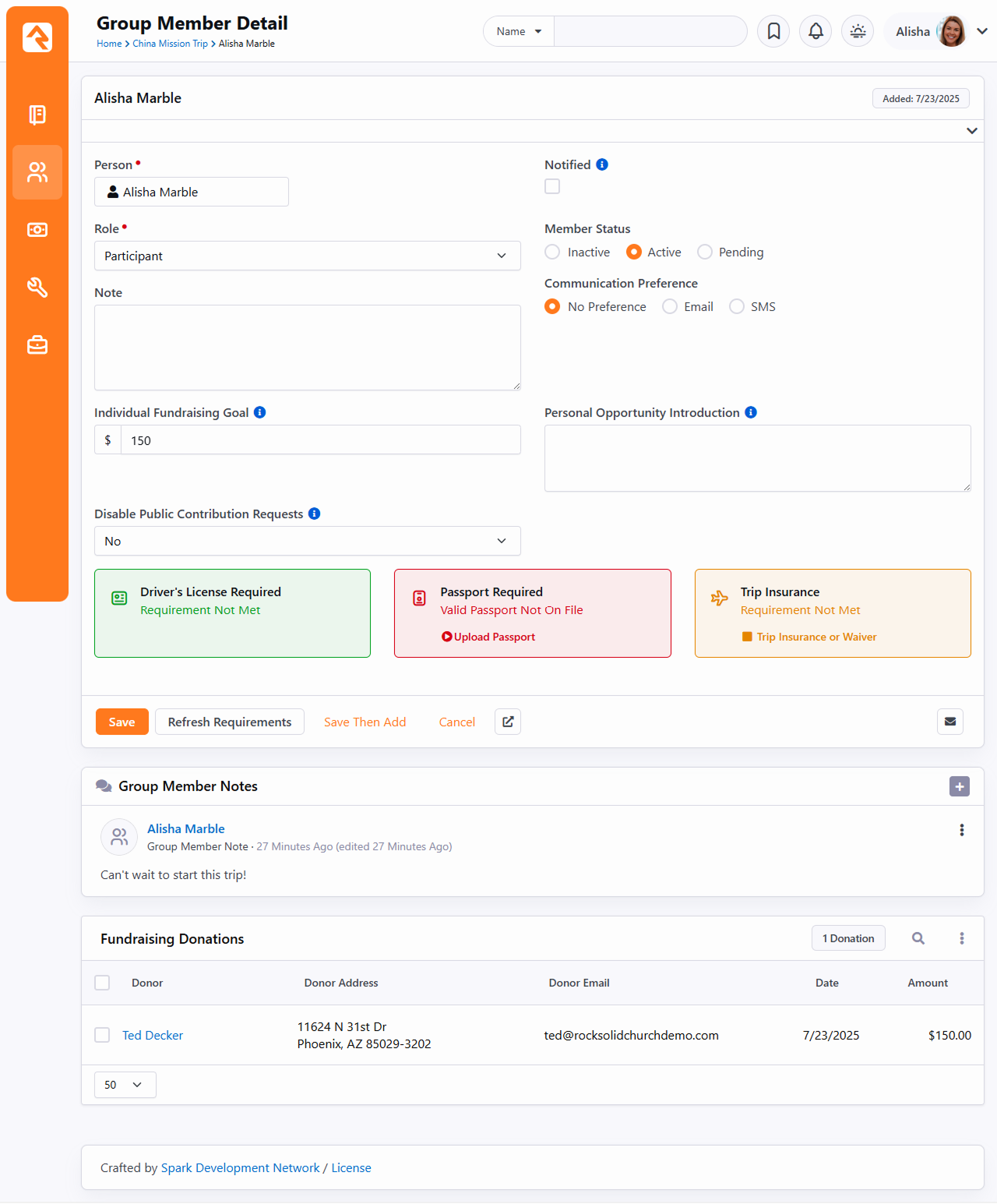
Group Requirement Jobs
The Group Requirements features rely on two system jobs. These jobs can be
configured under Admin Tools > Settings > System > Jobs Administration.
Calculate Group Requirements
This job comes pre-configured and running in Rock. Every night it runs to
check that all the group members met their requirements.
Send Group Requirements Notification
This job does not come pre-configured. You can set up this job to send
a warning communication to group leaders when a group member does not meet the
requirements. These communications will go to group members whose role has been
configured with the 'Receives Requirements Notifications' setting. This
can be configured under:
Admin Tools > Settings > General > Group Types.
Below is a listing of settings for this job.
-
Notification Email Template: This is the system communication
template that you want to use to format the communication. Rock provides
a sample communication entitled Group Requirements Notification
that's configured to meet most needs.
-
Group Types: The group types you want to check the requirements on.
-
Notify Parent Leaders: This setting will notify
the roles of parent groups of the group. This follows the
hierarchy of the group structure all the way to the top. This
ensures that top-level group leaders will receive notifications
for all the groups under them.
-
Accountability Group: The group you select here
will get a listing of all group members not meeting requirements.
Some might call this fascism, but we prefer "inspect what you expect."
Fundraising Groups
It's unfortunate, but sometimes it takes money to do good in this world. Whether it's money to pay the travel
expenses of a mission trip or the small salary of an internship, costs can become a roadblock for many
individuals. But when the community can be made aware of these needs, the burden of costs can be shared. The
problem then becomes promoting the need and managing the transactions that are generated. Rock's fundraising
features make quick work of both problems. Think of it as a mini Kick-starter just for your organization's
needs! Let's dive in and see this feature at work.
Fundraising needs are stored as a new group inside Rock. These groups are created with the group type
Fundraising Opportunity. This group type
provides several group and group member attributes that will drive the fundraising features within Rock.
Each group will represent a specific type of fundraising activity. Examples include:
- A specific mission trip (e.g., Summer China Mission Trip)
- A specific type of fundraising (e.g., Summer Interns,
Fall Sports Season)
Fundraising Walk Through
Keep in mind that each fundraising opportunity is a group. You'll manage the opportunities from the Group Viewer.
Fundraising Opportunities - Group Viewer
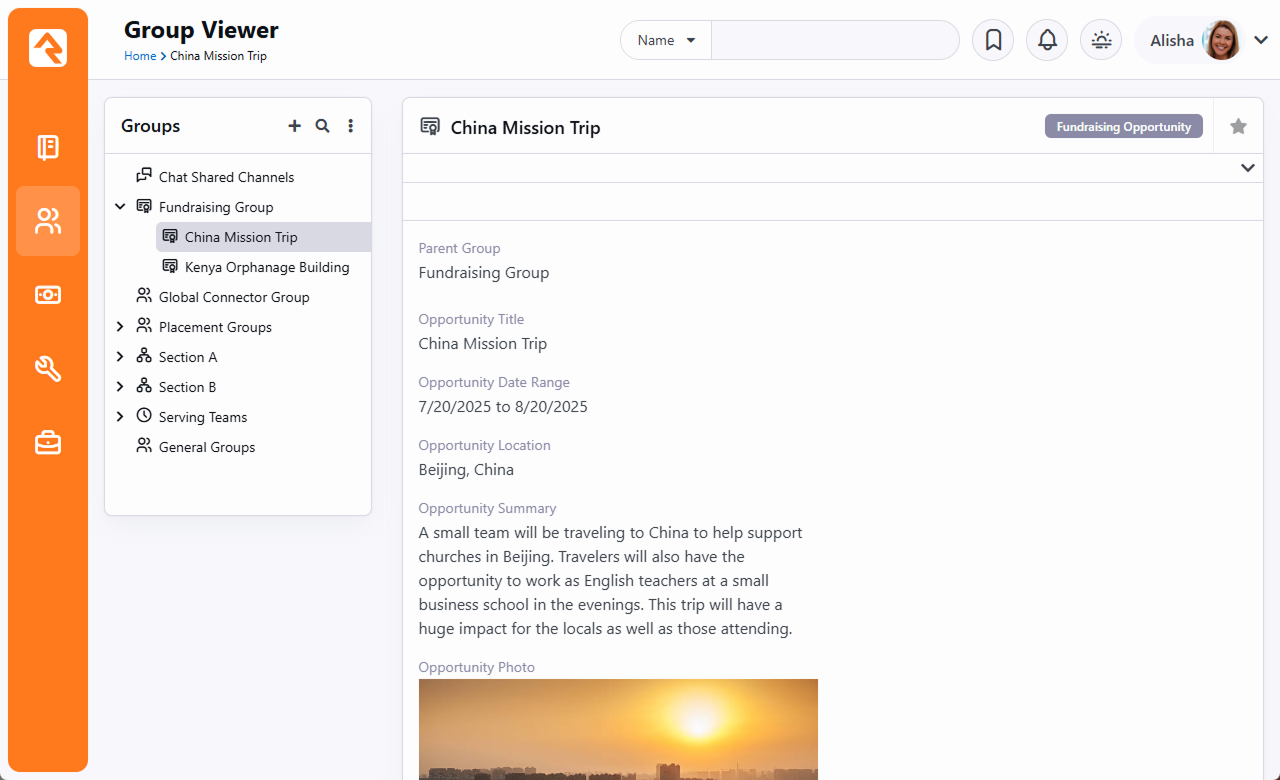
Ok, but that's the boring part. Let's start looking at how these groups are displayed on your external site! Out of the box
Rock configures several pages to view fundraising opportunities. The pages are displayed under the Missions pages (found under the
Connect menu item). The missions page lists the various opportunities that are marked
Show Public. Keep in mind that this block
can be filtered by the Fundraising Opportunity Type
(e.g., Trip, Internship, Project).
Fundraising Opportunity List
Selecting one of the opportunities will take you to its detail page. In the example below, Ted (who is leading this particular
mission trip) is viewing the page. Since we know it's Ted, a summary of his Fundraising Progress is shown. Links are also displayed to
take him to his participant's page and for him to make a payment. Also, note that since Ted is a leader for this opportunity, he has
access to a leader toolbox.
Fundraising Opportunity Detail - Leader
Pictured below is the same page, but with a fundraising group that's configured to use families.
In this case both Ted and Cindy are in the group, and their individual fundraising goals become
combined into a single family goal. Note there is a single
Make Payment button for the
family, but each member has their own Participant Page.
Fundraising Opportunity Detail - Family
This page is also used for the general public to view. It allows them to easily register for the opportunity if a registration
instance was provided.
Fundraising Opportunity - Public
Fundraising Opportunities can also optionally be configured with a Content Channel for providing updates. When configured,
a new tab will be shown to display these updates.
Fundraising Detail - Updates
Another optional setting is to allow commenting on the opportunity. This tab will display a Rock notes control. Keep in
mind that this feature currently doesn't allow for approving comments and does not email when new comments are added.
Fundraising Participant Comments
Each opportunity participant has a personalized page that they can share with others to help
generate interest and help encourage funding.
As pictured below in green, red and yellow, the participant can use this page to track documents
that are needed for the trip and, if configured, launch a workflow to upload those documents.
These are really just group requirements that have been
added to the fundraising group. They could be used to track things like documents, attendance
in classes or background checks. In this example, Ted has a driver's license on file
but hasn't provided his passport yet. He hasn't submitted his trip insurance either, but it's
not due until a date in the future, so Ted is currently in a warning state.
Fundraising Participant Profile
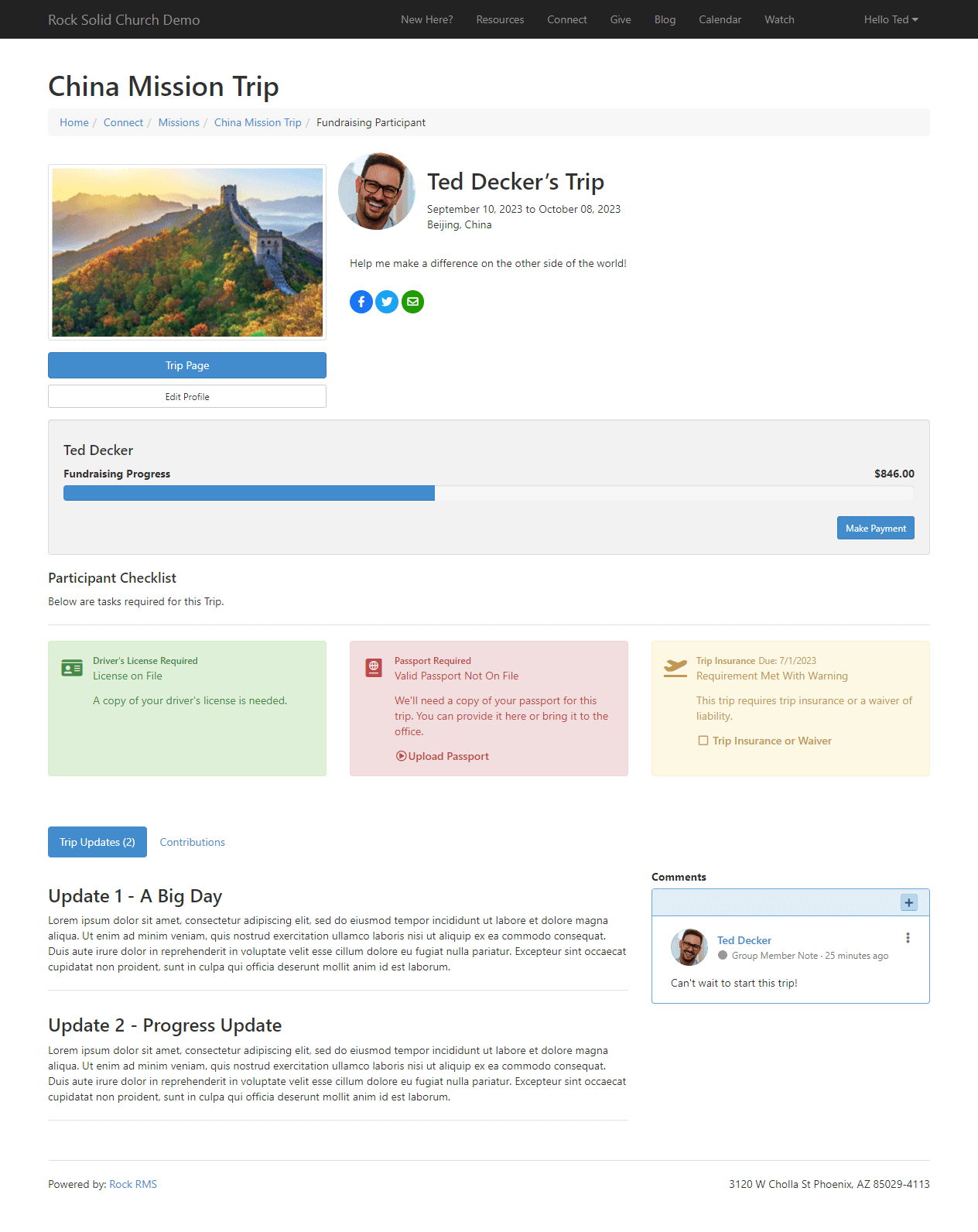
Viewing Group Requirements
Requirements are only visible to the individual participants, people in their family (if the
fundraising group has a
Participation Type of
Family) and trip leaders.
Note, this means that if Ted is logged in, he should see everyone
in his family who is in the group even if he is not in the group himself. This allows him
to view the details for his children and make payments.
Each participant can provide a custom opportunity introduction and edit their profile image from
their personalized page. This block can also be configured to edit specific person attributes if
you wish, such as the Facebook example pictured below.
Fundraising Participant Profile
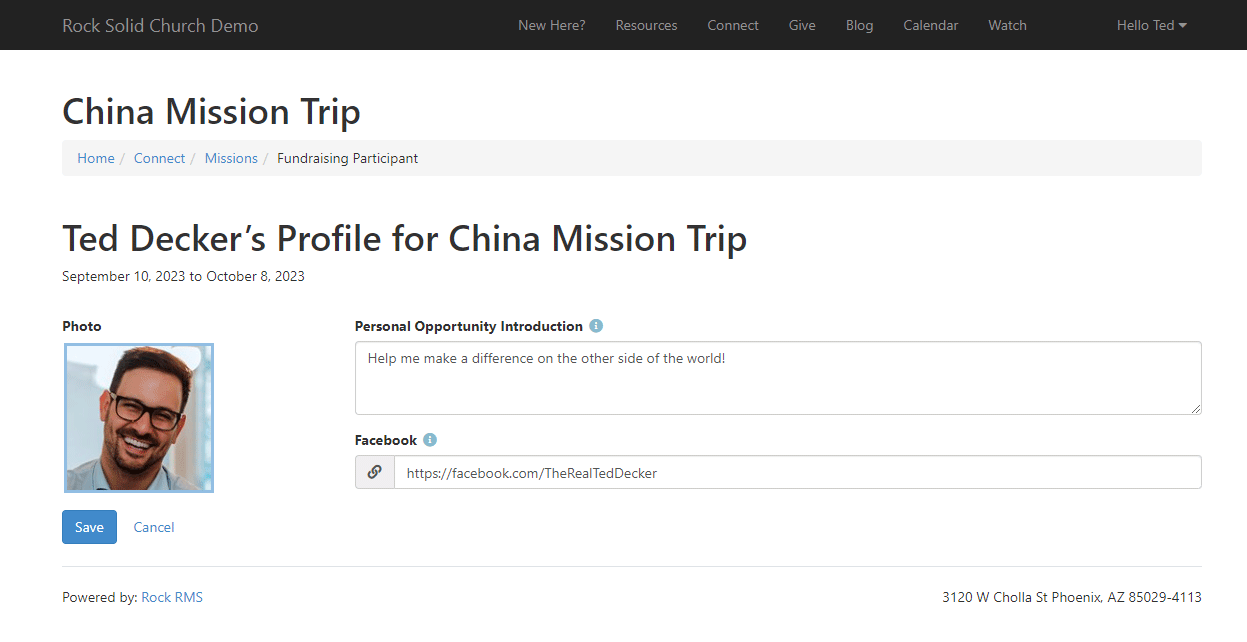
If the person logged in is the participant, they can also view the gifts that have been given
near the bottom of the page by selecting
Contributions.
Fundraising Participant Transactions
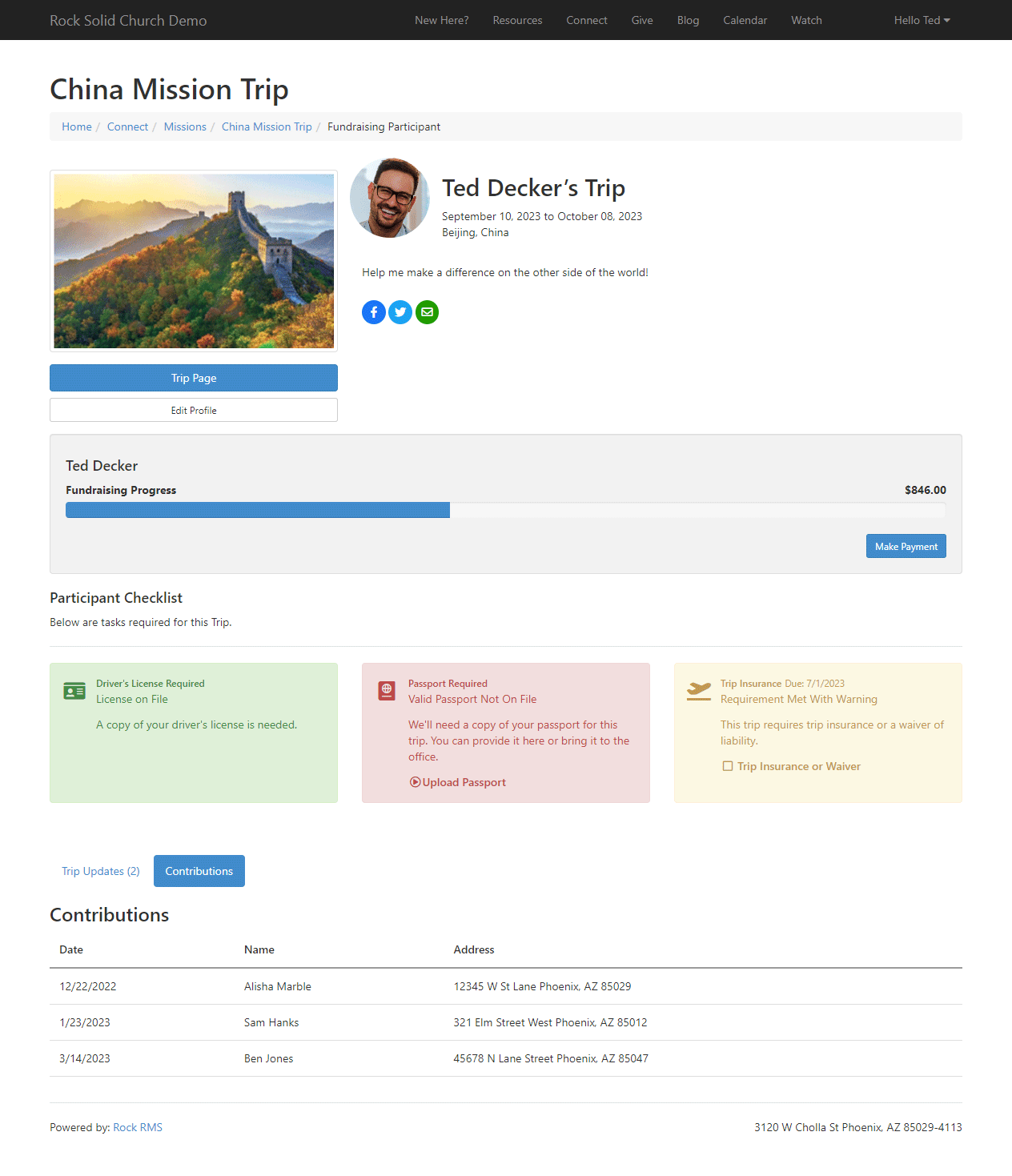
If someone doesn't have a link to a participant's profile page, they can choose to give from the opportunity detail page
and select the participant they would like to fund.
Donate to a Participant
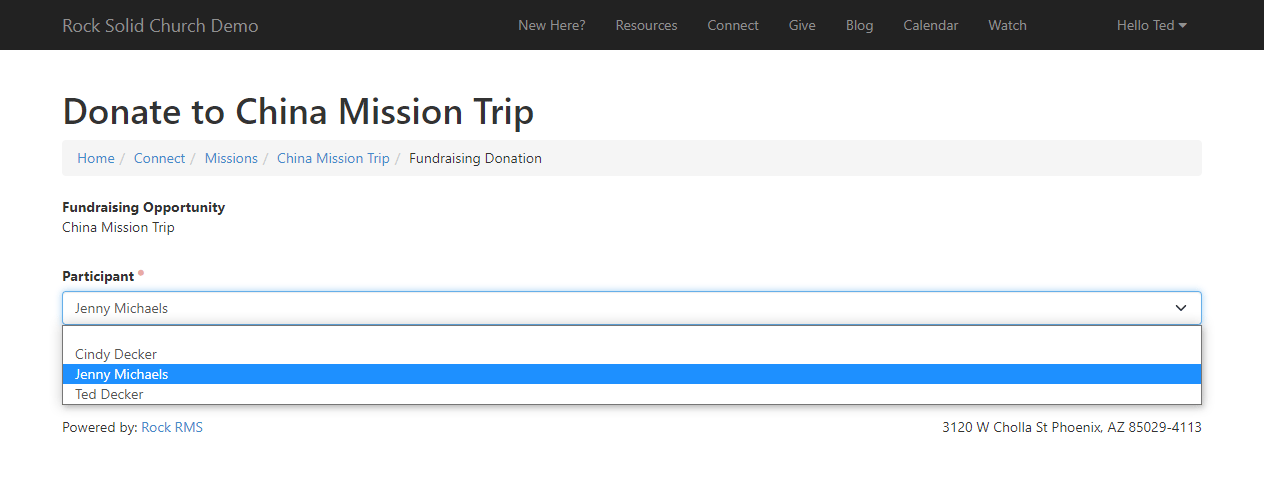
If the fundraising group is set up for families, and if more than
one person from the same family is in the group, you can give to
the family as a whole.
Donate to a Family
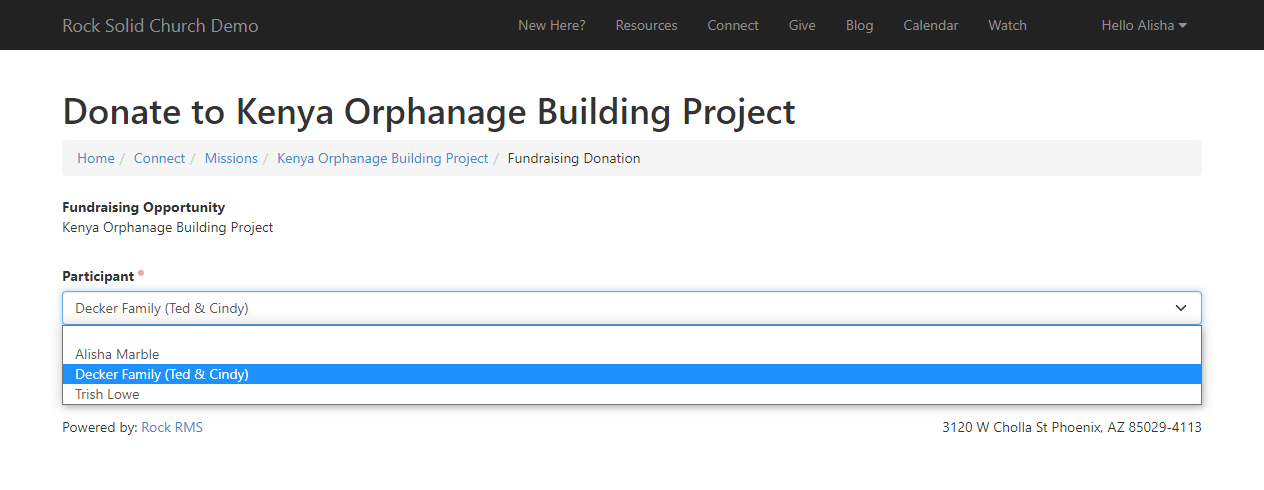
After selecting a participant and clicking
Next from the page pictured
above, the person will be brought to the
Fundraising Transaction Entry
page pictured below. There are many block settings for this block, so be sure to review them
to ensure this process matches your organization's needs.
Donate to a Participant
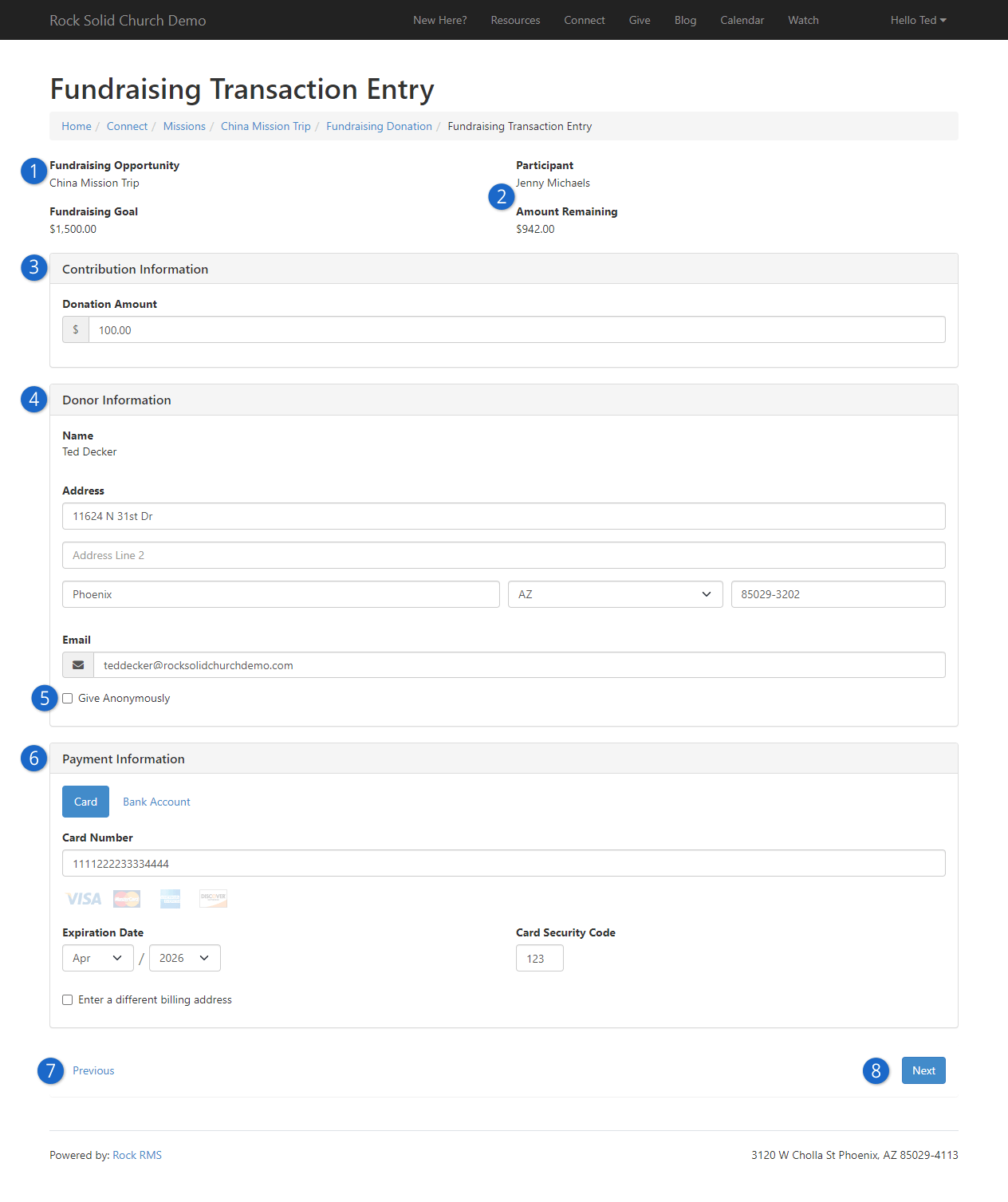
- 1 Fundraising Opportunity
- The name of the fundraising opportunity comes from the
Opportunity Title
group attribute that was set when the fundraising group was created.
- 2 Participant Information
- Based on the person's selection in the prior screen (see prior screenshot above) we
see the participant's name, their total fundraising goal and how much they have left to
raise to meet the goal. If giving to a family, the family's name will appear here, and
the amounts displayed will be for the family as a whole.
- 3 Contribution Information
- When a participant is selected from the prior screen, the
Financial Account
associated with the fundraising group (set as a group attribute) is passed to this page
in the URL. The amount entered here will go to that account. Only Public accounts can be
used by this block.
If this page is accessed directly without first selecting a participant, then multiple
Donation Amount fields
will be present, one for each Public account you have. This can be changed in the block's
settings by specifying the Accounts that should be used. The block settings also provide
an option to allow the person to choose additional accounts if needed, but this only
applies if an AccountId is not present in the URL.
- 4 Donor Information
- This information will be pre-filled for the person if they're known (i.e., logged
in). The type of address to use can be changed in the block's settings.
- 5 Additional Options
- The block settings allow you to remove the prompt for email, and also give you the
option of asking for a phone number. You can also disable the option for the person to
give anonymously.
- 6 Payment Information
- This is where the person will provide their card or bank account information. The
title of this area can be changed in the block settings.
- 7 Previous
- This will take the person back to the prior screen, where they can select a
different participant if needed.
- 8 Next
- Clicking Next will
take the person to a confirmation screen. The header and footer text of the confirmation
screen can be customized in the block settings.
Fundraising Opportunity Configuration
As we mentioned earlier, Rock's fundraising features are driven by a set of group and group member attributes.
Let's take a look at these settings to see how you can customize each fundraising opportunity to meet your
individualized needs.
Keep in mind the group and group member attributes below are specific to a single fundraising opportunity
(each one is a group). This allows you to have several types of opportunities, each with their own unique
settings and configuration.
Group Attributes
Below is a detailed discussion of each setting for the group that represents the opportunity
(Mission Trip, Internship Season, etc.)
| Name |
Type |
Description |
| Opportunity Title |
Text |
The group name is mainly used internally. This attribute of
Opportunity Title
is what will show on the external site when opportunities are listed.
|
| Opportunity Date Range |
Date Range |
Used to show the start and end dates of the opportunity. For a mission trip, we
would recommend that you put the trip dates here. This date range doesn't control
when the opportunity is shown externally; it just describes when the opportunity
occurs.
|
| Opportunity Location |
Text |
This is the location of the opportunity. For a mission trip, this would be the
city or country. Feel free to leave this blank if it doesn't make sense in your
situation.
|
| Opportunity Summary |
Memo |
A brief description of the fundraising opportunity.
|
| Opportunity Photo |
Image |
If a picture is worth a thousand words, then we'd better include one.
|
| Opportunity Details |
HTML |
Now we get to the nitty-gritty of what this opportunity is all about.
|
| Individual Fundraising Goal |
Currency |
This field determines how much money each person is trying to raise. If each person
in the opportunity is raising different amounts, you can provide those unique
amounts on their group member attribute (discussed below).
|
| Opportunity Type |
Defined Value |
The opportunity type helps group similar opportunities. Rock ships with three options
(Trip,
Internship and
Project). You
can add your own under
General Settings > Defined Types > Fundraising Opportunity Type.
This setting has two roles:
-
Acts as a filter for opportunities on the external website (e.g., show only
mission trips on this list)
-
Provides a label to describe the opportunity type. For instance, should
this opportunity be referred to as a
Trip,
Project, etc.
|
| Update Content Channel |
Content Channel |
You may want to provide updates on the status of your opportunity. For example,
if your opportunity is a mission trip, you might want to file trip reports. Or if
it's a project, you might want to provide updates on the overall funding level or
project status. This setting allows you to configure a content channel to manage
these updates. If you don't provide a channel the updates tab will be hidden.
|
| Enable Commenting |
Boolean |
Sometimes you want comments, sometimes you don't. When enabled, a notes block will
be added to the opportunity detail. Just remember that there is no automatic email
when new notes/comments are left and no approval process. These features may be
added in a future release.
|
| Registration Instance |
Number |
This is what ties in a registration to the fundraising opportunity. You must provide the registration instance ID (currently there isn't a registration
instance picker).
|
| Registration Notes |
Memo |
This short description will show up on the opportunity details page to provide any
quick notes about the registration (e.g.,
A $200 deposit is required).
|
| Allow Individual Disabling of Contribution Requests |
Boolean |
Opportunity participants can have their own personalized fundraising pages. Some
participants may want to use this page to share the opportunity and provide updates,
but not want to communicate the financial needs. This setting allows you the option
to allow them to disable the sharing of their funding status.
|
| Allow Individual Editing of Fundraising Goal |
Boolean |
This allows individuals to set their own fundraising goals from their external
fundraising profiles. The default for this is not to allow editing.
|
| Cap Fundraising Amount |
Boolean |
This setting determines if an individual can raise more money than their goal.
|
| Financial Account |
Financial Account |
This configures which financial account the fundraising opportunity should use to track their
money.
|
| Allow Donations Until |
Date Picker |
An inclusive date that specifies how long to allow donations to participants.
Once this date passes no more donations will be accepted by Rock.
|
| Show Public |
Boolean |
This flag determines whether the opportunity should be displayed on the external
website. Since it's common for an opportunity to be displayed long before it starts,
and for a brief time after it ends, this flag is used to determine when an
opportunity should be displayed.
|
| Participation Type |
Single-Select |
This is where you select whether the participant is an individual or a
family. This controls much of how people interact with the group, as
noted throughout this chapter.
|
Since many of these attributes drive the external display of the opportunity, let's look at
an example and see where each value is shown.
External Display of Attributes
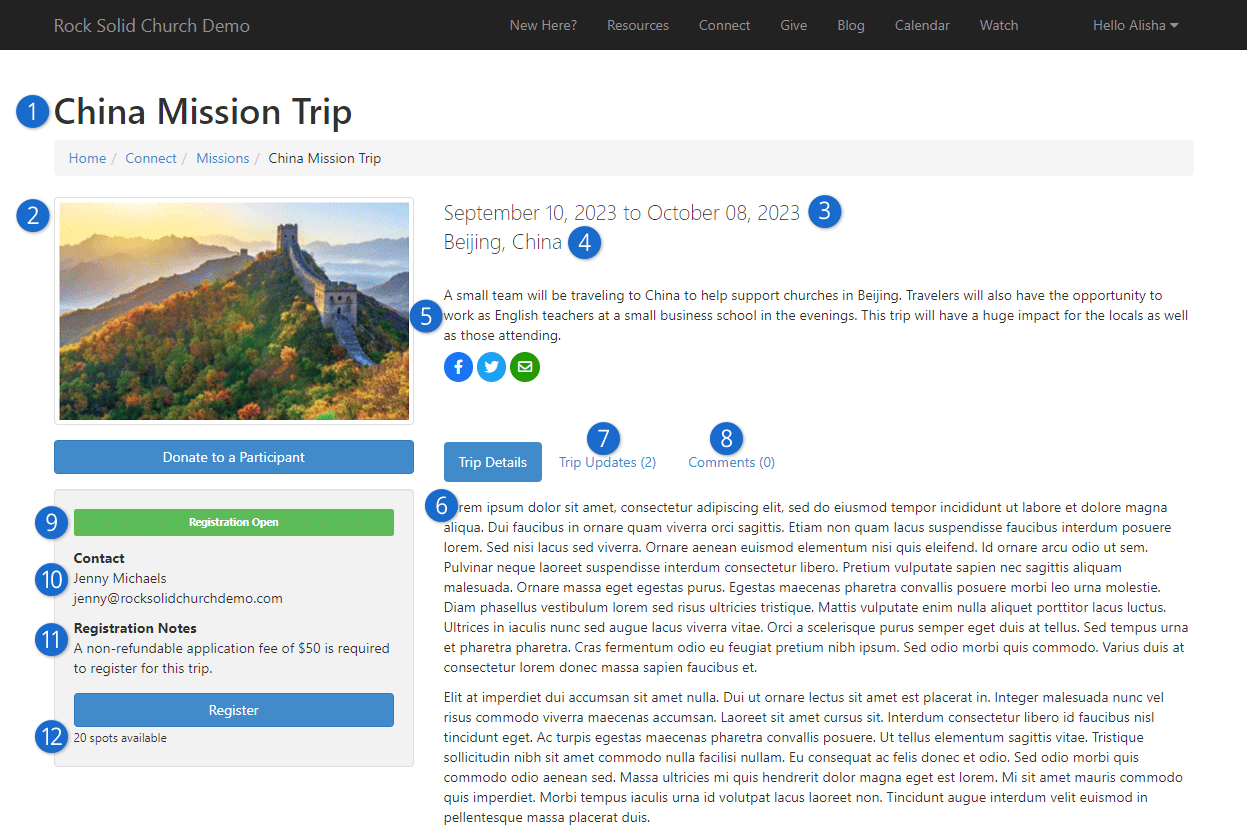
- 1 Opportunity Title
- 2 Photo
- 3 Date Range
- 4 Location
- 5 Summary
- 6 Details
- 7 Trip Updates
- 8 Comments
- 9 Registration Status
- This is determined by looking at the dates on the registration instance. If the
registration is not yet open, the future opening date will be displayed.
- 10 Registration Contact
- The contact comes from the Registration if it is configured.
- 11 Registration Note
- 12 Spots Available
- This is calculated by looking at the number of registrant openings available for the registration.
Group Member Attributes
The following group member attributes are available to help configure the opportunities.
| Name |
Type |
Description |
| Individual Fundraising Goal |
Currency |
This allows you to provide an individual goal that is unique to each person. This
attribute is only available to internal Rock administrators and cannot be edited by
the individual.
|
| Personal Opportunity Introduction |
Memo |
This is a short message that the person can provide to provide a personalized note
on their individual trip page.
|
| Disable Public Contribution Requests |
Boolean |
This allows an individual to hide their name when listing people to fund. It also
hides many of the features on their personal opportunity profile that are intended
to encourage someone to give. This allows them to use their personal page to
communicate updates if they are self-funding the opportunity.
|
Fundraising Financial Transactions
Financial Transactions that are created from the fundraising features will all default to the
Contribution type. The account for the
transaction will be applied based on the opportunity group setting. It is possible to change the
transaction type to a different value than Contribution.
To do so, you'd need to create a new page with a Transaction Entry
block on it. This block has a block attribute to set the transaction type on the advanced setting panel.
You'd then need to configure your fundraising pages to use this new page for processing financial
transactions.
Moving Transactions
If a participant moves from one fundraising group to another, you can easily transfer the
donations that were already made. See the
Moving Group Members section above for details.
In Rock, financial transactions can be tied to another entity (event registration, etc.). Donations that
are made as a part of fundraising will be tied to the Group Member
of the Fundraising Opportunity group.
There is no financial linkage to registrations. This is an important point to understand as there is no way
to link money coming in to a registration with that given as a fundraising opportunity. Below we cover
several ways you can configure event registration to work with the fundraising tools for maximum impact.
Financial Transactions Matching
We've already discussed that Financial Transactions for fundraising are Contributions that are tied to the Group Members of the
Fundraising Opportunity Group. The Rock tools mentioned above do all of the connecting of the group member to the transactions. You might
be asking, "What about checks or gifts that need to be entered manually?" And that...is a GREAT question!
After entering contributions (either scanning and matching or through another process), you can link a contribution to a
fundraising opportunity participant using the
Fundraising Matching
page found under
Finance > Fundraising Matching.
Fundraising Matching
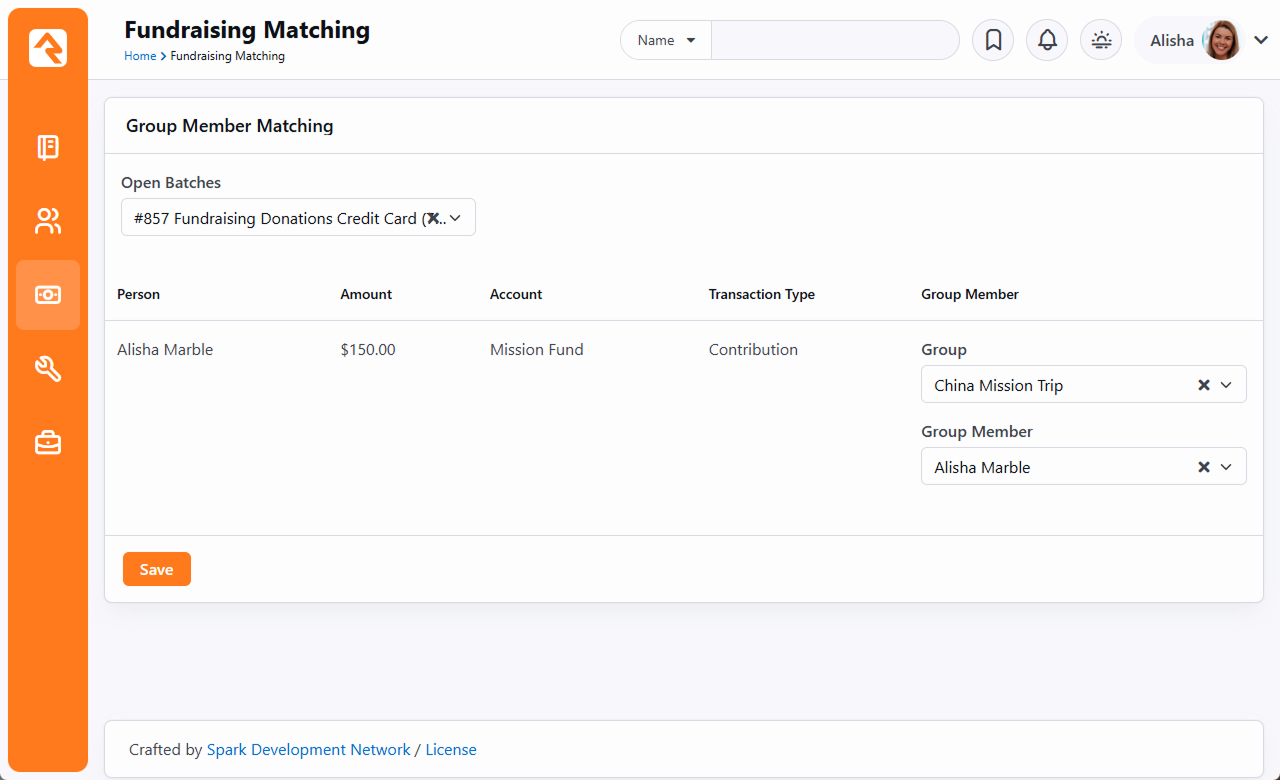
Fundraising Progress
You can quickly track the progress of fundraising campaigns for fundraising groups. Start by going to the
Group Viewer page
(People > Group Viewer).
From this screen you can view the individual fundraising donations for each group member,
below the list of group members.
Fundraising Group
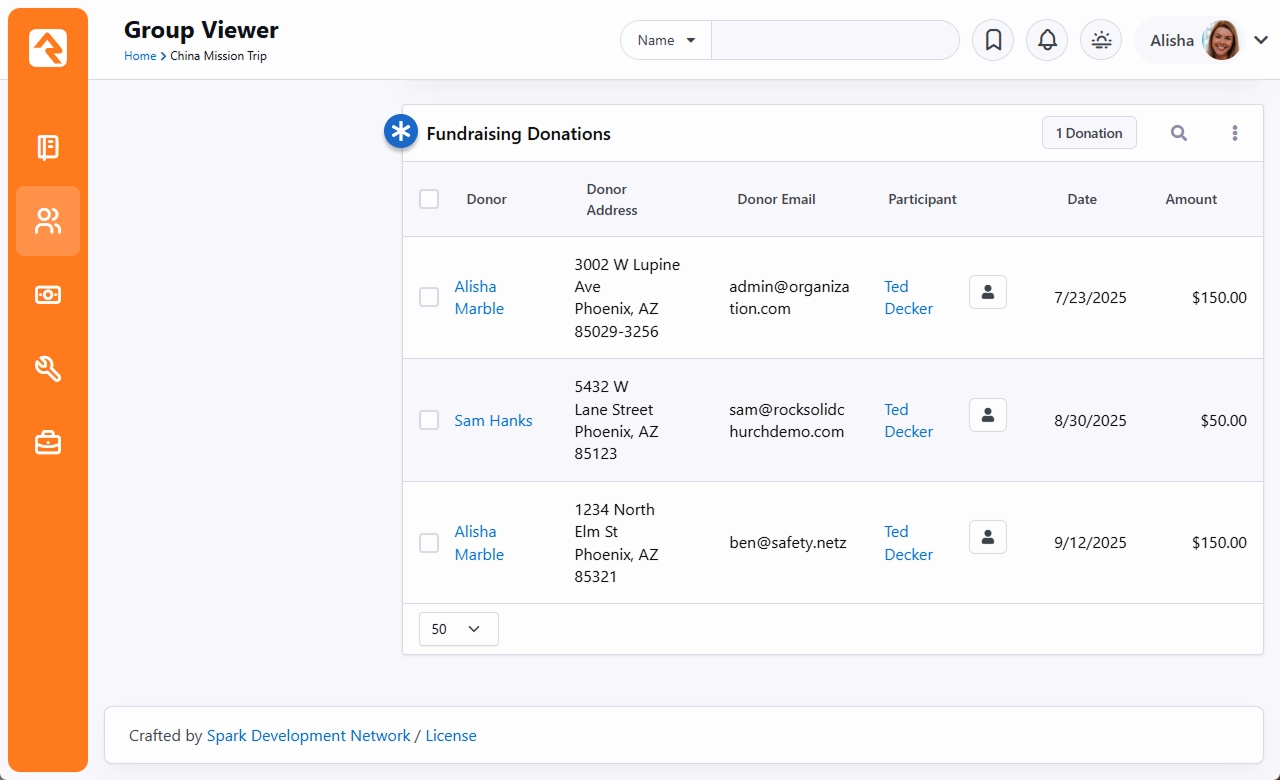
You can also quickly view the group's overall fundraising progress. Click the
button to display a snapshot of both the combined and individual fundraising progress.
Fundraising Progress
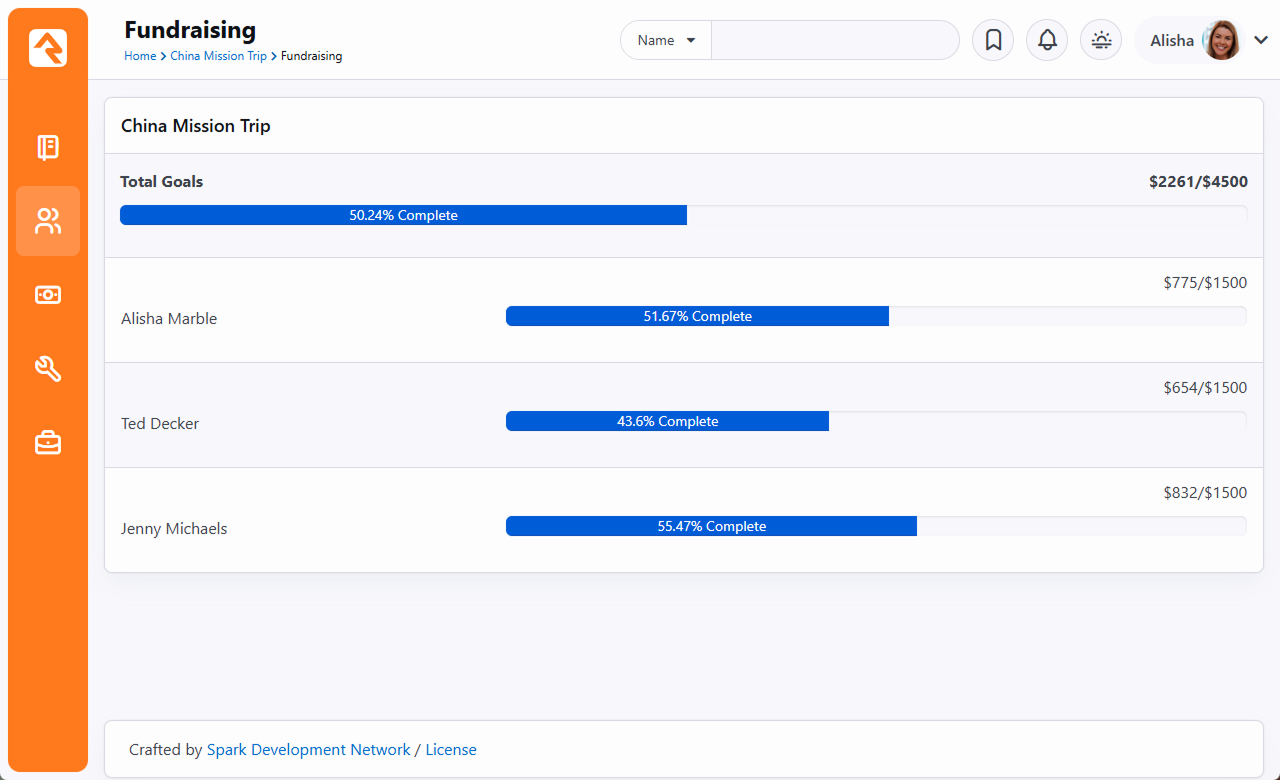
If the fundraising group's
Participation Type is
Family, then the chart combines family members into a single line as pictured below.
Fundraising Progress - Family
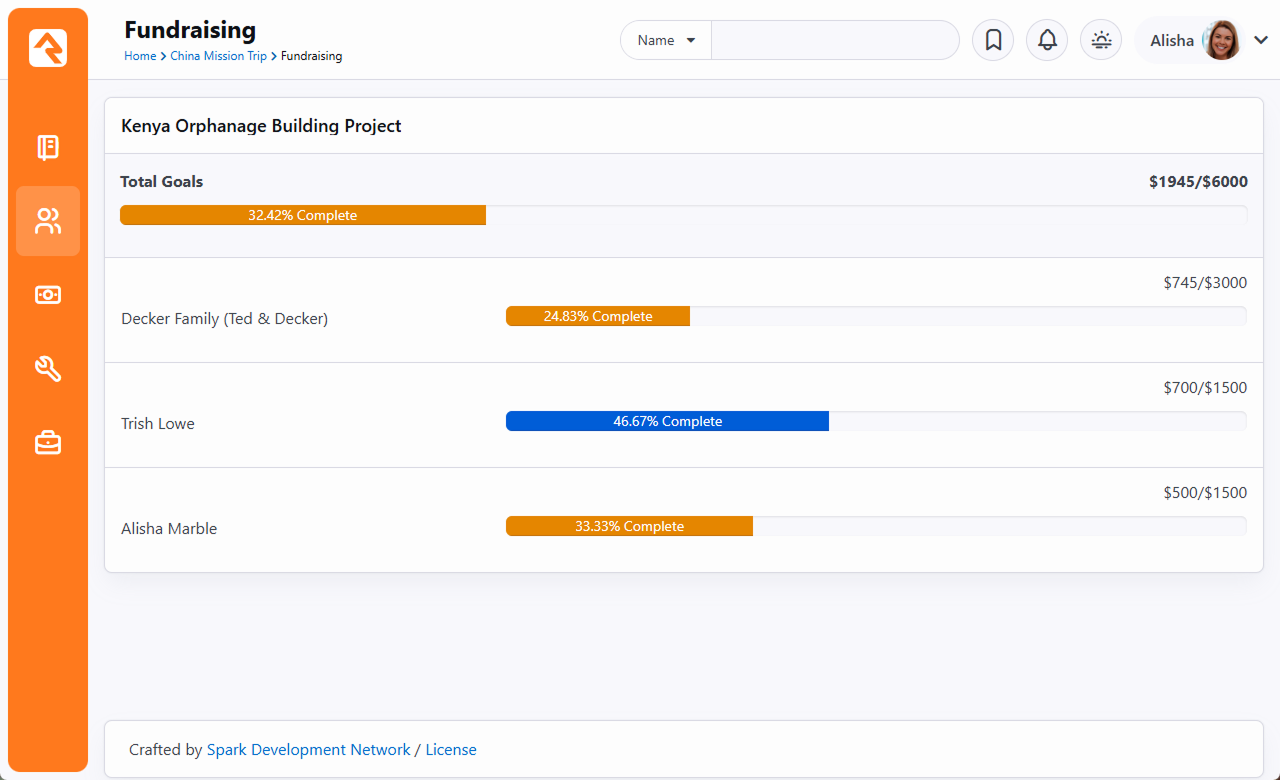
How Registration Can Work with Fundraising
As mentioned above, Rock's registration and fundraising tools were meant to work together. That said,
financial transactions from these two features don't tie directly together. Below are some use cases to
show how you can get these two features to sing in perfect harmony.
Basic Mission Trip
In a basic scenario you would create a new event registration to capture information about the trip
participant and have the registrant drop directly into the fundraising group. To enable this direct
link to the fundraising group, be sure you define a linkage on the registration instance to the
group. The fundraising blocks are smart enough to use these linkages in the registration process.
Pro Tip
You can actually provide multiple linkages to have individuals drop into different groups. The
linkage name will be used on the registration button on the fundraising page.
Mission Trip with No Cost Application Process
Say you wanted to configure a mission trip in which a person needed to register and be approved
before they could begin fundraising. You could use an event registration to take their application
information. Once their application was approved, they would be added to the
Fundraising Opportunity group
(using the group placement tools would help with this) and they could then start their fundraising.
They would use the same Donation
page to submit their own payments for the trip.
Mission Trip with Required Costs Paid by the Participant
Now let's say that the trip costs $1,000 and that $200 is due upfront and should be paid by the
trip participant. Also, suppose that there is an optional post trip safari that a person could
choose to add. In this case, you would set up an event registration for $200 with an optional fee
for the safari. You would then set up the
Fundraising Opportunity
group to have an Individual Fundraising Goal of $800.
Group RSVP
If you’re hosting an event, class or other type of gathering, it can be very important to know how many people plan to attend.
The expected attendance can impact things like the location, the refreshments and even how many chairs you'll need. Those are
just some of the reasons why Rock comes with an RSVP system that lets you track whether invitees actually plan on attending
your function.
If this brings Rock’s event registration features to mind, you’re not too far off. You already know how robust and flexible
event registration features can be, but sometimes it might be a little more than you need. Group RSVP is for when you just
need to know who’s coming, plain and simple.
Enable Group RSVP
The RSVP function is enabled in group type settings, making RSVP features available to any groups within that type.
All RSVP features are tied directly to a group. That means you must have a group created before you can use RSVP.
The group doesn't need to have any members, but it needs to exist so individuals who accept your RSVP can be added to it.
To enable RSVP for a group type, navigate to
Admin Tools > General Settings > Group Types
and open the RSVP settings for the group type.
Enable Group RSVP
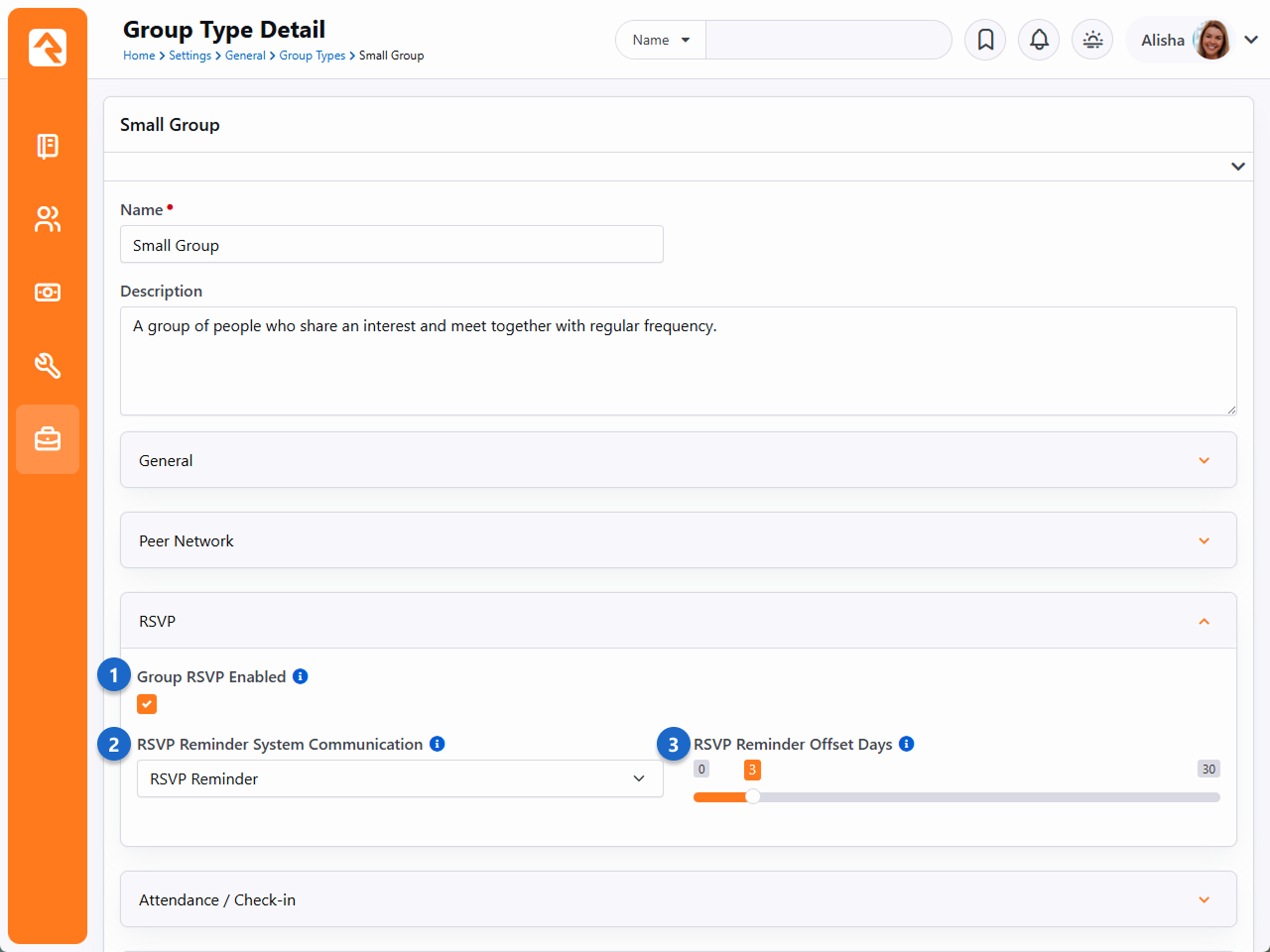
- 1 Group RSVP Enabled
- This checkbox must be selected to access RSVP features for any group of this type. Once enabled, the
other two fields related to RSVP will appear.
- 2 RSVP Reminder System Communication
- Select the System Communication that should be used to send reminders to invitees who have Accepted.
Only communications in the “RSVP Confirmation” category will be available for selection. The selected
communication will automatically be used with all groups of this type. Leave this blank to set the
System Communication on each group individually.
- 3 RSVP Reminder Offset Days
- Indicate how many days before the event the reminder should be sent. Like the communication selection,
you won’t be able to change the offset days for individual groups if you set a value here. All groups of
this type will inherit the offset days set at the group type level. Set this to '0' days if you instead
want to manage the reminder offset days on each group individually.
RSVP - Group Viewer
After you’ve enabled RSVP for a group type, you’ll see a couple of changes when viewing groups of that type from the
Group Viewer page.
First, you’ll notice the addition of a new
icon that will take you to the Group RSVP List page,
where you can view or add occurrences. We’ll talk more about occurrences in the
RSVP Occurrences section below.
Group Viewer With RSVP
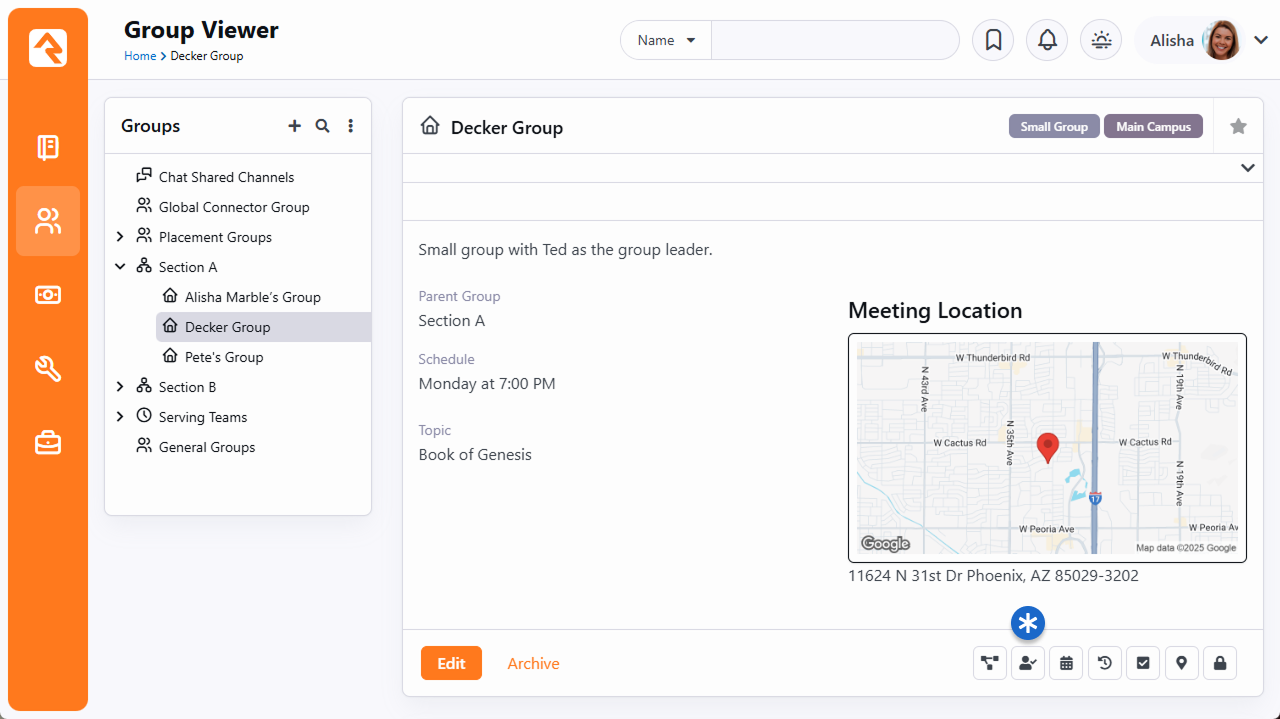
Second, you can Edit a group to access the
RSVP Reminder System Communication
and
RSVP Reminder Offset Days
for that group. These settings are only available for groups where RSVP has been enabled on the group type.
Group Viewer RSVP Reminder Settings
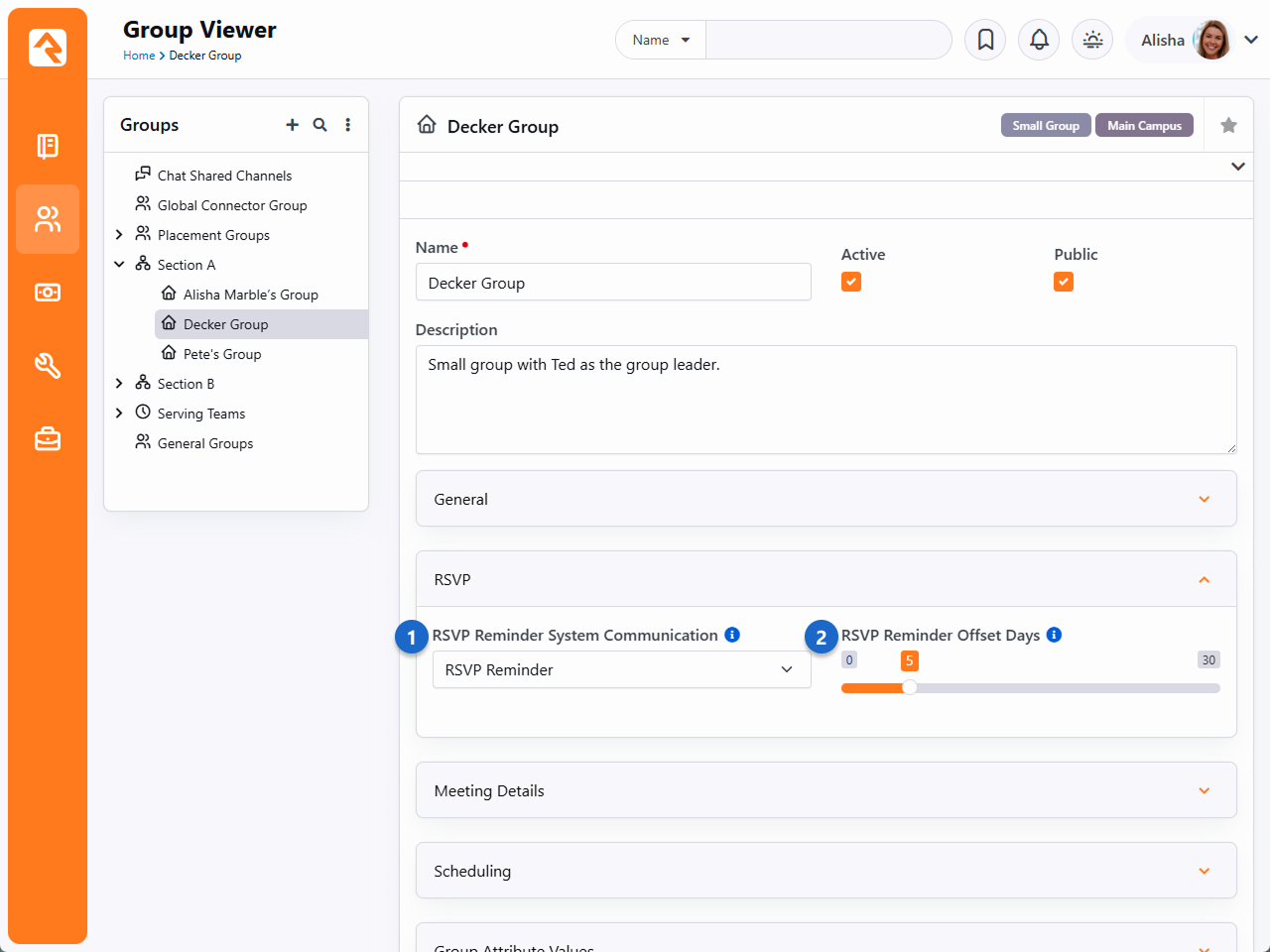
- 1 RSVP Reminder System Communication
- Select the System Communication
that should be used to send reminders to invitees who have Accepted.
Only communications in the “RSVP Confirmation” category will be listed for selection. If you already
set this at the group type level, then you won’t be able to change it here.
- 2 RSVP Reminder Offset Days
- Indicate how many days before the event the reminder should be sent. Like the communication selection,
you won’t be able to change the reminder settings for individual groups if they’re already configured
for the group type.
Group RSVP List
Clicking the icon
takes you to the Group RSVP List page. It will be empty when
you first start, but after you add a few occurrences to the list (see RSVP Occurrences)
you’ll quickly see how useful this page is. Let's take a look.
RSVP List Page
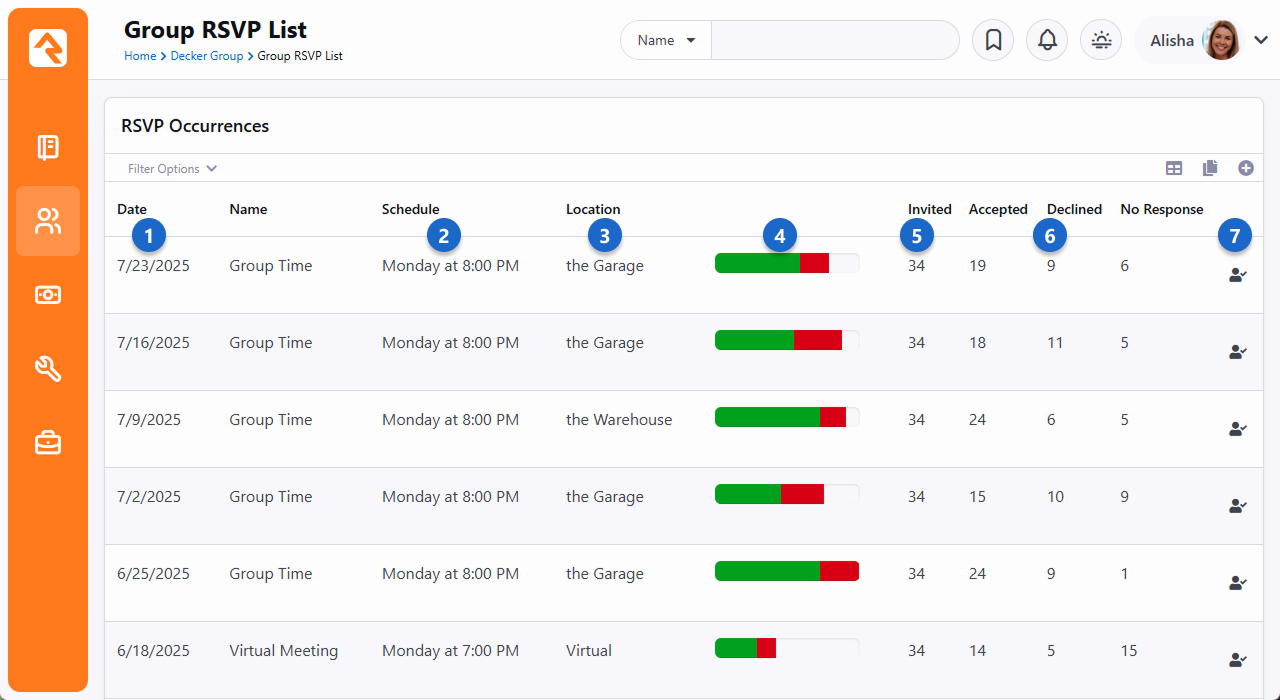
- 1 Date
- The date of the occurrence is shown in the first column. You can use the
Filter Options
near the top of the block to narrow the list by date.
- 2 Schedule
- The check-in schedule associated with the occurrence, if applicable, is shown here.
- 3 Location
- If a location has been assigned to the occurrence you can see it here.
- 4 Response Progress Bar
-
This column gives you a graph of RSVP response data:
- Green = Accepted
- Red = Declined
- Blank/Gray = No Response
- 5 Invited
- You can view the count of all invitees for the occurrence, so you know how many people
were invited.
- 6 Response Statistics
- In this part of the block, you can see how many people have replied to the RSVP with either an Accept
or Decline, and a count of how many haven’t responded.
- 7 RSVP Detail Icon
- Click the
icon to access the RSVP Detail
page (see RSVP Detail).
RSVP Occurrences
Let’s look at how to add an occurrence to the RSVP List. You'll need to have at least one
occurrence set up for the group before you can start sending your RSVP emails.
Add Occurrence
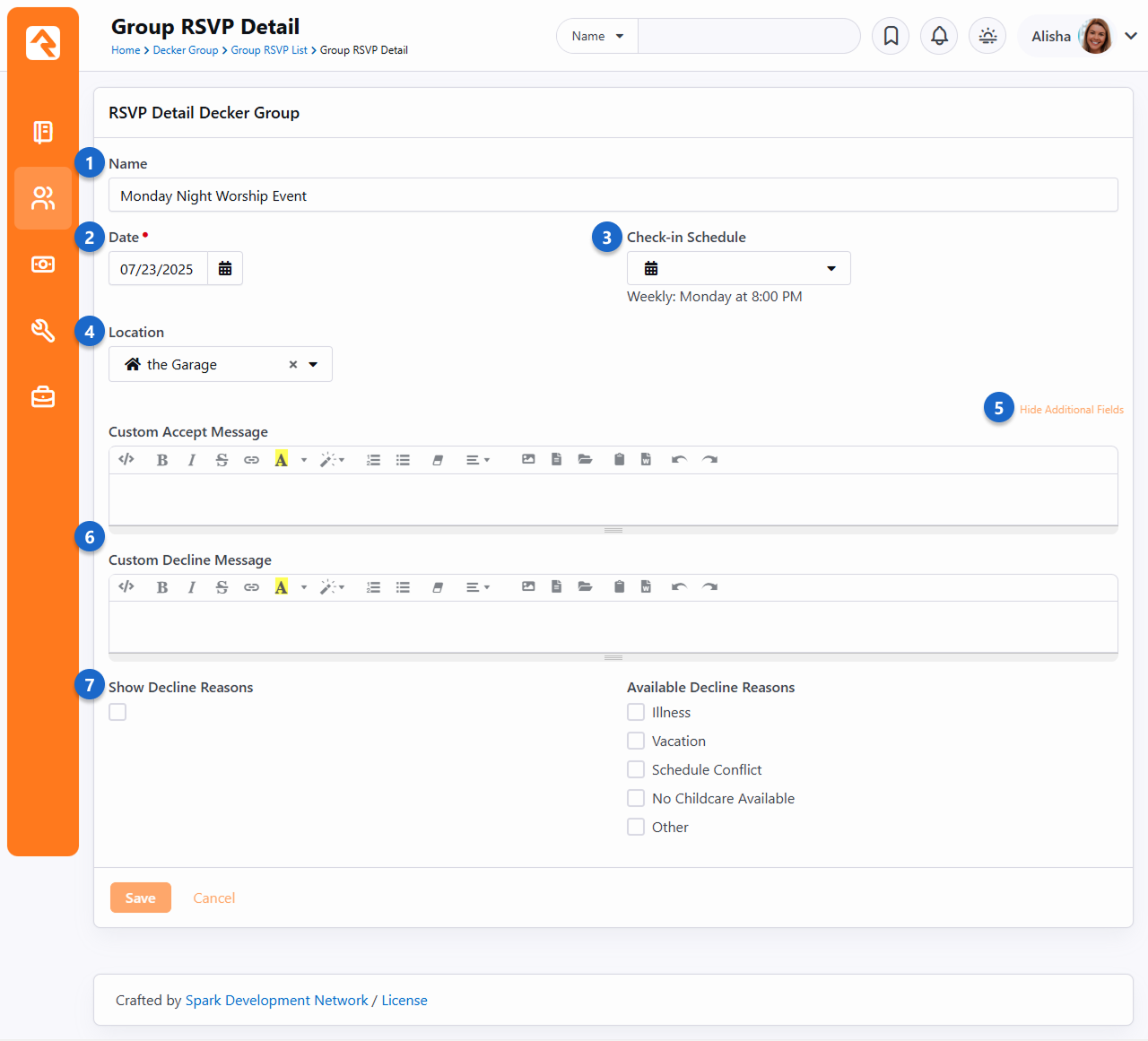
- 1 Name
- You can optionally set a unique name for an occurrence. This applies only to the
occurrence being viewed. Invitees will see the name you provide on the external
website when they Accept or
Decline.
- 2 Date
- Set the date of the occurrence.
- 3 Check-in Schedule
- Choose the check-in schedule associated with the occurrence, if applicable.
- 4 Location
- Select the location of the occurrence.
- 5 Show/Hide Additional Fields
- Click Show Additional Fields
to reveal the settings for custom messages and decline reasons (listed below).
- 6 Custom Accept/Decline Messages
- You can customize the message invitees see when they respond to your RSVP request. We'll show you what that
looks like in the Responding to RSVP Requests section.
- 7 Show Decline Reasons
- If the Show Decline Reasons
box is selected, then invitees can give a reason for declining. You can choose
which reasons are available to invitees from the list of
Available Decline Reasons.
Decline Reasons
The list of Available Decline Reasons can be maintained from the
Admin Tools > General Settings > Defined Type
list under Group RSVP Decline Reason.
RSVP Email Requests
Now that we have an occurrence set up, we’re ready to send out some invitations.
Adding an RSVP request to an e-mail is as simple as clicking and dragging the RSVP tool button
(look for the icon) into
your email. If you’re not sure how to get to this point, check out
the Communication Wizard section
in the Communicating With Rock guide.
Add RSVP To New Communication
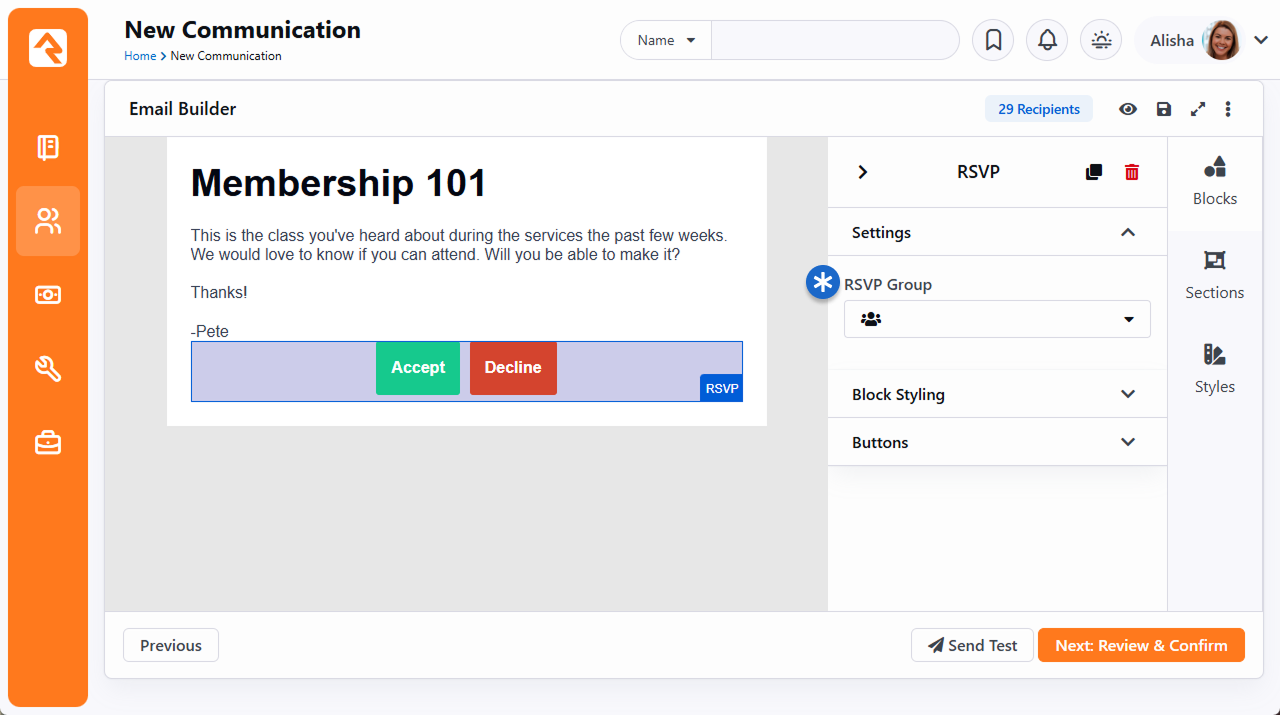
After the RSVP buttons have been added to the body of your email, use the panel on the right to select
the group and occurrence.
Add Occurrence to Email
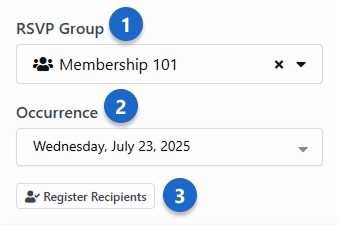
- 1 Select Group
- Choose the group associated with the occurrence. Only group types with RSVP enabled will be in
the list of options.
- 2 Select Occurrence
- Pick the occurrence for which you want to send an email.
The RSVP responses you receive will be for this occurrence.
- 3 Register Recipients
- Click the Register Recipients button to keep
track of RSVP data for all the recipients of your email. If this button
isn’t used, only people who have responded to your RSVP request will appear in the
RSVP List
or
RSVP Detail
pages.
- 4 Show Advanced Settings
- You can use the advanced settings to customize how the RSVP buttons are shown to invitees.
RSVP Detail
Now that we’ve sent our email, we need to monitor the responses.
We’ll do this from the RSVP Detail
page, which you can get to by clicking an occurrence
from the RSVP List page.
The detail block at the top of the RSVP Detail page
shows the occurrence details and a graph of responses. The list block at the bottom of the page shows
your invitees and their responses.
RSVP Detail Page
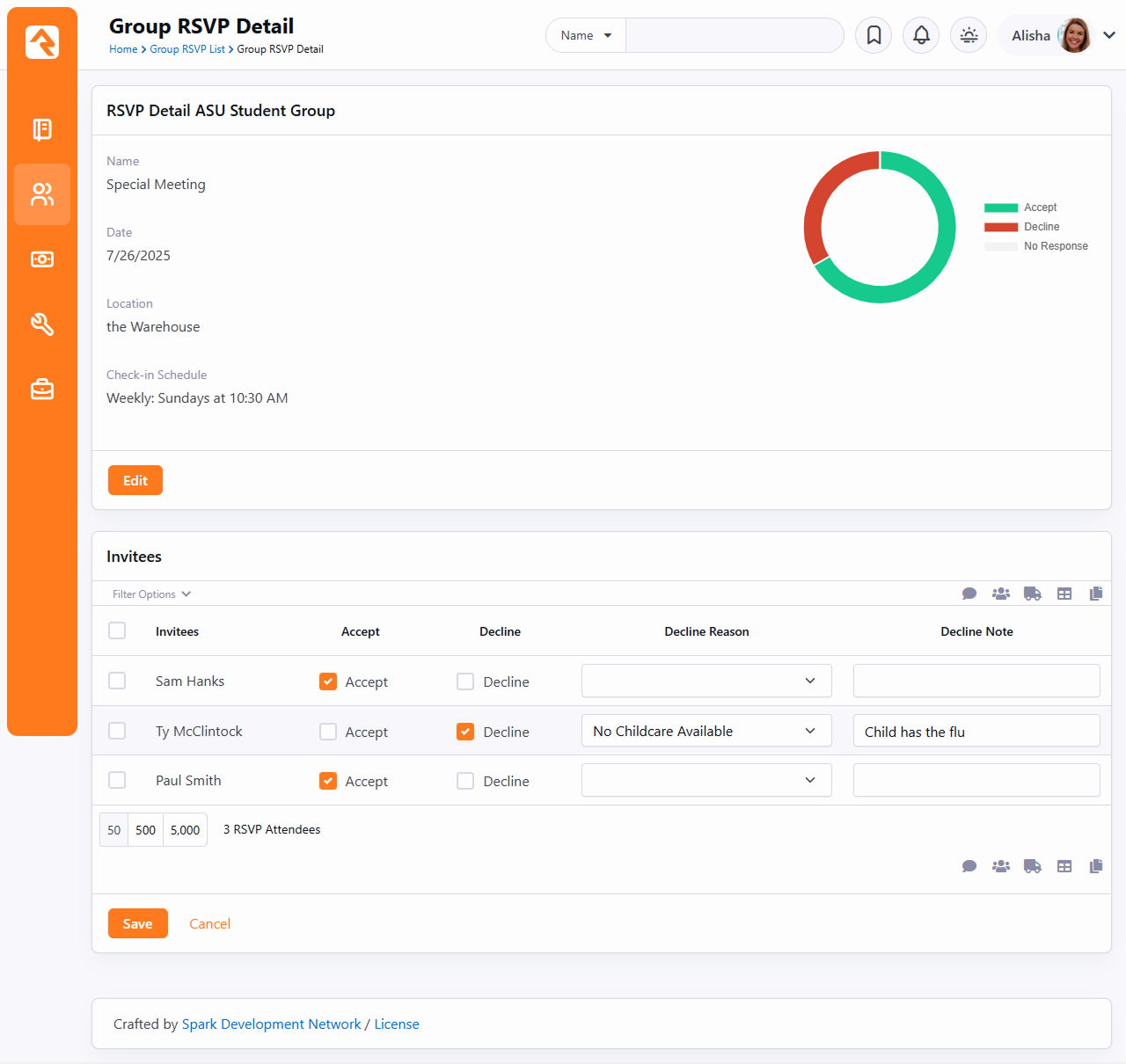
Not only can you view responses, but you can also update responses or add decline notes if you need to. This
ensures you always have accurate information, especially if the invitee responds (or changes their response)
by phone or in person.
If you didn’t turn on the Show Decline Reasons option for the occurrence,
then the Decline Reason
and Decline Note columns won’t be shown.
Missing Invitees?
If you used the Register Recipients button when sending your email,
then everyone from your email will be on this list. Otherwise, you'll only see people who have responded.
Responding to RSVP Requests
It may be helpful for you to know what individuals will be seeing and doing after they receive your RSVP email.
Clicking either Accept or Decline in the email will bring the invitee to your external site.
What happens at that point depends on how you’ve set up your group, occurrence and email.
Public Group Member Attributes
When adding a member attribute to either a group or group type, you'll notice a
Public setting.
This setting controls whether the member attribute is included as part of the RSVP
response process.
Enable Public Attributes
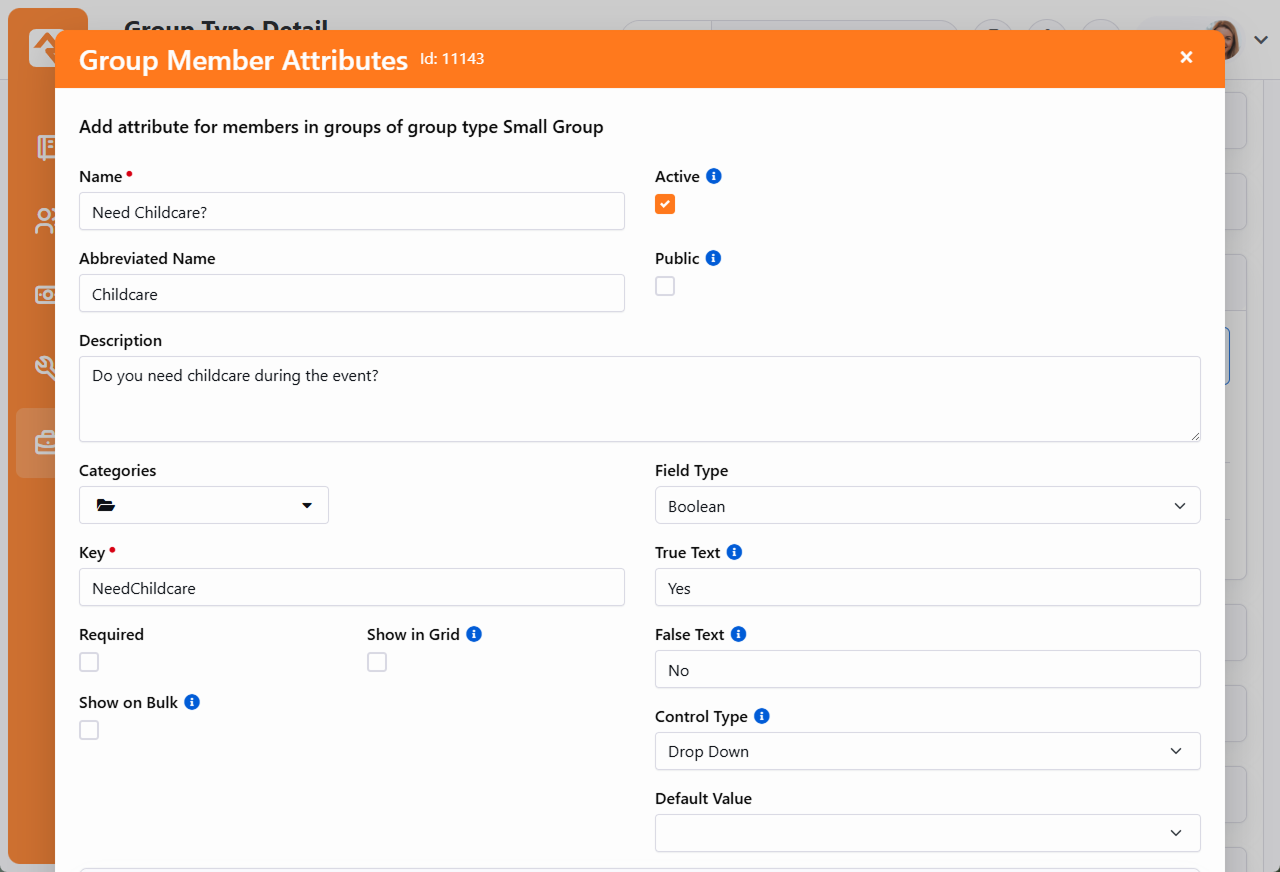
If the Public setting is enabled,
then the group member attribute will be shown to RSVP invitees who accept your invitation. This allows you
to gather additional information from the invitee beyond knowing that they plan to attend. We’ll show
you exactly what this looks like in the Accept section below.
Accept
Invitees will be taken to your website after clicking “Accept” in the RSVP email they received. If you’ve
attached any public member attributes to your group, then invitees will be asked to provide additional
information (i.e., attribute values) accordingly.
For example, the RSVP Response page pictured below has a field
labeled “Need Childcare?” with a drop-down menu below it. This prompts the individual to disclose if they need childcare before
finalizing their RSVP acceptance. You can see how this particular member attribute was set up in the
Public Group Member Attributes section above.
RSVP Accept With Attribute
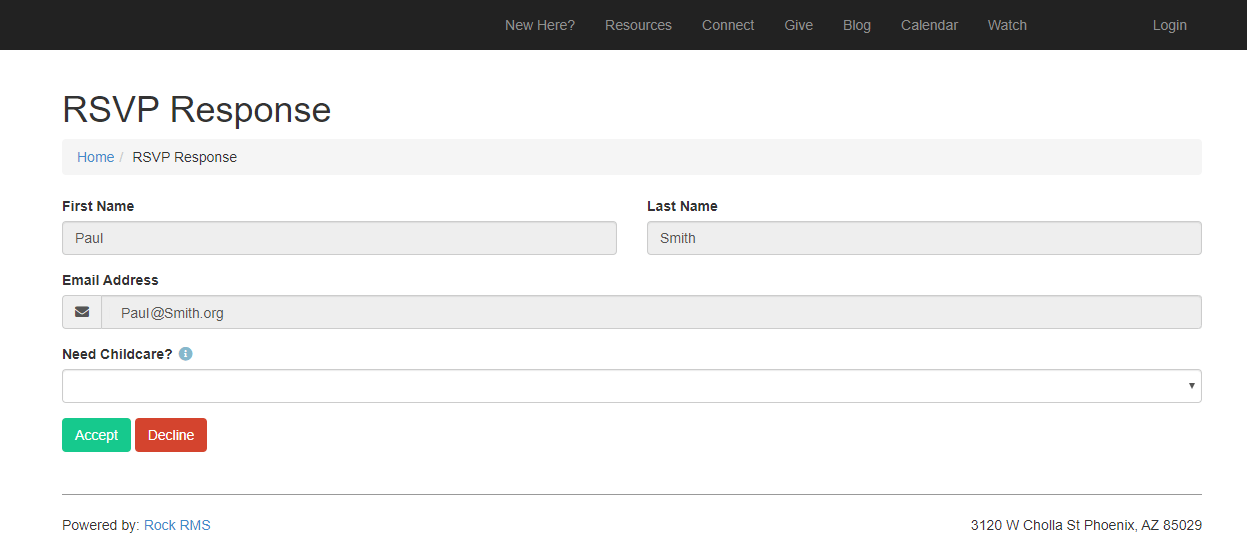
After the invitee clicks the Accept button on the page pictured above,
they’ll be brought to the acceptance confirmation page pictured below.
If you didn't add any public member attributes to your group, then the above page is skipped because there is nothing
else the invitee needs to provide. Instead, invitees will be taken directly to the acceptance confirmation page
pictured below when they click “Accept” from the RSVP email.
RSVP Accept Message
The generic acceptance message pictured above can be customized if desired (see RSVP Occurrences).
Accepts Become Group Members
Rock will always add a person who accepts the RSVP into the group as a group member. This is especially
needed when, for example, group member attributes are used. If an individual declines the RSVP
invitation, they won’t be removed from the group.
Decline
Just like clicking Accept, you control what happens when a person clicks Decline.
If the person declines, and if you enabled decline reasons, then they’ll be asked to provide a reason.
RSVP Decline With Reason
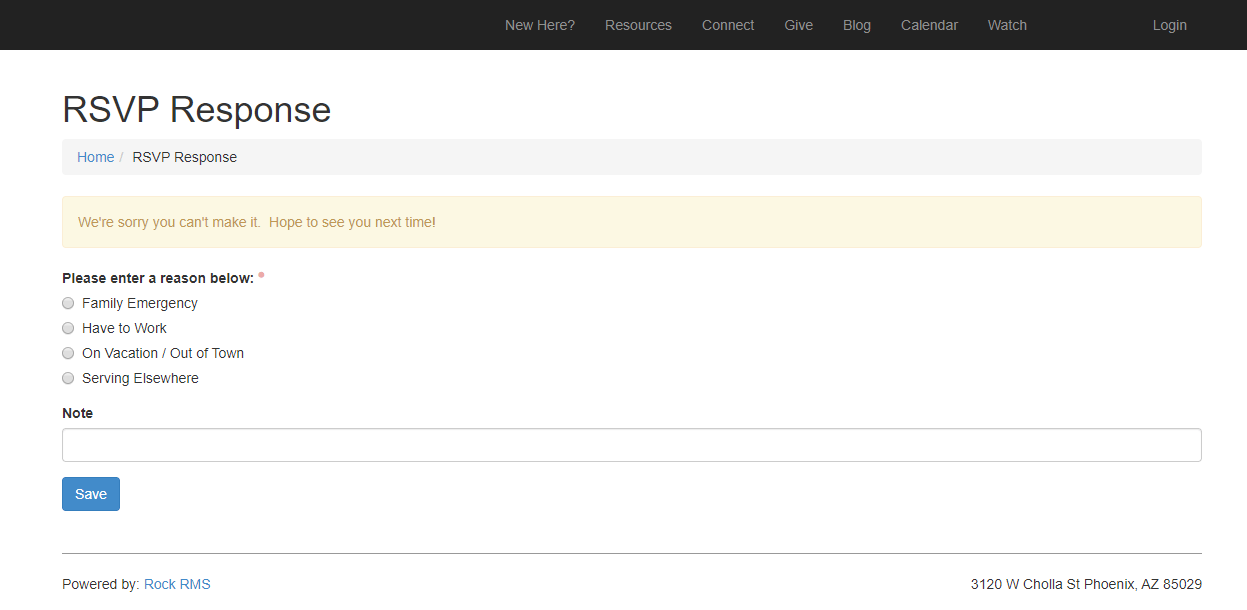
In the above example a custom decline message is displayed near the top of the block. If you didn’t customize your
decline message, then the generic message (pictured below) will appear instead.
If you didn’t enable decline reasons, then the invitee will be taken directly to the page below from the email.
RSVP Decline Message
Group RSVP Reminders
The Send Rsvp Reminders job will send a reminder to
people who have accepted an RSVP invitation. Those who have declined or who haven’t responded won’t receive a reminder.
The job is ready for you to use out of the box, but it must be manually configured and is intended to be run daily. It
will use the RSVP Reminder System Communication for
the content, as configured at either the group or group type level. If you haven’t selected a
System Communication to use, then the
job will not send a reminder.
Sending Reminders using SMS
If a person's communication preference is SMS, and if the
System Communication you use for RSVP
reminders is fully configured for SMS, then the reminder will be sent as a text instead of an email.
Group RSVP Reminders Job
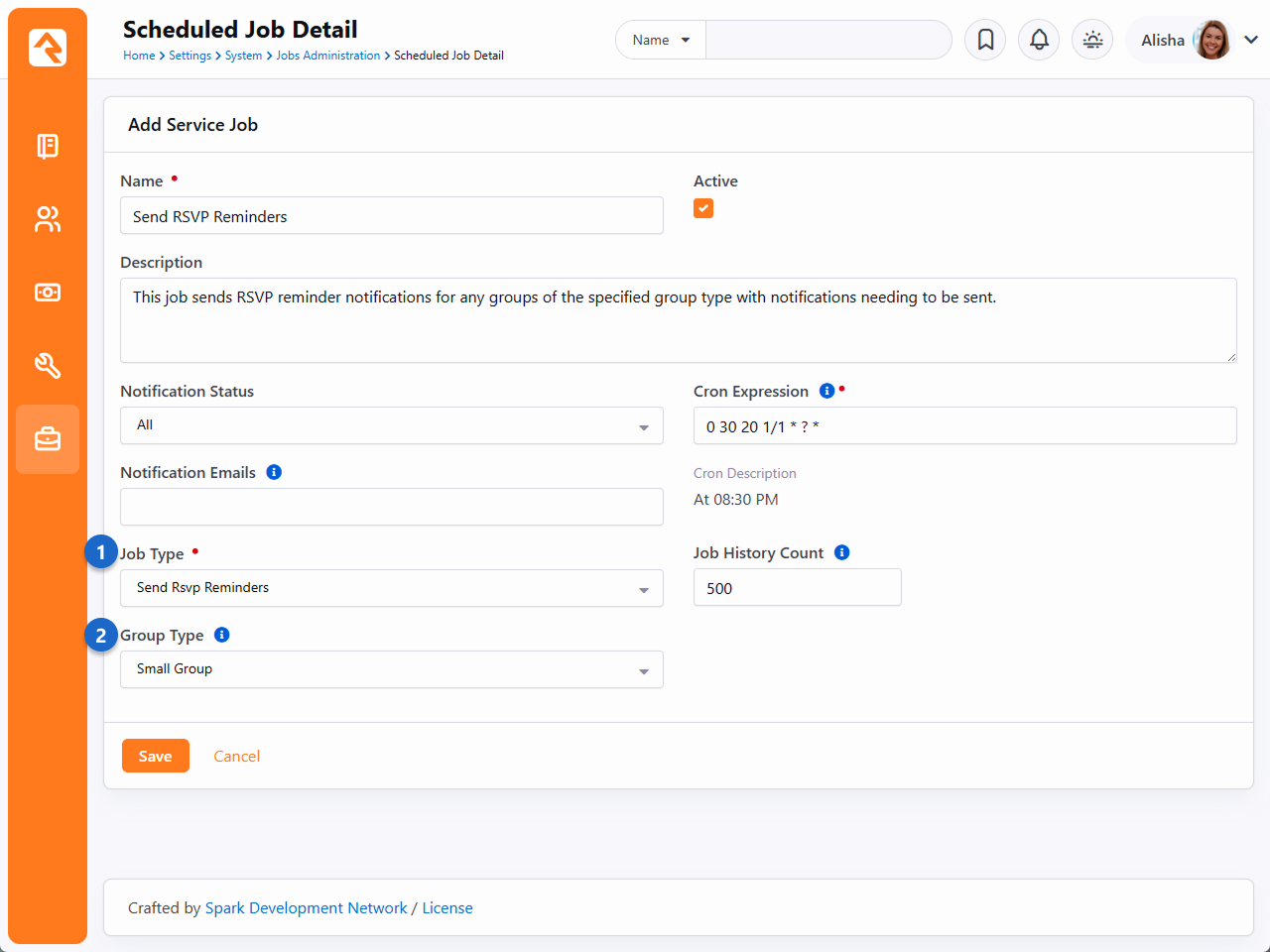
- 1 Job Type
- For RSVP reminder communications, be sure to select the
Send Rsvp Reminders
job as pictured above. You’ll then be prompted to select a group type.
- 2 Group Type
- The Send Rsvp Reminders
job will attempt to send reminders for all group types if one is not specified here. Otherwise, you
can pick a group type if you only want to send reminders for groups of that type. In most cases you’ll
probably want to configure a single job, without picking a group type, for all of your reminders.
You can create multiple jobs if needed but be sure every instance of the job has its own group type
specified or you risk sending duplicate communications.
Don’t forget that the Send Rsvp Reminders job
will reference the configured RSVP Reminder Offset Days
value (either from the group type or for a particular group) to determine when to send reminders for any given occurrence.